
1. 제품 오버view
The ProtoArc Foldable Bluetooth Keyboard (XK01) and Ergonomic Vertical Mouse (EM11) combo offers a portable and comfortable solution for your computing needs. The keyboard features a full-size layout with a numeric keypad and multi-device Bluetooth connectivity, while the ergonomic mouse promotes a natural wrist position to reduce fatigue.

Image 1.1: ProtoArc Foldable Bluetooth Keyboard and Ergonomic Mouse setup, illustrating multi-device capability.
주요 특징:
- Folding Full-size Wireless Keyboard (XK01): 105-key layout with numeric keypad (Dimensions: 15.19 x 4.68 inch). Features non-slip pads for stability.
- Wireless Ergonomic Mouse (EM11): Designed with an extended wrist rest for a natural, relaxed hand position, reducing fatigue compared to standard mice.
- 다중 장치 연결: Both devices can sync with up to 3 devices simultaneously via Bluetooth channels, allowing easy switching between Windows, Mac OS, iOS, or Android devices.
- 충전식 및 휴대용: The keyboard has a built-in 210 mAh battery with 5 months standby time. The mouse has a built-in 500mAh Li-Ion battery. Both are rechargeable via Type-C.
- 내구성 있는 디자인: Keyboard features aluminum hinges tested for 100,000 folding actions.
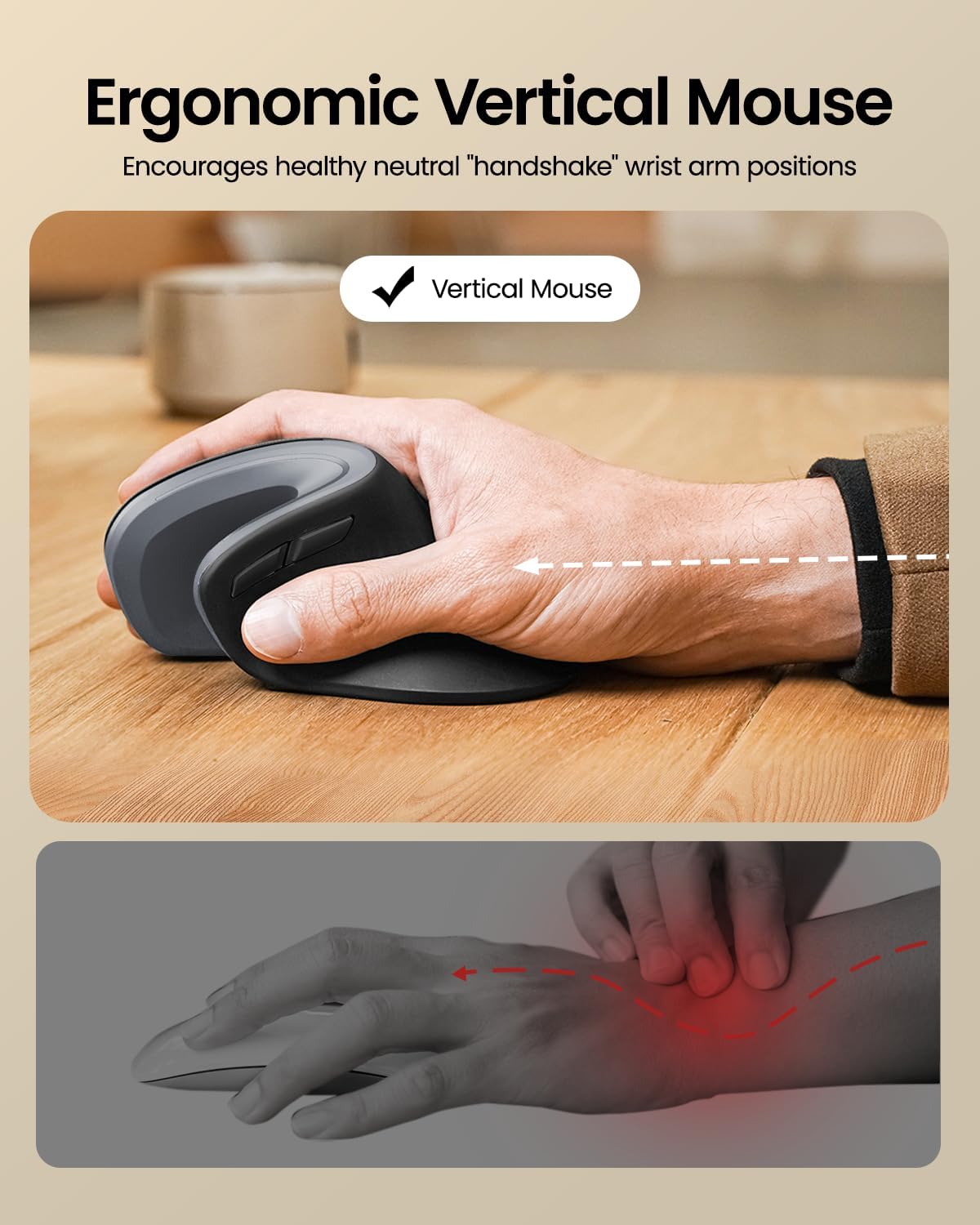
Image 1.2: Ergonomic design of the ProtoArc Vertical Mouse, promoting a healthy wrist position.

Image 1.3: The 58° angle of the ergonomic mouse for a natural handshake position.
2. 설정 및 페어링
Follow these steps to set up and pair your ProtoArc Foldable Bluetooth Keyboard and Ergonomic Mouse with your devices.
2.1. Keyboard Setup (XK01)
- 키보드를 펼치세요: Gently unfold the keyboard until it lies flat. The magnetic hinges will secure it in place.
- 전원 켜기: Locate the power switch (usually on the side or back) and slide it to the 'ON' position. An indicator light will illuminate.
- 페어링 모드 시작: Press and hold one of the Bluetooth channel keys (e.g., BT1, BT2, or BT3) for a few seconds until the corresponding indicator light flashes rapidly. This indicates the keyboard is in pairing mode.
- 내 기기에서 연결하세요: On your computer, tablet, or smartphone, go to Bluetooth settings. Select "ProtoArc Keyboard" (or similar name) from the list of available devices. Follow any on-screen prompts to complete pairing.
- 스위치 장치: To switch between paired devices, simply press the corresponding Bluetooth channel key (BT1, BT2, or BT3).

Image 2.1: The keyboard's durable folding mechanism.
2.2. Mouse Setup (EM11)
- 전원 켜기: 마우스 하단에 있는 전원 스위치를 찾아 '켜짐' 위치로 밀어주세요.
- 페어링 모드 시작: Press the Bluetooth pairing button (usually on the bottom) for a few seconds until the indicator light flashes.
- 내 기기에서 연결하세요: On your computer, tablet, or smartphone, go to Bluetooth settings. Select "ProtoArc Mouse" (or similar name) from the list of available devices. Follow any on-screen prompts to complete pairing.
- 다중 장치 페어링: The mouse also supports multi-device pairing. Refer to the specific instructions in the included user manual for detailed steps on pairing with multiple devices.
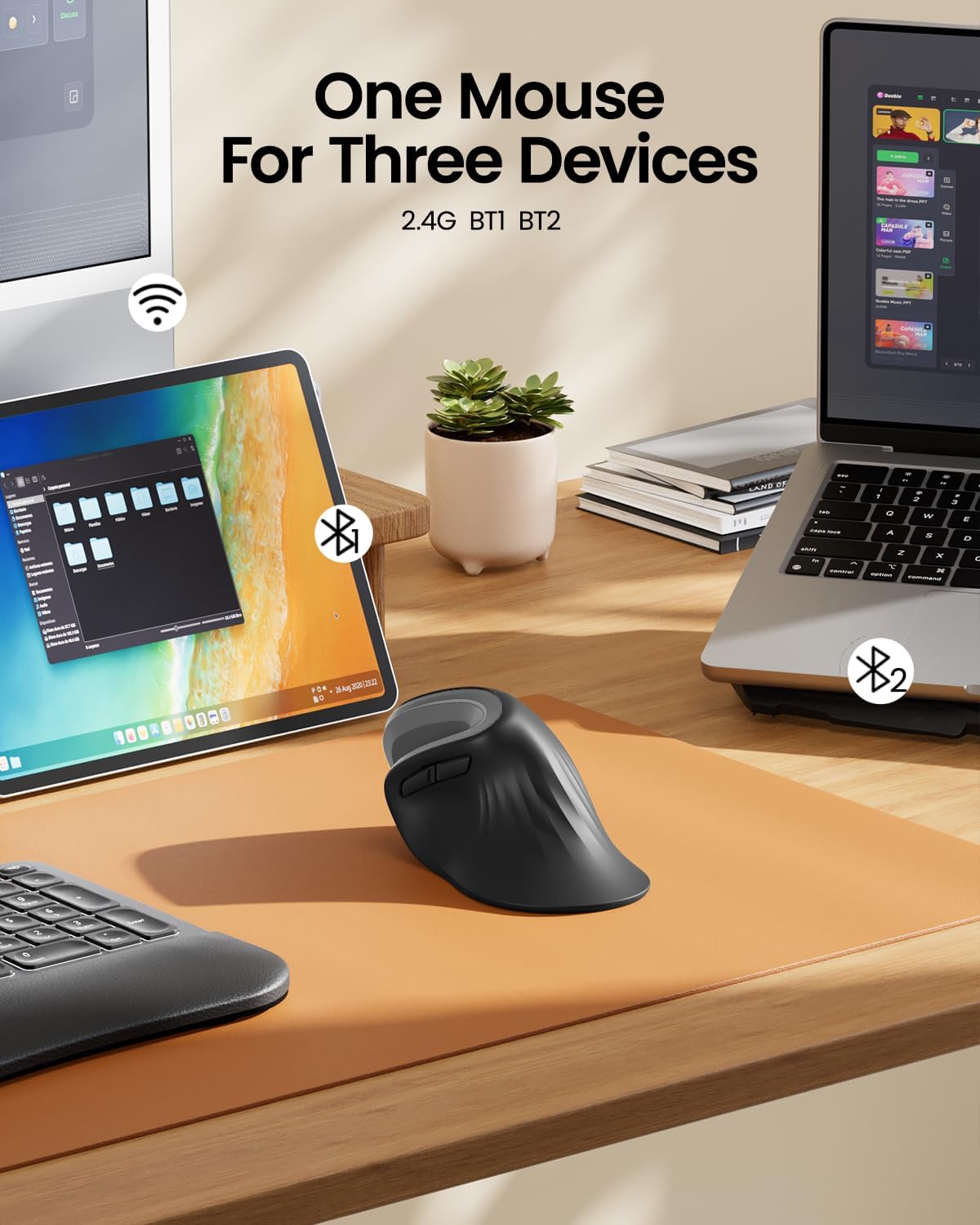
Image 2.2: The ergonomic mouse's ability to connect to three devices.
3. 사용 설명서
3.1. Keyboard Usage (XK01)
- 타자: The full-size QWERTY layout with scissor-switch keys provides a comfortable and responsive typing experience.
- 숫자 키패드: 내장된 숫자 키패드를 활용하여 효율적인 데이터 입력을 하십시오.
- 기능 키: Use the Fn key in combination with other keys for various shortcuts and media controls. Refer to the keyboard's key legends for specific functions.
- Backlight (if applicable): If your keyboard model includes backlighting, use the designated key combination (often Fn + a specific key) to adjust brightness or toggle the backlight on/off.

Image 3.1: Scissor switch keys for comfortable typing.
3.2. Mouse Usage (EM11)
- 인체공학적 그립: Hold the mouse with your hand in a natural "handshake" position, allowing your forearm and wrist to remain relaxed.
- 버튼: The mouse features standard left/right click buttons, a scroll wheel, and additional programmable buttons for enhanced productivity.
- DPI 조정: Adjust the mouse sensitivity (DPI) using the dedicated DPI button, typically located near the scroll wheel, to suit your preference.
4. 유지관리 및 충전
4.1. 충전
- 건반: Connect the provided Type-C charging cable to the keyboard's charging port (Image 4.1) and a USB power source. The charging indicator light will show charging status. A full charge provides approximately 5 months of standby time.
- 생쥐: Connect the provided Type-C charging cable to the mouse's charging port (Image 4.2) and a USB power source. The mouse has a 500mAh Li-Ion battery.

Image 4.1: Keyboard charging port and stable hinge.

Image 4.2: Ergonomic mouse charging via Type-C.
4.2. 청소
To clean your devices, power them off and use a soft, dry, lint-free cloth. For stubborn dirt, slightly damp천에 물을 묻혀 닦으세요. 강한 화학 물질이나 연마재는 사용하지 마세요.
5. 문제 해결
- 장치가 연결되지 않음: Ensure both the keyboard and mouse are powered on and in pairing mode. Check your device's Bluetooth settings to ensure Bluetooth is enabled and the correct device is selected. Try restarting both the peripheral and your host device.
- 지연 또는 연결 끊김: Ensure there are no obstructions between the peripheral and your device. Move closer to your device. Check battery levels and recharge if necessary.
- 키가 응답하지 않음: Check if the keyboard is powered on and connected. If specific keys are not working, try cleaning around them.
- 마우스 커서가 움직이지 않음: Ensure the mouse is powered on and connected. Check the surface you are using the mouse on; a non-reflective, even surface is ideal.
If you encounter persistent issues, please refer to the "Warranty and Support" section for contact information.
6. 사양
| 특징 | 사양 |
|---|---|
| 상표 | 프로토아크 |
| 색상 | 회색 |
| 연결 기술 | 블루투스 |
| 호환 장치 | Tablet, Smartphone, Laptop (Windows, macOS, iOS, Android) |
| 키보드 유형 | Folding Full-size Wireless Keyboard (XK01) with 105 keys, numeric keypad |
| 키보드 레이아웃 | 쿼티 |
| 마우스 유형 | Ergonomic Vertical Mouse (EM11) |
| 손의 방향 | 양손잡이 |
| 전원 | 배터리 구동식 (Type-C를 통해 충전 가능) |
| 키보드 배터리 | 210 mAh (5 months standby) |
| 마우스 배터리 | 500mAh 리튬이온 |
7. 보증 및 지원
ProtoArc products come with a standard manufacturer's warranty. For detailed warranty information, product support, or troubleshooting assistance, please contact ProtoArc customer service.
- 이메일 지원: support@protoarc.com
- Web대지: www.protoarc.com