
1. 서론
Thank you for choosing the WARRKY AE04 USB A/C to Ethernet Adapter. This manual provides detailed instructions for the proper installation, operation, and maintenance of your new adapter. Please read this manual thoroughly before use to ensure optimal performance and longevity of the product.
The WARRKY AE04 adapter allows you to connect your USB-A or USB-C enabled device to a wired Ethernet network, providing a stable and high-speed internet connection up to 1 Gigabit per second (1000 Mbps).
2. 제품 오버view
The WARRKY AE04 is a versatile 2-in-1 adapter designed for seamless wired network connectivity. It features both USB-A and USB-C connectors, allowing compatibility with a wide range of devices. The adapter is compact, portable, and built with quality materials for durability.

그림 2.1: Two WARRKY AE04 USB A/C to Ethernet Adapters, showcasing their compact design and dual connectivity options.
주요 특징:
- 이중 연결: Equipped with both USB-A and USB-C connectors for broad device compatibility.
- 기가비트 이더넷 : Supports network speeds up to 1000 Mbps for fast and stable internet.
- 플러그 앤 플레이: 대부분의 운영 체제에서는 드라이버가 필요하지 않습니다.
- 내구성 있는 디자인: Features a gold-plated connector, aluminum shell, and anti-loss protection.
- LED 표시등: Provides visual status of network connection.
- 소형 및 휴대성: Slim design for easy transport.

그림 2.2: The WARRKY AE04 adapter demonstrating its dual USB-A and USB-C connector design, allowing for versatile use with various devices.

그림 2.3: An illustration of the WARRKY AE04 adapter's quality features, including gold plating, aluminum shell, anti-loss protection, and an LED indicator, along with a bend test graphic.
3. 설정 지침
The WARRKY AE04 adapter is designed for simple plug-and-play operation, requiring no driver installation for most compatible operating systems.
- 어댑터를 기기에 연결하세요:
- If your device has a USB-C port, connect the USB-C end of the adapter directly into the port.
- If your device has a USB-A port, attach the included USB-A converter to the USB-C end of the adapter, then plug the USB-A connector into your device's USB-A port.
- 이더넷 케이블 연결: Insert a standard RJ45 Ethernet cable (Cat 6 or higher recommended for optimal performance) into the RJ45 port on the WARRKY AE04 adapter. Connect the other end of the Ethernet cable to your router, modem, or network switch.
- 연결 확인: Once connected, the LED indicator on the adapter should illuminate, indicating an active network connection. Your device should automatically detect the wired network connection.
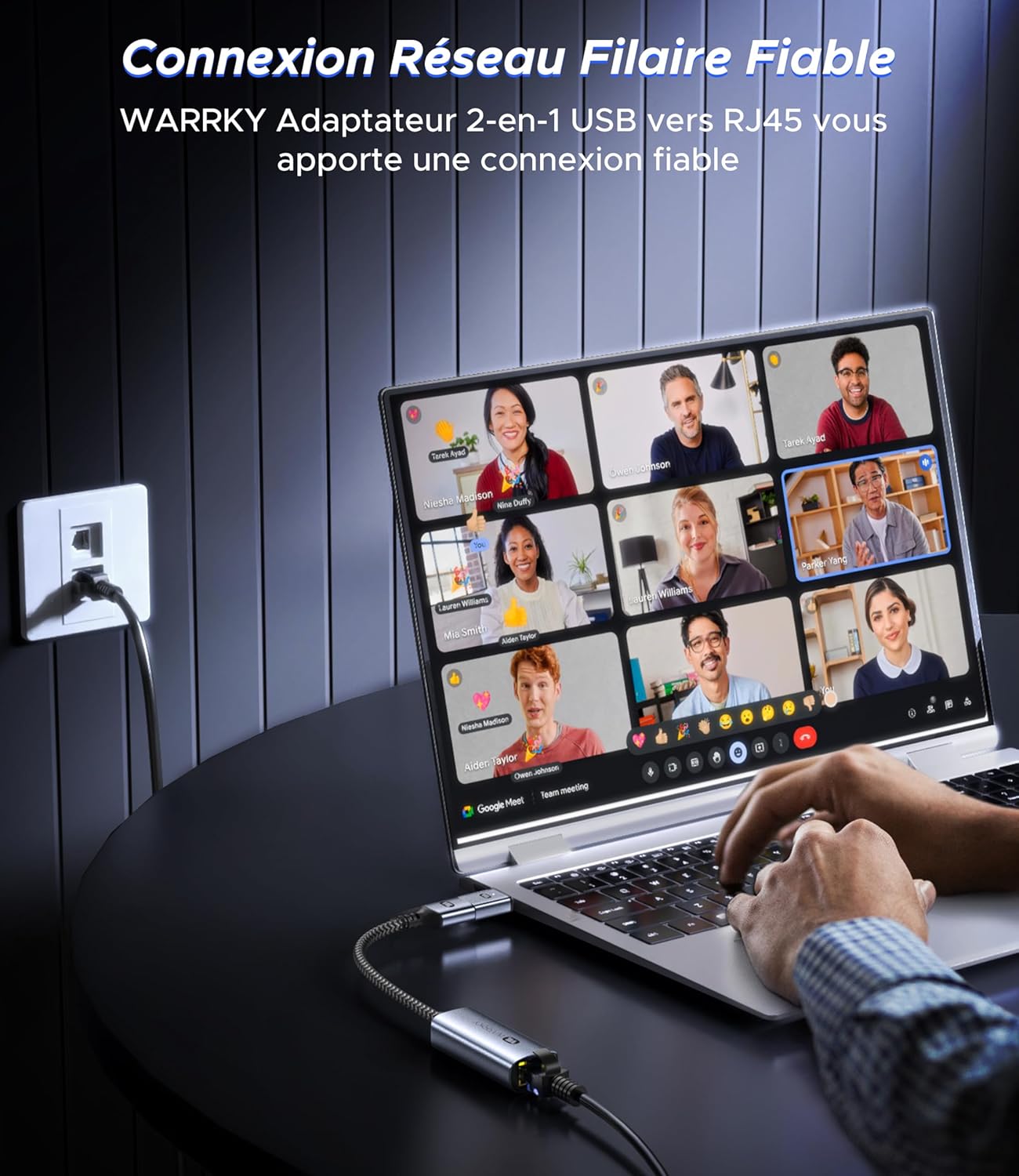
그림 3.1: The WARRKY AE04 adapter providing a reliable wired network connection to a laptop, demonstrating the simple plug-and-play setup.
4. 사용 설명서
After successful setup, the WARRKY AE04 adapter operates automatically, providing a stable wired network connection.
- 네트워크 속도: The adapter supports Gigabit Ethernet, capable of achieving speeds up to 1000 Mbps. For optimal performance, ensure your router, modem, and Ethernet cable (Cat 6 or higher) also support Gigabit speeds.
- LED 표시등: The integrated LED light on the adapter indicates the status of your network connection. A solid light typically signifies an active link, while a blinking light indicates data transfer.
- 안정: A wired connection generally offers greater stability and lower latency compared to Wi-Fi, making it ideal for online gaming, video conferencing, and large file 이전.

그림 4.1: Visual representation of the WARRKY AE04 adapter delivering 1000 Mbps wired network speed, significantly faster than typical 100 Mbps Wi-Fi connections. It is recommended to use CAT 6 or higher Ethernet cables for 1Gbps speed.
5. 호환성
The WARRKY AE04 adapter offers broad compatibility with various devices and operating systems, thanks to its dual USB-A and USB-C design and driver-free operation.
호환되는 운영 체제:
- Windows (XP/Vista/7/8/10/11)
- 맥 OS
- 크롬 OS
- 리눅스
- 기계적 인조 인간
- 아이패드 OS

그림 5.1: The WARRKY AE04 adapter featuring a Realtek chip, indicating wide compatibility with various operating systems including Windows, Mac OS, Chrome OS, Linux, Android, and iPad OS, without requiring additional drivers.
호환 장치:
- USB-A 장치: Desktop Computers, Laptops, Nintendo Switch, TV Boxes.
- USB-C 장치: Smartphones, MacBooks, Steam Deck, Tablets.
Note: This adapter is NOT compatible with Wii/Wii U consoles.
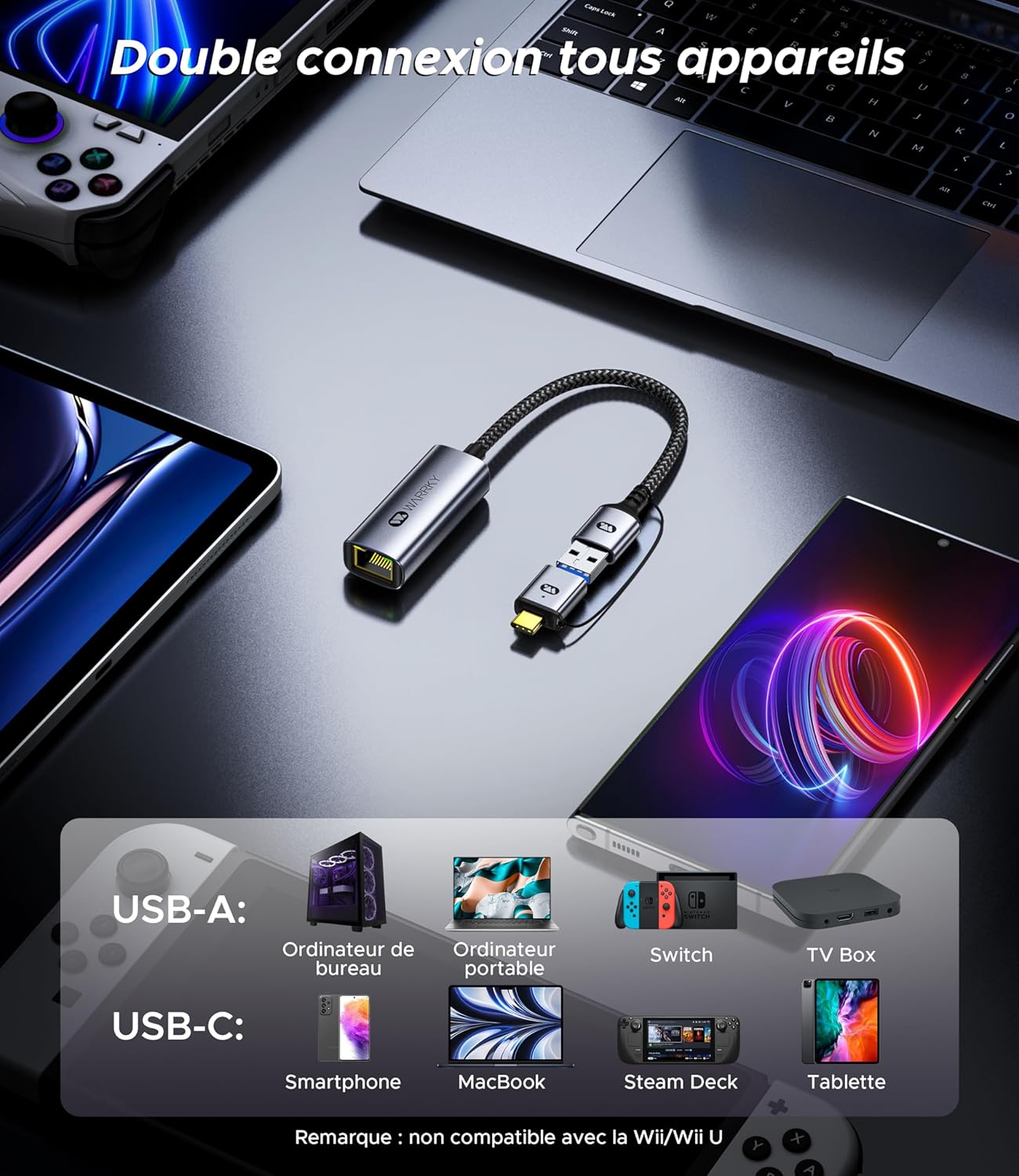
그림 5.2: The WARRKY AE04 adapter demonstrating its dual connectivity with a range of devices, including desktop PCs, laptops, Nintendo Switch, TV boxes via USB-A, and smartphones, MacBooks, Steam Deck, and tablets via USB-C. It explicitly states incompatibility with Wii/Wii U.
6. 사양
| 특징 | 세부 사항 |
|---|---|
| 모델 번호 | WARRKY-DT-AE04 |
| 연결성 | USB-A 3.0, USB-C 3.0, RJ45 Ethernet |
| 이더넷 속도 | 최대 1000Mbps(기가비트 이더넷) |
| 포트 수 | 1x RJ45, 1x USB-A (via converter), 1x USB-C |
| 품목 무게 | 2.46 온스(약 70그램) |
| 패키지 크기 | 4.65 x 3.46 x 0.67 인치 |
| 한국어: | 721295573153 |
| 운전자 요구 사항 | Driver-free for most compatible OS |

그림 6.1: The WARRKY AE04 adapter highlighting its compact and portable design, with dimensions of approximately 5.3 cm length and 2.2 cm width for the main body, and a 15 cm cable length.
7. 문제 해결
If you encounter issues with your WARRKY AE04 adapter, please refer to the following common solutions:
- 네트워크 연결 없음:
- Ensure the adapter is securely plugged into your device's USB-A or USB-C port.
- Verify that the Ethernet cable is firmly connected to both the adapter and your router/modem.
- Check if your router/modem is powered on and functioning correctly.
- 어댑터를 기기의 다른 USB 포트에 연결해보세요.
- Test with a different Ethernet cable to rule out cable issues.
- 컴퓨터와 네트워크 장비(라우터/모뎀)를 재시작하십시오.
- 네트워크 속도가 느립니다:
- Ensure your Ethernet cable is Cat 6 or higher, as older cables (e.g., Cat 5) may limit speeds.
- Verify that your internet service plan and network equipment (router/modem) support Gigabit speeds.
- 네트워크에서 상당한 대역폭을 소비하는 다른 장치가 있는지 확인하십시오.
- 기기의 운영체제가 최신 상태인지 확인하세요.
- 어댑터가 인식되지 않음:
- Although driver-free, some operating systems might require a system update or specific settings. Consult your device's support documentation.
- 어댑터를 다른 호환 장치에 연결하여 문제가 어댑터에 있는지 아니면 원래 장치에 있는지 확인해 보세요.
8. 유지관리
To ensure the longevity and optimal performance of your WARRKY AE04 adapter, follow these simple maintenance guidelines:
- 청소: Use a soft, dry cloth to gently wipe the adapter. Avoid using liquid cleaners or abrasive materials, which can damage the device.
- 저장: 사용하지 않을 때는 어댑터를 직사광선과 극한의 온도를 피해 시원하고 건조한 곳에 보관하세요.
- 손질: 케이블을 과도하게 구부리거나 꼬지 마십시오. 내부 전선이 손상될 수 있습니다. 어댑터를 물이나 높은 습도에 노출시키지 마십시오.
- 커넥터 보호: Utilize the anti-loss protection feature to keep the USB-A converter securely attached when not in use, preventing misplacement.
9. 보증 및 지원
Warrky is committed to providing high-quality products and excellent customer service.
평생 보증:
Warrky offers a lifetime warranty for its products. You can upgrade to a lifetime warranty by registering your product on the official Warrky web대지: www.warrky.com.
전문가 지원:
For any technical issues or questions, Warrky provides professional technical support. You can expect a response within 18 hours.
- 기술 지원 이메일: support@warrky.com
- Suggestions or Critiques: official@warrky.com

그림 9.1: The back panel of the WARRKY product packaging, outlining details for upgrading to a lifetime warranty, professional support contact information (support@warrky.com), and an email for suggestions or critiques (official@warrky.com).