
소개
Thank you for choosing the BENFEI USB-C 6-in-1 Multifunctional Hub. This device is designed to expand the connectivity of your USB-C enabled laptop, tablet, or smartphone, providing essential ports for display, data transfer, and power delivery. This manual provides detailed instructions for setup, operation, maintenance, and troubleshooting to ensure optimal performance.
제품 끝view
The BENFEI USB-C 6-in-1 Hub features a compact and lightweight design with a durable aluminum case and a flexible silicone woven cable. It integrates six essential ports:
- HDMI 포트 1개: 최대 4K 해상도, 60Hz 주사율의 비디오 출력을 지원합니다.
- USB-C PD(Power Delivery) 포트 1개: Supports up to 100W pass-through charging (85W to host device, 15W reserved for hub operation). This port does not support data or video output.
- 2 x USB-A 3.2 Gen 2 Ports: 최대 10Gbps의 데이터 전송 속도를 제공합니다.
- 2 x USB-C 3.2 Gen 2 Data Ports: Offers data transfer speeds up to 10Gbps. These ports do not support power delivery or video output.

Image: Detailed diagram illustrating the BENFEI USB-C 6-in-1 Hub with labels for each port, including 2x USB-A 3.2 Gen 2 (10Gbps), 2x USB-C 3.2 Gen 2 Data (10Gbps), HDMI (4K@60Hz), and PD-IN (100W).
설치 지침
Follow these steps to set up your BENFEI USB-C 6-in-1 Hub:
- 호스트 장치에 연결: Plug the integrated USB-C cable of the hub into a compatible USB-C port on your laptop, tablet, or smartphone. Ensure your host device's USB-C port supports video output for HDMI functionality.
- 전원 연결(선택 사항): If your host device requires charging or if you are connecting power-intensive peripherals, connect a USB-C power adapter (not included) to the hub's USB-C PD-IN port. The hub supports up to 100W power input.
- 주변기기 연결: Connect your desired devices to the available ports on the hub:
- HDMI : Connect an HDMI cable from the hub to an external monitor or TV for video output.
- USB-A/USB-C Data: Connect USB flash drives, external hard drives, keyboards, mice, or other USB devices.
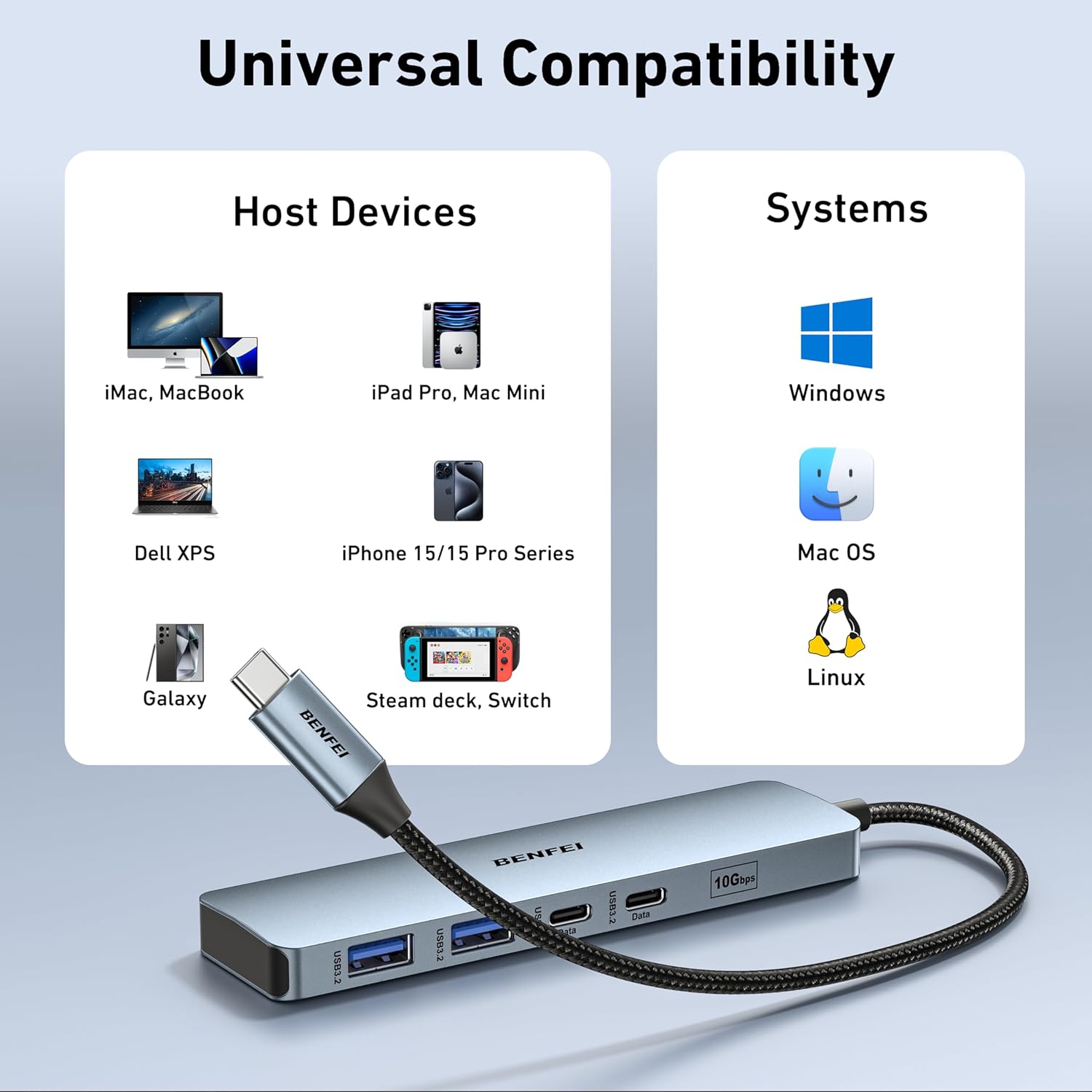
Image: The BENFEI USB-C Hub connected to a laptop, demonstrating its universal compatibility with various host devices and operating systems like Windows, Mac OS, iOS, and Chrome OS.
작동 지침
The BENFEI USB-C Hub operates on a plug-and-play basis, requiring no additional drivers for most operating systems.
HDMI 디스플레이 출력
To extend or mirror your screen to an external display:
- 호스트 장치의 USB-C 포트가 DisplayPort Alternate Mode(Alt Mode)를 지원하는지 확인하십시오.
- 허브의 HDMI 포트에서 모니터 또는 TV로 HDMI 케이블을 연결하세요.
- Adjust display settings on your host device (e.g., Extend, Mirror) as needed.
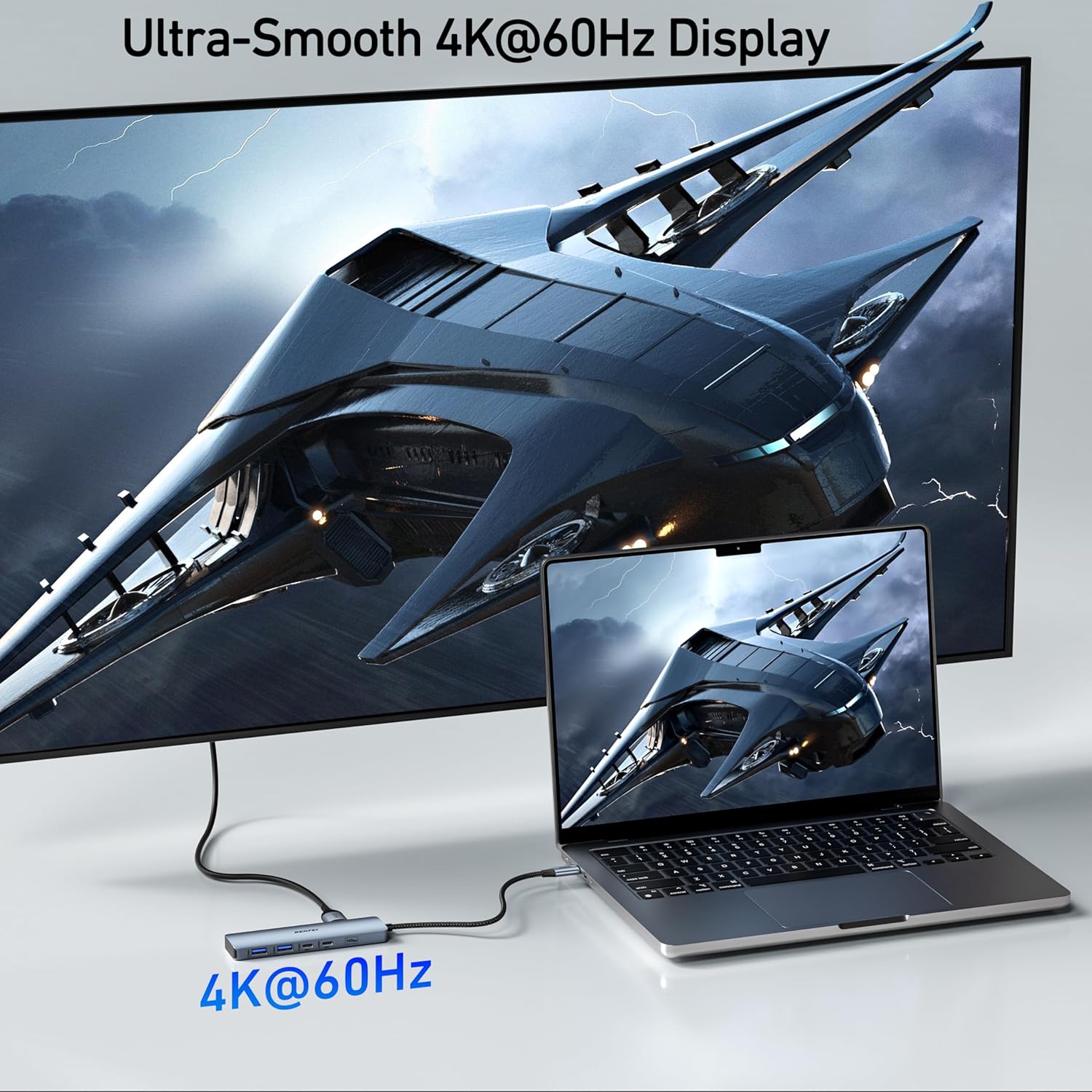
Image: A laptop connected to a large external monitor through the BENFEI USB-C Hub, showcasing a smooth 4K@60Hz display for an enhanced visual experience.
USB 데이터 전송
The USB-A and USB-C data ports support high-speed data transfer:
- Plug your USB devices (e.g., external drives, flash drives) into the corresponding USB-A or USB-C data ports.
- The hub supports USB 3.2 Gen 2, providing speeds up to 10Gbps for rapid file 이전.

Image: A laptop connected to an external hard drive via the BENFEI USB-C Hub, illustrating ultra-fast 10Gbps data transfer speeds for both USB-A and USB-C devices.
전력 공급
To charge your host device through the hub:
- Connect a USB-C power adapter to the hub's PD-IN port.
- The hub will pass up to 85W of power to your connected laptop, while reserving 15W for its own operation and connected peripherals.

Image: A laptop displaying a charging indicator, connected to a power adapter through the BENFEI USB-C Hub's 100W Power Delivery port, showing 100W input and 85W output to the laptop.
유지
To ensure the longevity and optimal performance of your BENFEI USB-C Hub:
- 허브를 깨끗하게 유지하고 먼지가 쌓이지 않도록 하십시오. 부드럽고 마른 천으로 닦아주세요.
- 허브를 극한의 온도, 습도 또는 직사광선에 노출시키지 마세요.
- 기기를 직접 분해하거나 수리하려고 하지 마세요. 도움이 필요하면 고객 지원에 문의하세요.
- Handle the silicone woven cable with care to prevent damage.
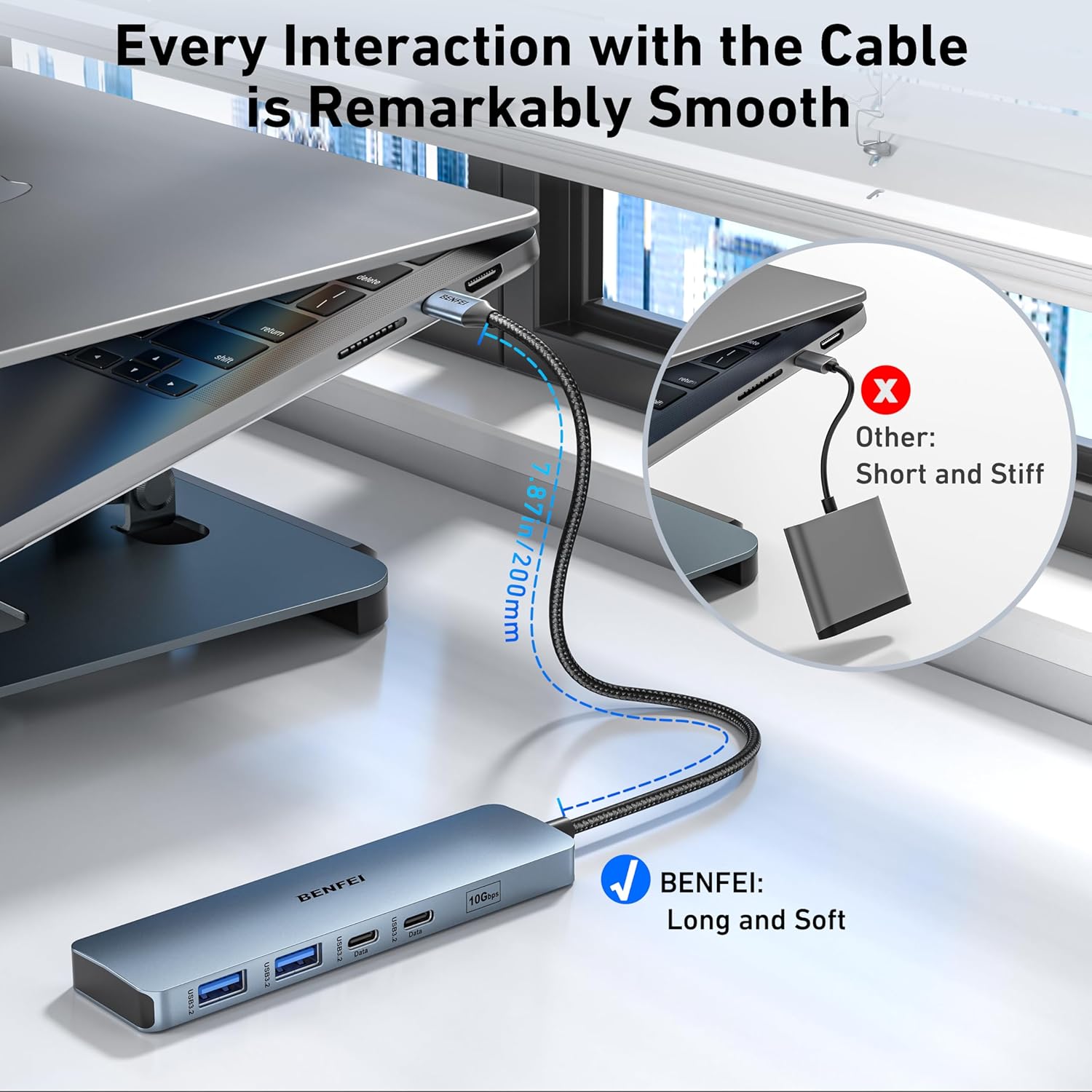
이미지: 클로즈업 view of the BENFEI USB-C Hub's silicone woven cable, highlighting its flexibility and durable construction, designed for smooth interaction and resistance to tangling.
문제 해결
If you encounter issues with your BENFEI USB-C Hub, refer to the following common problems and solutions:
| 문제 | 가능한 해결책 |
|---|---|
| HDMI를 통한 비디오 출력이 없습니다. | Ensure your host device's USB-C port supports DisplayPort Alt Mode. Try a different HDMI cable or monitor. Check display settings on your host device. |
| Devices connected to USB data ports are not recognized. | Ensure the hub is securely connected to the host device. Try connecting the device directly to the host to confirm functionality. Restart your host device. |
| Host device is not charging via PD port. | Verify that your USB-C power adapter is functional and connected to the hub's PD-IN port. Ensure the power adapter provides sufficient wattag호스트 장치에 대한 e입니다. |
| 데이터 전송 속도가 느립니다. | Ensure connected devices and cables support USB 3.2 Gen 2 speeds. Avoid connecting multiple high-bandwidth devices simultaneously if possible. |
명세서
| 특징 | 세부 사항 |
|---|---|
| 모델 번호 | 000377 |
| 포트 | 1x HDMI (4K@60Hz), 1x USB-C PD-IN (100W), 2x USB-A 3.2 Gen 2 (10Gbps), 2x USB-C 3.2 Gen 2 Data (10Gbps) |
| HDMI 해상도 | 최대 4K@60Hz |
| 전력 공급 | Up to 100W input (85W to host) |
| 데이터 전송 속도 | 초당 10기가비트(USB 3.2 2세대) |
| 호환 장치 | MacBook, iPad Pro, iMac, iPhone 15 Pro/Max, Surface Book 2, Surface Go, HP Envy 13, Pixelbook, Galaxy Book, Samsung Galaxy S8/S9/S8 Plus/S9 Plus/Note 8/Note 9, Dell XPS 15/XPS 13, Chromebook, Intel NUC, Steam Deck, Switch, and other USB-C devices supporting video output and/or data transfer. |
| 운영 체제 | Mac OS, iOS, Windows, Chrome OS, Linux |
| 재료 | Aluminum enclosure, Silicone woven cable |
| 색상 | 회색 |
보증 및 지원
BENFEI provides an unconditional 18-month warranty for this product, ensuring long-term satisfaction. For any questions, technical support, or warranty claims, please contact BENFEI customer service. Our friendly and easy-to-reach customer service team is available to assist you in a timely manner.
더 자세한 도움이 필요하시면 저희 공식 웹사이트를 방문해 주세요. website or contact us via the details provided on the product packaging.