
CREALITY FALCON CR-Laser Falcon
Creality Falcon 5W Laser Engraver Machine
Model: CR-Laser Falcon
Comprehensive Instruction Manual
1. 서론
The Creality Falcon 5W Laser Engraver Machine is designed for precise cutting and engraving tasks, offering a working speed of up to 10,000mm/min. This machine is suitable for various applications, from small business projects to personal crafting. It is capable of processing materials such as wood, acrylic, and leather with high efficiency and accuracy.
Key features include a 500mm x 500mm honeycomb working panel for enhanced airflow and material protection, a 0.06mm ultra-fine compression spot for detailed engravings, and a spacious 15.7" × 16.3" work area. The device is pre-assembled for quick setup and is compatible with popular software like LaserGRBL and LightBurn on Windows and macOS. Safety features include an emergency stop button and an active stop function that detects tilt or drops.
2. 안전 정보
경고: This is a Class 4 laser product. Direct exposure to the laser beam can cause severe eye damage and skin burns. Always wear appropriate laser safety goggles (OD6+) when operating the machine. Never look directly into the laser beam or at its reflection.
- Ensure the work area is well-ventilated to dissipate smoke and fumes generated during engraving.
- 레이저 조각기에서 인화성 물질을 멀리하십시오.
- 작동 중에 기계를 무인 상태로 두지 마십시오.
- 비상 정지 버튼의 위치와 기능을 숙지하세요.
- Avoid operating the machine on unstable or uneven surfaces. The active stop function will trigger if the machine is tilted or dropped.
- 어린이와 애완동물을 수술 구역에 접근하지 못하게 하세요.
3. 설정 가이드
The Creality Falcon 5W Laser Engraver is designed for quick assembly, typically taking 5-10 minutes.
3.1 언박싱 및 구성 요소 식별
Carefully open the packaging and remove all components. Verify that all parts listed in the packing list are present.
비디오 설명: This video demonstrates the unboxing process and identification of all components included with the Creality Falcon 5W Laser Engraver Machine. It shows how to carefully remove the main frame, laser module, power supply, cables, honeycomb bed, and other accessories from the packaging.
3.2 조립 단계
- 액자를 놓으세요: Remove the main frame from the packaging and place it on a stable, flat surface.
- 레이저 모듈 설치: Attach the laser module to the gantry. Secure it using the provided screws or knobs. Ensure the module is firmly in place.
- 케이블 연결: Connect the laser module cable to the designated port on the main control unit. Connect the power cable to the power adapter, and then connect the power adapter to the machine.
- Position Honeycomb Bed: Place the honeycomb working panel on your desktop. Ensure the front and back are correctly oriented, leaving a small gap on the desktop as indicated in the diagram for proper airflow. Then, place the laser engraver frame over the honeycomb bed.
- 전원 켜기: Plug the power adapter into a suitable power outlet. The machine is now ready for initial operation.

이미지 설명: The Creality Falcon 5W Laser Engraver is shown partially assembled within its protective foam packaging, highlighting its 'pre-assembled for easy start' design. A USB cable is also visible, indicating connectivity options.
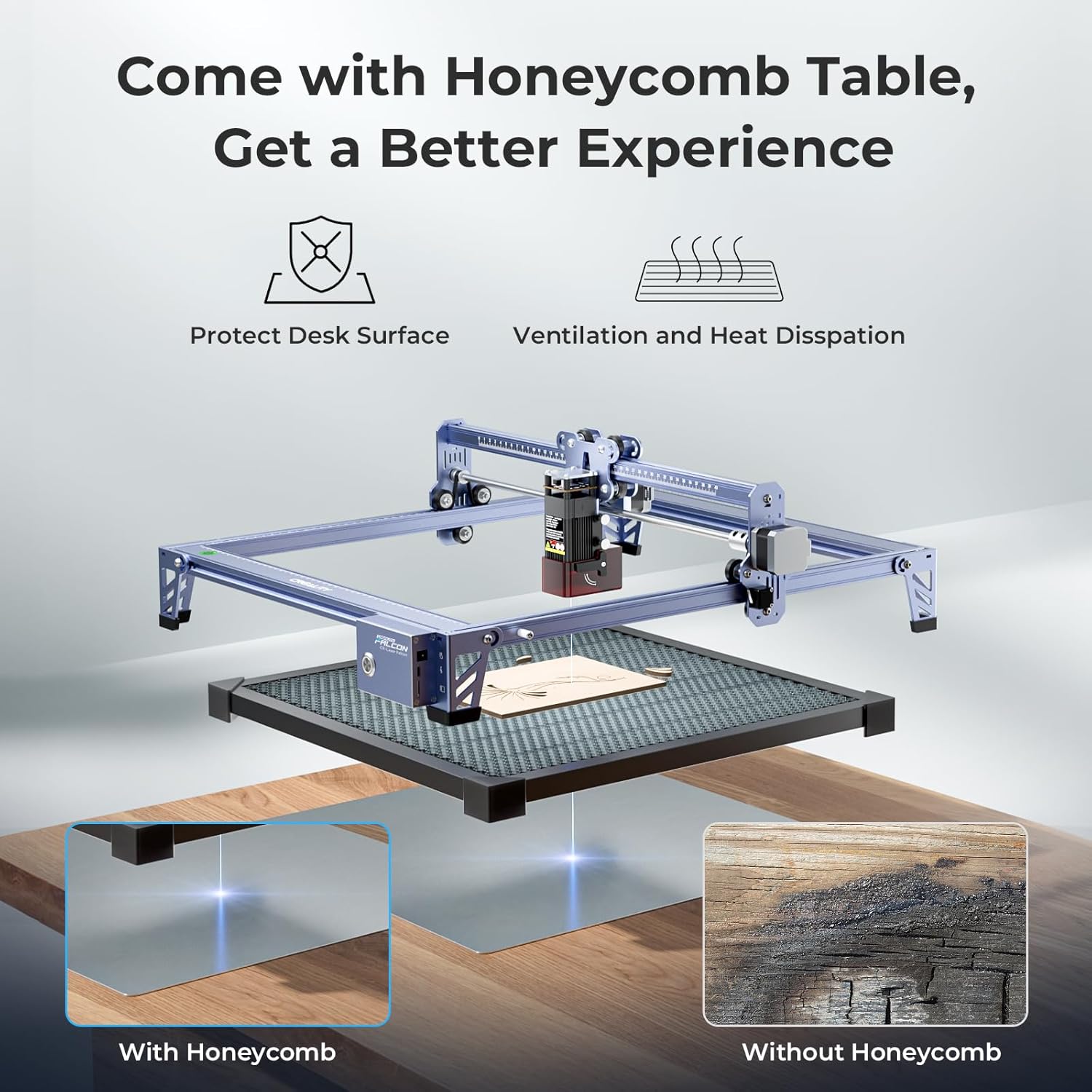
이미지 설명: This image illustrates the benefits of using the honeycomb table with the laser engraver. It shows how the honeycomb structure protects the desk surface from burns and improves ventilation for better heat dissipation, leading to cleaner engravings compared to not using one.
4. 사용 설명서
4.1 소프트웨어 호환성
The Creality Falcon 5W Laser Engraver is compatible with popular laser engraving software:
- 레이저GRBL: An open-source software suitable for Windows users.
- 라이트번: A paid software offering advanced features, compatible with Windows and macOS. A free trial is often available.
지원됨 file formats include SVG, PNG, DXF, TIF, BMP, PDF, and NG.

이미지 설명: The image displays the Creality Falcon laser engraver connected to both a laptop and a desktop computer, illustrating its wide compatibility with operating systems like Windows and macOS, and software such as LaserGRBL and LightBurn. Various file format icons are also shown.
4.2 Quick Focus Adjustment
Accurate focus is crucial for optimal engraving and cutting results. Follow these steps to adjust the laser focus:
- 1단계: Pull down the original focus lever located on the side of the laser module.
- 2단계: Slide the laser module along the gantry until the focus lever gently touches the surface of your material.
- 3단계: Once the lever is in contact with the material, uplift it back into its original position. The laser is now correctly focused.

이미지 설명: A detailed diagram illustrates the three-step process for quick focus adjustment on the laser module. It shows pulling down a lever, sliding the module until the lever touches the material, and then uplifting the lever to set the correct focal distance.
4.3 조각 및 절단 공정
- 재료 준비: Place your material (e.g., wood, acrylic) securely on the honeycomb working panel.
- 초점 조정: Perform the quick focus adjustment as described in Section 4.2.
- 하중 설계: 선택한 소프트웨어(LaserGRBL 또는 LightBurn)를 열고 디자인 파일을 불러오세요. file.
- 매개변수 설정: Adjust engraving or cutting parameters (speed, power, passes) according to your material and desired outcome. Refer to software documentation for detailed settings.
- 사전view 영역: 소프트웨어의 사전 사용view function to ensure the design is positioned correctly on your material.
- 작업 시작: 소프트웨어에서 조각 또는 절단 공정을 시작합니다. 작동 중에는 기계를 모니터링합니다.
비디오 설명: This video demonstrates the Creality Falcon 5W laser engraver in action, showing the laser module moving across a piece of wood to engrave a design. It highlights the precision and speed of the engraving process.

이미지 설명: 이 이미지는 클로즈업을 제공합니다 view comparing the high precision of the Creality Falcon's 0.06mm laser spot engraving with that of other lasers. The Falcon's output shows finer detail and clarity, particularly visible in the texture of engraved feathers.

이미지 설명: An illustration comparing the efficiency of the Creality Falcon's 10,000mm/min working speed against a slower 6,000mm/min speed. It demonstrates that the Falcon can complete a significantly larger workload in the same amount of time, showcasing its productivity.
5. 유지관리
- 레이저 렌즈 청소: Regularly inspect and clean the laser lens with a soft, lint-free cloth and lens cleaning solution to ensure optimal beam quality.
- Clean the Honeycomb Bed: Remove debris and residue from the honeycomb working panel to maintain proper airflow and prevent material scorching.
- 벨트와 레일을 검사하세요: Periodically check the tension of the drive belts and clean the guide rails to ensure smooth and accurate movement of the laser module.
- Replace Air Filter: If your model includes an air assist system with a filter, replace it as recommended to maintain effective smoke and dust absorption.
6. 문제 해결
| 문제 | 가능한 원인 | 해결책 |
|---|---|---|
| 레이저가 작동하지 않거나 출력이 약합니다. | 초점이 잘못되었거나, 렌즈가 더럽거나, 전력 설정이 낮거나, 케이블이 헐거워졌을 수 있습니다. | 초점을 조정하고, 렌즈를 청소하고, 소프트웨어에서 출력 설정을 높이고, 케이블 연결을 확인하십시오. |
| Engraving is blurry or inconsistent | Incorrect focus, material not flat, loose belts, high speed. | Re-adjust focus, ensure material is flat, check belt tension, reduce engraving speed. |
| 기계가 예기치 않게 멈췄습니다. | Active stop function triggered (tilt/drop), power interruption, software error. | Check machine stability, verify power connection, restart software and machine. |
| 소프트웨어가 기계에 연결되지 않음 | Incorrect port selection, driver issues, USB cable fault. | Verify COM port in software, install/update drivers, try a different USB cable. |
7. 사양
| 특징 | 세부 사항 |
|---|---|
| 모델 번호 | CR-레이저 팔콘 |
| 레이저 출력 | 5W(5000mW) |
| 작업 영역 | 15.7" × 16.3" (approximately 400mm x 414mm) |
| 레이저 스팟 크기 | 0.06mm |
| 조각 속도 | 최대 10,000mm/분 |
| 위치 재조정 정확도 | Under 0.007 inches |
| 소프트웨어 호환성 | 레이저GRBL, 라이트번 |
| 운영 체제 | 윈도우, 맥OS |
| 지원됨 File 형식 | SVG, PNG, DXF, TIF, BMP, PDF, NG |
| 안전 기능 | Emergency Stop Button, Active Stop Function (tilt/drop detection) |
| 품목 무게 | 24.6파운드 |
| 패키지 크기 | 27 x 24.5 x 10.6 인치 |
8. 보증 및 지원
For warranty information, technical support, or service inquiries, please refer to the official Creality Falcon website or contact their customer service directly. Details can often be found on the product packaging or through the brand's official online store.
You can visit the official Creality Falcon store for additional resources and support: Creality Falcon Store
Ask a question about this manual
Ask about setup, troubleshooting, compatibility, parts, safety, or missing instructions. Manuals+ will review the question and use this page’s manual context to help answer it.