
1. 서론
This manual provides detailed instructions for the setup, operation, and maintenance of your BPXX Bluetooth Thermal Shipping Label Printer, Model D463B. This printer is designed for efficient and clear printing of various thermal labels, including 4x6 inch shipping labels, with a resolution of 203 DPI. It supports both Bluetooth connectivity via the 'Ezlabel' mobile application and USB connection to computers.
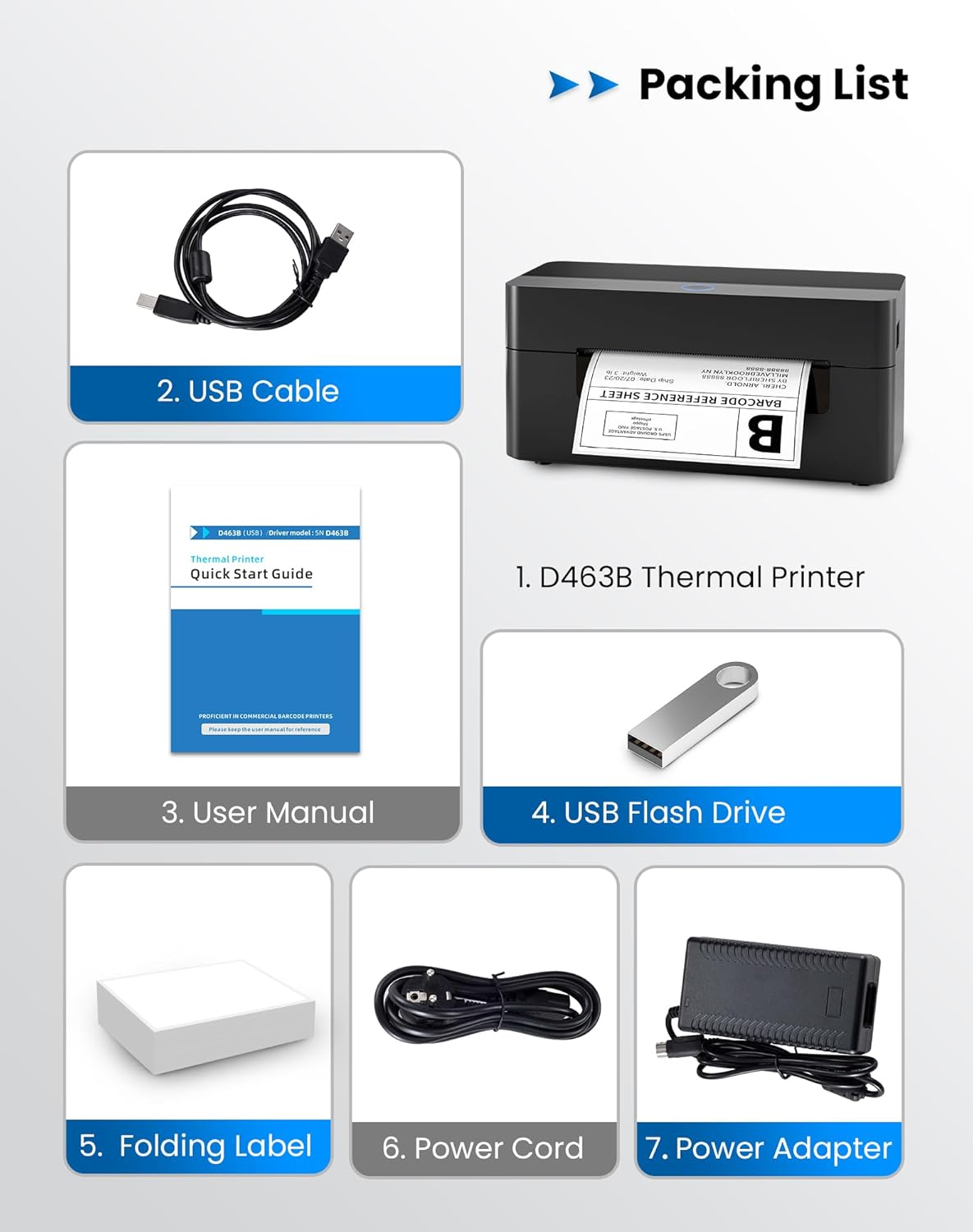
2. 포장 목록
아래 나열된 모든 품목이 패키지에 포함되어 있는지 확인하세요.
- 1 x BPXX D463B Thermal Printer
- 1 x USB 케이블
- 1 x 사용자 설명서
- 1 x USB Flash Drive (containing drivers)
- 1 x Folding Label (samp롤(roll)
- 1 X 전원 코드
- 1 x 전원 어댑터
3. 설정 가이드
3.1 하드웨어 연결
- Connect the power adapter to the printer's power port and plug the power cord into an electrical outlet.
- Open the printer cover and load the thermal labels. Ensure the labels are facing the correct direction for printing and are properly aligned within the guide rails.
- 프린터 덮개를 단단히 닫으십시오.

3.2 소프트웨어 및 드라이버 설치
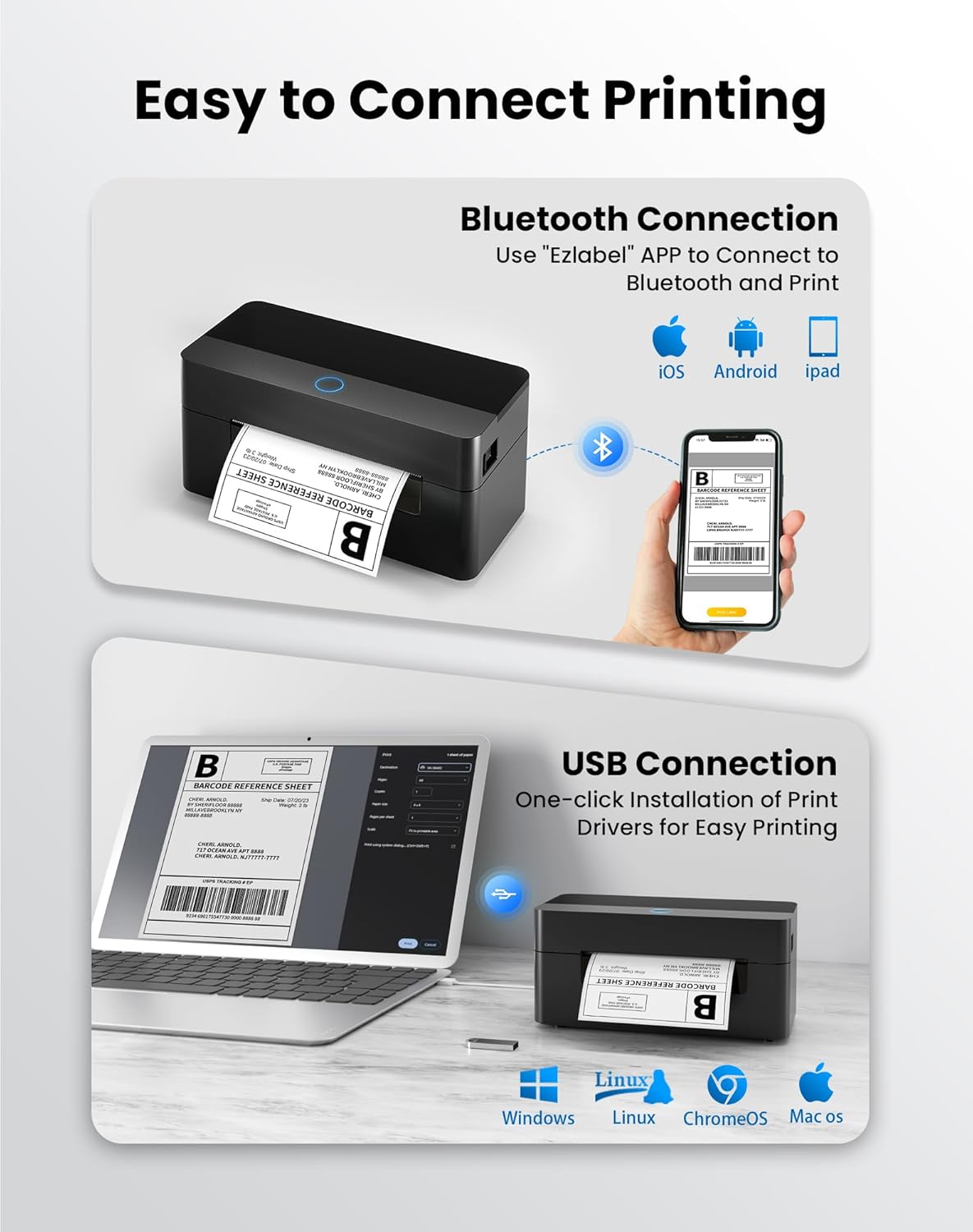
3.2.1 Mobile App (Bluetooth Connection)
For mobile printing, download the 'Ezlabel' application from your device's app store (available for iOS and Android).
- 검색 'Ezlabel' in the App Store (iOS) or Google Play Store (Android).
- 응용 프로그램을 다운로드하여 설치하십시오.
- 모바일 기기에서 Bluetooth를 활성화하세요.
- Open the 'Ezlabel' app and follow the in-app instructions to connect to your BPXX D463B printer via Bluetooth.
3.2.2 Computer Driver (USB Connection)
For computer printing, install the appropriate drivers for your operating system (Windows, Mac OS, Linux, ChromeOS). Drivers are provided on the included USB flash drive or can be downloaded from the official web대지.
- Insert the provided USB flash drive into your computer.
- Locate and run the installer for your operating system.
- 화면의 지시에 따라 드라이버 설치를 완료합니다.
- Alternatively, download drivers from: BPXX Driver Download
4. 사용 설명서
4.1 라벨 로딩
Ensure the thermal labels are loaded correctly for optimal printing. The printer supports thermal labels with widths ranging from 1 to 4.5 inches, including standard 4x6 inch shipping labels.
- 프린터의 상단 덮개를 엽니다.
- Place the roll of thermal labels into the label compartment, ensuring the printable side faces upwards.
- Feed the first label through the printer's output slot until it is slightly extended.
- 라벨 가이드를 라벨 너비에 맞게 너무 꽉 조이지 않도록 조절하세요.
- Close the top cover. The printer will automatically detect the label size and calibrate.

4.2 Printing via Bluetooth (Mobile App)
- Ensure the printer is powered on and connected to the 'Ezlabel' app via Bluetooth.
- Open the 'Ezlabel' app on your mobile device.
- Select or create your desired label design. The app includes preset templates for various label sizes.
- Confirm print settings such as label size and quantity.
- 앱에서 인쇄 명령을 시작하세요.
4.3 Printing via USB (Computer)
- 제공된 USB 케이블을 사용하여 프린터를 컴퓨터에 연결합니다.
- Ensure the printer drivers are correctly installed.
- Open the document or application from which you wish to print (e.g., a PDF viewer, shipping software).
- Select the BPXX D463B printer from your printer options.
- Adjust print settings as needed (e.g., paper size to 4x6 inches for shipping labels).
- Send the print command.
4.4 Supported Platforms and Print Quality
The BPXX D463B printer is compatible with major shipping carriers and e-commerce platforms, facilitating the printing of shipping labels, return labels, and postag전자 라벨.
- Shipping Carriers: FedEx, UPS, USPS, DHL, EasyPost, etc.
- E-commerce Platforms: Amazon, Shopify, Etsy, eBay, Walmart, etc.
The printer utilizes a high-quality thermal print head and advanced algorithms to deliver clear and sharp barcodes and text at 203 DPI resolution. It achieves a high-speed output of 152mm/s, capable of printing approximately 72 4x6 inch shipping labels per minute.


5. 유지관리
정기적인 유지보수는 최적의 성능을 보장하고 프린터의 수명을 연장시켜 줍니다.
- 프린트 헤드 청소: Use an alcohol swab or a specialized thermal printer cleaning pen to gently wipe the print head. Ensure the printer is off and cooled down before cleaning.
- 외부 청소: 프린터 외부를 부드러운 천으로 닦으세요.amp 옷감. 가혹한 화학 물질이나 연마재를 사용하지 마십시오.
- 먼지 제거: Periodically use compressed air to clear any dust or paper debris from inside the label compartment.
6. 문제 해결
If you encounter issues with your BPXX D463B printer, refer to the following common problems and solutions:
- 프린터가 응답하지 않음:
- Ensure the power cord is securely connected and the printer is turned on.
- For Bluetooth connection, verify that Bluetooth is enabled on your device and the printer is paired within the 'Ezlabel' app.
- For USB connection, check the USB cable connection and ensure drivers are correctly installed. Try a different USB port or cable.
- Poor Print Quality (Faint/Streaky Prints):
- 유지관리 섹션에 설명된 대로 프린트 헤드를 청소하세요.
- 고품질 감열 라벨을 사용하고 있는지 확인하십시오.
- Check print density settings in the 'Ezlabel' app or printer preferences on your computer.
- 라벨이 제대로 부착되지 않음:
- Verify that labels are loaded correctly and aligned with the guide rails.
- 라벨이 지나가는 경로에 장애물이 없는지 확인하십시오.
- Perform a label calibration from the printer settings or app if available.
- Printer Offline Error:
- 프린터와 컴퓨터/모바일 기기를 다시 시작하세요.
- Re-establish the Bluetooth or USB connection.
- Check printer status in your operating system's printer settings.
7. 제품 사양
| 모델명 | D463B |
| 상표 | BPXX |
| 인쇄 기술 | 열의 |
| 연결 기술 | 블루투스, USB |
| 최대 인쇄 해상도 | 203 x 203 Dots Per Inch (DPI) |
| 최대 인쇄 속도 | 152 mm/s (72 labels per minute) |
| 최대 미디어 크기 | 4 x 6 인치 |
| 지원되는 레이블 너비 | 1~4.5인치 |
| 호환 장치 | PC (Windows, Mac OS, Linux, ChromeOS), Smartphones (iOS, Android) |
| 제어 방법 | App ('Ezlabel'), USB |
| 제품 치수 | 7.3인치 깊이 x 3.3인치 너비 x 3.3인치 높이 |
| 품목 무게 | 1.6파운드 |
| 포함된 구성 요소 | Printer, USB Cable, User Manual, USB Flash Drive, Sample Labels, Power Cord, Power Adapter |
8. 보증 및 지원
The BPXX D463B Thermal Shipping Label Printer comes with a limited warranty. For specific warranty terms and conditions, please refer to the documentation included with your product or contact BPXX customer support.
For technical assistance, troubleshooting, or any inquiries regarding your product, please contact BPXX customer support through the official web사이트 또는 제품 포장에 제공된 연락처 정보를 참조하세요.