
1. 서론
The Canon PIXMA G4280 is a wireless, MegaTank All-in-One inkjet printer designed for home and home office environments. It offers printing, copying, and scanning functionalities with a focus on high page yield and low cost per print. This manual provides essential information for setting up, operating, maintaining, and troubleshooting your printer.
2. 제품 오버view
The PIXMA G4280 features a MegaTank ink system for high-volume, low-cost printing, wireless connectivity, and a 2.7-inch LCD color touchscreen for easy operation. It supports automatic two-sided printing and includes a 35-sheet Auto Document Feeder (ADF).

Figure 2.1: Canon PIXMA G4280 Product At-A-Glance, highlighting wireless, print, copy, scan, MegaTank system, compact size, auto 2-sided printing, mobile device printing, compatible inks (PGBK 21, C 21, M 21, Y 21), and connectivity options.

Figure 2.2: Key features of the Canon PIXMA G4280, including print, copy, scan capabilities, auto duplex printing, ability to print on a variety of media types, cartridge-free printing, and a 100-sheet plain paper capacity or 20 sheets of 4" x 6" photo paper.
3. 상자 안에 무엇이 들어있나요?
Before beginning setup, ensure all components are present in the packaging:
- Canon PIXMA G4280 Wireless Inkjet All-in-One Printer
- GI-21 Ink Bottles (Pigment Black, Cyan, Magenta, Yellow)
- 전원 코드
- 사용자 설명서 및 기타 문서

Figure 3.1: Contents of the Canon PIXMA G4280 box, showing the printer, GI-21 ink bottles (Black, Cyan, Magenta, Yellow), power cord, and user guide documentation.
4. 초기 설정
4.1 풀기 및 준비
- 포장에서 프린터를 꺼냅니다.
- Carefully remove all protective tapes and packing materials from the exterior and interior of the printer. Refer to the included setup guide for specific locations.
4.2 잉크 탱크 채우기
The PIXMA G4280 utilizes a MegaTank system, requiring you to fill the ink tanks with the provided GI-21 ink bottles.
- Open the ink tank covers on the printer.
- Unscrew the cap from each ink bottle.
- Align the nozzle of each ink bottle with the corresponding color inlet on the printer and gently invert the bottle to allow the ink to flow into the tank. The bottles are designed to prevent spills and ensure correct color placement.
- Once the tank is full, remove the bottle and securely close the ink tank cover.
4.3 전원 켜기 및 초기 구성
- 전원 코드를 프린터와 벽면 콘센트에 연결합니다.
- 전원 버튼을 눌러 프린터를 켭니다.
- Follow the on-screen instructions on the 2.7-inch LCD color touchscreen to select your language, region, and perform initial print head alignment.
4.4 용지 적재
Load paper into the rear paper tray. The printer supports up to 100 sheets of plain paper or 20 sheets of 4" x 6" photo paper.
5. 소프트웨어 설치 및 연결
5.1 드라이버 및 소프트웨어 설치
Canon에서 필요한 드라이버와 소프트웨어를 설치하세요 website or the provided installation disc (if applicable) to enable full functionality on your computer.

Figure 5.1: The Canon PIXMA G4280 is compatible with Windows, Mac, and Chromebook operating systems.
5.2 무선 설정
The printer supports Wi-Fi connectivity. Follow the on-screen instructions on the printer's LCD to connect to your wireless network. You may need your network name (SSID) and password.
5.3 USB 연결
For a direct connection, use a USB cable (not always included) to connect the printer to your computer.
5.4 Mobile Device Connectivity
Print directly from your smartphone or tablet using the Canon PRINT App, Apple AirPrint, or Mopria Print Service.
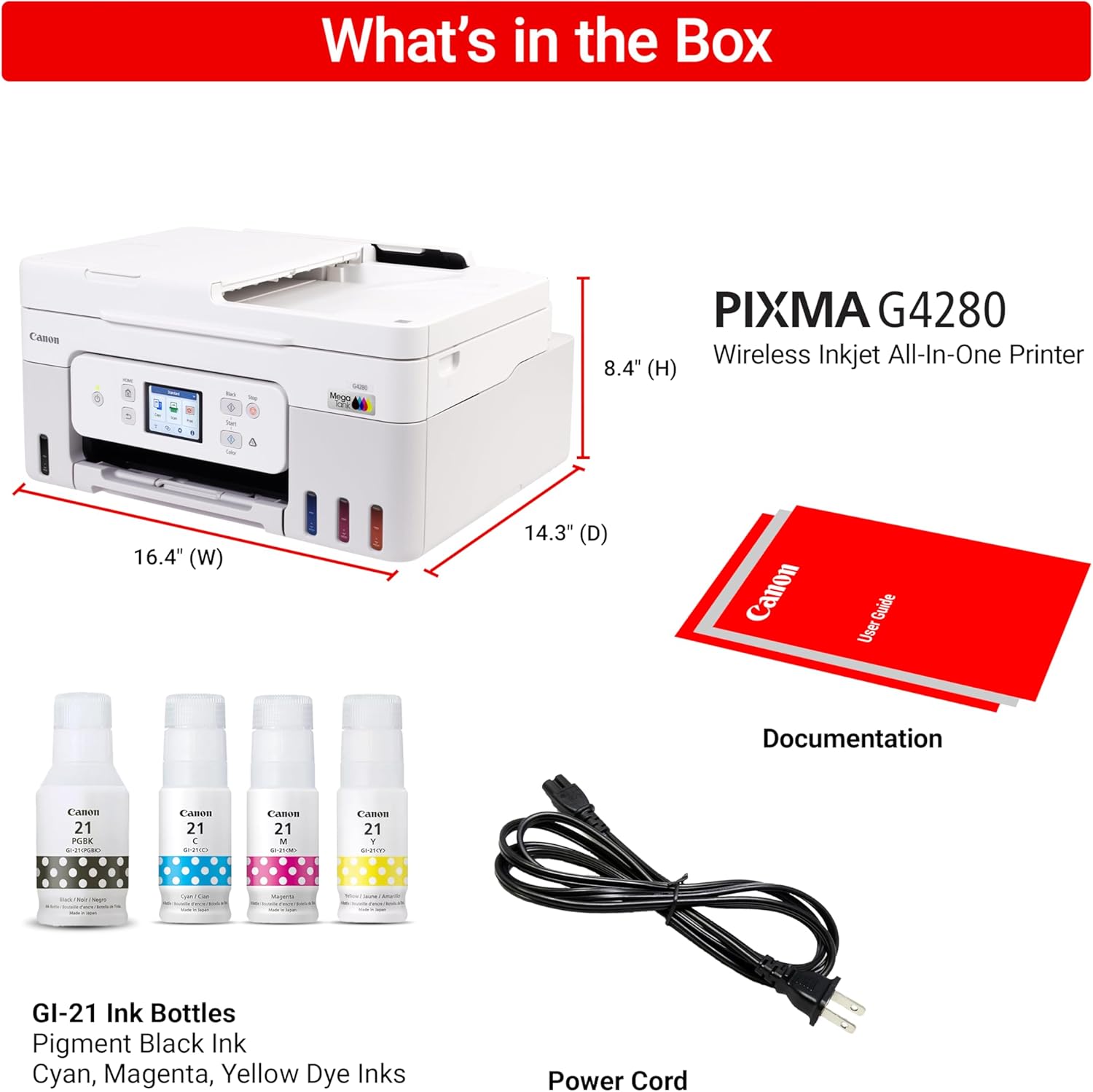
Figure 5.2: The Canon PIXMA G4280 offers convenient mobile printing through the Canon PRINT App, Apple AirPrint, and Mopria, with apps available on the App Store and Google Play.
6. 기본 작업
6.1 문서 인쇄
The PIXMA G4280 delivers crisp text and vivid colors. It offers print speeds of approximately 11.0 images per minute (ipm) for black and white, and 6.0 ipm for color documents.
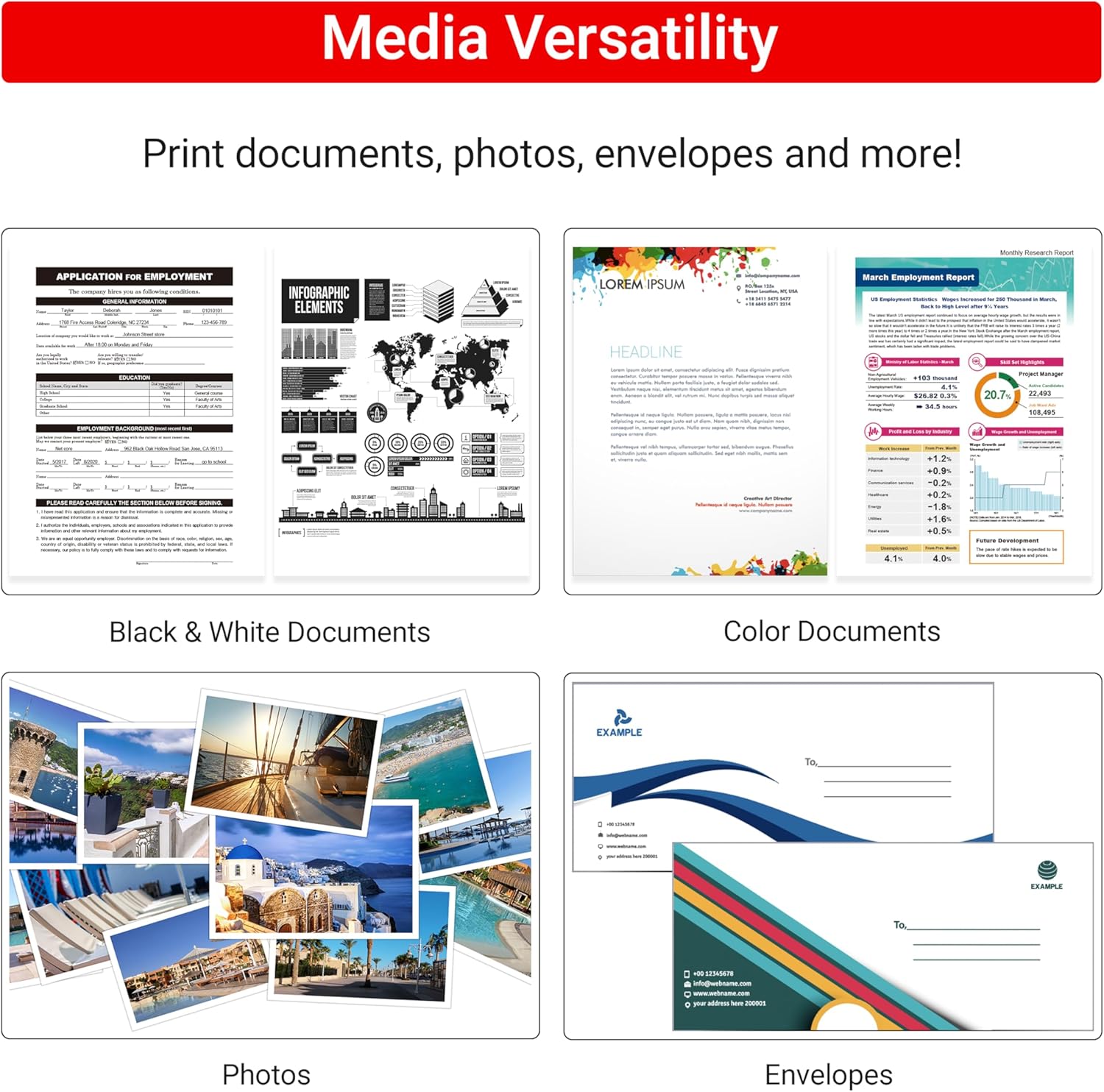
Figure 6.1: The Canon PIXMA G4280 demonstrates its print speed, capable of approximately 11.0 ipm for black and 6.0 ipm for color documents.

Figure 6.2: The Canon PIXMA G4280's print quality, showcasing sharp text for documents and vibrant colors for borderless photos.
6.2 복사
Place your document on the scanner glass or in the Auto Document Feeder (ADF) and use the printer's control panel to select copy settings and initiate the copy process.
6.3 스캔
Scan documents and photos to your computer or cloud services. The ADF can handle multiple pages for efficient scanning.
6.4 Auto 2-sided Printing
Save paper by utilizing the automatic two-sided printing feature for compatible documents.
6.5 Media Versatility
The printer supports a wide range of media types and sizes, including plain paper, glossy photo paper, envelopes, and labels.

Figure 6.3: The Canon PIXMA G4280 demonstrates its media versatility, capable of printing black & white documents, color documents, photos, and envelopes.
7. 유지관리
7.1 Ink Level Monitoring and Refilling
Monitor ink levels visually through the transparent ink tanks. Refill tanks using genuine Canon GI-21 ink bottles when levels are low to maintain print quality and prevent damage.
7.2 프린트 헤드 청소
If print quality declines (e.g., streaks, missing colors), perform a print head cleaning from the printer's maintenance menu or through the printer driver software on your computer.
7.3 Roller Cleaning
If paper feeding issues occur, clean the paper feed rollers as instructed in the detailed user guide or Canon support web대지.
7.4 Accessing Maintenance Software (Windows Examp르)
On Windows, printer maintenance options can typically be found by navigating to: Settings > Bluetooth & Devices > Printers & Scanners > Canon G4280 Series > Printer Properties. The 'Maintenance' tab is usually located on the top far right.
8. 문제 해결
8.1 일반적인 문제
- 용지 걸림: Follow the on-screen instructions or refer to the user guide for clearing jammed paper.
- 인쇄 품질 불량: Perform print head cleaning or alignment. Ensure genuine Canon inks are used and ink tanks are adequately filled.
- 연결 문제: Verify Wi-Fi network connection, check USB cable, and ensure printer drivers are correctly installed.
8.2 오류 메시지
The LCD touchscreen will display error codes or messages. Consult the detailed user guide or Canon's support website for specific solutions corresponding to these messages.
8.3 소프트웨어 호환성 참고 사항
Users of Apple software may find that the Canon printer's scan feature requires additional software or a workaround to function directly. Refer to Canon's support resources for the latest compatibility information and solutions.
8.4 Regional Ink Compatibility
Be aware that ink container designs and mating ports can vary by region. Ensure that replacement ink bottles purchased are compatible with your specific printer model and region to avoid issues.
9. 제품 사양
| 특징 | 사양 |
|---|---|
| 모델명 | 픽스마 G4280 |
| 제품 크기(D x W x H) | 36.3D x 41.7W x 21.3H 센티미터 |
| 무게 | 10.98kg |
| 연결 기술 | USB, 와이파이 |
| 인쇄 기술 | 잉크젯 |
| 프린터 출력 | 색상 |
| 최대 인쇄 속도(컬러) | 분당 6 페이지 |
| 최대 인쇄 속도(흑백) | 분당 11 페이지 |
| 최대 인쇄 해상도 | 4800 x 1200dpi |
| 양면 인쇄 | 오토매틱 |
| 스캐너 유형 | 매엽 |
| Maximum Copy Speed (B&W) | 분당 11 페이지 |
| 최대 용지 적재 용량 | 100장 |
| 지원되는 용지 크기 | 3.5” x 3.5” (Square), 4” x 6”, 5” x 5” (Square), 5” x 7”, 7” x 10”, 8” x 10”, Letter (8.5” x 11”), A4, A5, A6, B5, Legal (8.5” x 14”), U.S. #10 Envelopes, Card Size (3.6" x 2.2"), Custom size (width 2.1–8.5 in, length 3.5–47.2 in) |
| 디스플레이 유형 | LCD (2.7인치 컬러 터치스크린) |
| 잉크 색상 | 검정, 청록색, 자홍색, 노랑색 |
| 품목 모델 번호 | 6704C022 |
| 한국어: | 013803377989 |
10. 보증 및 지원
10.1 제한 보증
The Canon PIXMA G4280 comes with a 1-year limited warranty. Please retain your proof of purchase for warranty claims.
10.2 Canon Service and Support
For technical assistance, troubleshooting, or warranty service, please contact Canon's official Service and Support network. Contact information can typically be found on the Canon web귀하의 지역에 대한 사이트.
10.3 Regional Warranty Considerations
Warranty coverage and service may be region-specific. If your printer was purchased in a different region than your current location, ensure you understand the implications for warranty service and support, as it may require sending the unit to the original region of purchase for repairs.