
1. 제품 오버view
The DBPOWER Smart WiFi Bluetooth Projector (Model: E2) offers a native 1080P Full HD resolution with 300 ANSI lumens brightness and a 10,000:1 contrast ratio. It features a 6-layer high-refractive lens for enhanced clarity and reduced eye strain. This projector is designed for versatile home and outdoor use, providing a large display experience with integrated smart features.
주요 특징:
- Native 1080P Resolution & 300 ANSI Brightness: Delivers stunning visuals with true Full HD and vibrant clarity.
- Built-in Smart Apps: Stream content directly from Netflix, YouTube, Prime Video, and more without an external TV stick.
- Fast Dual-Band 5G WiFi & Bluetooth 5.2: Ensures stable streaming and wireless audio connectivity with soundbars, headphones, or speakers.
- Large Display & Easy Setup: Projects a 40-200 inch screen with ±15° keystone correction, manual focus, and 50% digital zoom for effortless alignment.
- 돌비 오디오: Integrated dual speakers with Dolby Audio support provide immersive sound.
- 폭넓은 호환성: Features HDMI, USB, AV, and audio ports for connecting various devices like phones, laptops, and gaming consoles.
2. 패키지 내용
Your DBPOWER Smart WiFi Bluetooth Projector package includes the following items:
- DBPOWER Smart WiFi Bluetooth Projector (Model: E2)
- 원격 제어
- 전원 코드
- HDMI 케이블
- AV 케이블
- 렌즈 캡
- Cleaning Kit (Q-tips)
- 사용자 설명서
- 운반 케이스

Image 2.1: The DBPOWER Smart WiFi Bluetooth Projector with its included carrying case and a smartphone displaying Bluetooth and WiFi icons.
3. 설정 가이드
3.1 Physical Placement and Adjustments
Place the projector on a stable, flat surface. Ensure there is adequate ventilation around the device. The projector can be placed on a table, mounted on a tripod, or ceiling-mounted.
- 높이 조절: Use the adjustable screw on the bottom of the projector to fine-tune the projection height.
- 키스톤 보정: Use the keystone adjustment ring/slider on the projector to correct trapezoidal distortion, ensuring a rectangular image. The projector supports ±15° keystone correction.
- 수동 초점: 프로젝터 렌즈의 초점 링을 돌려 투사된 이미지가 선명하고 깨끗하게 보일 때까지 조정하십시오.
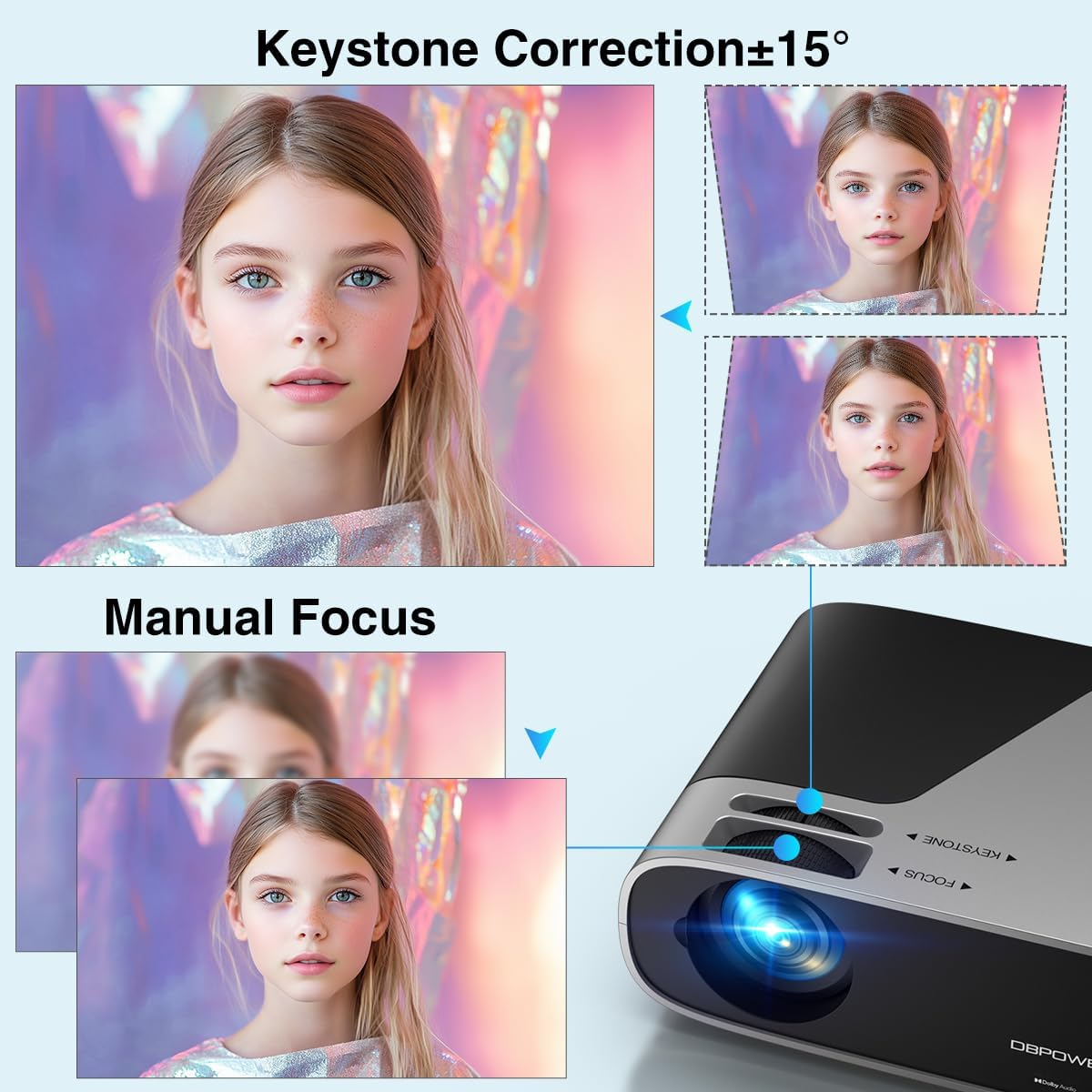
Image 3.1: Visual representation of keystone correction and manual focus adjustments on the projector.
3.2 전원 켜기 및 초기 구성
- 프로젝터에 전원 코드를 연결한 다음 전원 콘센트에 꽂으세요.
- 프로젝터나 리모컨의 전원 버튼을 눌러 장치를 켜세요.
- Follow the on-screen prompts to select your preferred language and connect to your Wi-Fi network (2.4G/5G Dual-Band supported).
3.3 외부 장치 연결
프로젝터는 다양한 연결 옵션을 제공합니다.
- HDMI : Connect devices like laptops, gaming consoles (PS5), or TV sticks using an HDMI cable.
- USB: 미디어 재생을 위해 USB 드라이브를 연결하세요.
- 유명인 : 구형 기기는 AV 포트를 사용하세요.
- 오디오 출력: 3.5mm 오디오 잭 또는 블루투스를 통해 외부 스피커나 헤드폰을 연결하세요.

이미지 3.2: 이상view of the projector's input/output ports and various compatible devices.
3.4 블루투스 연결
To connect Bluetooth audio devices:
- Ensure your Bluetooth device (e.g., soundbar, headphones) is in pairing mode.
- On the projector's home screen, navigate to the Bluetooth settings.
- 페어링할 수 있는 기기 목록에서 기기를 선택하세요.

Image 3.3: The projector demonstrating Bluetooth 5.2 connectivity with various audio devices.
4. 사용 설명서
4.1 사용자 인터페이스 탐색
Use the remote control or the physical buttons on top of the projector to navigate the user interface. The remote control provides direct access to apps like Netflix and YouTube.
4.2 내장 스트리밍 앱 사용하기
The projector comes pre-licensed with popular streaming apps. Simply connect to Wi-Fi, log in to your accounts, and start streaming.

Image 4.1: The projector's smart interface showing various pre-installed streaming applications.
4.3 화면 미러링
Mirror your smartphone or tablet screen wirelessly:
- iOS 기기: Use the ScreenSharer function. Ensure your iOS device and projector are on the same Wi-Fi network.
- 안드로이드 기기: Use the ScreenCast function. Ensure your Android device and projector are on the same Wi-Fi network.
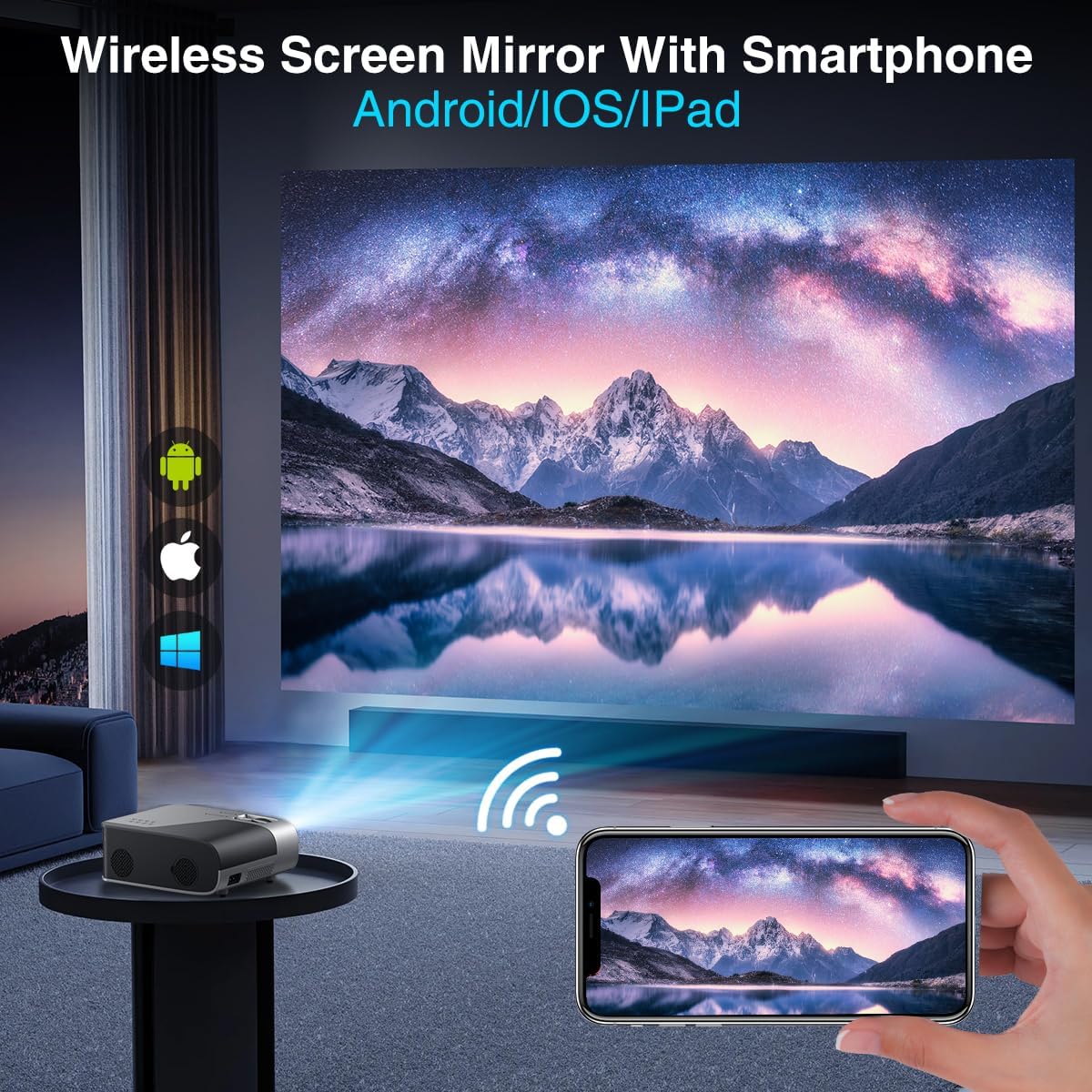
Image 4.2: A smartphone wirelessly mirroring its screen to the projector, compatible with Android and iOS devices.
4.4 투영 모드
The projector supports multiple installation methods and projection modes:
- 전면 투영: Standard setup where the projector is in front of the screen.
- 후면 투영: Projector is behind a translucent screen.
- Ceiling Mount (Front/Rear): Projector is mounted upside down from the ceiling. Adjust settings in the Projection Settings menu to flip the image.
4.5 줌 기능
The projector features a 50% digital zoom function, allowing you to adjust the screen size without physically moving the projector. This can be accessed via the remote control or projector settings.

Image 4.3: Illustration of the projector's 50% digital zoom feature, showing various screen sizes from 60 to 200 inches.
4.6 사용 시나리오
The DBPOWER projector is suitable for various entertainment and presentation needs:
- Home Cinema: Enjoy movies and TV shows on a large screen.
- 노름: Connect gaming consoles for an immersive experience.
- 야외 엔터테인먼트: Perfect for backyard movie nights.
- 프레젠테이션: Can be used for displaying content from laptops or PCs.
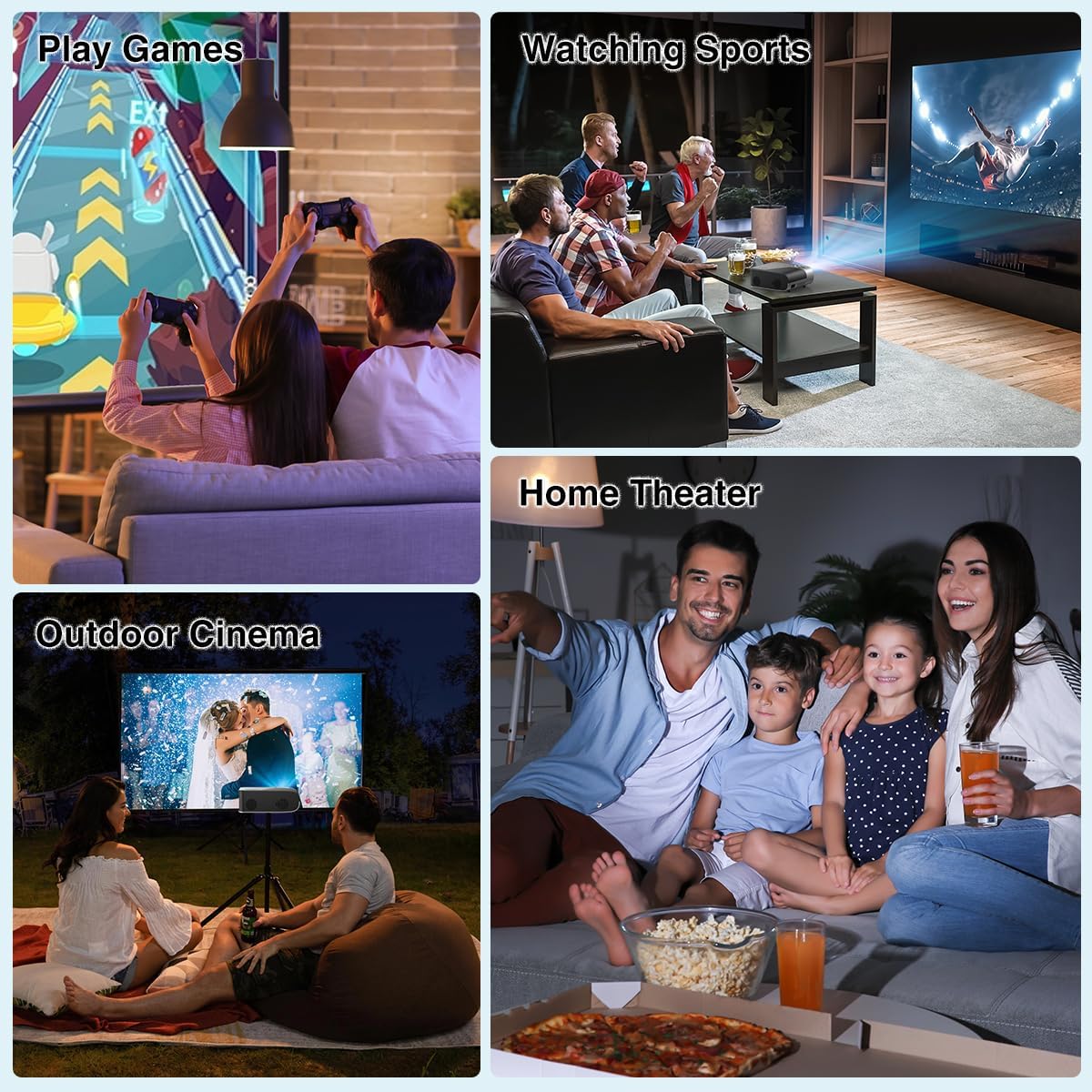
이미지 4.4: Examples of the projector's use in different settings, such as gaming, sports viewing, home theater, and outdoor cinema.
5. 유지관리
5.1 렌즈 세척
Regularly clean the projector lens to ensure optimal image clarity. Use a soft, lint-free cloth or the provided cleaning kit. Avoid abrasive materials or harsh chemicals.
5.2 먼지 필터 청소
The projector has a removable dust filter to prevent dust buildup inside the device. Periodically remove and clean the filter to maintain proper airflow and prevent overheating. Refer to the detailed instructions in the included user manual for specific steps on removing and cleaning the filter.
6. 문제 해결
프로젝터 사용 중 문제가 발생하면 다음과 같은 일반적인 해결 방법을 고려해 보세요.
- 흐릿한 이미지: Adjust the manual focus ring until the image is sharp. Ensure the projector is placed at an appropriate distance from the screen.
- Trapezoidal Image: Use the keystone correction feature to adjust the image corners until it is rectangular.
- 신호 없음: Check all cable connections (HDMI, AV, USB). Ensure the correct input source is selected on the projector.
- Wi-Fi/Bluetooth 연결 문제: Ensure the projector is within range of your Wi-Fi router or Bluetooth device. Restart both the projector and the external device.
- Sound Sync Issues: If using external Bluetooth speakers, ensure a stable connection. Sometimes, restarting both devices can resolve minor sync issues.
- Black Spots on Screen: This may indicate dust on the lens or inside the projector. Refer to the maintenance section for cleaning instructions.
7. 사양
| 특징 | 사양 |
|---|---|
| 상표 | DB파워 |
| 디스플레이 해상도 | 1920 x 1080 (기본 1080P) |
| 명도 | 300 ANSI 루멘스 |
| 대비율 | 10,000시 1분 |
| 연결 기술 | HDMI, USB, AV, Bluetooth 5.2, 5G/2.4G Wi-Fi |
| 특별 기능 | Built-In Speaker, Built-In Wi-Fi, Dolby Audio, ±15° Keystone Correction, 50% Digital Zoom |
| 추천 용도 | 홈시네마 |
| 품목 무게 | 5.17파운드 |
| 패키지 크기 | 13.07 x 9.92 x 4.76 인치 |
| 색상 | 검은색 |
8. 보증 및 지원
Specific warranty details and support contact information are typically provided in the product packaging or on the manufacturer's official website. Please refer to these resources for the most accurate and up-to-date information regarding your DBPOWER Smart WiFi Bluetooth Projector.
9. 공식 제품 영상
비디오 9.1: 자세한 재view of the DBPOWER E2 Smart Projector, demonstrating its features, setup, and performance in various environments.