
1. 서론
The MERCUSYS MA530 is a compact Bluetooth 5.3 Nano Adapter designed to provide wireless connectivity for your PC or laptop. This adapter enables communication with various Bluetooth-enabled devices such as headphones, speakers, keyboards, mice, and more. Featuring Bluetooth 5.3 technology, it offers improved speed, coverage, security, and reliability compared to previous Bluetooth versions. Its ultra-small size ensures convenient portability and discreet integration into your device.

Image 1.1: The MERCUSYS MA530 Bluetooth 5.3 Nano Adapter. This image shows the compact design of the adapter, highlighting its small form factor suitable for discreet use with laptops or desktop computers.
2. 설정 지침
Follow these steps to set up your MERCUSYS MA530 Bluetooth Nano Adapter:
- 어댑터를 삽입합니다: Plug the MA530 adapter into an available USB port on your PC or laptop.
- 드라이버 설치(Windows 11/10/8.1): For most Windows 11, Windows 10, and Windows 8.1 systems, the adapter is plug-and-play. The operating system should automatically detect the device and install the necessary drivers. Wait for a notification indicating that the device is ready for use.
- 드라이버 설치(Windows 7): For Windows 7, manual driver installation may be required.
- If the adapter is not automatically recognized, visit the official MERCUSYS support web대지.
- Navigate to the support page for the MA530 model.
- Download the appropriate driver package for Windows 7 (e.g., "Win_7_Win8.1- Modifications and Bug Fixes").
- 다운로드한 ZIP 압축 풀기 file and run the setup application.
- 화면의 지시에 따라 드라이버 설치를 완료하세요.
- 설치 후 메시지가 나타나면 컴퓨터를 다시 시작하세요.
- 설치 확인: After installation, check your computer's Device Manager to ensure the Bluetooth adapter is listed and functioning correctly.

Image 2.1: The MERCUSYS MA530 adapter shown next to a laptop, illustrating its nano-size and how it discreetly fits into a USB port. This image emphasizes the adapter's portability and minimal protrusion when connected.
3. 사용 설명서
Once the MA530 adapter is installed, you can connect your Bluetooth devices:
- 블루투스 활성화: Ensure Bluetooth is enabled on your computer. You can usually find this option in your operating system's settings (e.g., Windows Settings > Devices > Bluetooth & other devices).
- 기기를 페어링 모드로 전환하세요: Place your Bluetooth device (headphones, speaker, mouse, etc.) into pairing mode. Refer to your device's manual for specific instructions on how to do this.
- Bluetooth 장치 추가: On your computer, go to Bluetooth settings and click "Add Bluetooth or other device." Select "Bluetooth" from the options.
- 선택 및 연결: Your computer will scan for nearby Bluetooth devices. Select your device from the list and follow any on-screen prompts to complete the pairing process. You may need to enter a PIN if required by your device.
- Using Connected Devices: Once paired, your Bluetooth device should connect automatically when in range and Bluetooth is enabled on both ends.
The MA530 supports stable connections for multiple devices simultaneously, offering a reliable wireless experience with extended range.
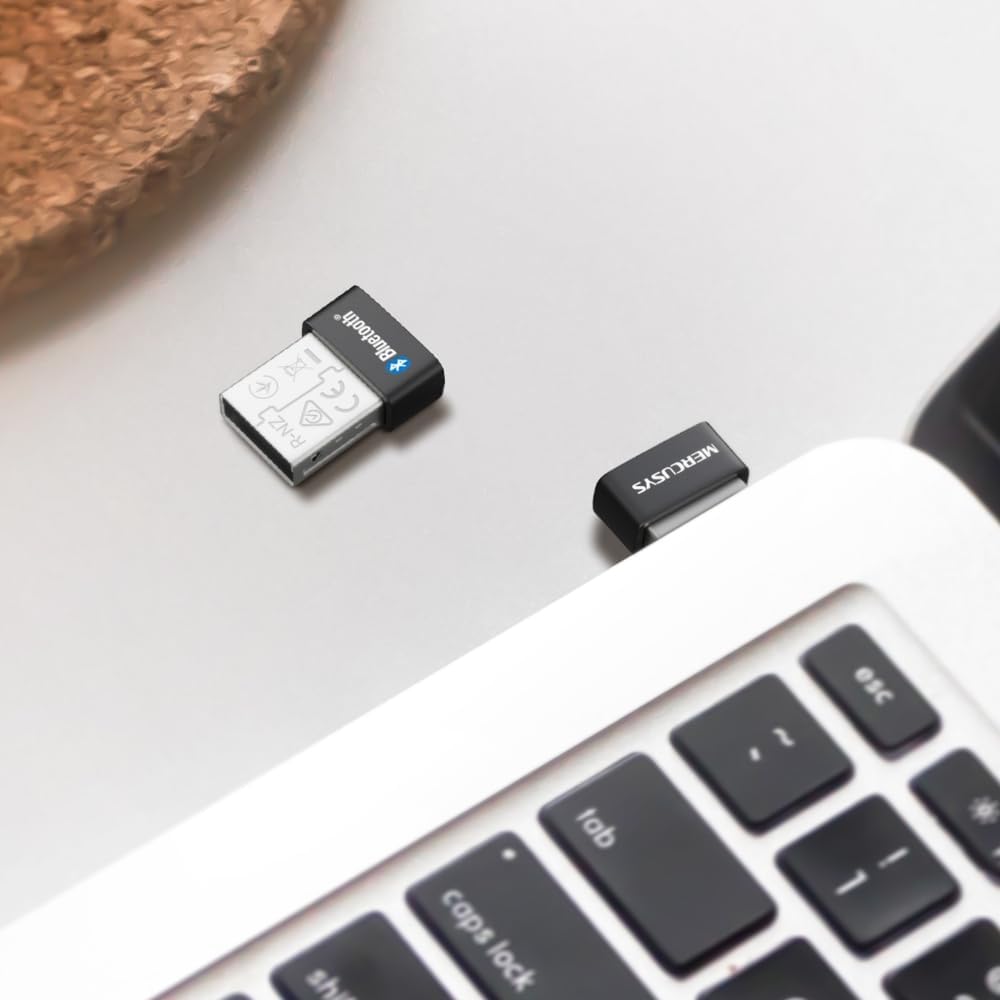
Image 3.1: The MERCUSYS MA530 adapter plugged into a laptop, with a visual representation of a Bluetooth signal emanating from it. This illustrates the active wireless connectivity provided by the adapter.
4. 유지관리
The MERCUSYS MA530 adapter requires minimal maintenance. To ensure optimal performance and longevity:
- Keep the adapter clean and free from dust. Use a soft, dry cloth to wipe it if necessary.
- 어댑터를 극한의 온도, 습도 또는 직사광선에 노출시키지 마세요.
- 어댑터를 직접 분해하거나 수리하려고 시도하지 마십시오. 그렇게 하면 보증이 무효화됩니다.
- When not in use for extended periods, you may remove the adapter from the USB port, though its nano-size allows it to remain plugged in discreetly.
5. 문제 해결
If you encounter issues with your MERCUSYS MA530 adapter, consider the following troubleshooting steps:
- 어댑터가 감지되지 않음:
- 어댑터를 다른 USB 포트에 연결해 보세요.
- USB 포트가 정상적으로 작동하는지 확인하십시오.
- 컴퓨터를 다시 시작하세요.
- Check Device Manager for any unknown devices or errors related to USB controllers.
- Bluetooth Not Functioning (Windows 11/10/8.1):
- Verify that Bluetooth is enabled in your Windows settings.
- Go to Device Manager, locate the Bluetooth adapter, right-click, and select "Update driver." If issues persist, try "Uninstall device" and then restart your computer to allow Windows to reinstall the driver.
- Bluetooth Not Functioning (Windows 7):
- Ensure you have installed the correct Windows 7 driver from the MERCUSYS support website as described in the Setup section.
- If the driver was installed, try reinstalling it.
- Cannot Pair/Connect Devices:
- Bluetooth 장치가 페어링 모드인지 확인하세요.
- Make sure the device is within range of the adapter.
- 컴퓨터의 블루투스 설정에서 이전에 페어링된 해당 기기 항목을 모두 제거한 후 다시 페어링을 시도하십시오.
- Try pairing the device with another Bluetooth-enabled computer or phone to confirm the device itself is working.
- Poor Connection/Range:
- Ensure there are no physical obstructions (e.g., metal objects, thick walls) between the adapter and your Bluetooth device.
- Move the adapter to a different USB port, preferably one with a clear line of sight to your device.
- Minimize interference from other wireless devices (Wi-Fi routers, cordless phones, microwaves).
If these steps do not resolve the issue, please contact MERCUSYS Technical Support for further assistance.
6. 사양
| 특징 | 세부 사항 |
|---|---|
| 모델 | 마530 |
| 블루투스 버전 | Bluetooth 5.3 (BLE Technology) |
| 하드웨어 인터페이스 | USB 2.0 |
| 데이터 링크 프로토콜 | 블루투스, USB |
| 데이터 전송 속도 | 2480MHz |
| 호환되는 운영 체제 | 윈도우 11, 윈도우 10, 윈도우 8.1, 윈도우 7 |
| 호환 장치 | 데스크탑, 노트북 |
| 치수(길이 x 너비 x 높이) | 1.49 x 1.92 x 0.72cm(0.59 x 0.76 x 0.28인치) |
| 무게 | 2그램 |
| 제조업체 | 티피링크 |
7. 보증 정보
MERCUSYS products are typically covered by a limited warranty. The specific terms and duration of the warranty for your MA530 adapter may vary by region and retailer. Please retain your proof of purchase for warranty claims.
For detailed warranty information, including coverage, limitations, and the process for making a claim, please refer to the official MERCUSYS web사이트를 방문하거나 고객 지원팀에 직접 문의하세요.
8. 기술 지원
If you require further assistance or have questions not covered in this manual, please contact MERCUSYS Technical Support:
- Web대지: MERCUSYS 공식 웹사이트를 방문하세요. webFAQ, 드라이버 다운로드 및 지원 자료를 제공하는 사이트입니다.
- 연락하다: Look for contact information (phone, email, live chat) on the MERCUSYS support page specific to your region.
When contacting support, please have your product model (MA530) and a description of your issue ready.