
소개
구매해주셔서 감사합니다asing the KTC H27S17 27-inch WQHD 180Hz Curved Gaming Monitor. This manual provides essential information for the safe and efficient use of your new monitor. Please read it thoroughly before use and retain it for future reference.
제품 끝view 동영상
비디오: 공식 제품 소개 영상asing the key features and design of the KTC H27S17 27-inch Curved Gaming Monitor.
패키지 내용
아래 나열된 모든 품목이 패키지에 포함되어 있는지 확인하세요.
- 전원 케이블
- DisplayPort 케이블
- 전원 어댑터
- 모니터 받침대
- 스탠드베이스
- Driver CD (or download link)
- 장착 나사
- 사용 설명서 (일본어 버전)
- 빠른 시작 가이드
- 보증 카드
설치 지침
1. 스탠드 조립
Attach the stand base to the monitor stand using the provided screws. Then, securely attach the assembled stand to the back of the monitor.
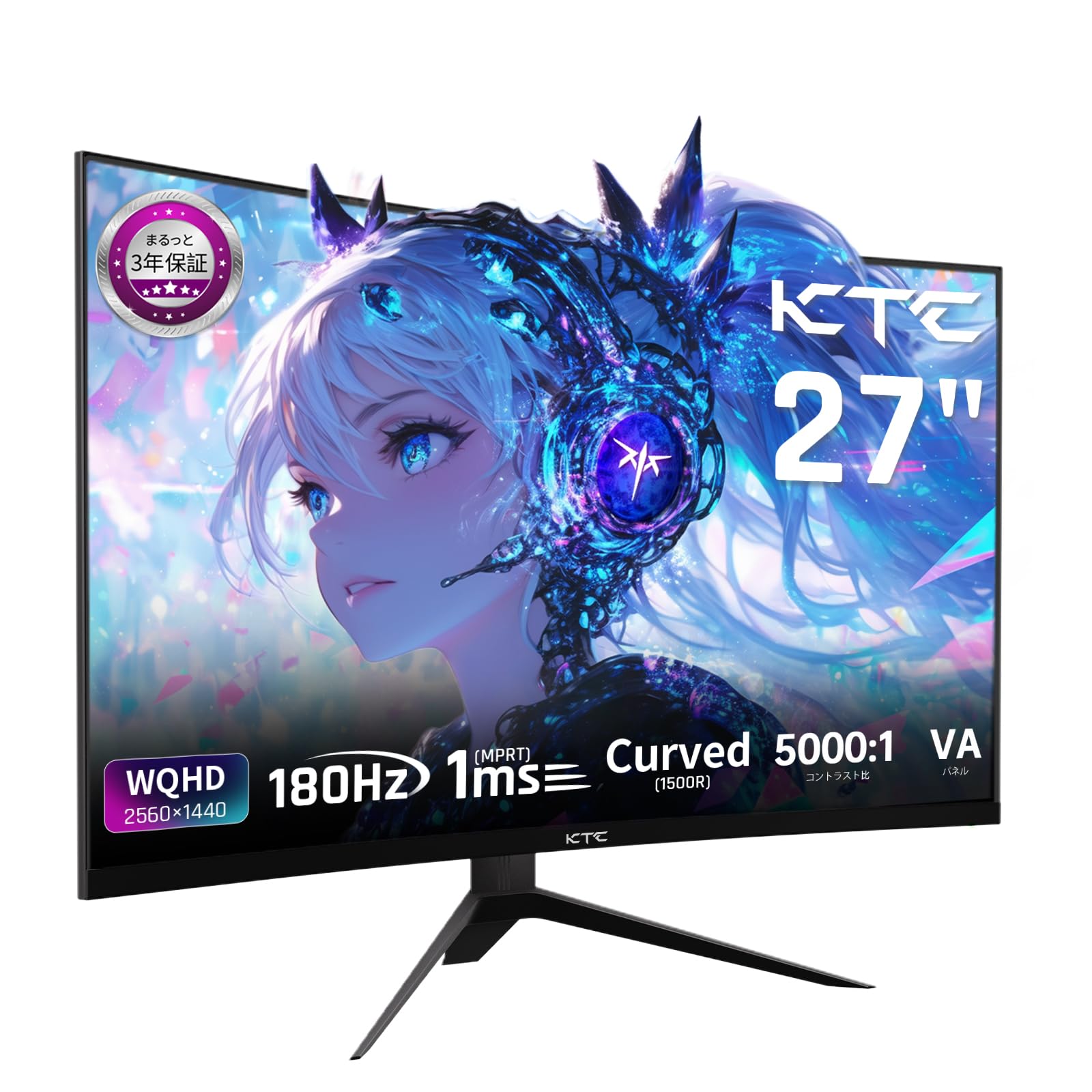
Image: The KTC H27S17 monitor fully assembled with its stand, view앞에서부터.
2. 전원 연결
전원 어댑터를 모니터의 DC 입력 포트에 연결한 다음 전원 케이블을 벽면 콘센트에 꽂으십시오.
3. 장치에 연결하기
Use the appropriate cable (DisplayPort or HDMI) to connect your computer or gaming console to the monitor. Ensure the cable is securely connected to both the monitor and your device.

이미지: 후면 view of the monitor showing the various input ports including DC, USB, HDMI, DisplayPort, and headphone jack.
4. VESA 마운팅 (선택 사항)
The monitor supports VESA 100mm x 100mm mounting. If using a VESA mount, remove the stand and attach the monitor to your VESA-compatible arm or wall mount using appropriate screws.
Image: Diagram illustrating the VESA 100x100mm mounting pattern and tilt adjustment range on the back of the monitor.
작동 지침
전원 켜기/끄기
모니터 뒷면이나 아래쪽에 있는 전원 버튼을 눌러 모니터를 켜거나 끄세요. 모니터가 켜지면 전원 표시등이 켜집니다.
온스크린 디스플레이(OSD) 메뉴
Use the joystick or buttons on the monitor to navigate the OSD menu. This menu allows you to adjust various display settings such as brightness, contrast, color temperature, input source, and gaming features.
입력 소스 선택
If multiple devices are connected, use the OSD menu to select the desired input source (HDMI 1, HDMI 2, DisplayPort 1, DisplayPort 2).
디스플레이 기능
Curved Display (1500R)
1500R 곡률은 몰입감 넘치는 경험을 제공합니다. viewing experience, reducing eye strain during extended use by matching the natural curve of the human eye.

Image: A curved monitor displaying a vibrant image, highlighting the 1500R curvature for an immersive experience.
WQHD Resolution (2560x1440)
Experience detailed visuals with WQHD (2560x1440) resolution, offering approximately 1.7 times the pixel density of Full HD displays.

Image: A monitor displaying a high-resolution image, emphasizing the clarity of WQHD (2560x1440) compared to lower resolutions.
High Refresh Rate (180Hz) and Fast Response Time (1ms MPRT)
The 180Hz refresh rate and 1ms (MPRT) response time ensure smooth, blur-free visuals, crucial for fast-paced gaming and action scenes.

Image: A split screen comparison on the monitor, demonstrating the difference between 180Hz/1ms and 60Hz/5ms, highlighting reduced motion blur.
Vibrant Color Reproduction and HDR10
With sRGB 132%, DCI-P3 104%, Adobe RGB 112% color volume, and HDR10 support, the monitor delivers accurate and vivid colors with enhanced contrast between bright and dark areas.

Image: A monitor displaying a colorful scene, illustrating the wide color gamut and high contrast ratio (5000:1).
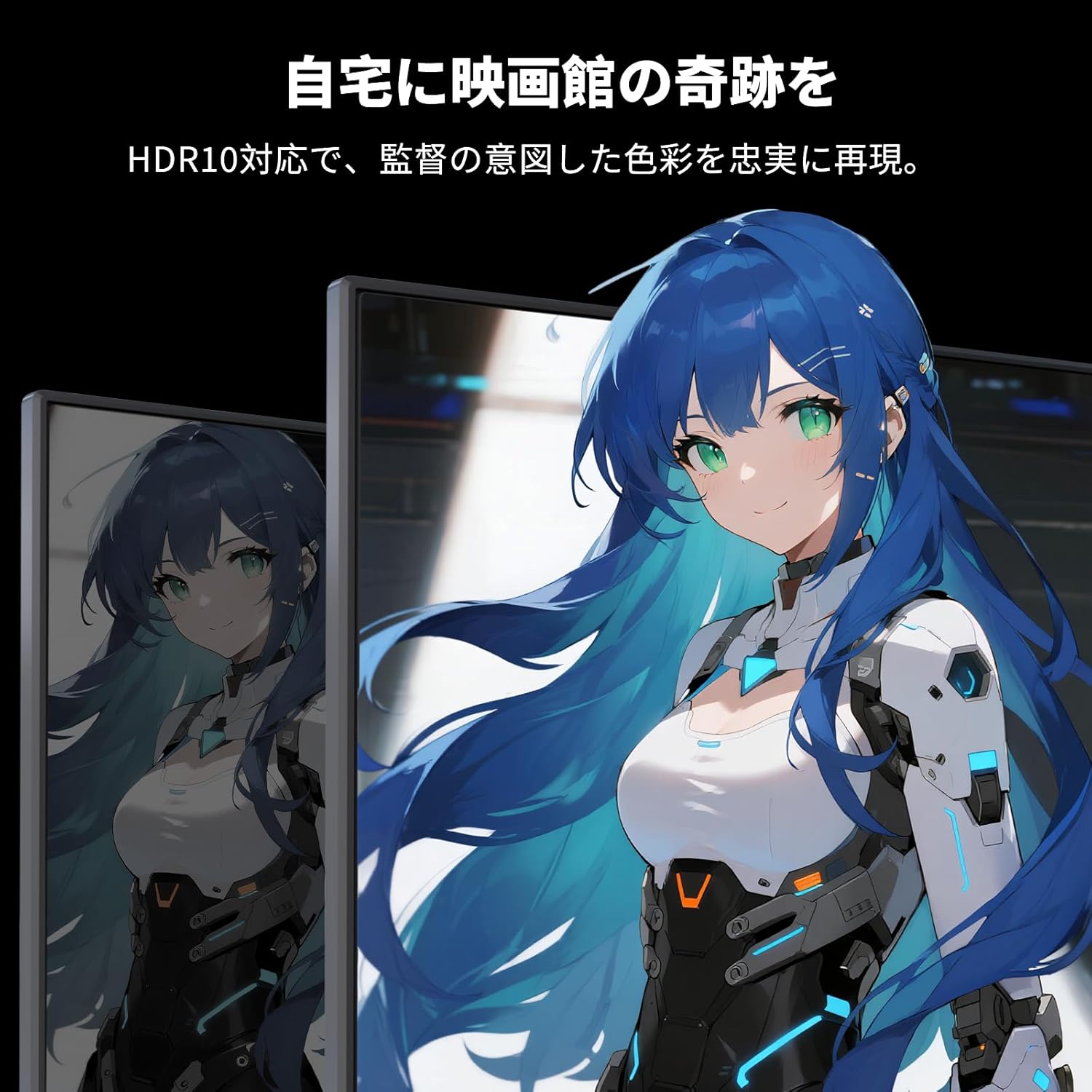
Image: A monitor showing a scene with HDR10 enabled, demonstrating improved dynamic range and detail in both bright and dark areas.
적응형 동기화 기술
Adaptive Sync (FreeSync and G-Sync compatible) eliminates screen tearing and stuttering, providing a fluid gaming experience.

Image: A split screen comparison on the monitor, showing the difference between Adaptive Sync OFF (screen tearing) and ON (smooth image).
눈 관리 기능
The monitor includes Flicker-Free technology and a Low Blue Light mode to reduce eye strain during prolonged use.

Image: Illustrations demonstrating Flicker-Free technology and Low Blue Light mode, designed to reduce eye fatigue.
연결성
The KTC H27S17 monitor offers multiple connectivity options:
- 2 x HDMI 2.0: WQHD(2560x1440) 해상도를 144Hz 주사율로 지원합니다.
- DisplayPort 1.4 2개: WQHD(2560x1440) 해상도를 180Hz 주사율로 지원합니다.
- USB 1 2.0개: 펌웨어 업그레이드용으로만 사용 가능합니다.
- 1 x 3.5mm Headphone Jack: 오디오 출력용.
- 1 x DC Input: 전원 연결용.
이미지: 상세 view of the monitor's rear panel, highlighting the DC input, USB port, HDMI ports, DisplayPort inputs, and headphone jack.
물리적 조정
기울기 조정
The monitor stand allows for tilt adjustment from -5 to 15 degrees, enabling you to find an optimal view편안함을 위한 각도.
Image: Diagram illustrating the tilt adjustment range of the monitor stand.
VESA 호환성
The monitor is compatible with VESA 100mm x 100mm mounting standards, allowing for flexible installation with monitor arms or wall mounts.
유지
화면 청소
부드럽고 보풀이 없는 천으로 화면을 부드럽게 닦으세요. 잘 지워지지 않는 얼룩은 가볍게 닦아주세요.amp천에 물이나 화면 세척액을 묻혀 닦아주세요. 강한 화학 물질이나 연마재는 사용하지 마세요.
Cleaning the Monitor Body
Wipe the monitor body with a soft, dry cloth. Do not use liquid cleaners directly on the monitor.
저장
장기간 사용하지 않을 경우 모니터를 직사광선과 극한 온도 변화를 피해 서늘하고 건조한 곳에 보관하십시오.
문제 해결
모니터에 문제가 발생하면 다음의 일반적인 해결책을 참조하세요.
- 전원 없음: Ensure the power cable and adapter are securely connected and the power outlet is functional.
- 신호 없음: Verify that the input cable (HDMI/DisplayPort) is correctly connected to both the monitor and the source device. Select the correct input source via the OSD menu.
- 깜빡임/왜곡된 이미지: Check cable connections. Ensure your graphics card drivers are up to date. Try adjusting the refresh rate in your device's display settings.
- 데드 픽셀: While rare, a small number of dead pixels may be within manufacturing tolerances. Refer to the warranty policy for details.
- Audio Issues (Headphone Jack): Ensure headphones are fully plugged in. Check audio settings on your connected device.
추가적인 도움이 필요하시면 KTC 고객지원센터로 문의해 주십시오.
명세서
| 특징 | 사양 |
|---|---|
| 상표 | KTC |
| 모델 | H27S17 |
| 화면 크기 | 27인치 |
| 해결 | WQHD (2560 x 1440 픽셀) |
| 종횡비 | 16시 9분 |
| 곡률 | 1500R |
| 패널 유형 | VA |
| 새로 고침 빈도 | 180Hz |
| 응답 시간 | 1ms(MPRT) |
| 대비율 | 5000시 1분 |
| 명도 | 300칸델라/제곱미터 |
| 색상 영역 | sRGB 132% / DCI-P3 104% / Adobe RGB 112% |
| HDR 지원 | HDR10 |
| 적응형 동기화 | FreeSync, G-Sync Compatible |
| 연결성 | 2x HDMI 2.0, 2x DisplayPort 1.4, 1x USB 2.0 (Upgrade only), 1x Headphone Jack |
| VESA 마운트 | 100mm x 100mm |
| 기울기 조정 | -5 ~ 15도 |
| 눈 관리 기능 | 플리커 프리, 로우 블루 라이트 |
보증 및 지원
KTC provides a 3-year warranty and a 12-month exchange service for this product. For any questions or issues, please contact customer support.
- 핸드폰: 050-3606-8990
- 이메일: support@ktcplay.com

Image: Information regarding KTC's 3-year warranty and contact details for customer support.
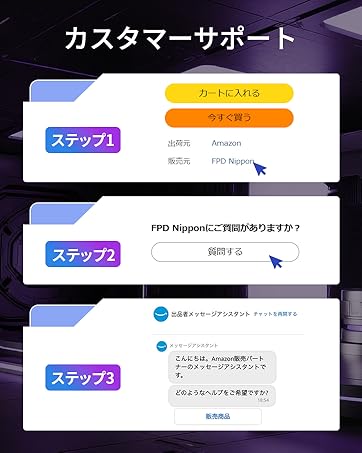
Image: Step-by-step guide on how to contact customer support via Amazon.