
1. 제품 오버view
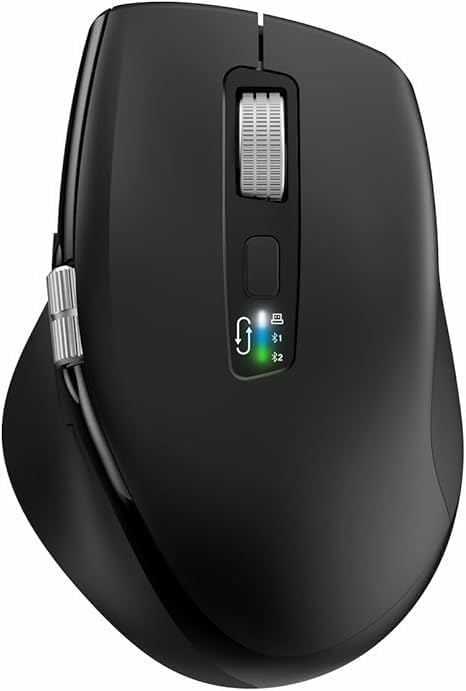
The INFINMIND L910 is a versatile wireless mouse designed for comfort and efficiency across multiple devices. It features both 2.4G wireless and Bluetooth connectivity, adjustable DPI settings, and specialized scrolling functions.
2. 패키지 내용
- INFINMIND L910 Wireless Bluetooth Mouse
- USB 수신기 (일반적으로 마우스 배터리 칸에 보관됨)
- 2 x AA 배터리
- 사용 설명서 (본 문서)
3. 설정 지침
3.1. 배터리 설치
- 마우스 밑면에서 배터리 칸을 찾으세요.
- 배터리 덮개를 엽니다.
- Insert one or two AA batteries, ensuring correct polarity (+/-). The mouse can operate with either one or two batteries, allowing for weight preference.
- 배터리 덮개를 단단히 닫으세요.
3.2. 연결 모드
The mouse supports three connection channels: one 2.4G wireless channel and two Bluetooth channels (BT1 and BT2). You can switch between these channels using the dedicated mode switch button on the mouse.
3.3. 2.4G 무선 연결
- Remove the USB receiver from its storage slot, usually located in the battery compartment.
- USB 수신기를 컴퓨터의 사용 가능한 USB 포트에 연결합니다.
- Switch the mouse to the 2.4G wireless mode (indicated by a specific LED light, refer to mouse markings).
- 컴퓨터가 필요한 드라이버를 자동으로 감지하고 설치합니다. 이제 마우스를 사용할 수 있습니다.
3.4. 블루투스 연결(BT1 / BT2)
- Switch the mouse to either BT1 or BT2 mode using the mode switch button.
- Press and hold the mode switch button for 3-5 seconds until the corresponding Bluetooth LED indicator starts blinking rapidly. This indicates the mouse is in pairing mode.
- On your device (computer, smartphone, tablet), navigate to the Bluetooth settings.
- 검색 new devices. The mouse should appear as "INFINMIND L910" or similar.
- Select the mouse to pair. Once paired, the LED indicator will stop blinking and remain solid for a few seconds before turning off.
- Repeat these steps for the second Bluetooth channel (BT2) if you wish to connect to another device.
4. 사용 설명서
4.1. 전원 관리
The mouse features an automatic sleep mode to conserve battery life. To wake the mouse from sleep, simply move it. There is no manual on/off switch; power is managed by battery insertion and activity.
4.2. DPI 조정
The mouse offers four adjustable DPI (Dots Per Inch) settings to suit various tasks and preferences. Press the DPI button, located near the main scroll wheel, to cycle through the available settings: 1000, 1600, 2400, and 3000 DPI.

4.3. Smart Flying Scroll Wheel
The main scroll wheel features a 'Smart Flying Scroll' function, allowing for rapid vertical scrolling. This is particularly useful for navigating long documents or web pages quickly and silently.
4.4. Side Scroll Wheel (Thumb Scroll)
A dedicated side scroll wheel, operated by the thumb, provides horizontal page scrolling. This feature enhances productivity, especially when working with wide spreadsheets or timelines.

4.5. 다중 장치 전환
To switch between connected devices (2.4G, BT1, BT2), simply press the mode switch button. The corresponding LED indicator will light up to confirm the active connection.
4.6. 시스템 호환성 스위치
The mouse includes a one-touch switch specifically designed for seamless transitions between Windows and Mac operating systems, ensuring optimal performance on both platforms.
4.7. Ergonomic Design and Quiet Click
The contoured shape and soft rubber grips of the mouse are designed to reduce hand fatigue during extended use. The quiet click feature allows for multi-scene use without disturbing others.

5. 유지관리
5.1. 배터리 교체
When the mouse performance degrades or the LED indicator suggests low power, replace the AA batteries. Battery life can extend up to 20 months with one battery or 40 months with two batteries, depending on usage environment.
5.2. 청소
마우스를 청소할 때는 부드럽고 마른 천을 사용하세요. 잘 지워지지 않는 얼룩은 약간 거친 천으로 닦아내세요.amp 순한 비누를 묻힌 천으로 닦되, 액체가 내부 부품에 들어가지 않도록 주의하십시오. 연마성 세척제나 용제는 사용하지 마십시오.
5.3. 보관
Store the mouse in a cool, dry place away from direct sunlight and extreme temperatures. If storing for an extended period, it is recommended to remove the batteries to prevent leakage.
6. 문제 해결
6.1. 마우스가 응답하지 않음
- 배터리가 제대로 삽입되었고 충전량이 충분한지 확인하세요. 필요하면 교체하세요.
- Ensure the mouse is switched to the correct connection mode (2.4G, BT1, or BT2) for your device.
- 2.4G 연결의 경우 USB 수신기가 컴퓨터에 제대로 연결되어 있는지 확인하십시오. 다른 USB 포트를 사용해 보십시오.
- 블루투스 연결의 경우, 기기에서 블루투스가 활성화되어 있고 마우스가 페어링되어 있는지 확인하세요. 마우스를 다시 페어링해 보세요.
6.2. Connectivity Issues / Lag
- 마우스와 수신기/장치 사이의 거리를 줄이십시오.
- 잠재적인 간섭원(예: 다른 무선 장치, 큰 금속 물체)을 제거하세요.
- Try connecting to a different USB port or re-pairing the Bluetooth connection.
6.3. DPI가 변경되지 않음
- DPI 버튼을 단단히 누르고 있는지 확인하세요.
- If the issue persists, try restarting the mouse by removing and reinserting the batteries.
7. 사양
| 특징 | 세부 사항 |
|---|---|
| 상표 | 인피마인드 |
| 모델 번호 | L910 |
| 색상 | 검은색 |
| 연결 기술 | 블루투스, USB (2.4G 무선) |
| 특별 기능 | Ergonomic Design, Thumb Scroll, Smart Flying Scroll |
| 호환 장치 | 개인용 컴퓨터, 스마트폰, 태블릿 |
| 배터리 구성 | 알칼리성 |
| 움직임 감지 기술 | 광학 |
| 버튼의 수 | 8 |
| 손의 방향 | 오른쪽 |
| 제품의 권장 용도 | 사무실 |
| 배터리 수명 | Up to 40 months (with 2 AA batteries) |
| DPI 설정 | 1000/1600/2400/3000 |
8. 보증 및 지원
Information regarding product warranty and specific customer support contact details is not available in this document. Please refer to the product packaging or the retailer's web보증 조건 및 지원 옵션에 대한 자세한 내용은 해당 사이트를 참조하십시오.