
소개
This manual provides detailed instructions for the setup, operation, maintenance, and troubleshooting of your Ducky ProjectD Tinker 75 RGB Barebone Mechanical Keyboard. Please read this manual thoroughly before using the product to ensure proper functionality and longevity.
제품 끝view
The Ducky ProjectD Tinker 75 RGB is a 75% layout barebone mechanical keyboard designed for customization and gaming. It features a compact design, RGB backlighting, and hot-swappable switch sockets, allowing users to easily install their preferred mechanical switches and keycaps.

이미지: 상단 view of the Ducky ProjectD Tinker 75 RGB Barebone Mechanical Keyboard, showcasing its 75% layout and empty switch sockets.
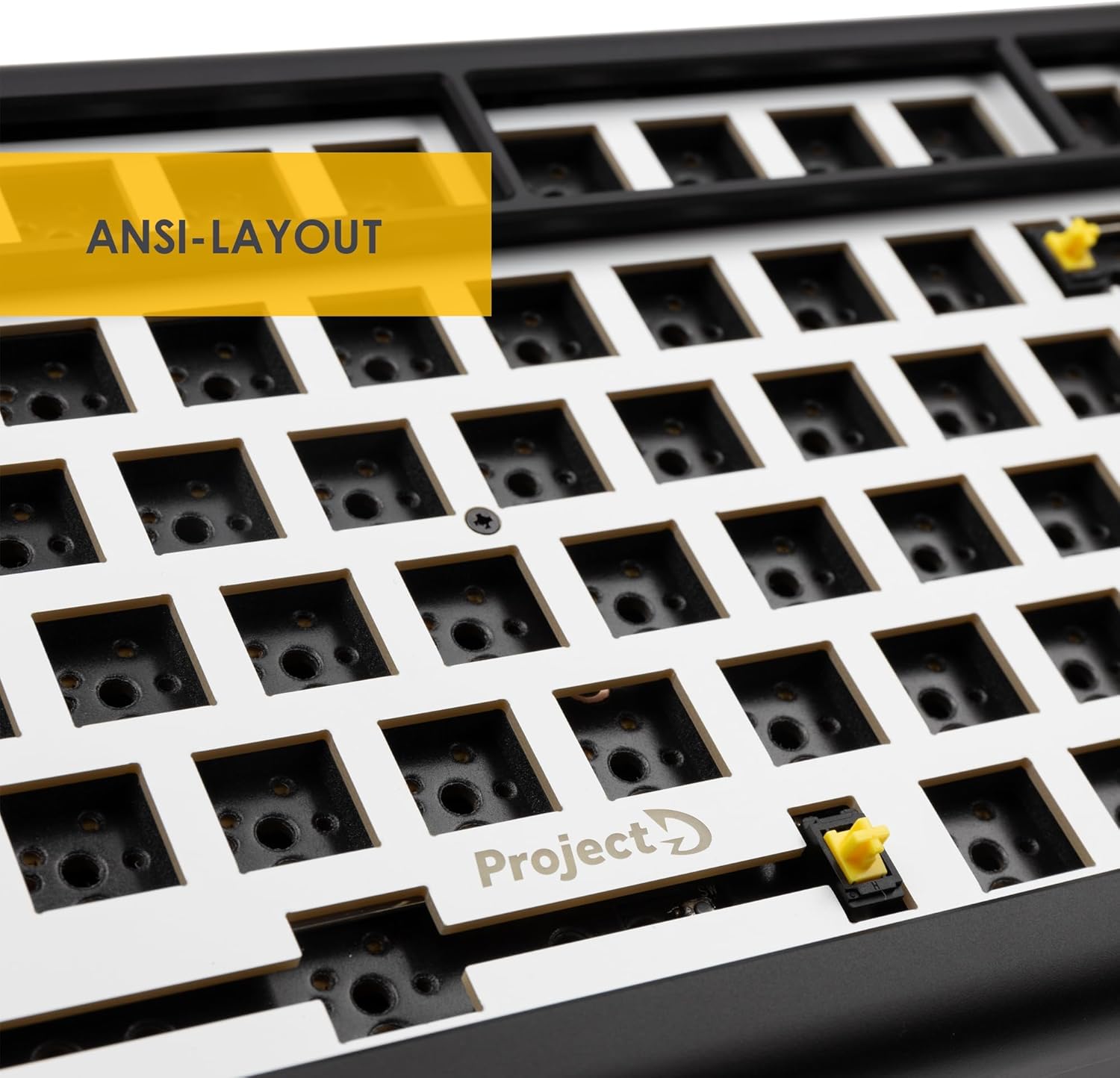
이미지: 클로즈업 view of the keyboard's ANSI layout, highlighting the arrangement of switch sockets.
상자 안에 무엇이 들어있나요?
개봉 후 포장 내용물을 확인해 주세요.
- 1 x Ducky ProjectD Tinker 75 RGB Barebone Mechanical Keyboard
- 1 x USB 케이블
Note: Mechanical switches and keycaps are not included with this barebone model and must be purchased separately.
설정
- Install Mechanical Switches: Carefully align the pins of your desired 3-pin or 5-pin mechanical switches with the hot-swappable sockets on the keyboard PCB. Press down gently until the switch clicks into place. Ensure all switches are fully seated.
- 키캡 설치: Once all switches are installed, place your preferred keycaps onto the stems of the mechanical switches. Press down firmly but gently to secure them.
- USB 케이블 연결: Plug the USB-C end of the provided cable into the port on the keyboard. Connect the other end (USB-A) to an available USB port on your computer.
- 초기 전원 켜기: The keyboard should be automatically recognized by your operating system. The RGB backlighting will illuminate, indicating it is powered on.

Image: Close-up of the hot-swappable switch sockets, ready for switch installation.
작동 지침
The Ducky ProjectD Tinker 75 RGB functions as a standard keyboard. Below are details on its special features:
- RGB 백라이트: The keyboard features customizable RGB backlighting. Specific lighting modes and color adjustments can typically be controlled via dedicated key combinations (often involving the Fn key) or through Ducky's proprietary software (if available for this model). Refer to Ducky's official website for software downloads and detailed lighting control instructions.
- Function Layer (Fn Key): 그만큼 Fn key (usually located near the right Alt or Ctrl key) allows access to secondary functions printed on some keycaps (e.g., media controls, volume adjustment, lighting effects). Press and hold the Fn 키를 누른 다음 원하는 기능 키를 누릅니다.

Image: Keyboard with RGB backlighting active, showing various colors illuminating the switch sockets.
유지
- 청소:
- 청소하기 전에 키보드를 컴퓨터에서 분리하세요.
- Use a soft brush or compressed air to remove dust and debris from between keycaps and switches.
- 잘 지워지지 않는 얼룩은 약간 부드러운 천으로 키캡과 케이스를 살살 닦아주세요.amp보푸라기가 없는 천으로 닦아주세요. 과도한 습기는 피해주세요.
- 스위치 및 키캡 교체:
- Due to the hot-swappable design, switches can be removed and replaced without soldering. Use a switch puller tool to carefully extract switches.
- Keycaps can be removed using a keycap puller tool.
- When installing new switches or keycaps, follow the steps outlined in the "Setup" section.
문제 해결
- 키보드가 응답하지 않음:
- USB 케이블이 키보드와 컴퓨터에 모두 단단히 연결되어 있는지 확인하세요.
- 키보드를 컴퓨터의 다른 USB 포트에 연결해보세요.
- 시스템 특정 문제를 배제하기 위해 다른 컴퓨터에서 키보드를 테스트하세요.
- RGB 조명이 작동하지 않음/잘못됨:
- Check if the lighting is turned off or set to a very dim level using the keyboard's function keys.
- Ensure all switches are fully seated, as loose switches can sometimes affect lighting.
- If using Ducky software, ensure it is up to date and correctly configured.
- 키가 등록되지 않음:
- 키캡을 조심스럽게 제거하고 영향을 받은 키로 전환하세요.
- 스위치 핀이 구부러지거나 손상되었는지 검사하세요. 구부러진 경우 부드럽게 펴세요.
- 스위치를 소켓에 다시 단단히 끼워 완전히 고정되었는지 확인하십시오.
- If the issue persists, try swapping the problematic switch with a known working switch to determine if the switch or the socket is at fault.
명세서
| 특징 | 세부 사항 |
|---|---|
| 모델 번호 | 2383AST-ANSI01 |
| 공들여 나열한 것 | 75% ANSI |
| 연결성 | USB-C |
| 호환 장치 | PC |
| 키보드 유형 | Barebone Mechanical |
| 특별 기능 | Customizable Switches (Hot-swappable), RGB Backlighting |
| 백라이트 색상 지원 | RGB |
| 제품 치수 | 12.99 x 6.1 x 1.77인치(33 x 15.5 x 4.5cm) |
| 품목 무게 | 1.76파운드(0.8kg) |
| 재료 | 플라스틱(ABS) |
| 제조업체 | 예보 |

이미지: 하단 view of the keyboard, highlighting the ABS plastic casing.
보증 및 지원
For warranty information, technical support, or to download the latest software and firmware for your Ducky ProjectD Tinker 75 RGB keyboard, please visit the official Ducky web대지:
보증 청구를 위해 구매 증명서를 보관하십시오.