
소개
This manual provides essential instructions for setting up, operating, and maintaining your Plimpton PlimPad Kids20 tablet. This device is designed for children, featuring Android 14, an Octa-core processor, 8GB RAM (expandable), 64GB ROM (expandable to 1TB), and a durable EVA shockproof case. It includes pre-installed Google Kids Space and parental control features to ensure a safe and educational experience.
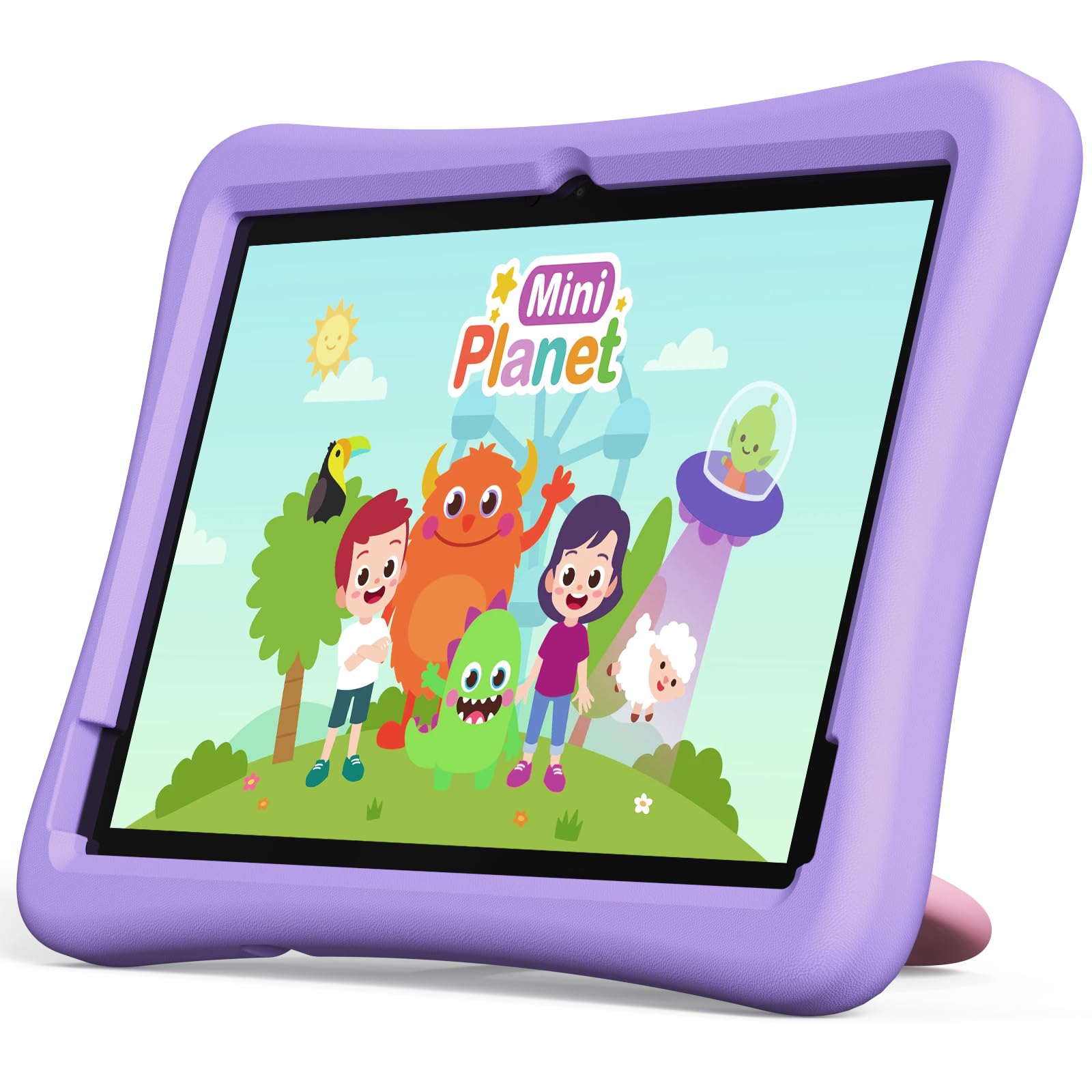
Image: The Plimpton PlimPad Kids20 tablet in its violet shockproof EVA case.
상자 안에 무엇이 들어있나요?
설치를 진행하기 전에 패키지에 모든 구성품이 들어 있는지 확인하십시오.
- 1x Plimpton PlimPad Kids20 Tablet
- USB 어댑터 1개
- 1x 1.8m Charging Cable
- 1x 사용자 설명서
설정
1. 태블릿 충전하기
처음 사용하기 전에 태블릿을 완전히 충전하십시오.
- Connect the USB charging cable to the tablet's USB Type-C port.
- USB 어댑터를 전원 콘센트에 꽂습니다.
- 충전 표시등이 켜집니다. 완전히 충전되려면 몇 시간이 걸립니다.
2. 전원 켜기 / 끄기
- 전원을 켜려면: 화면이 켜질 때까지 전원 버튼을 길게 누릅니다.
- 전원을 끄려면: 전원 버튼을 길게 누른 다음, 화면에 나오는 옵션에서 "전원 끄기"를 선택하세요.
- 재시작하기 위해: 전원 버튼을 길게 누른 다음 옵션에서 "다시 시작"을 선택합니다.
3. 초기 설정
Upon first power-on, follow the on-screen prompts to configure your tablet. This typically includes:
- 언어 선택
- Connecting to a Wi-Fi network (supports Wi-Fi 6, 2.4GHz + 5.0GHz).
- Setting up a Google account. This is crucial for accessing Google Kids Space and downloading apps.
- 날짜와 시간 구성.
4. 마이크로 SD 카드 삽입
The tablet supports Micro SD cards up to 1TB for expanded storage.
- 태블릿 측면에 있는 마이크로 SD 카드 슬롯을 찾으세요.
- 마이크로 SD 카드를 딸깍 소리가 나면서 제자리에 고정될 때까지 조심스럽게 슬롯에 삽입하십시오.
- The tablet will detect the new storage. You may be prompted to format it for use as portable or internal storage.
태블릿 작동
1. 기본 탐색
The PlimPad Kids20 uses a capacitive touchscreen for interaction.
- 수도꼭지: 항목을 선택하거나 애플리케이션을 엽니다.
- 길게 누르기 : 상황에 맞는 메뉴에 접근하거나 아이콘을 이동합니다.
- 강타: Navigate through screens or scroll within applications.
- 핀치 투 줌: Enlarge or reduce content (e.g., photos, web 페이지).
2. 구글 키즈 스페이스
The tablet comes with Google Kids Space pre-installed, offering a curated selection of educational and entertaining content.

Image: A child and adult interacting with the tablet, showing the Google Kids Space interface.
- Access Kids Space from the home screen or app drawer.
- Content includes interactive educational apps, books, games, and videos.
- Content is teacher-approved and designed to promote learning and creativity.
3. Parental Controls (Google Family Link)
Manage your child's tablet usage and ensure a safe online environment using Google Family Link.

Image: A child using the tablet, with an overlay indicating Google Family Link for parental control.
- Download the Google Family Link app on your own device.
- Link your child's Google account on the tablet to your Family Link account.
- Through Family Link, you can:
- 화면 사용 시간 제한을 설정하세요.
- Approve or block app downloads.
- 관리하다 web사이트 접속.
- Track device location.
4. 연결성
- 와이파이: Connect to wireless networks via Settings > Network & internet > Wi-Fi. The tablet supports dual-band Wi-Fi (2.4/5 GHz) for fast and stable connections.
- 블루투스 5.3 : 설정 > 연결된 기기 > Bluetooth를 통해 헤드폰이나 스피커와 같은 Bluetooth 기기를 페어링하세요.
5. 카메라 사용
태블릿에는 5MP 후면 카메라와 2MP 전면 카메라가 있습니다.
- 홈 화면이나 앱 서랍에서 카메라 앱을 엽니다.
- 필요에 따라 전면 카메라와 후면 카메라를 전환하세요.
- 셔터 버튼을 눌러 사진을 찍거나 비디오를 녹화하세요.
유지
1. 태블릿 청소
- 부드럽고 보푸라기가 없는 천을 사용하여 화면과 본체를 닦으세요.
- 완고한 얼룩의 경우 약간 damp천에 물이나 화면 세척제를 묻혀 닦으세요.
- 가혹한 화학물질이나 연마재는 피하세요.
2. 소프트웨어 업데이트
최적의 성능과 보안을 보장하려면 소프트웨어 업데이트를 정기적으로 확인하고 설치하세요.
- 설정 > 시스템 > 시스템 업데이트로 이동합니다.
- 화면의 지시에 따라 사용 가능한 업데이트를 다운로드하고 설치하세요.
3. 스토리지 관리
To maintain performance, periodically manage the tablet's storage.
- 설정 > 저장소로 이동하세요 view 저장공간 사용량.
- 사용하지 않는 앱을 제거하세요.
- 불필요한 삭제 file사진, 동영상.
- 크게 이동 files to an inserted Micro SD card.
문제 해결
If you encounter issues, try the following solutions before contacting support.
| 문제 | 해결책 |
|---|---|
| 태블릿의 전원이 켜지지 않습니다. | Ensure the tablet is fully charged. Connect it to the charger for at least 30 minutes, then try powering on again. |
| Wi-Fi 연결 문제. | Restart the tablet and your Wi-Fi router. Check Wi-Fi settings to ensure the correct network is selected and the password is entered correctly. |
| 앱이 충돌하거나 정지됩니다. | Close and reopen the app. Clear the app's cache (Settings > Apps > [App Name] > Storage & cache > Clear cache). If the problem persists, uninstall and reinstall the app. |
| 성능이 느립니다. | 사용하지 않는 앱을 닫으세요. 캐시와 임시 파일을 삭제하세요. files. Consider uninstalling large, unused applications or moving data to an SD card. Restart the tablet. |
| 화면이 응답하지 않습니다. | Perform a forced restart by holding the Power button for approximately 10-15 seconds until the tablet restarts. |
명세서
Key technical specifications for the Plimpton PlimPad Kids20 tablet.
| 특징 | 세부 사항 |
|---|---|
| 모델명 | Plimpad Kids20 |
| 운영 체제 | 안드로이드 14 |
| 프로세서 | Allwinner A523 Octa-core (up to 2.0 GHz) |
| 숫양 | 8 GB (4 GB + 4 GB extended virtual memory) |
| 내부 저장소(ROM) | 64GB (XNUMX기가바이트) |
| 확장 가능한 스토리지 | Up to 1 TB via Micro SD card |
| 화면 크기 | 10.1 인치 |
| 디스플레이 해상도 | 1280 x 800 픽셀(HD IPS) |
| 디스플레이 유형 | LCD, G+G wear-resistant glass |
| 배터리 용량 | 6000 mAh Lithium-ion (22.8 Wh) |
| 후방 카메라 | 5메가픽셀 |
| 전면 카메라 | 2메가픽셀 |
| 와이파이 | Wi-Fi 6 (802.11ax), Dual-band (2.4 GHz + 5.0 GHz) |
| 블루투스 | 블루투스 5.3 |
| 포트 | USB Type-C, 3.5mm Headphone Jack, Micro SD slot |
| 특별 기능 | Stereo Speakers, USB OTG support, Eye-care screen, EVA shockproof case with 360-degree rotating handle |
| 치수 | 24L x 16.1W x 0.9Hcm |
보증 및 지원
The Plimpton PlimPad Kids20 tablet comes with a 2년 무료 교체 보증.
For any issues, including screen damage or operational problems, please contact our professional after-sales customer service. Refer to the contact information provided with your purchase or on the official Plimpton web대지.
중요한: Do not attempt to repair the device yourself, as this may void your warranty.