
1. 서론
This manual provides detailed instructions for the ABLEWE USB to HDMI Adapter. This device is designed to connect a computer with a USB interface to an HDMI-equipped display, such as an HDTV, monitor, or projector. It supports video resolutions up to 1080P and facilitates both mirror and extend display modes.
2. 제품 오버view
The ABLEWE USB to HDMI Adapter is a compact device that converts a USB signal to an HDMI output. It features a USB 3.0 port for connection to your computer and an HDMI output port for your display. The adapter is built with an aluminum exterior for durability.
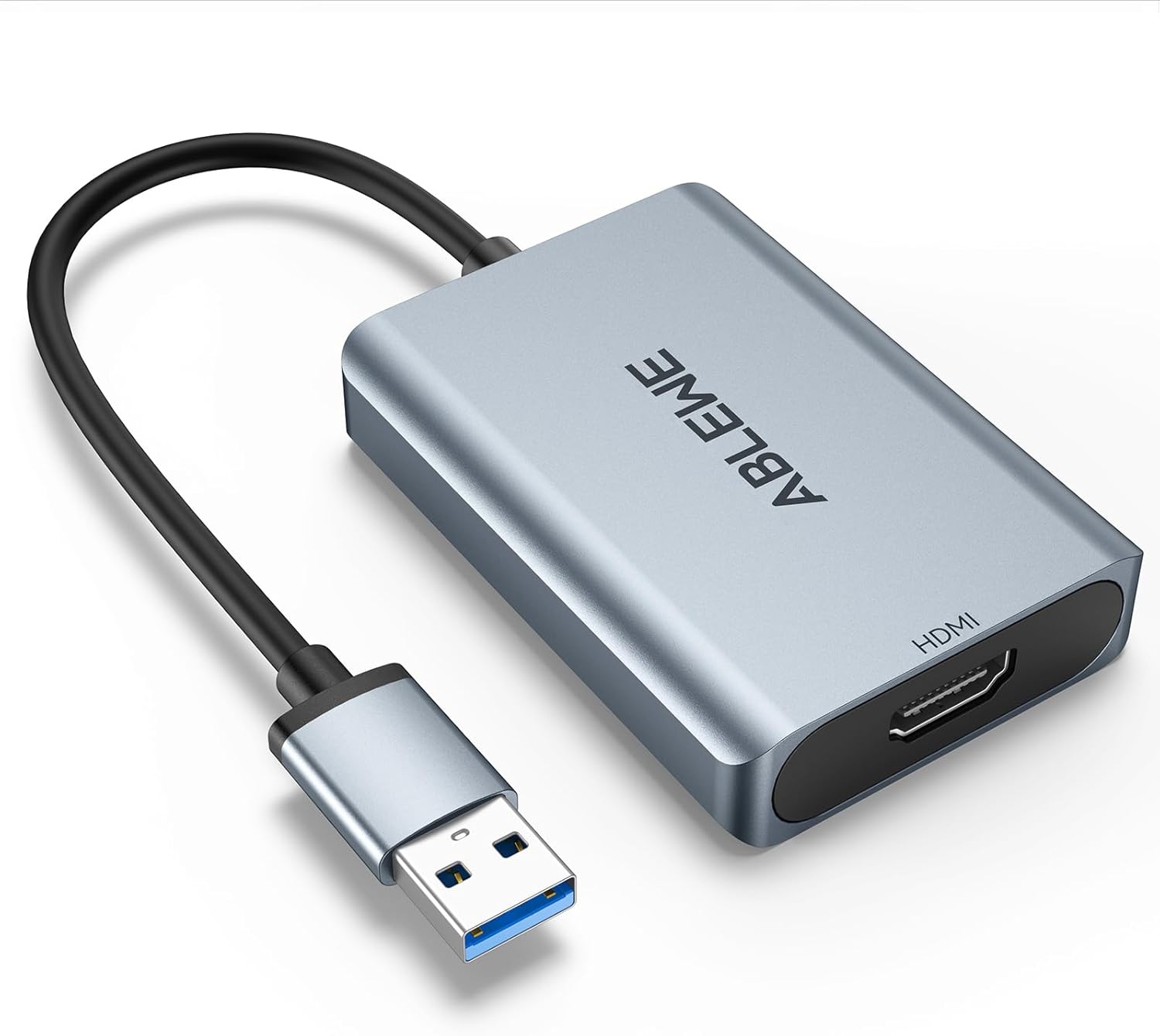
그림 2.1: The ABLEWE USB to HDMI Adapter. This image shows the adapter with its USB-A connector and HDMI output port, featuring a silver aluminum casing.
3. 호환성
The adapter offers broad compatibility with various operating systems and devices.
3.1 지원되는 운영 체제:
- 윈도우 10
- 윈도우 8.1
- 윈도우 8
- 윈도우 7
- Windows XP (32-bit)
- 맥 OS
3.2 Unsupported Operating Systems:
- Windows XP (64-bit)
- 리눅스 OS
- 크롬 OS

그림 3.1: Universal Compatibility. This image illustrates the operating system compatibility of the ABLEWE USB to HDMI Adapter, showing support for various Windows versions and Mac OS, while noting that Linux, 64-bit XP, and Chrome OS are not supported.
4. 설정 및 설치
Follow these steps to set up and install your ABLEWE USB to HDMI Adapter:
- 어댑터를 연결하십시오: Plug the USB-A connector of the adapter into an available USB 3.0 or USB 2.0 port on your computer.
- 드라이버 설치: The adapter includes built-in drivers. Upon plugging it into your computer, the driver installation process should initiate automatically. Follow any on-screen prompts to complete the installation.
- Alternative Driver Sources:
- If automatic installation does not occur, a driver backup may be available on a provided CD (if included).
- Alternatively, you can download the necessary drivers from the official "DisplayLink" web대지.
- 디스플레이에 연결: Connect one end of an HDMI cable (not included) to the HDMI output port on the adapter and the other end to the HDMI input port on your HDTV, monitor, or projector.
- 전원 켜짐 표시: Ensure your display device is powered on and set to the correct HDMI input source.
- 디스플레이 설정 구성: Once connected, your computer should detect the new display. You may need to adjust display settings (e.g., resolution, display mode) within your operating system's display preferences.

그림 4.1: Internal Performance Chip. This image provides a view of the internal components of the adapter, highlighting the performance chip responsible for stable and high-resolution video output.
5. 작동 모드
The ABLEWE USB to HDMI Adapter supports two primary display modes:
5.1 Extend Mode:
In Extend Mode, your computer's desktop is expanded across multiple screens. This allows you to view different content on each display, enhancing multitasking capabilities. For example, you can have a document open on your laptop screen and a web browser on the connected monitor.
5.2 Mirror Mode:
Mirror Mode duplicates your computer's primary display onto the connected external monitor. This is useful for presentations, sharing content with an audience, or enjoying media on a larger screen.

그림 5.1: Different Display Modes. This image demonstrates the two primary operating modes: Extend Mode, which allows for separate content on multiple screens, and Mirror Mode, which duplicates the primary display onto a larger screen.
6. 오디오 출력
The ABLEWE USB to HDMI Adapter supports simultaneous digital audio and video transmission. This means that audio from your computer can be routed through the HDMI connection to your connected display or audio system, provided the display supports audio input via HDMI.

그림 6.1: Audio Output Capability. This image highlights the adapter's capability to transmit both digital audio and video simultaneously, ensuring a complete multimedia experience.
7. Common Usage Scenarios
The adapter is suitable for various applications:
- 홈시어터: 더 큰 화면으로 영화와 비디오를 즐겨보세요.
- Conferences: Facilitate presentations and screen sharing in meetings.
- 노름: Experience games on an external monitor or TV.
- 기업 교육: Display training materials to a group.
- 멀티태스킹: Extend your desktop for increased productivity.

그림 7.1: Versatile Applications. This image displays various applications for the adapter, including home theater, conference presentations, gaming, and stock trading, illustrating its versatility.
8. 문제 해결
If you encounter issues with your ABLEWE USB to HDMI Adapter, refer to the following troubleshooting steps:
- 디스플레이 없음/검은 화면:
- 모든 케이블이 단단히 연결되어 있는지 확인하십시오.
- Verify the display is powered on and set to the correct HDMI input source.
- 컴퓨터의 디스플레이 설정에서 외부 모니터가 인식되고 활성화되어 있는지 확인하십시오.
- Try a different HDMI cable or USB port on your computer.
- 드라이버 문제:
- If the driver did not install automatically, manually install it from the provided CD (if applicable) or download the latest version from the official DisplayLink web대지.
- For Windows users, check Device Manager for any unrecognized devices or driver errors. Reinstall the driver if necessary.
- 오디오 없음:
- Ensure your display device supports audio input via HDMI.
- Check your computer's sound settings and select the HDMI output as the default playback device.
- Adjust the volume on both your computer and the display device.
- Low Resolution or Lagging Video:
- Ensure the adapter is connected to a USB 3.0 port for optimal performance. While compatible with USB 2.0, performance may be limited.
- Verify your computer's graphics drivers are up to date.
- Adjust the display resolution in your computer's settings to a supported resolution (e.g., 1920x1080P@60HZ).
- Mac OS Specific Issues:
- Ensure you have installed the correct DisplayLink drivers for Mac OS.
- Check System Preferences > Displays to configure the external monitor.
9. 사양
| 특징 | 세부 사항 |
|---|---|
| 모델 번호 | ABLEWE-USBHDMIAdapter |
| 커넥터 유형 | USB-A (Input), HDMI (Output) |
| USB 호환성 | USB3.0, USB2.0 |
| 최대 해상도 | 1920x1080P@60HZ (1080P) |
| 디스플레이 모드 | Mirror, Extend |
| 오디오 지원 | Yes, simultaneous audio and video |
| 호환 장치 | Laptop, Desktop, HDTV, Monitor, Projector |
| 지원되는 OS | Windows 10/8.1/8/7/XP (32-bit), Mac OS |
| 치수 | 5.59 x 3.43 x 0.94 인치 |
| 품목 무게 | 3.52 온스 |
| 제조업체 | 어블위 |
10. 유지관리
To ensure the longevity and optimal performance of your ABLEWE USB to HDMI Adapter, follow these maintenance guidelines:
- 청소: 어댑터를 닦을 때는 부드럽고 마른 천을 사용하십시오. 액체 세척제나 연마성 재질은 사용하지 마십시오.
- 저장: 어댑터를 사용하지 않을 때는 서늘하고 건조한 곳에 보관하십시오. 극한의 온도 변화를 피하십시오.
- 손질: Do not bend or twist the cable excessively. Avoid dropping the adapter.
- 업데이트: Periodically check the DisplayLink web호환성과 성능 개선을 위해 업데이트된 드라이버를 제공하는 사이트입니다.
11. 보증 및 지원
For information regarding product warranty, please refer to the documentation provided with your purchase or contact the seller directly. For technical support, please visit the official ABLEWE web사이트 또는 고객 서비스 부서에 문의하십시오.