
1. 서론
This manual provides detailed instructions for the OMOTON Magnetic Keyboard Case, Model KC011. This accessory is designed to enhance the functionality of your iPad Pro 13-inch (M4) 2024, offering a keyboard, multi-touch trackpad, and protective case. Please read this manual thoroughly before use to ensure proper operation and maintenance.
2. 패키지 내용
아래 나열된 모든 품목이 패키지에 들어 있는지 확인하세요.
- OMOTON Magnetic Keyboard Case
- USB-C 충전 케이블 (1미터)
- 사용 설명서
3. 호환성
This keyboard case is specifically designed for the Apple iPad Pro 13-inch (M4) 2024 model. It is compatible with iPad models A2925, A2926, and A3007.

그림 3.1: iPad Pro 13-inch (M4) 2024 compatibility. This image illustrates the 13-inch screen size and lists the compatible iPad model numbers (A2925, A2926, A3007) found on the back of the device.
iPad 모델 번호를 확인하려면 다음 단계를 따르세요.
- 이동하다 설정 iPad에서.
- 선택하다 일반적인, 그 다음에 에 대한, and look for 모델명.
- Alternatively, locate the model number printed on the back of your iPad.
4. 설정
4.1 iPad 부착하기
The keyboard case features strong magnets for secure attachment of your iPad. Align your iPad with the magnetic panel on the case until it snaps into place.

그림 4.1: Magnetic attachment. This image demonstrates how the iPad magnetically connects to the keyboard case, highlighting the strong magnetic attraction for secure placement.
4.2 블루투스 페어링
Follow these steps to pair your keyboard case with your iPad via Bluetooth:
- 키보드가 충전되어 있는지 확인하십시오(충전 방법은 5.4절을 참조하십시오).
- Turn on the keyboard by pressing the power button. The Bluetooth indicator light will flash.
- iPad에서 다음으로 이동하세요. 설정 > 블루투스.
- 블루투스를 켜세요. iPad가 사용 가능한 기기를 검색합니다.
- 장치 목록에서 "OMOTON 키보드"(또는 유사한 이름)를 선택하십시오.
- 메시지가 표시되면 iPad에 표시된 페어링 코드를 입력하고 누르세요. 입력하다 키보드에서.
- 페어링이 완료되면 키보드의 블루투스 표시등이 꺼지고 iPad 화면에 키보드가 "연결됨"으로 표시됩니다.
5. 운영
5.1 키보드 기능
The keyboard features a standard QWERTY layout with additional function keys and backlighting.
- 백라이트: The keyboard offers 12 backlight modes and 4 brightness levels. Use the dedicated backlight key (often represented by a light bulb icon) to cycle through modes and adjust brightness. This feature provides visibility in low-light conditions.
- 멀티미디어 키: A row of 14 function keys provides quick access to iPadOS features such as screen brightness adjustment, volume control, media playback, and more.
- Scissor Structure Keys: The 1-millimeter keystroke scissor structure is designed for a quiet and responsive typing experience.
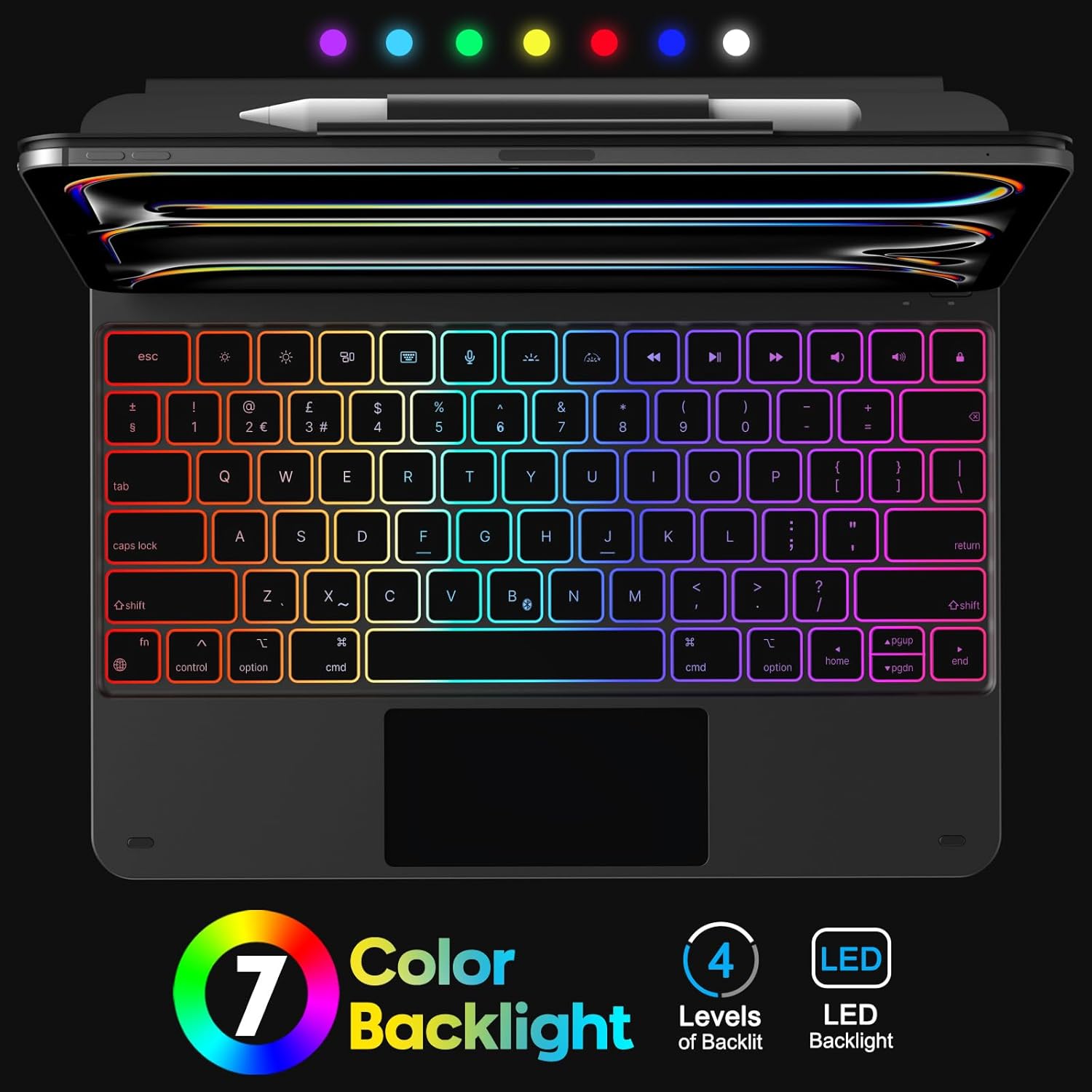
그림 5.1: Keyboard Backlight. This image displays the keyboard with its customizable 7-color backlight options and indicates the 4 available brightness levels, enhancing typing visibility.

그림 5.2: Key Mechanism. A close-up view of a keyboard key, illustrating the internal scissor-switch mechanism designed for comfortable and quiet typing.
5.2 트랙패드 사용
The integrated multi-touch trackpad supports various iPadOS gestures for navigation and interaction.
- 한 손가락: Tap to click, drag to move cursor.
- 두 손가락: Scroll up/down/left/right, pinch to zoom.
- 세 손가락: Swipe up to go to the Home screen, swipe up and hold to view app switcher, swipe left/right to switch between open apps.
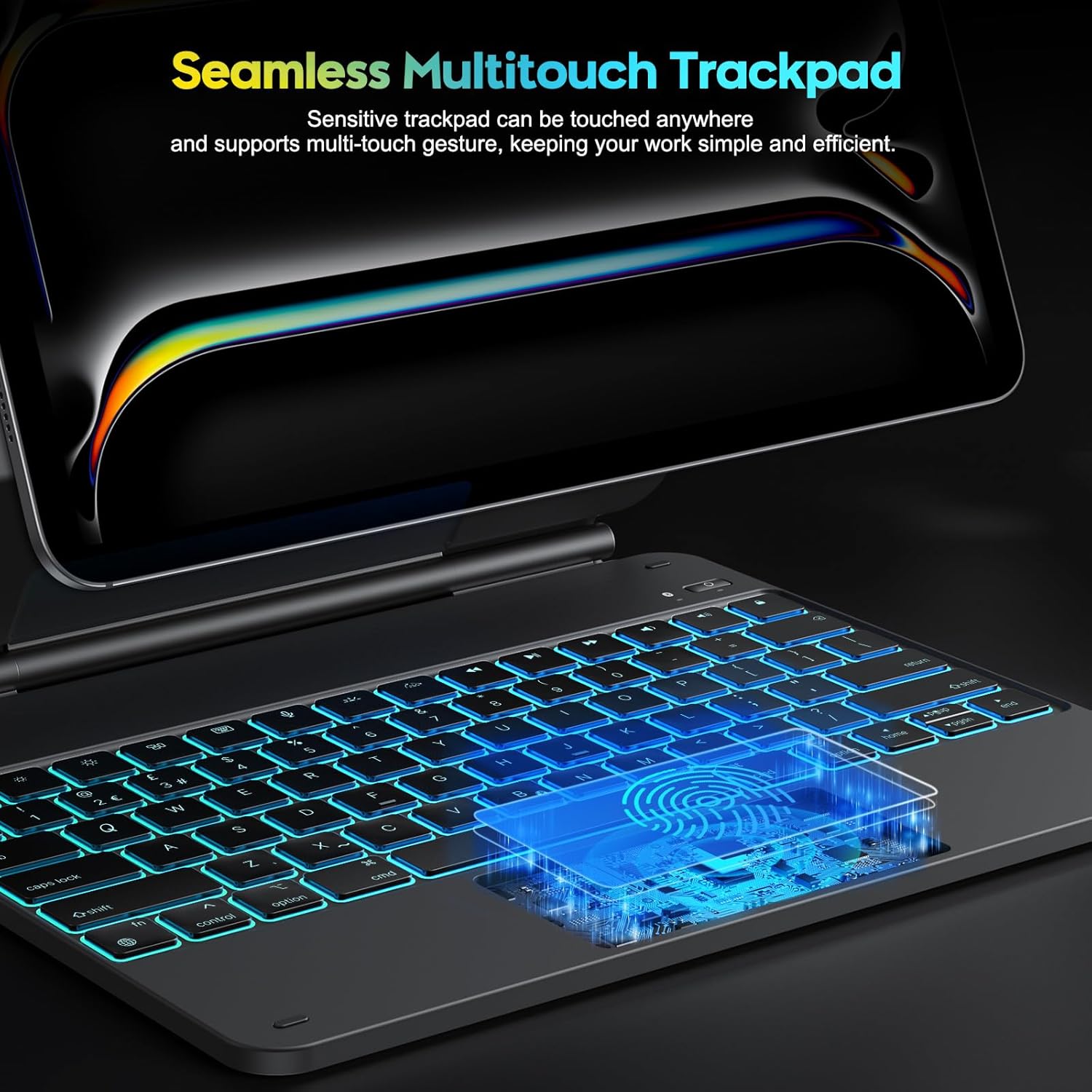
그림 5.3: Multi-Touch Trackpad. This image highlights the sensitive multi-touch trackpad, indicating its capability to register various gestures for efficient iPadOS interaction.
5.3 스탠드 조정
The floating stand design allows for flexible viewing angles. Gently adjust the iPad's position on the magnetic stand to achieve your desired angle.

그림 5.4: Floating Stand Design. This image illustrates the adjustable floating stand, demonstrating how the iPad's viewing angle can be smoothly set to various positions, up to 120 degrees.
5.4 키보드 충전
The keyboard case is equipped with a built-in rechargeable battery. Use the provided USB-C cable to charge the device.
- Connect the USB-C end of the cable to the charging port on the keyboard.
- 케이블의 다른 쪽 끝을 USB 전원 어댑터(포함되지 않음)나 컴퓨터의 USB 포트에 연결합니다.
- 충전 중에는 충전 표시등이 켜지고, 완전히 충전되면 꺼집니다.
- A full charge takes approximately 3 hours. The battery provides up to 260 hours of use without backlight and 9 hours with backlight.

그림 5.5: Charging and Battery Life. This image highlights the Type-C charging port on the keyboard and provides information on battery life, including 3 hours fast charging, 800mAh lithium battery, and over 1000 hours standby time.
6. 유지관리
To ensure the longevity and optimal performance of your keyboard case, follow these maintenance guidelines:
- 기기를 액체나 극한 온도에 노출시키지 마십시오.
- Clean the keyboard and trackpad surfaces with a soft, dry, lint-free cloth. Avoid abrasive cleaners.
- Do not attempt to disassemble the keyboard case, as this may void the warranty and cause damage.
- Store the keyboard case in a clean, dry environment when not in use.
7. 문제 해결
키보드 케이스에 문제가 발생하면 다음의 일반적인 해결 방법을 참조하세요.
- 키보드가 연결되지 않음: Ensure Bluetooth is enabled on your iPad and the keyboard is powered on and charged. Try re-pairing the keyboard (Section 4.2).
- 키가 응답하지 않음: Check if the keyboard is charged. Restart both the keyboard and your iPad.
- 트랙패드가 작동하지 않습니다. Ensure the keyboard is connected via Bluetooth. Check iPadOS settings for trackpad functionality. Restart the keyboard and iPad.
- 백라이트가 작동하지 않습니다: Ensure the keyboard is charged. Press the backlight key to cycle through modes and brightness levels.
- Lag in keyboard response: Ensure the keyboard is fully charged. Minimize interference from other Bluetooth devices.
If the problem persists after trying these steps, please contact OMOTON customer support.
8. 사양
| 특징 | 사양 |
|---|---|
| 상표 | 오모톤 |
| 모델명 | KC011 |
| 호환 장치 | iPad Pro 13인치(M4) 2024(모델 A2925, A2926, A3007) |
| 연결 기술 | 블루투스 |
| 키보드 레이아웃 | QWERTY (UK-Layout) |
| 키의 개수 | 78 |
| 특별 기능 | Backlit (12 modes, 4 brightness levels), Hotkeys, Media Keys, Portable, Rechargeable, Multi-Touch Trackpad, Floating Stand Design |
| 배터리 용량 | 800mAh 리튬 이온 |
| 배터리 수명(백라이트 없음) | 최대 260시간 |
| 배터리 수명(백라이트 포함) | 최대 9시간 |
| 충전 포트 | USB-C |
| 색상 | 검은색 |
9. 보증 및 지원
OMOTON products are designed for reliability and performance. For warranty information or technical support, please refer to the contact details provided with your purchase or visit the official OMOTON web사이트. 보증 청구를 위해 구매 증빙 자료를 보관하세요.