
소개
This manual provides essential information for the setup, operation, maintenance, and troubleshooting of your GIGABYTE MO34WQC2 34-inch QD-OLED Curved Gaming Monitor. Please read this manual thoroughly before using the product to ensure correct usage and optimal performance.
The GIGABYTE MO34WQC2 monitor features a 34-inch curved QD-OLED display, offering a 0.03ms GTG response time and a 240 Hz refresh rate for smooth visual experiences. It includes Type-C KVM functionality, allowing seamless switching between multiple devices.
주요 특징:
- 3rd Gen QD-OLED Panel: Delivers high image quality and gaming performance.
- GIGABYTE OLED Care: AI-based algorithm to minimize burn-in risks with adjustable settings.
- 240Hz 화면 주사율 및 0.03ms 응답 시간: Ensures ultra-smooth motion clarity and responsiveness.
- Life-Like Colors: Features 1.5M:1 contrast ratio, 99% DCI-P3 color gamut, and 10-bit color depth.
- VESA DisplayHDR True Black 400 & ClearMR 13000: Provides realistic contrast and top-tier motion clarity.
- AMD FreeSync 프리미엄 프로: Reduces screen tearing and stuttering, especially in HDR content.
- Tactical Features: Includes Game Assist (timer, crosshairs, PIP/PBP), Black Equalizer 2.0, and Dashboard for enhanced gameplay.
- 3년 보증: Covers panel burn-in (terms may vary by region).
설치 지침
1. 포장 풀기 및 조립
모니터와 모든 구성품을 포장에서 조심스럽게 꺼내십시오. 긁힘을 방지하기 위해 모니터를 부드럽고 깨끗한 표면에 화면이 아래로 향하게 놓으십시오.

This image shows the GIGABYTE MO34WQC2 monitor with its stand, viewed from the front. The monitor is curved and displays a vibrant, colorful image.
스탠드 부착:
- 스탠드 넥을 모니터 패널에 부착하세요. 제자리에 딸깍 소리가 나도록 단단히 고정하세요.
- 스탠드 받침대를 스탠드 목 부분에 부착하고 받침대 하단의 나사를 조입니다.
Alternatively, the monitor supports VESA 100x100mm wall mounts. Refer to the image below for VESA mounting points.

This image illustrates the adjustable stand of the GIGABYTE MO34WQC2 monitor, showing its tilt range (-5° to +20°) and height adjustment (130mm). A close-up inset highlights the VESA 100x100mm mounting area on the back of the monitor.
2. 케이블 연결하기
Connect the necessary cables to the monitor's I/O ports. Ensure all connections are firm.

This diagram shows the input/output ports on the back of the GIGABYTE MO34WQC2 monitor. Ports include HDMI 2.1 (in), DP 1.4 (in), USB Type-C (DP Alt), Mic, Headphone, USB 3.2 (Upstream), and USB 3.2 (Downstream).
- 전원 케이블 : 전원 케이블을 모니터와 전원 콘센트에 연결합니다.
- 비디오 입력 : Connect your PC or gaming console using an HDMI 2.1, DisplayPort 1.4, or USB Type-C cable.
- USB 업스트림: For KVM functionality and USB hub use, connect a USB 3.2 Upstream cable from your PC to the monitor.
- 오디오: Connect headphones or external speakers to the Headphone jack if desired.
작동 지침
1. 전원 켜기/끄기
모니터 뒷면이나 아래쪽에 있는 전원 버튼을 눌러 모니터를 켜거나 끄세요. 모니터가 켜지면 전원 표시등이 켜집니다.
2. OSD(화면 디스플레이) 탐색
The monitor features a joystick control for navigating the OSD menu. This joystick is typically located on the back of the monitor.
- 누르다: OSD 메뉴 진입 / 선택 확인.
- 위아래: 메뉴 옵션을 탐색합니다.
- 왼쪽/오른쪽: Adjust settings / Navigate sub-menus.
3. KVM 기능
The built-in KVM (Keyboard, Video, Mouse) switch allows you to control multiple devices (e.g., a desktop PC and a laptop) with a single keyboard and mouse connected to the monitor. To use KVM, ensure both devices are connected to the monitor via video input (HDMI/DP/USB-C) and the USB Upstream cable from the primary device.

This image shows the GIGABYTE MO34WQC2 monitor connected to a desktop PC via HDMI/DP and a laptop via USB Type-C, illustrating how the Type-C KVM feature allows switching between devices with a single button press.
Switch between connected devices using the dedicated KVM button or through the OSD menu.
4. 디스플레이 설정
OSD 메뉴에 접근하여 다양한 디스플레이 설정을 조정하세요.
- 그림: 밝기, 대비, 선명도, 색온도.
- 색상: Gamma, Hue, Saturation.
- 노름: Overdrive, FreeSync Premium Pro, Black Equalizer 2.0, Crosshair, Timer.
- 입력: Select input source (HDMI, DisplayPort, USB-C).
- 체계: Language, OSD Timeout, Power LED.
5. GIGABYTE OLED Care
The monitor includes AI-based OLED Care features to prevent burn-in. These settings can be accessed and adjusted via the OSD menu. It is recommended to keep these features enabled for optimal panel longevity.
유지
1. 모니터 청소
- 청소하기 전에는 항상 모니터의 전원을 끄고 전원 코드를 뽑으세요.
- 부드럽고 보풀이 없는 천을 살짝 사용하십시오. damp물이나 비연마성 화면 세척제로 세척하세요.
- 세척제를 화면에 직접 뿌리지 마세요.
- 강한 화학 물질, 용매 또는 연마재의 사용을 피하세요.
2. OLED Panel Care
To prolong the life of your QD-OLED panel and minimize the risk of burn-in, utilize the GIGABYTE OLED Care features available in the OSD menu. These features include pixel shift, static image detection, and pixel refresh cycles. Regular use of these functions is recommended.
문제 해결
모니터에 문제가 발생하면 다음의 일반적인 문제와 해결 방법을 참조하세요.
| 문제 | 가능한 해결책 |
|---|---|
| 화면에 이미지가 없습니다. | Ensure the power cable is securely connected and the monitor is powered on. Verify the video input cable (HDMI, DP, USB-C) is properly connected to both the monitor and the source device. Select the correct input source via the OSD menu. |
| 이미지 깜빡임이나 왜곡 | Check video cable connections. Ensure the graphics card drivers are up to date. Try a different video cable or port. Disable or adjust FreeSync Premium Pro settings in the OSD if experiencing issues. |
| 색상이 잘못 표시됩니다 | Adjust color settings (brightness, contrast, color temperature) in the OSD menu. Ensure HDR is correctly configured on your source device and monitor. |
| Burn-in or image retention | Utilize the GIGABYTE OLED Care features in the OSD menu, such as Pixel Refresh or Static Image Detection, to mitigate these issues. Avoid displaying static images for extended periods. |
| KVM not switching devices | Ensure the USB Upstream cable is connected from the primary device to the monitor. Verify all video inputs are correctly connected. Check KVM settings in the OSD menu. |
명세서
| 특징 | 세부 사항 |
|---|---|
| 상표 | 기가바이트 |
| 모델 번호 | MO34WQC2-SA |
| 화면 크기 | 34 인치 |
| 해결 | HD 3440 x 1440 |
| 종횡비 | 21시 9분 |
| 디스플레이 유형 | QD-OLED |
| 새로 고침 빈도 | 240Hz |
| 응답 시간 | 0.03 Milliseconds (GtG) |
| 대비율 | 1,500,000시 1분 |
| 색상 영역 | 99% DCI-P3 |
| HDR 지원 | VESA 디스플레이HDR 트루 블랙 400 |
| 적응형 동기화 | AMD FreeSync 프리미엄 프로 |
| 연결성 | 2x HDMI 2.1, 1x DisplayPort 1.4, 1x USB Type-C (DP Alt Mode), 2x USB 3.2 (Downstream), 1x USB 3.2 (Upstream), Headphone Jack |
| 조정 | 높이, 기울기 |
| VESA 마운트 | 100x100mm |
| 치수(폭 x 깊이 x 높이) | 31.96" x 9.65" x 23.42" (스탠드 포함) |
| 무게 | 21.7 파운드 |
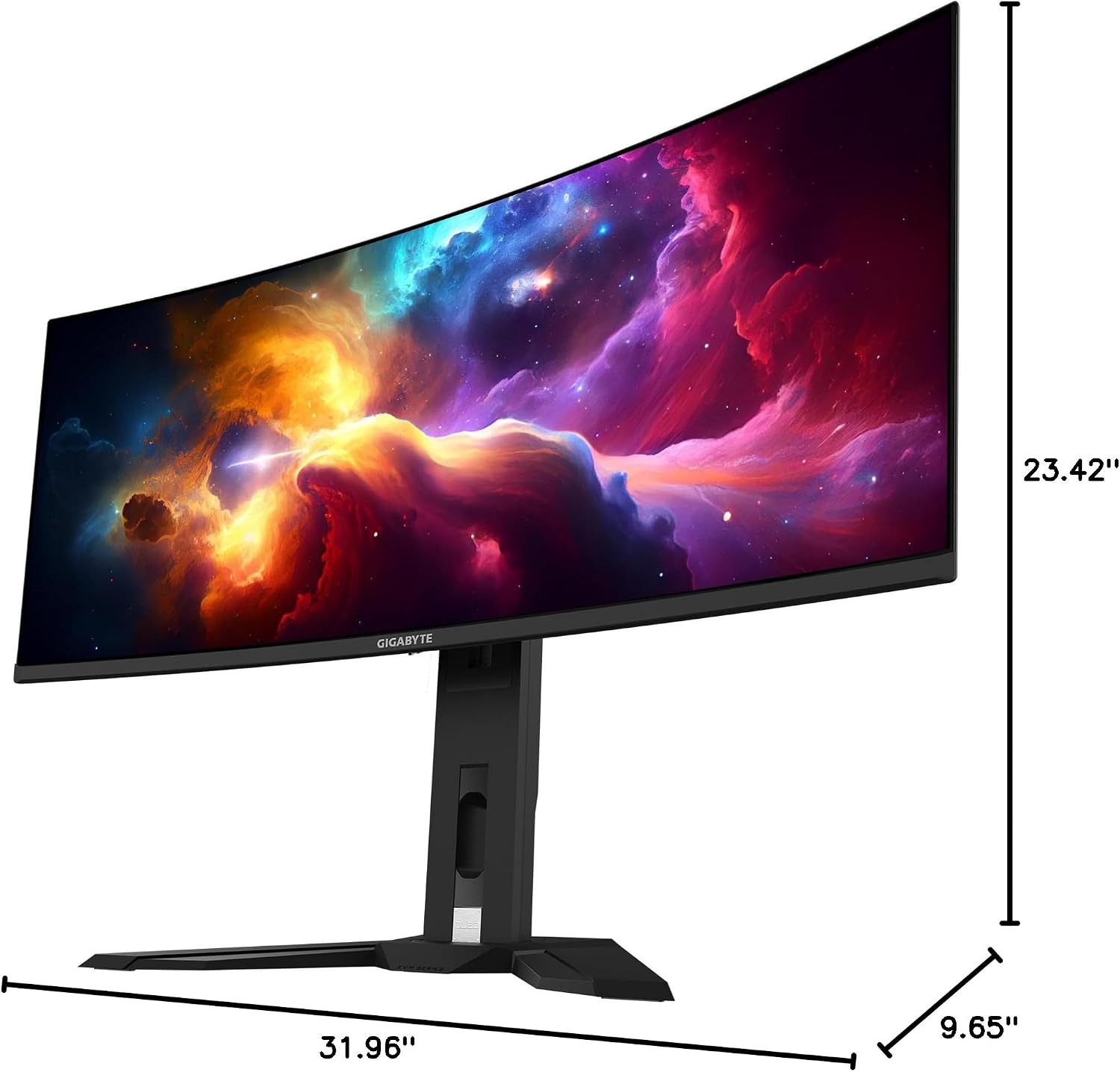
This image provides a diagram of the GIGABYTE MO34WQC2 monitor's dimensions, showing a width of 31.96 inches, a depth of 9.65 inches, and a height of 23.42 inches (including the stand).
보증 및 지원
보증 정보
Your GIGABYTE MO34WQC2 monitor comes with an extended 3-year manufacturer warranty. This warranty includes coverage for panel burn-in, supported by the AI-based GIGABYTE OLED Care protection. Please note that warranty terms may vary by region.
고객 지원
기술 지원, 보증 청구 또는 기타 문의 사항은 GIGABYTE 공식 지원 페이지를 방문하십시오. website or contact their customer service department. Refer to the product packaging or GIGABYTE's official website for specific contact details and support resources in your region.