
1. 서론
The COMICA Ejoy Uni(A) USB Gaming Microphone is designed for high-quality audio capture across various applications, including gaming, podcasting, streaming, and professional recording. It features a 48kHz/24-bit sampling rate for clear sound, one-click noise cancellation, dynamic RGB lighting, real-time monitoring, and a convenient mute function. This microphone is compatible with PC, PS4, PS5, Android, and other Type-C devices, offering both wired and wireless connectivity options for flexible usage.
2. 상자 안에 무엇이 들어있나요?

Image: COMICA Ejoy Uni(A) Desktop Stand Kit and Packing List, showing the microphone, boom arm, pop filter, and cables.
- 마이크 x1
- 팝 필터 x1
- USB A 2 in 1 Audio Cable x1
- 붐 암 1개
- 사용 설명서 x1
- Hook and Loop Fastener x5 (for cable management)
3. 제품 특징
3.1 High-Quality Audio Capture

Image: A user engaged in gaming with the COMICA Ejoy Uni(A) microphone set up on a boom arm, demonstrating its use in a gaming environment.
The Ejoy Uni(A) microphone delivers 48kHz/24비트 sound quality, ensuring clear, detailed, and lossless audio. This professional studio-grade quality is suitable for various applications, from gaming and streaming to podcasting and music creation.
그것은 다음과 같은 특징을 가지고 있습니다 카디오이드 극성 패턴, which primarily picks up sound from the front of the microphone, reducing unwanted background noise from the sides and rear. This makes it ideal for single-speaker applications.

Image: Diagram illustrating the cardioid pickup pattern, showing sound sensitivity primarily from the front.
3.2 One-Click Noise Cancellation & Shock Mount
Equipped with patented CalMix audio-processing technology, the microphone offers one-click noise cancellation to accurately detect human voices and reduce ambient noise. This feature is crucial for maintaining clear audio in noisy environments.
포함 된 쇼크 마운트 minimizes vibrations from bumps or desk movements, preventing unwanted noise from being picked up. A metal 팝필터 further enhances speech clarity by blocking airflow noise.

Image: Graphic illustrating the effect of noise reduction, showing a sound wave before and after processing.

Image: Close-up of the microphone showing the touch-sensitive mute button and its indicator light.
3.3 RGB Dynamic Light Effects

Image: The microphone displaying various RGB dynamic light effects, including Breathing Light, Dynamic Gradient, and Audio Dynamics.
The microphone features three distinct RGB modes to enhance your setup:
- 숨쉬는 빛: Smoothly cycles through seven colors with a soft glow.
- 동적 그라디언트: Automatically changes colors every 3 seconds.
- 오디오 다이내믹스: Reacts in real-time by changing colors based on your speaking volume.
These effects add visual style to streaming, gaming, or broadcasting environments.
3.4 Convenient Gain Knob & Real-time Monitoring
헌신적인 gain control knob allows for one-handed sensitivity adjustment, enabling precise control over your audio input for different scenarios, from whispers to loud commentary.
The microphone includes a 3.5mm TRS/TRRS headphone jack for 실시간 모니터링. This allows you to listen to your recorded content without echo or delay, ensuring optimal audio levels and quality during live sessions or recordings.

Image: A microphone setup with headphones in the background, illustrating the real-time monitoring feature and gain control knob.
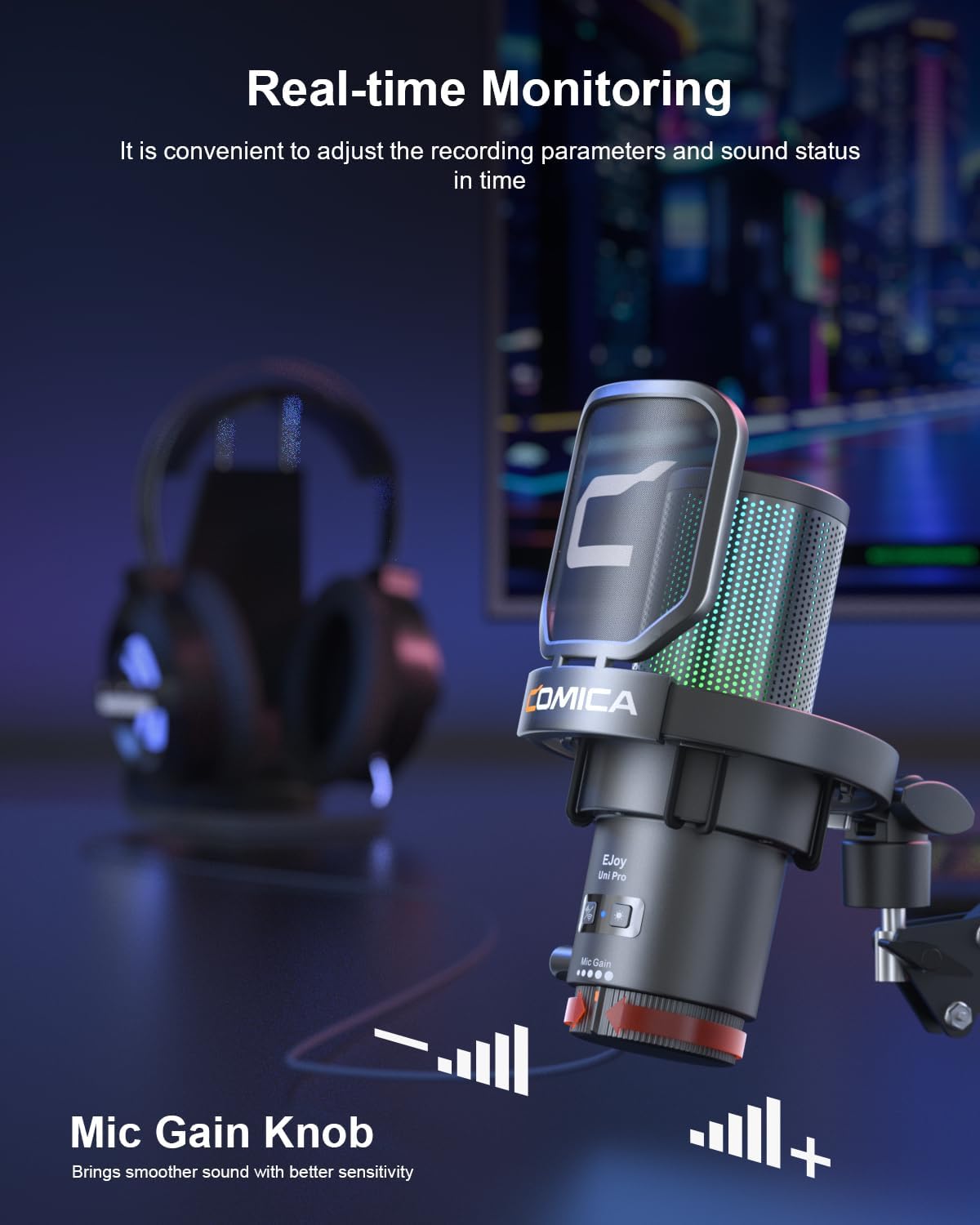
Image: Close-up of the microphone's base showing the mic gain knob and the 3.5mm monitoring port.
3.5 Plug and Play, Flexible and Adjustable

Image: The COMICA Ejoy Uni(A) microphone mounted on its flexible boom arm, clamped to a desk.
The Ejoy Uni(A) offers 플러그 앤 플레이 functionality, compatible with PS4/PS5, Windows PC, Android, and other Type-C devices. No drivers are typically required for basic operation.
포함 된 dual-section boom arm provides flexible positioning with arm lengths of 49cm and 51cm, and a sturdy 5cm desk clamp for secure mounting. The arm supports microphones up to 1.5kg, ensuring a stable setup.

Image: Graphic showing the microphone's compatibility with Windows, PS4/PS5, Mac OS, Desktop, Laptop, Twitch, and Discord. Not compatible with Xbox.
4. 설정 가이드
4.1 붐 암 및 마이크 조립
- 책상 cl 부착amp 책상이나 테이블 가장자리와 같은 튼튼한 표면에 고정합니다.amp 안전하게.
- 붐 암을 책상에 삽입합니다 clamp's mounting hole. Adjust the arm's position and tighten the locking screw to secure it.
- Mount the microphone onto the boom arm's threaded connector. Ensure it is firmly attached.
- Attach the pop filter to the microphone or boom arm, positioning it between your mouth and the microphone.
4.2 장치에 연결하기
- Connect the provided USB A 2-in-1 Audio Cable to the USB-C port on the microphone.
- Connect the other end of the cable to an available USB-A or USB-C port on your computer, PS4/PS5, or compatible Type-C device.
- For wireless models (if applicable), ensure the wireless receiver is plugged into your device and the microphone is powered on and paired.
- The device should automatically recognize the microphone as an audio input device.
4.3 Initial Audio Settings
- 윈도우 PC: 이동하다 설정 > 시스템 > 사운드. Select the COMICA Ejoy Uni(A) as your input device. Adjust the input volume as needed.
- 맥 OS: 이동하다 시스템 설정 > 소리 > 입력. Select the COMICA Ejoy Uni(A) and adjust the input volume.
- PS4/PS5: 이동하다 Settings > Sound > Audio Input Device. Select the COMICA Ejoy Uni(A) and adjust the microphone level.
- For optimal monitoring, plug your headphones into the 3.5mm jack on the microphone.
5. 사용 설명서
5.1 전원 켜기/끄기
The microphone powers on automatically when connected to a powered USB port. There is no separate power button for the wired version.
5.2 마이크 게인 조정
Image: Close-up of the microphone's base showing the mic gain knob.
회전하다 마이크 게인 노브 located at the bottom of the microphone to adjust the input sensitivity. Turn clockwise to increase gain (for softer voices or distant speaking) and counter-clockwise to decrease gain (to prevent distortion from loud sources).
5.3 마이크 음소거

Image: Illustration of the tap-to-mute function with indicators for Mute, Working, and Noise Cancellation status.
The microphone features a one-touch mute button on its top surface. Tap the button to instantly mute or unmute the microphone. An indicator light will typically change color (e.g., red for muted, green for active) to show the current status.
5.4 Activating Noise Cancellation
전용 버튼을 누르세요 noise cancellation button (if available on your model) to activate or deactivate the CalMix audio-processing technology. This will help reduce ambient background noise during your recordings or streams.
5.5 실시간 모니터링
Plug your 3.5mm headphones into the headphone jack on the microphone. This allows you to hear your own voice and the audio being captured by the microphone in real-time, without any delay. This is essential for adjusting your speaking volume and ensuring audio quality.
5.6 Changing RGB Light Effects
Image: The microphone displaying various RGB dynamic light effects.
The microphone offers three RGB modes: Breathing Light, Dynamic Gradient, and Audio Dynamics. Refer to the specific button or switch on your microphone model to cycle through these effects or turn them off.
6. 유지관리
- 청소: 마이크 본체는 부드럽고 마른 천으로 닦으십시오. 강한 화학 약품이나 연마성 재질은 사용하지 마십시오.
- 저장: 사용하지 않을 때는 마이크를 극한의 온도와 습도를 피해 깨끗하고 건조한 곳에 보관하세요.
- 손질: Handle the microphone and boom arm with care to prevent damage from drops or impacts.
- 케이블 관리: Avoid bending or crimping the USB cable excessively to prolong its lifespan.
7. 문제 해결
| 문제 | 가능한 원인 | 해결책 |
|---|---|---|
| No sound input from microphone |
|
|
| Sound is distorted or too loud |
|
|
| 배경 소음이 있습니다. |
|
|
| No real-time monitoring audio |
|
|
| RGB 조명이 작동하지 않습니다 |
|
|
8. 사양
| 특징 | 세부 사항 |
|---|---|
| 상표 | 코 미카 |
| 모델명 | Ejoy Uni(A) |
| 연결 기술 | USB 타입 C, USB |
| 커넥터 유형 | USB 타입-C |
| 극성 패턴 | 단방향 (카디오이드) |
| Samp르 레이트 | 48kHz/24비트 |
| 특별 기능 | One-key Denoise & Muting, Dynamic Radiant RGB Light with 3 Unique RGB Effects, Gain Control, Real-time Monitoring, Plug and Play |
| 호환 장치 | Computer, PC, Laptop, Desktop, Mac OS, PlayStation PS5 PS4, Android, Type-C devices |
| 마이크 폼 팩터 | Gooseneck (with Boom Arm) |
| 전원 | 유선 전기(USB 전원 사용) |
| 인클로저 재료 | 금속, 플라스틱 |
| Boom Arm Lengths | 49cm and 51cm sections |
| 붐 암 최대 하중 | 1.5kg |
9. 보증 및 지원
This COMICA product comes with a 1년 제조업체 보증. For warranty claims or technical support, please contact COMICA customer service through their official web제품을 구매한 사이트 또는 소매업체.
For additional resources, including FAQs and software updates, visit the official COMICA support page.
10. 제품 영상 시연
Video: Official product demonstration of the COMICA Ejoy Uni USB Gaming Microphone, showcasin그 특징과 응용 분야.


