
1. 서론
This manual provides detailed instructions for setting up, operating, maintaining, and troubleshooting your ASUS RT-BE82U BE6500 Dual-Band WiFi 7 Router. Please read this manual thoroughly before using the device to ensure optimal performance and safety.
주요 특징:
- Ultrafast WiFi 7 (802.11be) dual-band speeds up to 6500 Mbps.
- Five 2.5GbE Ports for optimized wired connectivity.
- Smart AiMesh Extendable Network for whole-home seamless roaming.
- Multi-link Operation for stable internet connections and efficient data transfers.
- Commercial-Grade AiProtection Pro powered by Trend Micro for advanced network security.
- Advanced Parental Controls for managing internet activity.
2. 패키지 내용
패키지에 모든 품목이 들어 있는지 확인하세요.
- ASUS RT-BE82U Router
- RJ-45 케이블
- 전원 어댑터
- 빠른 시작 가이드
- 보증서
3. 설정 및 설치
Follow these steps to set up your ASUS RT-BE82U router:
- 라우터 압축 풀기: 라우터와 모든 액세서리를 포장에서 조심스럽게 꺼내세요.
- 안테나 연결: Ensure all four external antennas are securely attached and positioned for optimal signal.
- 인터넷에 연결:
- Connect one end of the provided RJ-45 cable to the WAN port (blue) on the back of the RT-BE82U router.
- Connect the other end of the RJ-45 cable to your modem's LAN port.
- 전원 켜기: Connect the power adapter to the router's DC-IN port and then plug it into a power outlet. Press the power button to turn on the router.
- Initial Configuration (via ASUS Router App):
- Download the ASUS Router app from your mobile device's app store (available on iOS and Android).
- Open the app and follow the on-screen instructions to detect and configure your new router. This includes setting up your Wi-Fi network name (SSID) and password.
- 연결 확인: Once setup is complete, check the LED indicators on the front of the router. The WAN, 2.4GHz, and 5GHz LEDs should be solid white, indicating a successful connection.

그림 3.1: 전면 view of the ASUS RT-BE82U BE6500 Dual-Band WiFi 7 Router with antennas extended.

그림 3.2: 후면 view showing the 2.5GbE WAN, 2.5GbE LAN ports, USB WAN, DC-IN, Power button, and Reset button.
4. 라우터 작동
4.1. Network Management via ASUS Router App
The ASUS Router app provides comprehensive control over your network. You can:
- 네트워크 트래픽 및 연결된 장치를 모니터링합니다.
- Manage Wi-Fi settings for 2.4GHz and 5GHz bands.
- 방문객을 위한 게스트 네트워크를 설정하세요.
- Configure advanced security features like AiProtection Pro.
- Implement parental controls to manage internet access for family members.

Figure 4.1: ASUS Router App interface for managing parental controls and network settings.
4.2. AiMesh System
The RT-BE82U supports ASUS AiMesh technology, allowing you to create a whole-home mesh Wi-Fi system by adding compatible ASUS routers. This extends coverage and eliminates Wi-Fi dead zones, providing seamless roaming throughout your home.
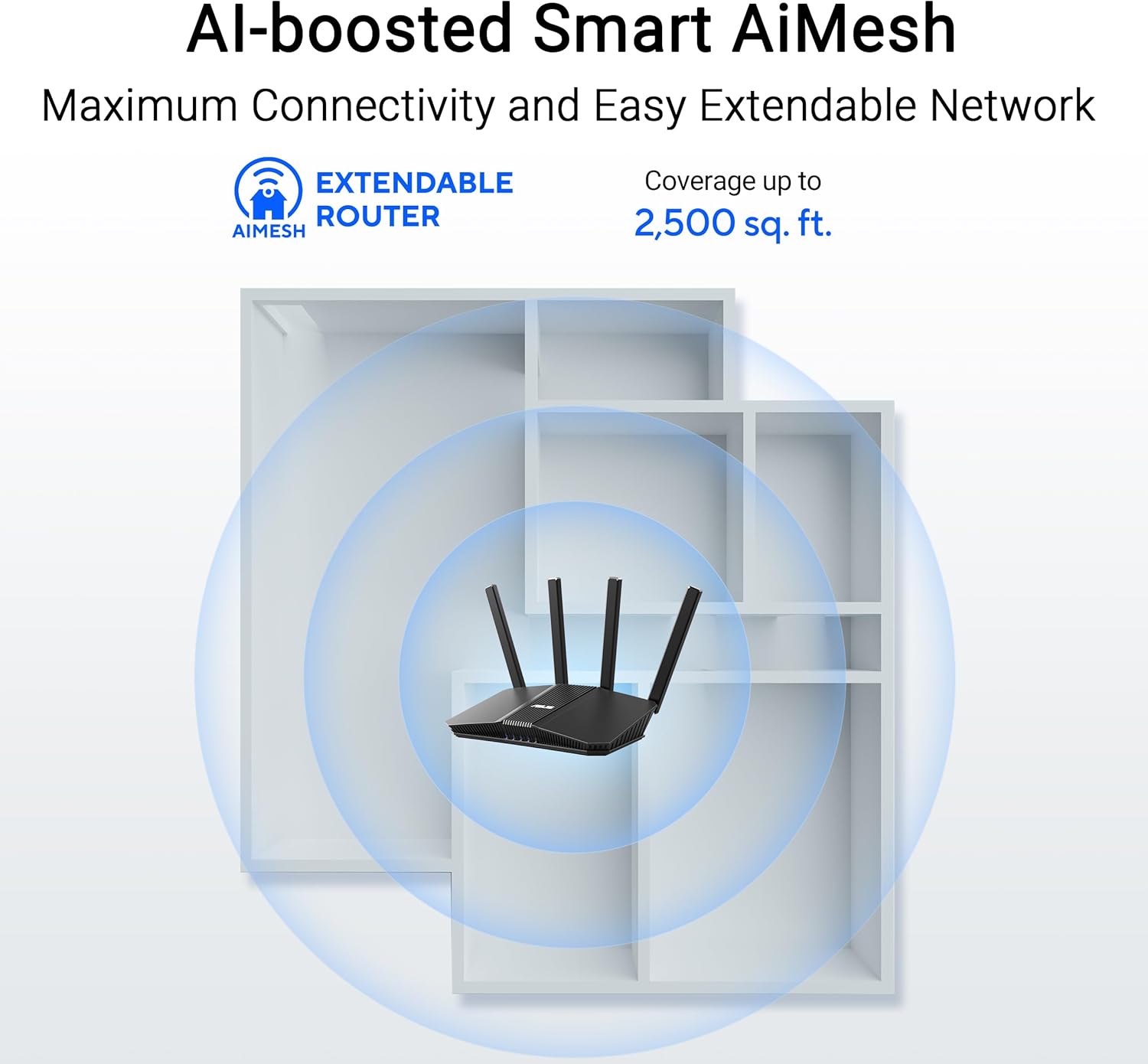
Figure 4.2: AiMesh system extending Wi-Fi coverage up to 2,500 sq. ft.
4.3. Advanced Network Security
The router includes AiProtection Pro, a commercial-grade network security suite. This feature provides real-time network protection against internet threats, malicious websites, and intrusion prevention. It also offers a one-tap security scan and Safe Browsing features.

Figure 4.3: AiProtection Pro interface within the ASUS Router App.
5. 유지관리
라우터의 수명 연장과 최적의 성능을 보장하려면 다음 유지 관리 팁을 고려하십시오.
- 펌웨어 업데이트: Regularly check for and install firmware updates via the ASUS Router app or the web 인터페이스. 업데이트에는 보안 패치 및 성능 개선 사항이 포함되는 경우가 많습니다.
- 놓기: Place the router in a central location, away from obstructions and other electronic devices that may cause interference. Ensure good airflow around the device to prevent overheating.
- 청소: 라우터를 깨끗하고 먼지가 없는 상태로 유지하세요. 부드럽고 마른 천으로 외부를 닦으세요. 액체 세척제는 사용하지 마세요.
- 주기적으로 다시 시작: A periodic restart (e.g., once a month) can help clear temporary issues and refresh network performance.
6. 문제 해결
라우터에 문제가 발생하면 다음 문제 해결 단계를 시도해 보세요.
- 인터넷에 연결되지 않음:
- 모든 케이블 연결(WAN, LAN, 전원)이 안전한지 확인하세요.
- 모뎀을 재시작한 다음 라우터를 재시작하세요.
- 인터넷 서비스 제공자(ISP) 연결이 활성화되어 있는지 확인하세요.
- 느린 Wi-Fi 속도:
- Ensure your devices are connected to the 5GHz band for faster speeds, if supported.
- 라우터를 다른 전자 기기에서 멀리 옮겨서 간섭을 줄이세요.
- 백그라운드에서 대역폭을 많이 사용하는 애플리케이션이 실행 중인지 확인하세요.
- Consider adding an AiMesh node to extend coverage if you have dead zones.
- 라우터 설정에 접근할 수 없습니다:
- 기기가 라우터의 Wi-Fi 네트워크에 연결되어 있거나 이더넷 케이블로 연결되어 있는지 확인하십시오.
- 라우터에 접속해 보세요. web interface using the default IP address (e.g., 192.168.1.1) or via the ASUS Router app.
- 공장 초기화 : If all else fails, perform a factory reset. Locate the Reset button on the back of the router (refer to Figure 3.2), press and hold it for 5-10 seconds until the power LED blinks, then release. This will restore the router to its default settings.
7. 사양
| 특징 | 세부 사항 |
|---|---|
| 상표 | 아수스 |
| 모델명 | RT-BE82U |
| 주파수 대역 클래스 | 듀얼 밴드 |
| 무선 통신 표준 | 802.11be (WiFi 7), 802.11ac, 802.11ax, 802.11n |
| 데이터 전송 속도 | 최대 6500Mbps (5GHz 대역에서 5764Mbps, 2.4GHz 대역에서 688Mbps) |
| 포트 수 | 5 (Five 2.5GbE Ports) |
| 안테나 유형 | Fixed (4 Antennas) |
| 보안 프로토콜 | AiProtection, VPN, Let's Encrypt, DNS-over-TLS, SSH, Security Scan, Firewall, WPS support, WPA/WPA2/WPA3-Personal, WPA/WPA2-Enterprise, WPS |
| AiMesh 지원 | Yes (Extendable Router) |
| 치수(길이 x 너비 x 높이) | 5.8인치 길이 x 3.8인치 너비 x 9.3인치 높이 |
| 품목 무게 | 1.1 파운드 |
8. 보증 정보
The ASUS RT-BE82U BE6500 Dual-Band WiFi 7 Router comes with a 3년 보증. Please refer to the included Warranty Card in your package for detailed terms and conditions, including information on service and support.
9. 지원
추가 지원, 기술 지원 또는 최신 드라이버 및 펌웨어 다운로드를 원하시면 ASUS 공식 지원 페이지를 방문하십시오. website or use the ASUS Router app. You can also find additional resources and FAQs on the ASUS web대지.
ASUS 지원 Web대지: www.asus.com/support/
ASUS 라우터 앱: Available on the Apple App Store and Google Play Store.