
1. 서론
The vretti BQ1 Bluetooth Label Printer is a compact, portable thermal label printer designed for various labeling needs in home, office, school, and small business environments. It connects wirelessly to your smartphone via Bluetooth, allowing for quick and easy label creation and printing through the dedicated "xeasy label" application.
This printer utilizes thermal printing technology, eliminating the need for ink or toner, which saves on replacement costs and maintenance. It supports label sizes from 25mm to 58mm, offering flexibility for printing address labels, price tags, food labels, clothing tags, barcodes, QR codes, and more.

Image 1.1: The vretti BQ1 Bluetooth Label Printer, highlighting its Bluetooth connectivity and compatibility with iOS and Android devices.
2. 설정
2.1 패키지 내용
시작하기 전에 패키지에 모든 품목이 포함되어 있는지 확인하세요.
- 1 x vretti BQ1 Label Printer
- 1 x 사용자 매뉴얼(이 문서)
- 1 x 50x30mm Label Paper Roll (pre-installed inside the machine)
- 1 x Type-C USB 충전 케이블
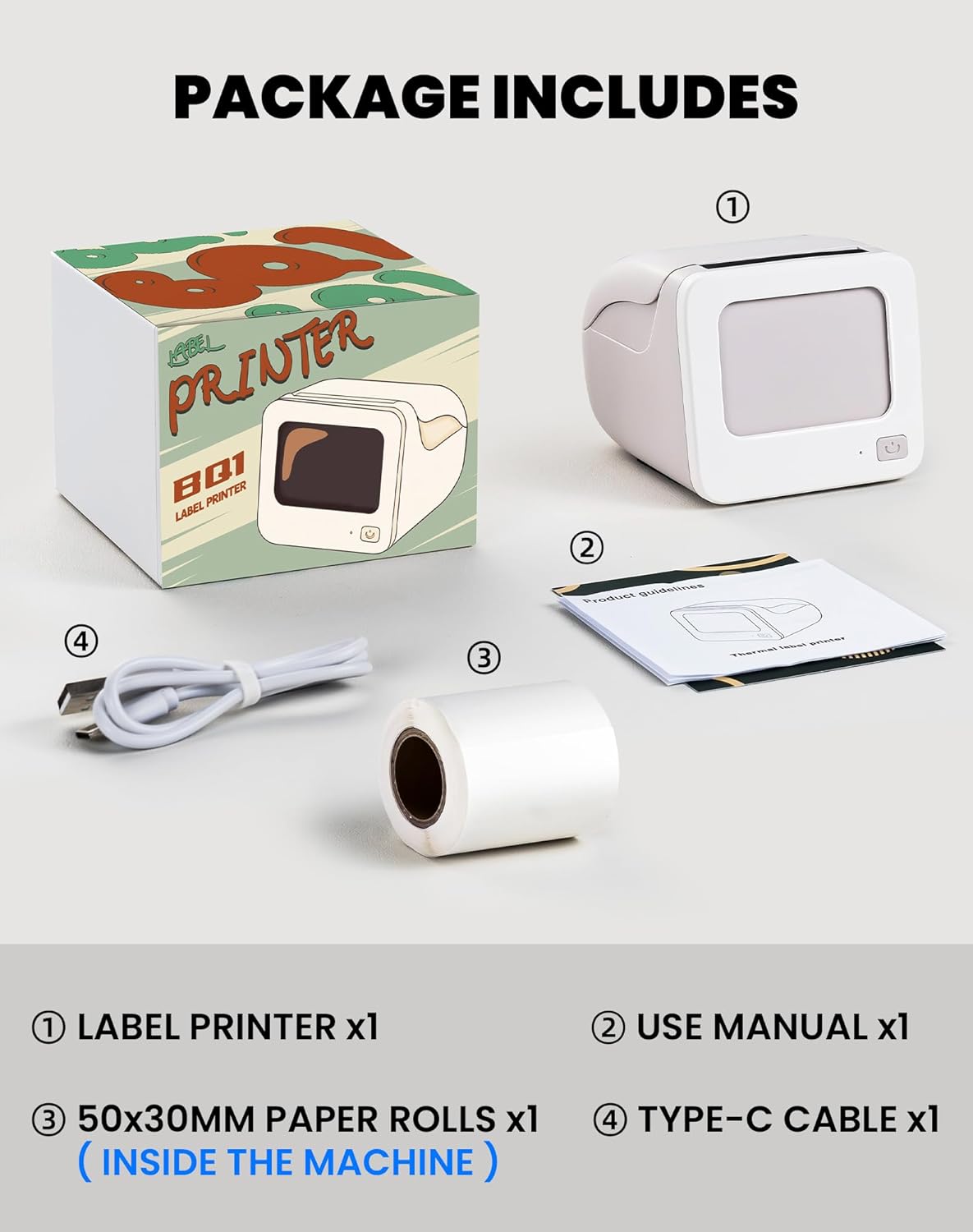
Image 2.1: Visual representation of the items included in the vretti BQ1 label printer package.
2.2 라벨 용지 적재
The printer comes with a label roll pre-installed. If you need to replace or load a new roll:
- 프린터 덮개를 조심스럽게 여세요.
- Insert the new label roll into the compartment, ensuring the labels feed out smoothly. The printable side of the label should face upwards.
- 프린터 덮개를 단단히 닫으십시오.

Image 2.2: Proper insertion of a label roll into the vretti BQ1 printer, demonstrating the supported label width range.
2.3 앱 설치 및 블루투스 연결
To use your vretti BQ1 printer, you need to download and connect it via the "xeasy label" application.
- 앱 다운로드: 검색 "xeasy label" in your smartphone's app store (Google Play Store for Android or Apple App Store for iOS) and install it.
- 블루투스 켜기: 스마트폰에서 Bluetooth가 활성화되어 있는지 확인하세요.
- 앱을 열고 연결하세요: Open the "xeasy label" app. The app will guide you to connect to your printer. Select "BQ1" from the list of available devices.
- 전원 켜기: 프린터의 전원 버튼을 표시등이 켜질 때까지 길게 누르십시오.

Image 2.3: Step-by-step guide for downloading the "xeasy label" app, connecting to the printer via Bluetooth, and preparing to edit a label.
3. 사용 설명서
3.1 라벨 생성 및 인쇄
Once connected, the "xeasy label" app provides a user-friendly interface for designing and printing labels.
- Select a Template or Create New: The app offers a variety of pre-designed templates, fonts, icons, and frames. You can choose an existing template or start a new design.
- Customize Your Label: Edit text, add images, barcodes, QR codes, and adjust the layout to fit your needs. The app supports various customization options.
- 사전view 및 인쇄: 인쇄하기 전에 미리view your label to ensure it looks as desired. Then, tap the print button in the app to send the design to your vretti BQ1 printer.
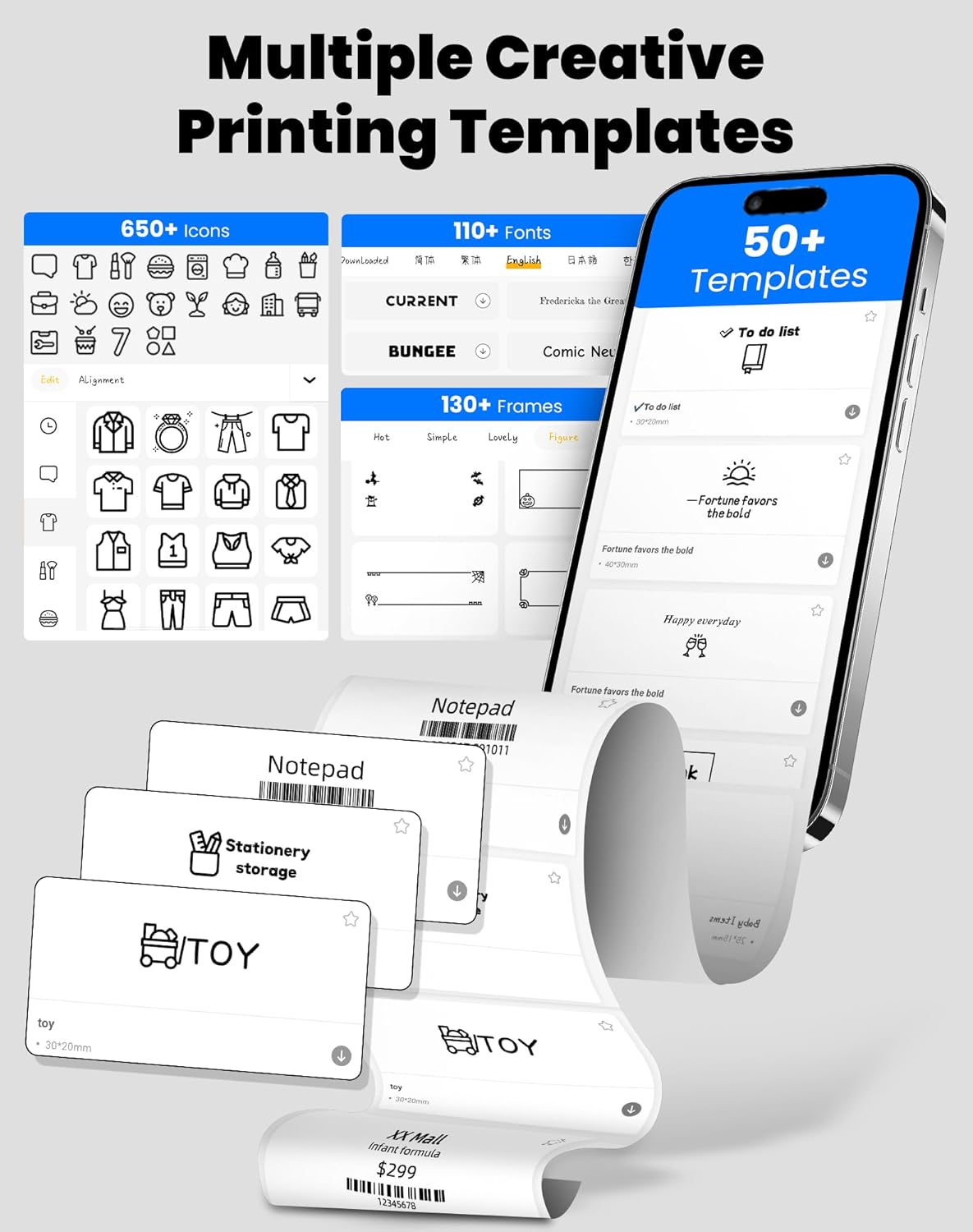
Image 3.1: The "xeasy label" app interface, showcasing a wide range of creative printing templates, icons, and fonts available for label design.

이미지 3.2: 이상view of the multi-functional applications within the "xeasy label" app, including support for barcodes, QR codes, images, various borders, font shapes, and hundreds of icons.
3.2 Common Label Applications
The vretti BQ1 printer is versatile and suitable for a wide range of applications:
- 홈 정리: Label storage bins, pantry items, spice jars, and more.
- 사무실 및 학교: 정리하다 files, label stationery, create name tags, or mark assets.
- 소매 및 중소기업: 인쇄 가격 tags, product labels, address labels for shipping, and inventory management labels.
- 개인적 사용: Create decorative labels for gifts, DIY projects, or personal items.

이미지 3.3: Examples of the vretti BQ1 printer's versatility, showing labels used for toy classification, light switches, to-do lists, clothing, and gifts.

Image 3.4: Demonstrations of common label types that can be printed, including address labels, price labels, food labels, and customizable DIY labels.
4. 유지관리
4.1 프린터 청소
To ensure optimal performance and print quality, regular cleaning is recommended:
- 외부: 프린터 외부를 부드럽고 마른 천으로 닦으십시오. 연마성 세척제나 용제를 사용하지 마십시오.
- 프린트 헤드: If print quality degrades, gently clean the thermal print head with an alcohol swab. Ensure the printer is turned off and cooled down before cleaning.
4.2 라벨 롤 보관
라벨 롤은 접착력과 인쇄 품질을 유지하기 위해 직사광선과 과도한 열을 피해 서늘하고 건조한 곳에 보관하십시오.
5. 문제 해결
If you encounter issues with your vretti BQ1 printer, try the following steps:
- 프린터 전원이 켜지지 않음: Ensure the printer is charged. Connect it to a power source using the provided Type-C cable.
- Bluetooth를 통해 연결할 수 없습니다:
- 스마트폰에서 Bluetooth가 활성화되어 있는지 확인하세요.
- Ensure the printer is powered on and within range.
- 프린터와 스마트폰을 모두 재시작하세요.
- Try reconnecting through the "xeasy label" app.
- 인쇄 품질 불량:
- Check if the label roll is inserted correctly and is not damaged.
- 유지보수 섹션에 설명된 대로 열전사 프린트 헤드를 청소하십시오.
- Ensure the label type is compatible with thermal printing.
- 라벨이 제대로 부착되지 않음:
- Verify the label roll is properly seated and not jammed.
- Ensure the printer cover is fully closed.
영상 5.1: 일반적인 제품 개요view video for the vretti BQ1 label printer, demonstrating its features and operation. If the video does not load, please ensure your browser supports HLS streaming.
6. 사양
| 상표 | 브레티 |
| 모델명 | BQ1 |
| 연결 기술 | 블루투스 |
| 인쇄 기술 | 열의 |
| 최대 미디어 크기 | 58 mm (supports 25-58mm width) |
| 인쇄 해상도 | 203dpi (흑백) |
| 호환 장치 | 스마트폰(안드로이드, iOS) |
| 포함된 구성 요소 | 1 Label Printer, 1 Label Roll (starter), 1 Type-C Cable |
| 제품 치수 | 10.3D x 10.4W x 8H 센티미터 |
| 특징 | Elegant TV-like design |
7. 보증 및 지원
7.1 보증 정보
The vretti BQ1 Label Printer typically comes with a 1년 보증 구매일로부터 보증이 적용됩니다. 보증 청구를 위해 구매 증빙 자료를 보관해 주십시오. 보증은 제조상의 결함에 한해 적용되지만, 오용, 사고 또는 무단 개조로 인한 손상은 보증 대상에서 제외됩니다.
7.2 고객 지원
For further assistance, technical support, or warranty inquiries, please refer to the official vretti website or contact their customer service through the contact information provided on their official channels. Ensure you have your product model number (BQ1) and purchase details ready when contacting support.