
1. 제품 오버view
The Minisopuru MD6950U DisplayLink Docking Station is a versatile solution designed to expand your laptop's connectivity and display capabilities. It features 16 ports, enabling triple monitor setups, high-speed data transfer, and simultaneous charging for multiple devices. This docking station is compatible with a wide range of systems, including MacBook (M1/M2/M3/M4), Thunderbolt 5/4/3, and Windows laptops.
주요 특징은 다음과 같습니다.
- 16-in-1 연결성: Expands a single USB-C host cable to 16 ports.
- 트리플 모니터 지원: Supports up to three external displays with 8K/4K resolution via HDMI and DisplayPort.
- 고속 데이터 전송: Multiple USB ports offer up to 10Gbps data transfer speeds.
- 강력한 충전: Includes a 140W power adapter, providing up to 85W for laptops and 30W for phones/iPads.
- 폭넓은 호환성: Supports macOS, Windows, Chrome OS, Ubuntu, and Android.
2. 패키지 내용
패키지에 모든 품목이 들어 있는지 확인하세요.
- 1x Minisopuru MD6950U DisplayLink Docking Station
- 1x140W 전원 어댑터
- 1x USB-C to USB-C 케이블
- 1x USB-A Converter
- 1x 사용자 지침

Image: Minisopuru MD6950U DisplayLink Docking Station and its accessories, including the 140W power adapter, USB-C cable, USB-A converter, and user guide.
3. 제품 다이어그램 및 포트
Familiarize yourself with the various ports and their functions on the docking station:

Image: Detailed diagram showing the front and rear ports of the Minisopuru MD6950U DisplayLink Docking Station with labels for each function.
전면 패널 포트:
- 전원 버튼: 도킹 스테이션의 전원을 켜거나 끄려면.
- SD 및 TF 카드 슬롯: 메모리 카드 접근용입니다.
- USB-A (10Gbps, 7.5W Charging) x2: High-speed data transfer and charging for peripherals.
- USB-C (10Gbps, 7.5W Charging) x2: High-speed data transfer and charging for peripherals.
- USB-C (10Gbps, 30W PD Charging): High-speed data transfer and fast charging for phones or tablets.
- USB-A(480Mbps): Standard USB 2.0 port for basic peripherals.
- Audio/Mic Jack: 3.5mm port for headphones or microphones.
후면 패널 포트:
- DC IN (24V=5.83A, 140W): 도킹 스테이션용 전원 입력 단자입니다.
- TO HOST (USB-C, Max 85W Charging): Connects to your laptop for data, video, and power delivery.
- HDMI 8K@30Hz or DP 8K@30Hz (DP Alt Mode): High-resolution display output.
- HDMI 4K@60Hz or DP 4K@60Hz (Display 1, DisplayLink Driver): Display output requiring DisplayLink driver.
- HDMI 4K@60Hz or DP 4K@60Hz (Display 2, DisplayLink Driver): Display output requiring DisplayLink driver.
- 기가비트 이더넷 : 유선 네트워크 연결용 RJ45 포트.
4. 설정 지침
4.1. Driver Installation (Essential for Multi-Display)
To enable all display ports and unlock triple/dual display functionality, especially for macOS devices, the DisplayLink driver must be installed on your laptop.
- Go to the official DisplayLink web대지: synaptics.com/products/displaylink-usb-graphics/downloads
- Click on the "DOWNLOADS" section.
- Select the corresponding operating system (Windows, macOS, Chrome OS, Ubuntu, Android) to download and install the driver.
- For macOS users, after installation, navigate to Privacy & Security > Screen Recording Permission and allow "DisplayLink Manager" to join.

Image: Visual guide illustrating the steps to download and install the DisplayLink driver from the Synaptics web대지.
4.2. 도킹 스테이션 연결
- Connect the 140W power adapter to the 직류전원 port on the docking station and plug it into a power outlet.
- 노트북을 연결하세요. 호스트하기 USB-C port on the docking station using the provided USB-C to USB-C cable. If your laptop only has USB-A ports, use the included USB-A converter.
- Connect your external monitors to the available HDMI or DisplayPort outputs on the docking station.
- Connect any desired peripherals (keyboard, mouse, external hard drives, printer, etc.) to the USB data ports.
- For a wired network connection, connect an Ethernet cable to the 기가비트 이더넷 포트.
- Press the power button on the front panel to turn on the docking station.
Video: A short demonstration showing the Minisopuru MD6950U docking station connected to a laptop, providing power and extending display to multiple monitors.
5. 사용 설명서
5.1. 디스플레이 구성
The docking station supports various display combinations, including triple and dual extended displays, breaking the limitations of some MacBook M1/M2/M3/M4 chips.
- DP Alt Mode: One 8K HDMI or 8K DisplayPort output.
- 디스플레이링크 드라이버: Two 4K HDMI or two 4K DisplayPort outputs.
Ensure the DisplayLink driver is installed for optimal multi-display performance.
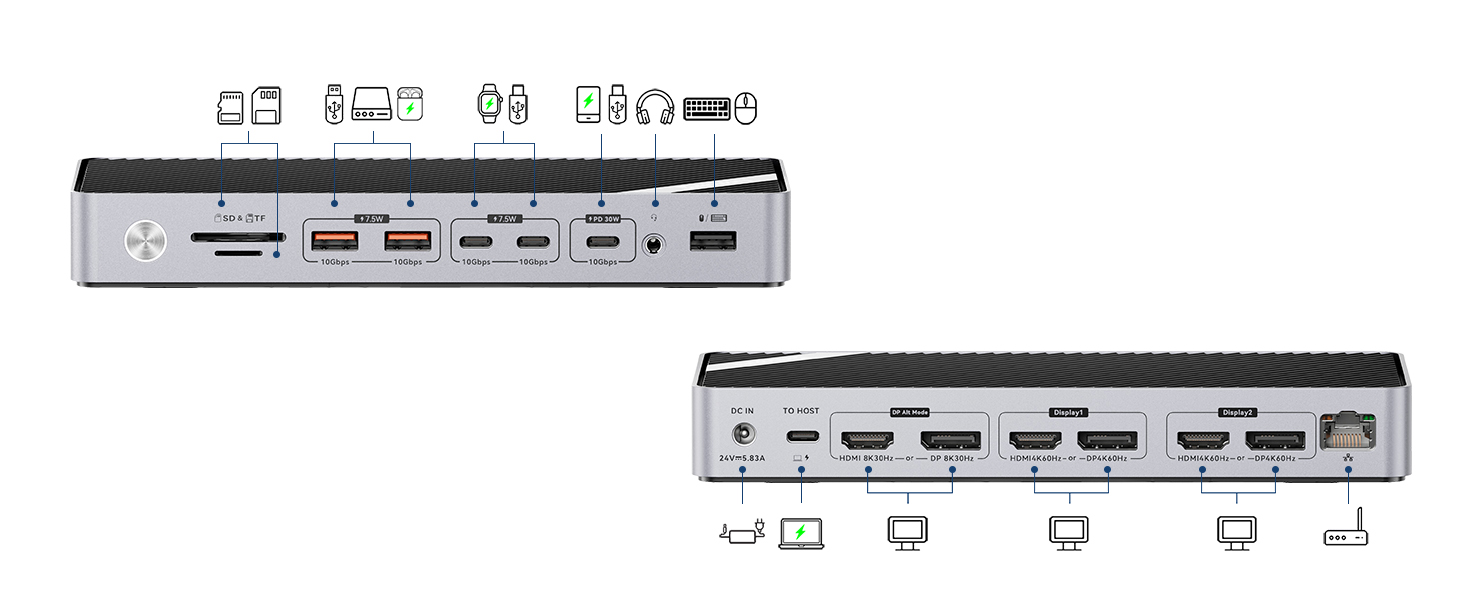
Image: Illustration of a laptop connected to three external monitors via the docking station, showcasing extended display capabilities for Mac and Windows.
5.2. 충전 기능
The included 140W power adapter ensures sufficient power for all connected devices.
- 노트북 충전: Provides up to 85W fast charging for your connected laptop via the 호스트하기 USB-C 포트.
- 장치 충전: The dedicated 30W PD USB-C port can fast charge phones and iPads. Other USB data ports provide 7.5W charging for various peripherals.

Image: The docking station providing 85W charging to a laptop, 30W to a smartphone, and 7.5W to a smartwatch, all simultaneously.
5.3. 데이터 전송
The docking station features multiple USB ports for high-speed data transfer:
- 10Gbps USB 포트: Four USB ports (2x USB-A, 2x USB-C) support up to 10Gbps data transfer speeds, ideal for external hard drives, SSDs, and other high-bandwidth devices.
- SD/TF 카드 슬롯: Conveniently transfer data from memory cards.

Image: A desk setup showing the docking station connected to a laptop, charging a phone and smartwatch, and transferring data to an external hard drive and SD card.
6. 호환성
The Minisopuru MD6950U DisplayLink Docking Station offers broad compatibility:
- 노트북: All laptops with a full-featured USB Type-C port (supporting Display, Charging, and Data Transfer protocols).
- 맥북: Compatible with MacBook Pro/Air (including M1, M2, M3, M4 chips), iMac 24-inch, iMac M3, iMac M4, Mac Mini 2018 and later.
- 벼락: Compatible with Thunderbolt 5/4/3 devices.
- 운영 체제: Windows 10 or later, macOS, Chrome OS, Ubuntu, and Android.
- 메모: Does NOT support Linux/Unix.
- USB-A Laptops: The included USB-A converter allows connection to USB-A laptops. However, when using the USB-A converter, the USB-C host port cannot charge USB-A laptops, and ports in DP Alt mode will not function.

Image: A visual representation of the docking station's compatibility with various operating systems and devices, including MacBooks, Windows laptops, and iMacs.
7. 문제 해결
7.1. 디스플레이 문제
- 디스플레이 없음/잘못된 해상도: Ensure the DisplayLink driver is correctly installed and updated for your operating system. Verify all display cables are securely connected.
- 맥북 디스플레이 제한 사항: For triple display on MacBooks, the DisplayLink driver is essential to bypass native chip limitations.
- DP Alt Mode Not Working with USB-A Converter: If using the USB-A converter, DP Alt Mode display outputs will not function.
7.2. 충전 문제
- 노트북이 충전되지 않음: Ensure the 140W power adapter is properly connected to the docking station and a power outlet. Verify the USB-C host cable is securely connected to a full-featured USB-C port on your laptop.
- USB-A Laptop Not Charging: The USB-C host port cannot charge USB-A laptops when using the USB-A converter.
7.3. 데이터 전송 문제
- 주변 장치가 인식되지 않았습니다: Check that USB devices are securely plugged into the correct ports. Try connecting the device directly to your laptop to rule out device-specific issues.
7.4. 전반적인 성능
- 간헐적인 연결: Ensure all cables are firmly connected. Restarting the docking station and your laptop can resolve temporary issues.
- 열 발산: The docking station is designed with rapid heat dissipation features. Ensure it is placed in a well-ventilated area.
Video: A demonstration of switching between a Windows laptop and a MacBook using a single USB-C cable connected to the Minisopuru MD6950U docking station, showcasing seamless transition of displays and peripherals.
8. 사양
| 특징 | 사양 |
|---|---|
| 제품 치수 | 7.7 x 3.4 x 1.1인치(19.56 x 8.64 x 2.79cm) |
| 품목 무게 | 15.9온스(451그램) |
| 총 포트 수 | 16 |
| 총 HDMI 포트 | 3 |
| 총 DisplayPort 포트 수 | 3 |
| 총 USB 포트 | 6 (4x 10Gbps, 1x 480Mbps, 1x 30W PD USB-C) |
| 전원 어댑터 와트tage | 140와트 |
| Laptop Charging (Host) | 최대 85W |
| 하드웨어 인터페이스 | 3.5mm Audio, DisplayPort, HDMI, USB 3.2 Gen 2, USB Type C, Gigabit Ethernet, SD/TF Card Slots |
| 색상 | 회색 |
9. 보증 및 고객 지원
Minisopuru is committed to providing excellent products and customer care. This product comes with a 2-year customer service warranty. For technical assistance or product inquiries, please contact our 7/24 technical support team.
For further assistance, please refer to the contact information provided in your detailed User Instructions or visit the official Minisopuru web대지.