
DOUGH ES07E2D
DOUGH Spectrum Black 27-inch QHD OLED Gaming Monitor User Manual
Model: ES07E2D
소개
This manual provides detailed instructions for the setup, operation, and maintenance of your DOUGH Spectrum Black 27-inch QHD OLED Gaming Monitor. Please read this manual thoroughly before using the product to ensure proper functionality and to maximize your user experience. Keep this manual for future reference.
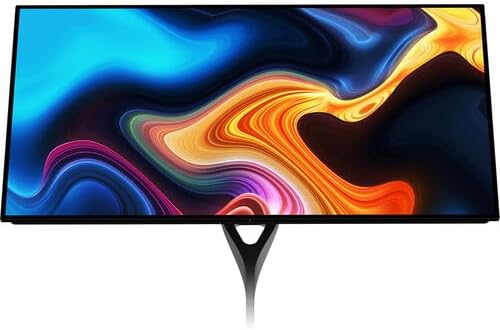
그림 1: 전면 view of the DOUGH Spectrum Black 27-inch QHD OLED Gaming Monitor.
1. 설정
1.1 언박싱 및 패키지 구성품
포장에서 모든 구성품을 조심스럽게 꺼내십시오. 아래 나열된 모든 품목이 있는지 확인하십시오. 누락되거나 손상된 품목이 있는 경우 고객 지원팀에 문의하십시오.
- DOUGH Spectrum Black 27-inch QHD OLED Gaming Monitor
- 전원 케이블 및 어댑터
- 문서(빠른 시작 가이드, 보증 정보)
- (Optional: Monitor Stand, if purchased separately)
1.2 Monitor Assembly (Stand Attachment)
If your monitor stand was purchased separately, follow the instructions provided with the stand for assembly. Typically, the stand base attaches to the stand arm, which then connects to the VESA mounting points on the rear of the monitor. Ensure all screws are securely fastened.

그림 2: 후면 view 스탠드가 부착된 모니터.
1.3 장치에 연결하기
The DOUGH Spectrum Black monitor offers a variety of input and output ports for versatile connectivity. Refer to the image below for port locations.

그림 3: 이상view 모니터 포트.
- 힘: 전원 어댑터를 모니터의 전원 입력 단자에 연결한 다음 벽면 콘센트에 연결하십시오.
- 비디오 입력 :
- HDMI 2.1a (x2): For high-bandwidth connections to gaming consoles, PCs, and other HDMI-enabled devices.
- DisplayPort 1.4 (x1): For high-resolution and high-refresh-rate connections to PCs.
- USB-C 3.2 Gen 2 (x1, 100W PD): Connect compatible laptops for video, data, and up to 100W power delivery over a single cable.
- USB-C 3.2 Gen 2 (x1, Upstream/KVM): Connect to your desktop for KVM functionality, allowing the monitor's USB peripherals to be shared between two connected computers.
- USB 허브:
- USB-A (x2, side-facing): For connecting peripherals like keyboards, mice, or external drives.
- USB-C (x1, side-facing): USB-C 주변기기 연결용.
- 오디오 출력:
- 3.5mm 오디오 잭(1개): 오디오 출력을 위해 헤드폰이나 외부 스피커를 연결하세요.
1.4 초기 전원 켜기
After connecting all necessary cables, press the power button on the monitor. The monitor will power on and display the DOUGH logo, followed by the input source. If no signal is detected, ensure your source device is powered on and the correct input is selected on the monitor.
2. 사용 설명서
2.1 화면 디스플레이(OSD) 탐색
The monitor's settings are controlled via the On-Screen Display (OSD) menu. Use the joystick or buttons (location varies by model, typically on the rear or bottom-right) to navigate the menu. Common OSD options include:
- 사진 설정: 밝기, 대비, 색온도, 감마.
- 입력 선택: Manually switch between HDMI 1, HDMI 2, DisplayPort, and USB-C inputs.
- 게임 기능: Access specific gaming enhancements.
- 시스템 설정: 언어, OSD 타임아웃, 공장 초기화.
2.2 Display Features and Enhancements
- 몰입형 비주얼: The 27-inch OLED panel is factory calibrated for Delta E <1 accuracy, covering 98.5% DCI-P3 and 100% sRGB color gamuts. HDR10 support provides a 1.5 million:1 contrast ratio and 1000 nits peak brightness for enhanced visuals.
- 적응형 동기화 기술: Supports AMD FreeSync Premium Pro, NVIDIA G-Sync, and VESA Adaptive-Sync. This technology dynamically adjusts the monitor's refresh rate to match the graphics card's frame rate, reducing screen tearing and stuttering.
- 게임 기능:
- 블랙 이퀄라이저: Adjusts darkened areas to improve visibility in shadows.
- Crosshair Overlay: Provides an on-screen crosshair for aiming assistance.
- Frame Rate Counter: Displays the current frame rate on screen.
- Pixel-Perfect Upscaling: Uses integer-ratio pixel duplication for low-resolution input signals, maintaining the clarity of pixel art and retro games.
- 다중 소스 디스플레이: The monitor can display video from two separate sources simultaneously using Picture-by-Picture (PbP) or Picture-in-Picture (PiP) modes.
- USB-C 기능: The USB-C 3.2 Gen 2 port on the rear panel supports video, data, and up to 100W power delivery for compatible laptops. A second USB-C 3.2 Gen 2 port enables KVM functionality, allowing you to control multiple computers with a single keyboard and mouse connected to the monitor's USB hub.
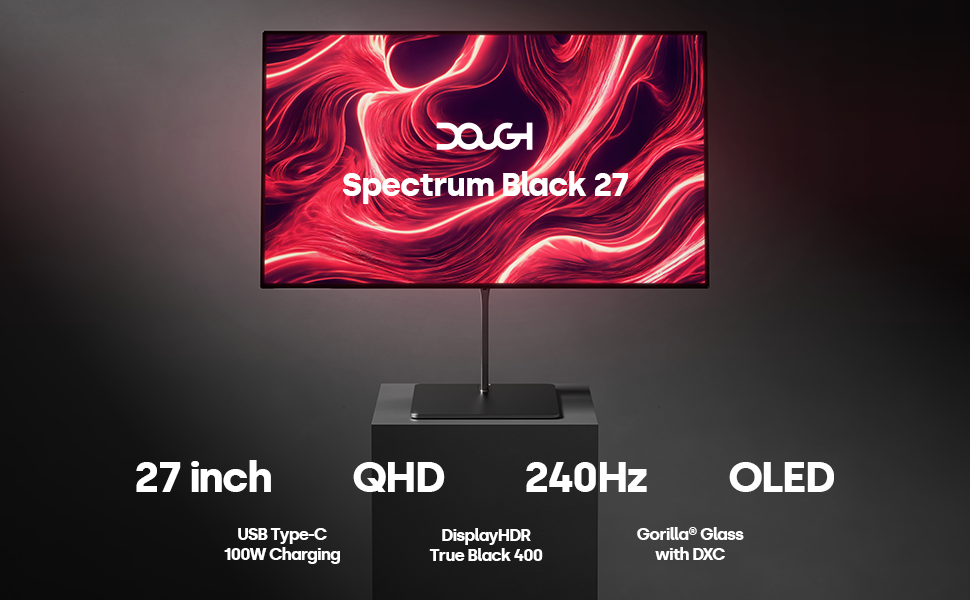
Figure 4: Key features of the DOUGH Spectrum Black monitor.
3. 유지관리
3.1 모니터 청소
모니터 화면과 c를 청소하려면asing:
- 청소하기 전에는 항상 모니터의 전원을 끄고 전원 케이블을 뽑으세요.
- 부드럽고 털이 없는 천을 살짝 사용하세요.amp물이나 비연마성 화면 세척제로 세척하세요.
- 화면을 살살 닦아주세요. 과도한 압력을 가하지 마세요.
- Do not use alcohol, ammonia, or abrasive cleaners, as these can damage the Gorilla Glass surface.
- c를 위해asing, 마른 부드러운 천을 사용하십시오.

Figure 5: Gorilla Glass with DXC technology reduces reflections.
3.2 OLED Pixel Care
OLED technology offers superior image quality but can be susceptible to image retention or burn-in if static images are displayed for extended periods. To minimize this risk:
- Enable screen saver or power-saving features when the monitor is idle.
- Avoid displaying static images or UI elements for very long durations.
- Utilize the monitor's built-in pixel refresh or pixel shift features, if available in the OSD.
4. 문제 해결
If you encounter issues with your monitor, refer to the following common solutions. If the problem persists, contact DOUGH customer support.
4.1 전원 없음 / 화면 안 켜짐
- 전원 케이블이 모니터와 작동하는 전원 콘센트에 모두 단단히 연결되어 있는지 확인하세요.
- 전원 어댑터가 올바르게 작동하는지 확인하세요.
- 모니터 전원 버튼을 눌러 전원이 켜져 있는지 확인하십시오.
4.2 신호 없음
- Check that the video cable (HDMI, DisplayPort, or USB-C) is securely connected to both the monitor and your source device (PC, console).
- 소스 장치의 전원이 켜져 있고 신호를 출력하고 있는지 확인하세요.
- OSD 메뉴를 사용하여 올바른 입력 소스를 수동으로 선택하십시오.
- Try a different video cable or port on both the monitor and the source device.
4.3 이미지 깜빡임 또는 왜곡
- 그래픽 카드 드라이버가 최신인지 확인하세요.
- Check the display resolution and refresh rate settings on your computer. Ensure they are within the monitor's supported specifications.
- 문제가 해결되는지 확인하기 위해 어댑티브 싱크(FreeSync/G-Sync)를 일시적으로 비활성화해 보세요.
- 다른 비디오 케이블을 사용해 보십시오.
4.4 USB 포트가 작동하지 않습니다
- Ensure the USB upstream cable (for KVM functionality) or the USB-C data cable is connected from the monitor to your computer.
- Verify that the connected USB devices are functioning correctly.
5. 사양
| 특징 | 사양 |
|---|---|
| 모델 번호 | ES07E2D |
| 화면 크기 | 27 인치 |
| 패널 유형 | OLED |
| 해결 | 2560 x 1440 (QHD) |
| 새로 고침 빈도 | 240Hz |
| 종횡비 | 16시 9분 |
| 최대 밝기 | 1000 nits (HDR Mode) |
| 대비율 | 1.5 million:1 |
| 색상 영역 | DCI-P3 98.5%, sRGB 100% |
| 화면 표면 | Gorilla Glass with DXC |
| 비디오 입력 | 2x HDMI 2.1a, 1x DisplayPort 1.4, 2x USB-C 3.2 Gen 2 (1x with 100W PD) |
| USB 포트 | 2x USB-A 3.2 Gen 2, 1x USB-C 3.2 Gen 2 (side-facing) |
| 오디오 출력 | 1x 3.5mm 오디오 잭 |
| 치수(제품) | 6 x 26.5 x 17.5 인치 |
| 품목 무게 | 22파운드 |
| 권tage | 100 볼트 |
6. 보증 및 지원
6.1 제품 보증
Your DOUGH Spectrum Black monitor is covered by a limited warranty. For specific terms and conditions, please refer to the warranty card included with your product or visit the official DOUGH web사이트. 보증 청구를 위해 구매 증빙 자료를 보관하세요.
6.2 고객 지원
If you require technical assistance, have questions about your product, or need to report a defect, please contact DOUGH customer support. Before contacting support, please have your monitor's model number (ES07E2D) and serial number ready.
For the most up-to-date support information and contact methods, please visit the official DOUGH web대지.
관련 문서 - ES07E2D
 |
Dough Spectrum Monitor Quick Start Guide: Setup and Connections Quick start guide for the Dough Spectrum monitor, covering stand and VESA mounting, cable connections (HDMI, DisplayPort, USB-C), power-up, and OSD navigation. Find more info at http://dough.tech. |
 |
Dough Spectrum Black ES07E2D / ES07E2F Monitor Specifications Detailed specifications for the Dough Spectrum Black ES07E2D (cover glass) and ES07E2F (matte) monitors, covering display features, image quality, performance, connectivity, and warranty information. |
 |
Dough Spectrum Black 32인치 4K 240Hz WOLED 모니터 사양 4K 해상도, 240Hz 주사율, WOLED 기술, HDR 지원을 갖춘 Dough Spectrum Black 32인치 모니터의 상세 사양입니다. 디스플레이 품질, 속도, 연결성 및 기능에 대한 자세한 정보가 포함되어 있습니다. |
 |
Dough Spectrum ES07DC9 27인치 4K 모니터 사양 디스플레이 품질, 속도, 포트, 기능, 스탠드 및 작동 요구 사항을 포함한 Dough Spectrum ES07DC9 27인치 4K Ultra-HD 모니터의 자세한 사양입니다. |
 |
Dough Spectrum One Monitor Specifications - 4K HDR 144Hz Comprehensive specifications for the Dough Spectrum One monitor, covering display features, technology, connectivity ports, unique features, physical dimensions, and electrical requirements. Includes details on models ES07D03, ES07DC9, and ES07E30. |
 |
ASUS ROG Swift OLED PG27AQDM 27-inch 1440p 240Hz Gaming Monitor User Guide Comprehensive user guide for the ASUS ROG Swift OLED PG27AQDM gaming monitor, covering setup, features like GamePlus and GameVisual, OSD menu navigation, specifications, and troubleshooting. |
Ask a question about this manual
Ask about setup, troubleshooting, compatibility, parts, safety, or missing instructions. Manuals+ will review the question and use this page’s manual context to help answer it.