
1. 서론
Thank you for choosing the HOWENS 15.6 Inch Portable Touchscreen Monitor. This device is designed to enhance your productivity and entertainment with its Full HD 1920x1080 IPS display, 10-point multi-touch functionality, and versatile connectivity options. Its compact and lightweight design makes it ideal for various applications, from extending your laptop's display to serving as an industrial control interface.

이미지 1.1: 앞면 view of the HOWENS 15.6 Inch Portable Touchscreen Monitor.
2. 안전 정보
Please read all safety instructions carefully before using this product. Failure to follow these instructions may result in electric shock, fire, or damage to the device.
- 모니터를 비, 습기 또는 극한의 온도에 노출시키지 마세요.
- 모니터를 열원 근처나 직사광선에 노출시키지 마세요.
- 기기와 함께 제공된 전원 어댑터만 사용하세요.
- 모니터를 직접 분해하거나 수리하려고 하지 마십시오. 자격을 갖춘 서비스 담당자에게 문의하십시오.
- 모니터를 강한 자기장으로부터 멀리하세요.
- 과열을 방지하려면 모니터 주위에 적절한 환기가 이루어지도록 하십시오.
3. 상자 안에 무엇이 들어있나요?
패키지에는 다음 품목이 포함됩니다.
- Portable Touchscreen Monitor 15.6 inch
- HDMI 케이블
- USB cable (for touch functionality)
- DC 전원 어댑터
- 원격 제어
- 사용 설명서
4. 제품 오버view
4.1 주요 특징
- FHD 1080P Display: Features a 1920x1080 resolution with a 60Hz refresh rate and IPS panel for 178° wide viewing angles. Brightness of 300 cd/m² and 72% NTSC color gamut ensure vibrant and accurate colors.
- 10-Point Touch Screen: Advanced multi-touch functionality for intuitive interaction. Connect via a Type-A to Type-B USB cable for touch support.
- 폭넓은 호환성: Supports Laptops, PCs, Mini PCs, Raspberry Pi, PS5/4, Xbox, and various industrial devices via HDMI, DVI, and VGA connections.
- Multi-Function Display Modes: Supports expansion, mirror, second-screen-only, horizontal, and vertical display modes.
- Standard VESA Mount: Equipped with a 75x75mm VESA hole for wall or desktop mounting (stand not included).
- 내장형 듀얼 스피커: Enjoy stereo audio directly from the monitor.
4.2 Port Parameters
The monitor features a variety of ports for diverse connectivity:
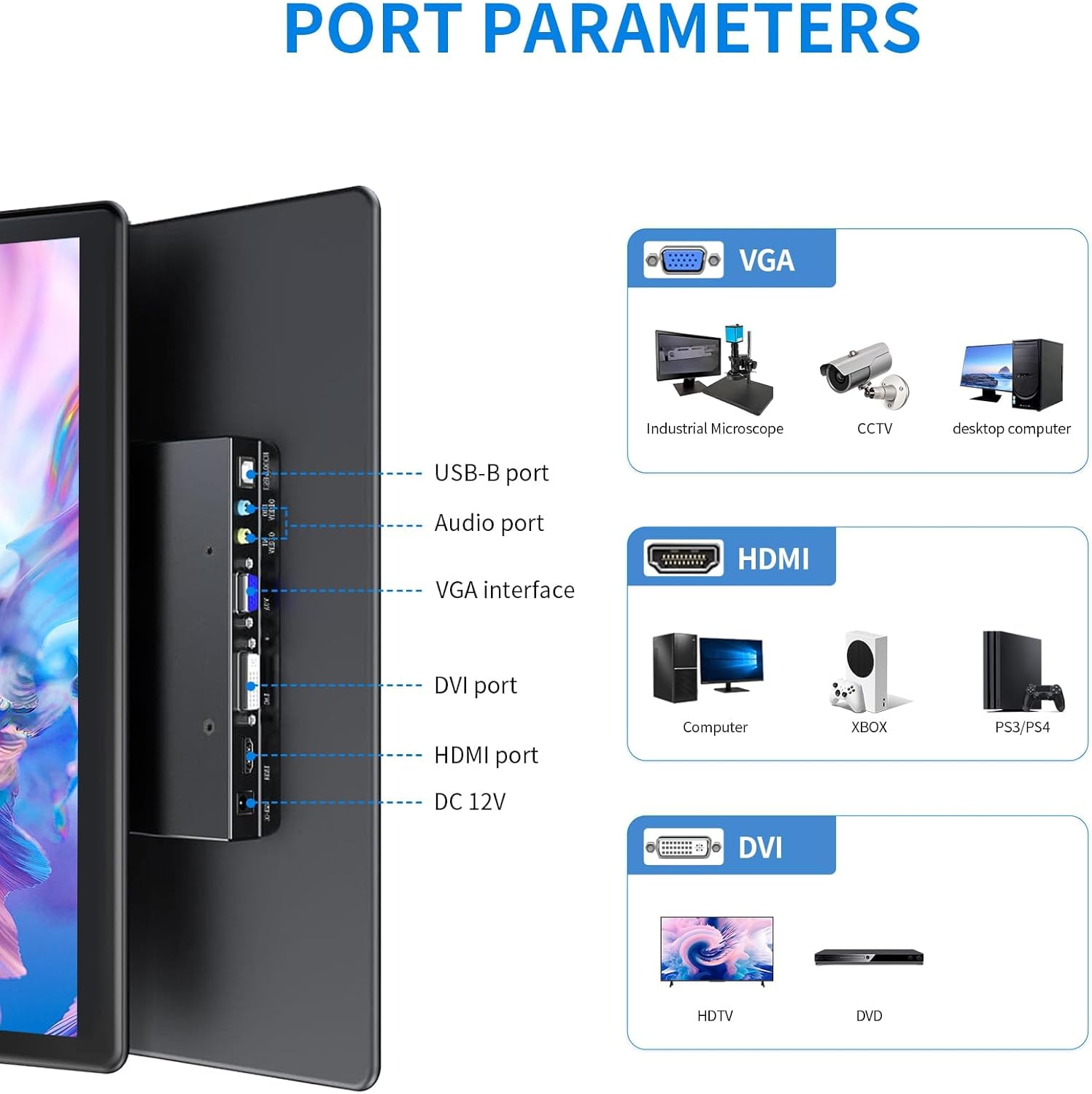
이미지 4.1: 상세 view 모니터의 입력/출력 포트.
- USB-B 포트: For touch functionality connection to a host device.
- 오디오 포트 : 오디오 입력/출력용.
- VGA 인터페이스: For video input from devices like industrial microscopes, CCTV, and desktop computers.
- DVI 포트: For video input from devices such as HDTVs and DVD players.
- HDMI 포트 : For high-definition video and audio input from computers, Xbox, PS5/4, and other compatible devices.
- DC 12V : 전원 입력 포트.
4.3 디스플레이 특성

Image 4.2: Visual representation of key display features.
The monitor's IPS panel provides a 178° wide viewing angle, ensuring consistent image quality from various perspectives. The 1920x1080 resolution delivers sharp and clear visuals, while the 72% NTSC color gamut offers rich and accurate color reproduction.
4.4 Dimensions and VESA Mount

Image 4.3: Product dimensions and VESA mounting details.
The monitor features a standard 75x75mm VESA mounting pattern, allowing for flexible installation on compatible wall mounts or desktop stands (sold separately).
5. 설정 및 연결
Follow these steps to connect your HOWENS portable touchscreen monitor to your device:
- 비디오 신호 연결: Use the provided HDMI cable to connect the monitor's HDMI port to your laptop, PC, or gaming console's HDMI output. Alternatively, use a DVI or VGA cable if your device supports those interfaces.
- Connect Touch Functionality (Optional): For touchscreen features, connect the provided USB-A to USB-B cable from your host device's USB-A port to the monitor's USB-B port.
Note: Touch input is not enabled on devices with strict security protocols, such as Nintendo Switch, iPhones, or iPads.
- 전원 연결: Plug the DC power adapter into the monitor's DC 12V port and then into a power outlet.
- 전원 켜기: Press the power button on the monitor or use the remote control to turn on the device.
Video 5.1: Demonstration of connecting the monitor to a laptop, including HDMI, USB for touch, and power connections, and showcasing touch functionality and remote control use.
5.1 VESA 마운팅
The monitor is compatible with 75x75mm VESA mounts. To mount the monitor, attach a compatible VESA arm or bracket to the four screw holes on the back of the monitor. Ensure the mount can support the weight of the monitor.
6. 모니터 작동하기
6.1 터치스크린 기능
Once the USB-A to USB-B cable is connected to a compatible device, the 10-point multi-touch feature will be active. You can use gestures such as tapping, swiping, pinching, and zooming directly on the monitor screen for intuitive control.
6.2 리모컨
The included remote control allows you to navigate the monitor's On-Screen Display (OSD) menu to adjust settings such as brightness, contrast, color temperature, and input source. Point the remote control towards the infrared receiver on the monitor.
6.3 디스플레이 모드
모니터는 사용자의 요구에 맞춰 다양한 디스플레이 모드를 지원합니다.

이미지 6.1: 시각적 예시amp다양한 디스플레이 모드.
- 확장 모드: 데스크톱을 두 화면으로 확장하여 더 넓은 작업 공간을 제공합니다.
- 미러 모드: Duplicates your primary display onto the portable monitor.
- 두 번째 화면 전용 모드: Displays content only on the portable monitor, turning off the primary display.
- Horizontal/Vertical Mode: Adjust the display orientation to landscape or portrait as required. This can usually be configured in your operating system's display settings.
6.4 오디오

Image 6.2: Location of built-in dual speakers.
The monitor includes built-in dual speakers for stereo audio output. You can adjust the volume using the remote control or through your connected device's audio settings.
7. 유지관리
- 화면 청소: 부드럽고 보풀이 없는 천으로 화면을 부드럽게 닦으세요. 잘 지워지지 않는 얼룩의 경우,amp물이나 화면 세척액을 살짝 묻힌 천으로 닦아주세요. 강한 화학 약품이나 연마재는 사용하지 마세요.
- C 청소asing: 부드럽고 마른 천을 사용하여 모니터의 c를 청소하십시오.asing.
- 저장: 장기간 사용하지 않을 경우 모니터를 서늘하고 건조한 곳에 보관하십시오. 가능하면 원래 포장이나 보호 슬리브에 넣어 보관하는 것이 좋습니다.
8. 문제 해결
모니터에 문제가 발생하면 다음의 일반적인 해결 방법을 참조하십시오.
- 전원 없음:
- Ensure the DC power adapter is securely connected to the monitor and a working power outlet.
- 다른 장치를 연결하여 전원 콘센트가 작동하는지 확인하세요.
- 디스플레이/신호 없음:
- Check that the HDMI, DVI, or VGA cable is securely connected to both the monitor and the source device.
- Ensure the correct input source is selected on the monitor using the remote control or OSD menu.
- Try connecting the monitor to a different source device to rule out issues with the original source.
- 터치스크린이 응답하지 않음:
- Confirm the USB-A to USB-B cable is properly connected between the monitor and the host device.
- 모니터와 호스트 장치를 모두 재시작하십시오.
- Ensure your operating system supports touchscreen functionality and that drivers are up to date.
- Remember that some devices (e.g., Switch, iPhones, iPads) do not support touch input with this monitor due to security protocols.
- 이미지 품질이 좋지 않음:
- OSD 메뉴를 통해 밝기, 대비, 색상 설정을 조정하세요.
- Ensure the display resolution on your source device is set to 1920x1080 for optimal clarity.
9. 사양
| 특징 | 사양 |
|---|---|
| 상표 | 하우엔스 |
| 모델 번호 | CXTP-BB |
| 화면 크기 | 15.6 인치 |
| 해결 | FHD 1920 x 1080p |
| 종횡비 | 16시 9분 |
| 디스플레이 유형 | 액정표시장치 |
| 디스플레이 기술 | IPS |
| 새로 고침 빈도 | 60Hz |
| 명도 | 300 칸델라 |
| 대비율 | 1000시 1분 |
| View잉 각도 | 178도 |
| 색상 영역 | 72% NTSC |
| 연결 기술 | DVI, HDMI, VGA |
| 추가 기능 | Built-In Speakers, Energy Efficient, Eye Care, Portable, Touchscreen |
| 품목 무게 | 2.33 파운드 |
| 장착 유형 | Wall Mount (75x75mm VESA) |
10. 보증 및 지원
This HOWENS monitor comes with a 1년 제조사 보증 against defects. For any product issues or technical support, please contact HOWENS customer service. We are committed to resolving any concerns promptly.
For further assistance, please refer to the contact information provided on the HOWENS official web사이트 또는 구매 문서.