
제품 끝view
The Turtle Beach Pure Air Wireless RGB Gaming Mouse is designed for high-performance gaming, featuring an ultra-lightweight ergonomic design, advanced optical sensor, and versatile connectivity options. This manual provides essential information for setting up, operating, and maintaining your device.

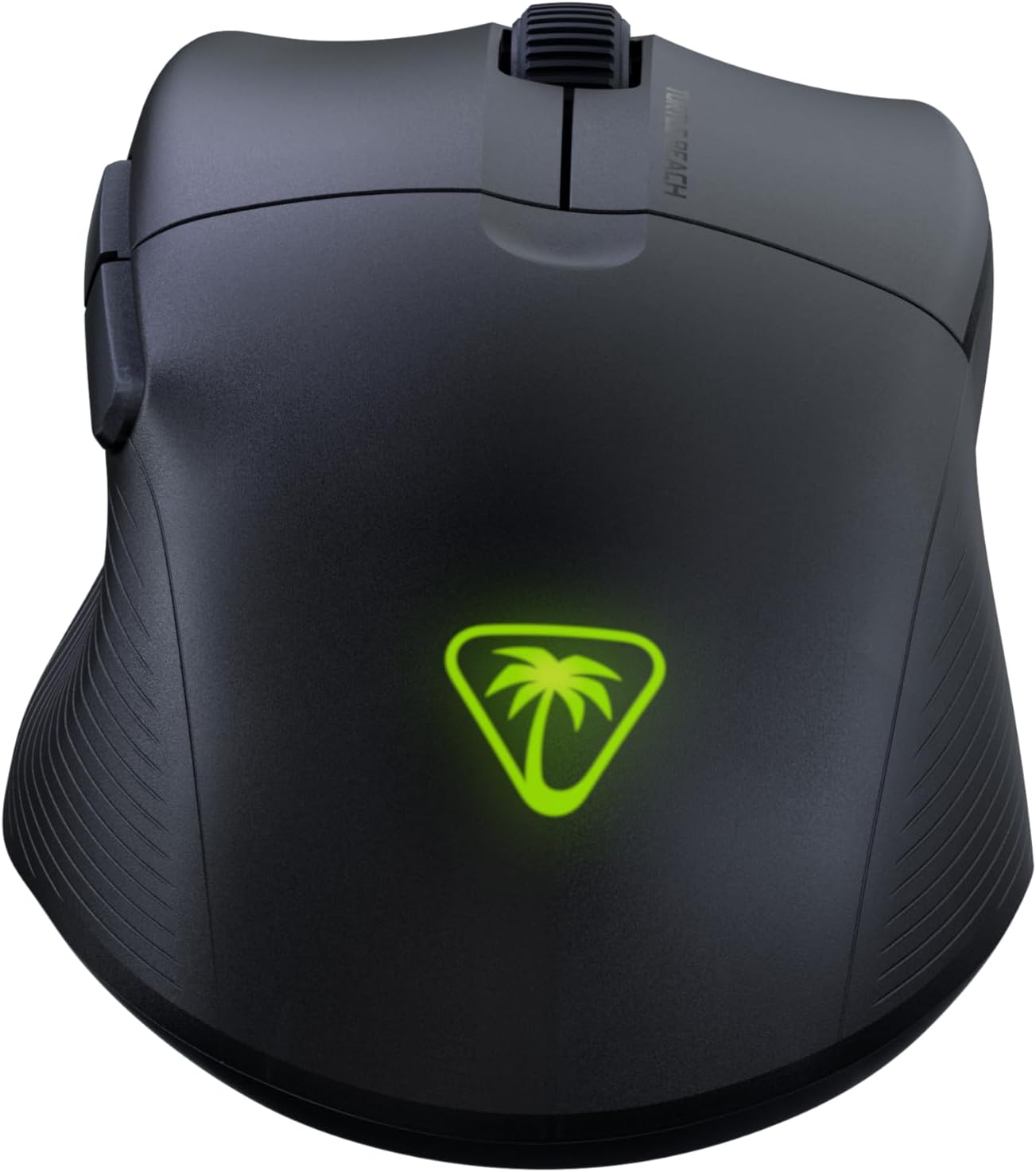
The Turtle Beach Pure Air Wireless RGB Gaming Mouse, showcasing its ergonomic shape and customizable RGB logo.
설치 가이드
패키지 내용
- Turtle Beach Pure Air Wireless RGB Gaming Mouse
- 무선 USB 어댑터
- PhantomFlex Charging Cable (USB-C to USB-A)

The essential components included with your Turtle Beach Pure Air mouse.
초기 충전
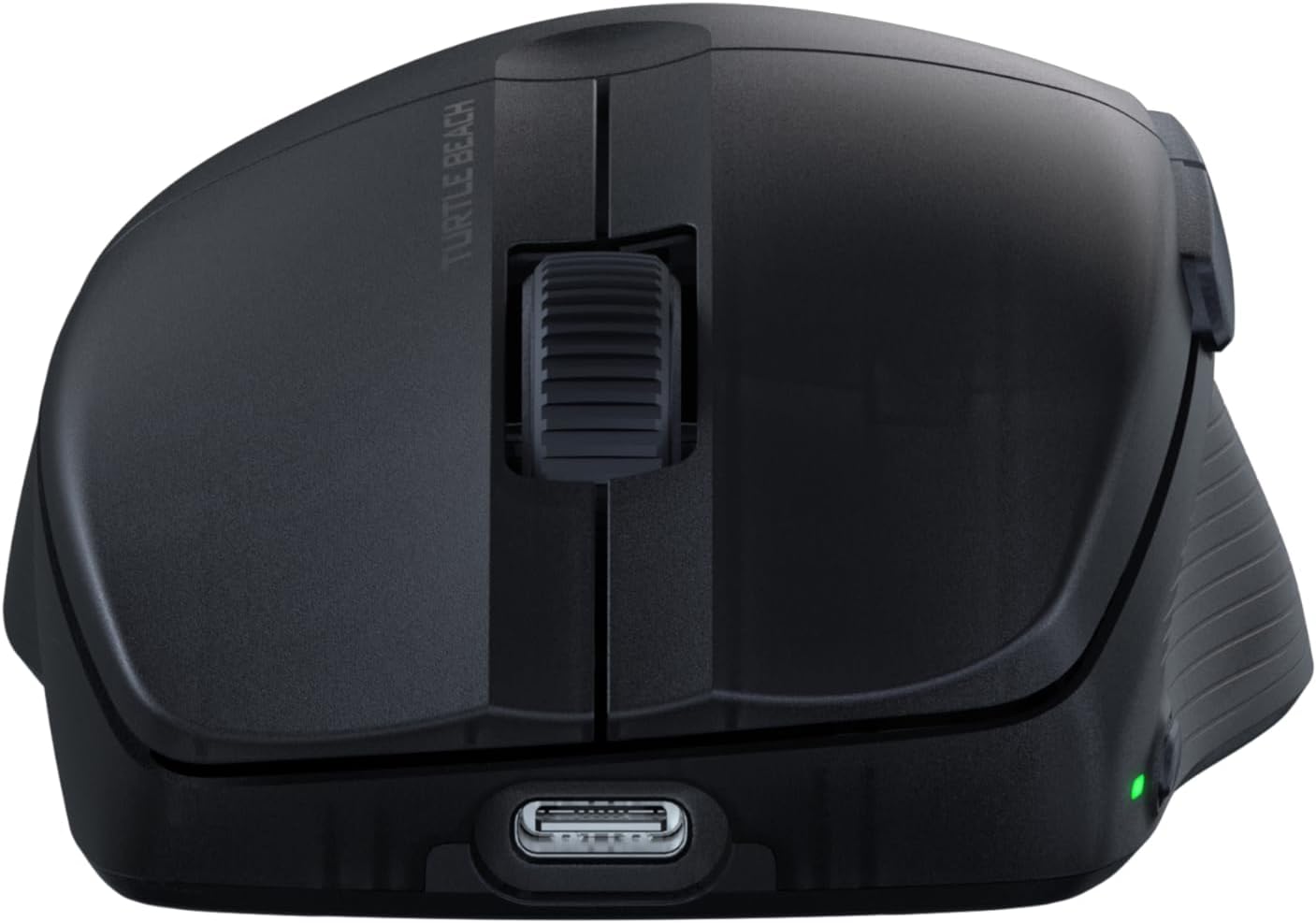
Before first use, it is recommended to fully charge the mouse. Connect the PhantomFlex Charging Cable to the USB-C port on the front of the mouse and to a powered USB-A port on your computer or a USB wall adapter.
The USB-C port located at the front of the mouse for charging and wired connection.
A full charge provides up to 125 hours of continuous use. Rapid charging allows for approximately 5 hours of game time with just 10 minutes of charging.
연결 옵션
The Pure Air mouse offers three connectivity modes: 2.4GHz Wireless, Bluetooth, and Wired.
- 2.4GHz 무선 연결:
- Insert the Wireless USB Adapter into an available USB-A port on your PC.
- Locate the switch on the bottom of the mouse. Slide it to the 2.4GHz 무선 position (indicated by a Wi-Fi icon).
- The mouse should automatically connect to the adapter.
- 블루투스 연결 :
- 마우스 아래쪽의 스위치를 밀어주세요 블루투스 위치(블루투스 아이콘으로 표시됨).
- On your PC, navigate to Bluetooth settings and search for new devices.
- Select "Turtle Beach Pure Air" from the list of available devices to pair.
- 유선 연결:
- Connect the PhantomFlex Charging Cable directly from the mouse to a USB-A port on your PC.
- 마우스는 유선 장치로 작동하며 동시에 충전도 가능합니다.

The mouse can be connected via its wireless USB adapter or the flexible PhantomFlex charging cable.
작업
버튼 기능
- 왼쪽/오른쪽 클릭: Equipped with TITAN Optical Switches for fast, precise actuation and a 100 million click life cycle.
- 스크롤 휠: Provides tactile feedback for accurate scrolling.
- 측면 버튼: Two programmable buttons on the left side for custom commands.
- DPI 버튼: Located on the top of the mouse, behind the scroll wheel. Press to cycle through preset DPI levels.
DPI 조정
The Pure Air mouse features a 26K Owl-Eye Optical Sensor. Use the dedicated DPI button to switch between sensitivity settings on the fly. Default DPI settings can be customized using the Swarm 2 software.
RGB Illumination (AIMO)
The Turtle Beach logo on the back of the mouse features customizable AIMO intelligent RGB illumination. Lighting effects and colors can be configured through the Swarm 2 software.
Swarm 2 Software
For advanced customization, download and install the Swarm 2 software from the official Turtle Beach web사이트. 이 소프트웨어를 사용하면 다음을 수행할 수 있습니다.
- DPI 레벨을 조정하고 사용자 지정 프로를 만드세요files.
- Program button assignments.
- RGB 조명 효과를 사용자 정의합니다.
- 마우스 펌웨어를 업데이트하세요.
유지
청소
To clean your Turtle Beach Pure Air mouse, use a soft, dry, lint-free cloth. Avoid using harsh chemicals, solvents, or abrasive materials, as these can damage the mouse's surface and internal components.
PTFE Glides
The mouse is equipped with Pure PTFE glides for smooth movement. Ensure these glides remain clean and free of debris to maintain optimal performance. Avoid scratching or damaging the glides.
문제 해결
연결 문제
- 2.4GHz 무선: Ensure the Wireless USB Adapter is securely plugged into a working USB port. Verify the mouse switch is set to the 2.4GHz mode. Try a different USB port.
- 블루투스: Confirm Bluetooth is enabled on your PC and the mouse switch is set to Bluetooth mode. Remove and re-pair the device in your PC's Bluetooth settings.
- 일반적인: Ensure the mouse is charged. Try connecting the mouse in wired mode to confirm functionality.
배터리 수명에 대한 우려
While rated for up to 125 hours, actual battery life can vary based on usage patterns, DPI settings, and RGB illumination intensity. If battery life seems significantly shorter, ensure the mouse is fully charged and consider reducing RGB brightness or disabling it via the Swarm 2 software.
소프트웨어 및 펌웨어
If you experience unexpected behavior or wish to access the latest features, ensure your Swarm 2 software and mouse firmware are up to date. Connect the mouse via USB and use the Swarm 2 application to check for and apply updates.
명세서
| 상표 | 거북이 해변 |
| 모델 번호 | TBM-1102-05 |
| 연결성 | Bluetooth, 2.4GHz Radio Frequency Wireless, Wired (USB-C) |
| 감지기 | Owl-Eye 26K DPI Optical Sensor |
| 스위치 | TITAN Optical Switches (100 Million Click Life Cycle) |
| 무게 | 54g (초경량) |
| 배터리 수명 | Up to 125 Hours (Rechargeable Lithium Polymer) |
| 충전 케이블 | PhantomFlex USB-C |
| 손의 방향 | 오른쪽 |
| 호환 OS | 윈도우 10, 윈도우 11 |
| 치수(L x W) | 121mm (4.77") x 69mm (2.73") |
| 재료 | 플라스틱 |
Physical dimensions of the Turtle Beach Pure Air mouse.
보증 정보
The Turtle Beach Pure Air Wireless RGB Gaming Mouse comes with a 1년 제조사 보증. Please retain your proof of purchase for warranty claims. For detailed terms and conditions, refer to the official Turtle Beach warranty policy available on their web대지.
지원하다
For further assistance, technical support, or to download the latest software and drivers, please visit the official Turtle Beach support web대지:
공식 제품 영상
이 비디오는 이상을 제공합니다view of the Turtle Beach Pure Air Wireless RGB Gaming Mouse, highlighting its key features and design.


