
1. 서론
The Portkeys HS8 is an 8-inch high-brightness camera field monitor designed for professional video production. It features an 1100nit display, 3D LUT support, 4K HDMI input, and 3G SDI input/output, all housed in a durable aluminum body. This manual provides detailed instructions for setting up, operating, and maintaining your HS8 monitor.

이미지 1.1: 앞면 view of the Portkeys HS8 Camera Field Monitor.
2. 패키지 내용
Please check the package contents upon opening to ensure all items are present.
- Portkeys HS8 Monitor
- D-TAP B - 나사형 DC 전원 케이블
- 화면 청소용 물티슈
- 고객 피드백 카드
- M3 Allen Screw*4
- M2 알렌 키
- 컵 헤드 개스킷*4
- 마이크로 USB 플래시 드라이브

Image 2.1: Visual representation of the Portkeys HS8 package contents.
3. 설정 가이드
3.1 모니터 장착
The Portkeys HS8 features VESA 100 x 100 mounting points for secure attachment to various camera rigs or stands. It also includes standard 1/4-inch screw threads for flexible mounting options.
이미지 3.1: 후면 view of the monitor highlighting VESA mounting points and dual NP-F battery plates.
3.2 모니터 전원 켜기
The HS8 monitor offers multiple power options:
- Dual NP-F Battery Plates: Insert two compatible Sony NP-F style batteries into the dedicated slots on the back of the monitor.
- DC 7-20V 입력: Connect an external power source using the provided D-Tap cable to the 5.5mm barrel connector.
- VESA 100 x 100 Mounting Points: These points can be used with V-Mount or Gold-Mount battery plates (sold separately) for extended power.
- NP-F Dummy Battery Plate with Power Passthrough: A built-in dummy battery plate provides 8V/10W power passthrough, allowing you to attach and power a wireless transmitter directly from the monitor.

Image 3.2: Detail of the NP-F battery plates and power passthrough for accessories.

Image 3.3: Illustration of the dual NP-F battery plate configuration.
3.3 비디오 소스 연결
The HS8 monitor supports both HDMI and SDI video inputs and outputs.
- HDMI 입력: Connect your camera or video source to the HDMI IN port. The monitor supports up to 4K HDMI input.
- 3G SDI Input/Output: Use the SDI IN port for SDI video sources. The SDI OUT port can be used to loop out the signal to another monitor or device.
- HDMI 출력: The HDMI OUT port allows simultaneous output of the video signal.

이미지 3.4: 이상view 모니터의 입력 및 출력 포트.
4. 사용 설명서
4.1 전원 켜기/끄기
Locate the power switch on the side of the monitor. Slide it to the "ON" position to power on the device. Slide to "OFF" to power down.
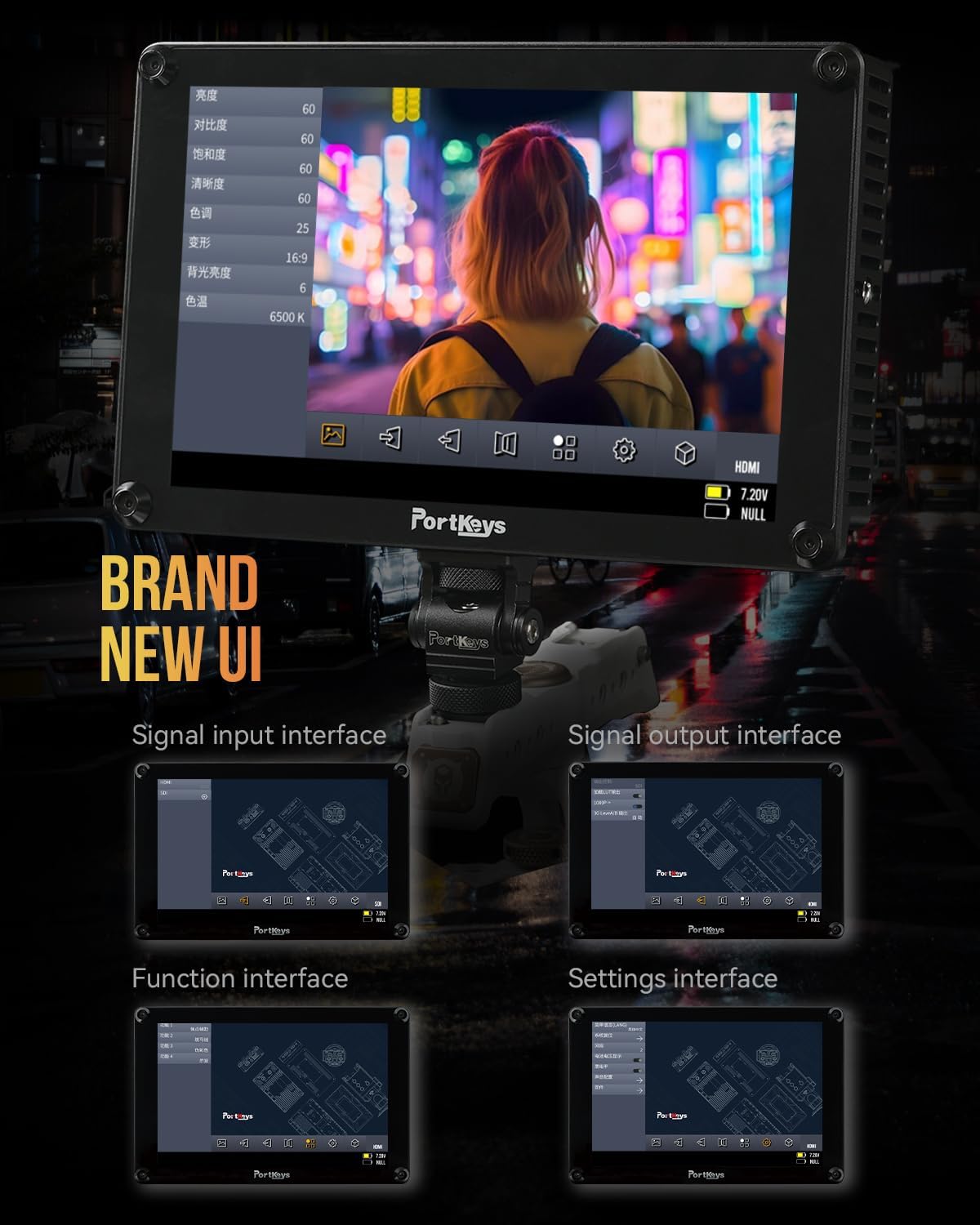
4.2 사용자 인터페이스(UI) 탐색
The Portkeys HS8 features a custom operating system with a user-friendly interface. Navigate through menus and settings using the touch screen or the physical buttons.

Image 4.1: The monitor's intuitive user interface for accessing functions and settings.
4.3 전문 모니터링 도구
The HS8 includes a suite of professional monitoring tools accessible via the UI:
- 파형 : 비디오 신호의 휘도 및 색차 수준을 시각화합니다.
- 히스토그램 : Displays the distribution of tones in your image.
- 얼룩말: 과다 노출된 영역을 강조 표시하여 클리핑을 방지합니다.
- 피킹: Assists with focus by highlighting sharp edges.
- 거짓 색상 : 색상 오버레이를 사용하여 노출 수준을 나타냅니다.
- Anamorphic Image De-squeeze: 아나모픽 이미지의 화면 비율을 수정합니다.tage.
- 오디오 미터: Displays audio levels for monitoring sound.
- 3D LUT: Supports loading custom 3D Look-Up Tables for accurate color representation and creative grading.

Image 4.2: The monitor showcasing its professional monitoring features.

이미지 4.3: 상세 view of waveform and histogram tools on the HS8 monitor.

Image 4.4: False color display on the HS8 for precise exposure control.

Image 4.5: Peaking function in action on the HS8 monitor to aid focusing.

Image 4.6: Key features of the Portkeys HS8 monitor.

Image 4.7: The monitor's display quality with REC.709 color and high brightness.
5. 유지관리
5.1 모니터 청소
To clean the screen, use the provided screen cleaning wipe or a soft, lint-free cloth. For stubborn smudges, lightly dampen the cloth with a screen-safe cleaning solution. Avoid harsh chemicals or abrasive materials.
5.2 보관
When not in use, store the monitor in a dry, cool place, away from direct sunlight and extreme temperatures. It is recommended to use a protective case to prevent damage during transport or storage.
6. 문제 해결
6.1 전원 없음
- 배터리가 완전히 충전되었고 올바르게 삽입되었는지 확인하세요.
- If using DC power, verify the power cable is securely connected and the power source is active.
- 전원 스위치가 "켜짐" 위치에 있는지 확인하십시오.
6.2 비디오 신호 없음
- Confirm the video source (camera) is powered on and outputting a signal.
- Check that the HDMI or SDI cables are securely connected to both the monitor and the source.
- Verify the correct input source is selected on the monitor.
- Test with different cables or video sources if possible.
6.3 Image Lag (HDMI)
Some cameras, such as the Canon R5, may experience a delay when switching between playback and shooting modes via HDMI. This is often a characteristic of the camera's HDMI output processing rather than the monitor itself. Ensure your camera's firmware is up to date and check its settings for HDMI output options.
7. 사양
| 특징 | 설명 |
|---|---|
| 상표 | 포트키스 |
| 모델 번호 | HS8 |
| 화면 크기 | 8 인치 |
| 네이티브 해상도 | 1920 x 1200 |
| 디스플레이 유형 | 액정표시장치 |
| 명도 | 1100니트 |
| 대비율 | 1000시 1분 |
| View잉 각도 | 170도 |
| 색상 깊이 | 10-bit (8+2 FRC) panel |
| 연결성 | HDMI (4K input), 3G SDI In/Out |
| 전원 입력 | Dual NP-F Battery Plates, DC 7-20V (5.5mm barrel) |
| 전력 패스스루 | 8V/10W NP-F dummy battery plate |
| 장착점 | VESA 100 x 100, 1/4-inch screw threads |
| 주택 | 알류미늄 |
| 품목 무게 | 0.68킬로그램(1.48파운드) |
| 색상 보정 | 709년 기록 |

Image 7.1: Visual summary of Portkeys HS8 specifications.
8. 공식 제품 영상
Video 8.1: Official product video for the Portkeys HS8 Camera Monitor, demonstrating its features and connectivity options.
9. 보증 및 지원
9.1 보증 정보
The Portkeys HS8 Camera Field Monitor comes with a 1년 제조사 보증 구매일로부터. 본 보증은 정상적인 사용 중 발생하는 재료 및 제조상의 결함에 적용됩니다. 보증 청구를 위해 구매 증빙 자료를 보관해 주십시오.
9.2 고객 지원
For technical assistance, troubleshooting, or warranty inquiries, please contact Portkeys Official Store customer support. Refer to the contact information provided with your product or visit the official Portkeys web대지.