
1. 서론
This manual provides detailed instructions for the installation, operation, and maintenance of your YEEHUNG 12.3-inch Android 13 Car Multimedia Screen. This device is designed to enhance your driving experience by integrating advanced multimedia features into your Mercedes Benz E Class W212 (2012-2015) with an NTG4.5 OEM host system.
Please read this manual thoroughly before installation and use to ensure proper functionality and to prevent potential issues.
2. 호환성
This multimedia screen is compatible with the following Mercedes-Benz models:
- 메르세데스-벤츠 E 클래스 W212 (2012-2015)
- Applicable to E180, E200, E220, E250, E260, E300, E320, E350, E63 AMG models.
- Requires NTG4.5 OEM host systems.
- Designed for left-hand drive vehicles.
중요한: To confirm compatibility, please verify your car's NTG system version. Refer to Section 3.1 for guidance on identifying your NTG version.
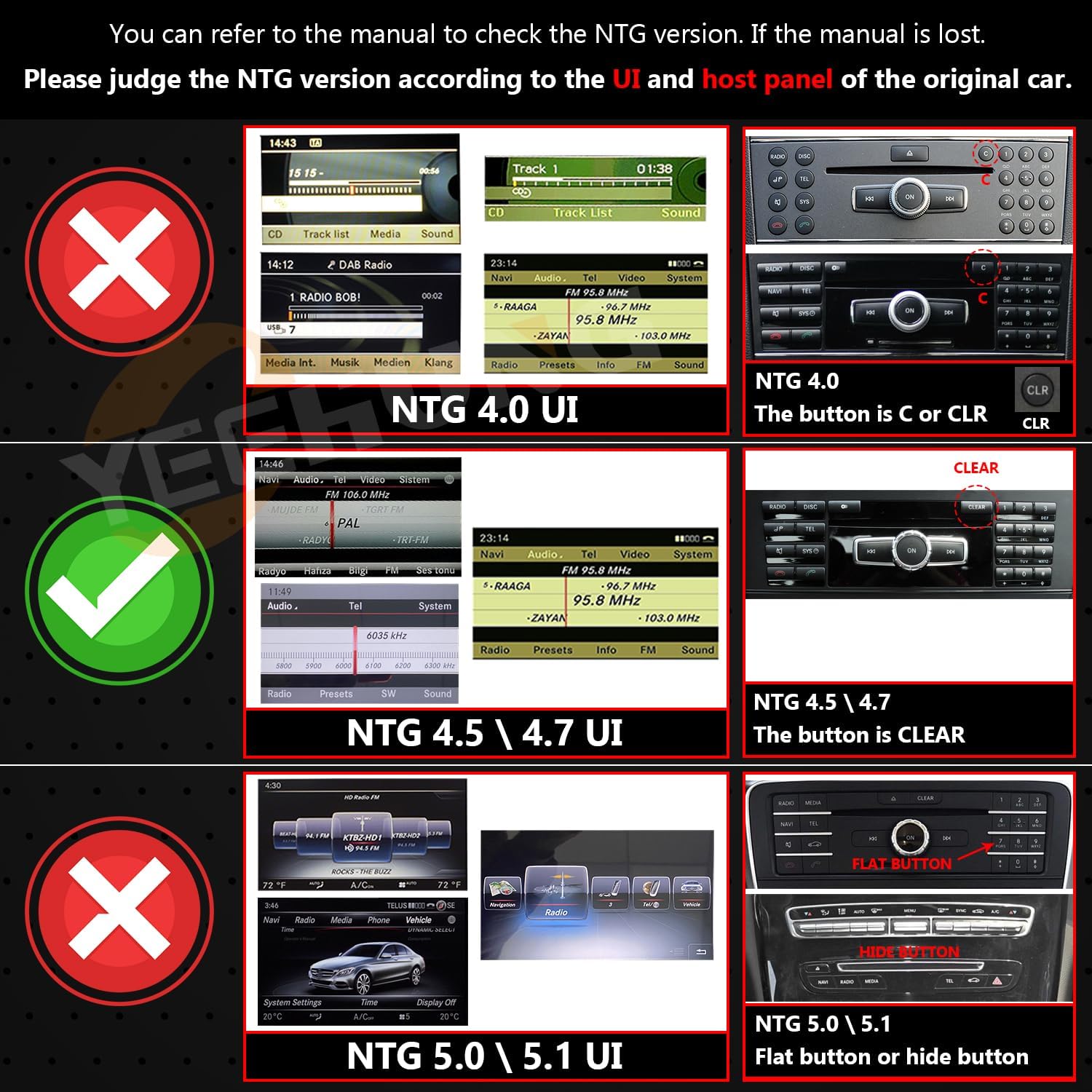
Image: Guide for identifying your car's NTG system version by comparing the user interface and host panel buttons. This image shows examples of NTG 4.0, NTG 4.5/4.7, and NTG 5.0/5.1 interfaces and corresponding buttons (C, CLR, CLEAR, Flat button, Hide button) to help determine compatibility.

Image: Detailed compatibility check for E Class W212 (2013-2015) NTG 4.5. It highlights the original car's interface, the 4-pin LVDS connector (not 10-pin), and the COMAND system knob with a 'CLEAR' button, indicating compatibility for four-door saloon cars.
3. 설정 및 설치
Careful installation is crucial for optimal performance. It is recommended to consult a professional for installation if you are not familiar with car electronics.
3.1. 패키지 내용
패키지에 모든 구성 요소가 들어 있는지 확인하세요.

이미지: 오버view of the items included in the package, showing the main screen unit, a base, ISO wiring harness, RCA cable, 4G antenna, GPS antenna, microphone, AMI decoder, installation manual, and user manual.
- 1 x 12.3" Android Multimedia Screen
- 1 x 베이스
- ISO 배선 하네스 1개
- 1 x RCA 케이블
- 1 x 4G 안테나
- 1 x GPS 안테나
- 1 x 마이크
- AMI 디코더 1개
- 1 x 설치 설명서
- 1 x 사용자 매뉴얼(이 문서)
3.2. Precautionary Notes
- AUX Menu Activation: If your original NTG4.5 system does not have an AUX menu, you must activate it to obtain audio from the Android screen. This can be done by selecting the AMI cable or using the Audio out on the ISO cable to interface with the car's AUX jack, depending on your car's specific interface type.
- 설치 매뉴얼: Always refer to the dedicated installation manual and videos provided for detailed step-by-step instructions.
- 테스트: After connecting all cables and devices, power on the Android unit and test all functions before reassembling any covers or panels.


Image: Visual guide showing the fiber optic connection, and how to connect the 'Audio out' from the new unit to either the car's AMI port or a standard AUX IN port, which is critical for sound output.
3.3. AUX Automatic Switching Settings (NTG 4.5/4.7)
For NTG4.5 and NTG4.7 systems with an original car AUX function, follow these steps to set up automatic AUX switching:
- In the original car's menu, navigate to the AUDIO section.
- 오디오 아이콘의 위치를 '2'로 설정하세요.
- AUX 아이콘의 위치를 '8'로 설정하세요.
- In the Android unit's Factory Settings, select 'Automatic' for AUX Switching Modes.
- Ensure 'AUX Activate' is checked under the relevant settings.
- Configure 'CAN Protocol' and 'Car Display' settings according to your vehicle's specifications (e.g., BC_Protocol_type_4.5, NTG4.5_400x240_5.8).

Image: A four-panel image illustrating the steps for setting up automatic AUX switching for NTG 4.5/4.7 systems. It shows menu navigation for AUDIO and AUX positions, and settings within the Android unit's Factory Settings for AUX Switching Modes.


Image: Three separate images showing specific settings within the Android unit's interface: 'AUX Activate' checkbox, 'CAN Protocol' selection (highlighting BC_Protocol_type_4.5), and 'Car Display' options (highlighting NTG4.0/NTG4.5_800).
4. 사용 설명서
Your YEEHUNG multimedia screen offers a range of features designed for convenience and entertainment.
4.1. 핵심 기능
- Wired and Wireless CarPlay: Connect your iPhone for navigation, music, messages, and calls.
- 안드로이드 오토: Connect your Android phone for seamless integration of apps and services.
- 무선 미러 링크: Display your smartphone screen directly on the multimedia unit.

Image: The 12.3-inch multimedia screen displaying the Apple CarPlay interface with various app icons like Car Home, Phone, Music, Messages, Calendar, Settings, Google Maps, WhatsApp, and Telegram.


Image: Three small images demonstrating the CarPlay, Android Auto, and Mirror Link functionalities on the screen, showing typical interfaces for each feature.
4.2. 디스플레이 기능
- 12.3" Blue Anti-Glare HD Screen: Provides a clear, non-reflective display, reducing eye fatigue and improving driving safety.
- 해결: 1920x720 HD resolution for a more realistic and detailed visual experience.
- Multi-point Capacitive Touch: Responsive and intuitive touch control.
- IPS 기술: 178° 초광각 화면을 제공합니다. view잉 각도.
- Automatic Backlight Adjustment: Adapts to ambient light conditions.

Image: A comparison illustrating the benefit of the anti-glare screen, showing a driver struggling with glare in an 'Old Style' screen versus a clear view with the 'New Style' anti-glare screen, emphasizing improved driving safety.

Image: Details the features of the fully laminated HD anti-glare screen, including its 12.3-inch size, 1920x720 resolution, IPS touch screen, 178° ultra-wide viewing angle, high color rendition, 4K video playback, and automatic backlight adjustment.
4.3. System Performance and Connectivity
- 프로세서: 11 nm Qualcomm Snapdragon 662 8-core high-speed processor.
- 메모리: 8GB RAM and 256GB internal storage for faster reaction speed and amp르 공간.
- 블루투스 5.0 : Supports music playback and hands-free calling.
- 내장 Wi-Fi: Supports 2.4G and 5.0G networks.
- 4G 네트워크 지원: Built-in SIM card slot for high-speed internet access (North America TDD-LTE/FDD-LTE/WCDMA).
- Online Voice Control: Available after connecting to the network.

Image: Highlights key technical specifications including Qualcomm Snapdragon 662 processor, 8GB RAM, 256GB ROM, Android 13 operating system, Bluetooth 5.1, 4G network support, and the blue anti-glared 12.3-inch 1920x720 HD screen with IPS technology.

Image: Illustrates the high-speed internet capabilities with a built-in SIM card slot and 2.4G/5G WiFi support, enabling calls, internet browsing, video streaming, online music, and app downloads.
4.4. Integration with Original Car Functions
- Retains original car knob and steering wheel controls.
- Preserves original car radio and amplifier 기능.
- Supports original rear view camera and reverse trajectory.
- Compatible with factory and aftermarket cameras.
4.5. 추가 기능
- 분할 화면: Run two applications simultaneously.
- 구글 플레이 스토어: Access and download a wide range of applications.
- 다국어 지원: Operates in various languages.
5. 유지관리
To ensure the longevity and optimal performance of your multimedia screen, follow these general maintenance guidelines:
- 청소: 부드럽고 보풀 없는 천으로 화면을 닦으세요. 잘 지워지지 않는 얼룩은 가볍게 두드려 닦아주세요.amp천에 물이나 화면에 안전한 세척제를 묻혀 닦아주세요. 강한 화학 물질이나 연마재는 사용하지 마세요.
- 온도: 기기를 극심한 고온이나 저온에 장시간 노출시키지 마십시오.
- 물리적 손상: Protect the screen from direct impact or sharp objects.
- 소프트웨어 업데이트: 시스템이 효율적이고 안전하게 작동하도록 정기적으로 소프트웨어 업데이트를 확인하고 설치하십시오.
6. 문제 해결
If you encounter issues with your YEEHUNG multimedia screen, refer to the following common troubleshooting steps:
6.1. No Sound from Android System
- AUX 활성화 여부를 확인하세요: Ensure the AUX menu is activated in your original NTG system and that the 'Audio out' from the Android unit is correctly connected to your car's AUX or AMI input. Refer to Section 3.2 and 3.3.
- 볼륨 레벨: Verify that the volume on both the Android unit and your car's original audio system is turned up.
- 케이블 연결: Recheck all audio-related cable connections for secure fitment.
6.2. Screen Not Powering On
- 전원 연결 : 모든 전원 케이블이 장치와 차량의 전원에 단단히 연결되어 있는지 확인하십시오.
- 차량 점화: 차량의 점화가 켜져 있는지 확인하세요.
- 퓨즈 점검: Inspect relevant fuses in your vehicle's fuse box.
6.3. CarPlay/Android Auto 연결 안 됨
- 블루투스/Wi-Fi: Ensure Bluetooth is enabled on both your phone and the multimedia unit for initial pairing. For wireless connections, ensure Wi-Fi is also active.
- 전화 설정: Check your phone's settings to ensure CarPlay or Android Auto is enabled and allowed to connect to new devices.
- USB 연결: For wired connections, try a different USB cable or port.
이러한 단계를 수행해도 문제가 해결되지 않으면 고객 지원팀에 문의하십시오.
7. 사양
| 특징 | 사양 |
|---|---|
| 화면 크기 | 12.3 인치 |
| 디스플레이 해상도 | 1920x720 |
| 운영 체제 | 안드로이드 13 |
| 프로세서 | 퀄컴 스냅드래곤 662(8코어) |
| 숫양 | 8GB |
| 내부 저장소 | 256GB |
| 연결성 | Bluetooth 5.0, USB, Wi-Fi (2.4G & 5.0G), 4G (SIM slot) |
| 특별 기능 | Touchscreen, Anti-Glare, CarPlay, Android Auto, Mirror Link, Split Screen |
| 오디오 출력 모드 | 보조 |
| 장착 유형 | 대시 보드 마운트 |
| 품목 무게 | 5.72파운드 |
| 패키지 크기 | 16.1 x 8.2 x 7.1 인치 |
8. 보증 및 지원
YEEHUNG is committed to providing quality products and customer satisfaction.
8.1. 제품 품질
All products undergo strict screening to ensure high quality and unique aesthetics.
8.2. 고객 지원
If you have any questions or encounter problems, please contact our customer service team. Provide a clear description of your issue to facilitate a quick resolution. We aim to respond to all inquiries within 24 hours.
도움이 필요하면 다음을 방문하세요. 아마존에서 YEEHUNG 스토어를 만나보세요 or contact us directly through the platform where you purchased the product.