
1. 서론
This manual provides essential information for the proper setup, operation, and maintenance of your NexiGo NG17QH 4K Portable Monitor. Please read this manual thoroughly before using the device to ensure optimal performance and to prevent damage. Keep this manual for future reference.

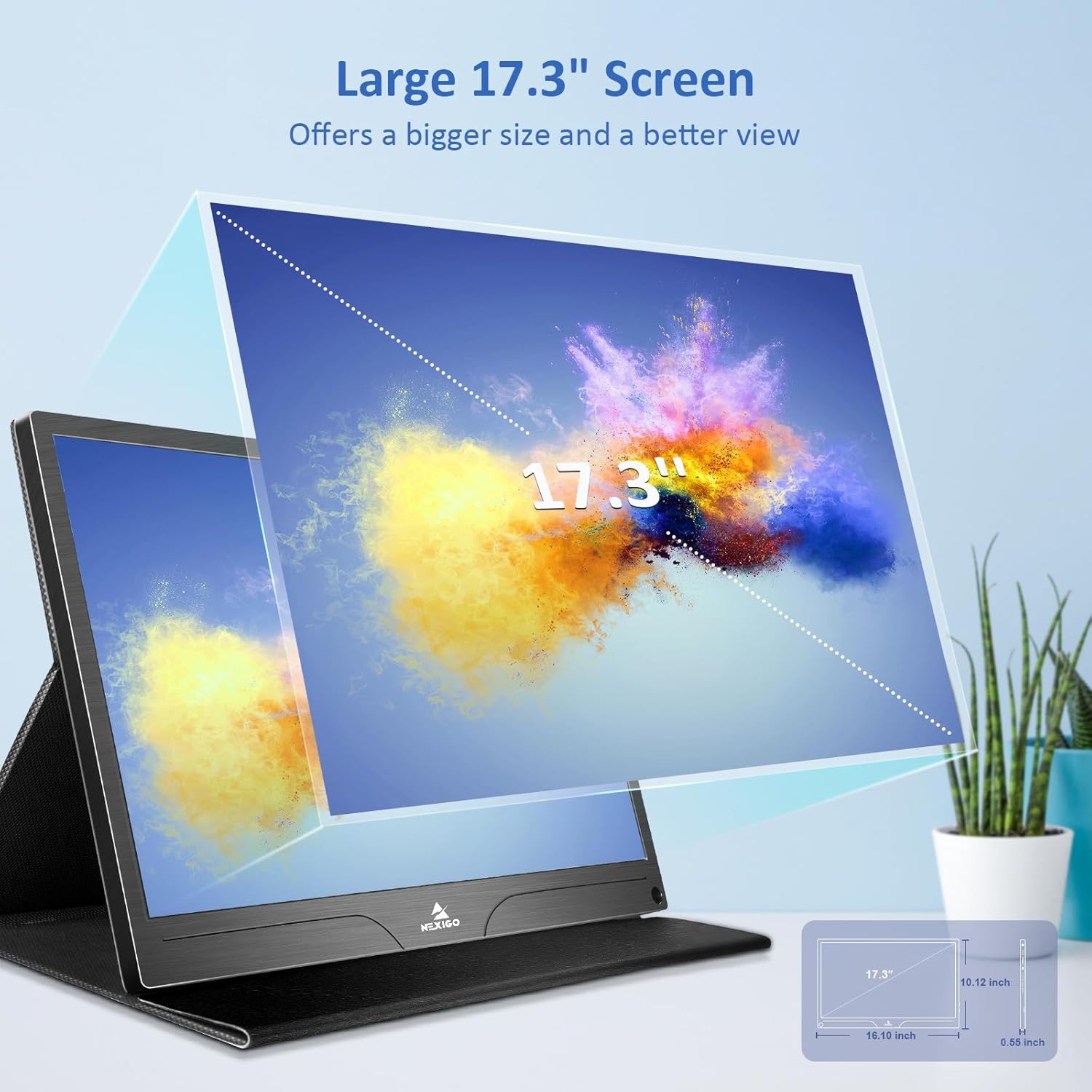
Image: The NexiGo NG17QH 4K Portable Monitor, showcasing its sleek design and smart cover.
2. 패키지 내용
Verify that all items listed below are included in your package. If any items are missing or damaged, please contact NexiGo customer support.
- NexiGo NG17QH 4K Portable Monitor
- 스마트 커버 / 스탠드
- USB-C to USB-C 케이블
- 미니 HDMI-HDMI 케이블
- USB-A to USB-C 전원 케이블
- 전원 어댑터
3. 제품 오버view
Familiarize yourself with the ports and controls on your NexiGo NG17QH portable monitor.
이미지: 상세 view 모니터의 포트와 컨트롤에 대한 정보입니다.
포트 및 버튼:
- 모든 기능을 갖춘 USB-C 포트: Used for power, video, and audio transmission with compatible devices.
- 미니 HDMI 포트: Used for video and audio transmission with HDMI-compatible devices.
- 전원 버튼: Press and hold to power the monitor on or off. Short press to access the OSD menu.
- 전원 표시등: Indicates the monitor's power status.
- Multi-Function Key: Used to navigate the OSD menu and adjust settings.
- OTG Interface (USB-C): Allows connection of USB peripherals like keyboards or mice when the monitor is connected via the full-featured USB-C port.
- 3.5mm 헤드폰 잭 : 외부 오디오 장치를 연결합니다.
4. 설정
Follow these steps to set up your NexiGo NG17QH portable monitor.
4.1 모니터 전원 켜기
- Using a single USB-C cable (Full-Featured): If your device (laptop, smartphone) supports full-featured USB-C output, connect the monitor to your device using the provided USB-C to USB-C cable. This single cable can provide both power and display signal.
- Using an external power adapter: If your device does not provide sufficient power or if you are using the Mini HDMI port, connect the provided USB-A to USB-C power cable to the monitor's full-featured USB-C port and plug the USB-A end into the power adapter, then into a wall outlet.
4.2 장치에 연결하기
- Laptop/PC (USB-C): Connect the monitor to your laptop/PC using the USB-C to USB-C cable. Ensure your laptop's USB-C port supports DisplayPort Alternate Mode.
- Laptop/PC (HDMI): Connect the monitor to your laptop/PC using the Mini HDMI to HDMI cable. Ensure the monitor is powered externally via the USB-C power cable.
- Gaming Consoles (PS5, Xbox, Switch): Connect the monitor to your console using the Mini HDMI to HDMI cable. Ensure the monitor is powered externally via the USB-C power cable.
- 스마트폰: Connect the monitor to your smartphone using the USB-C to USB-C cable. Ensure your smartphone's USB-C port supports video output.
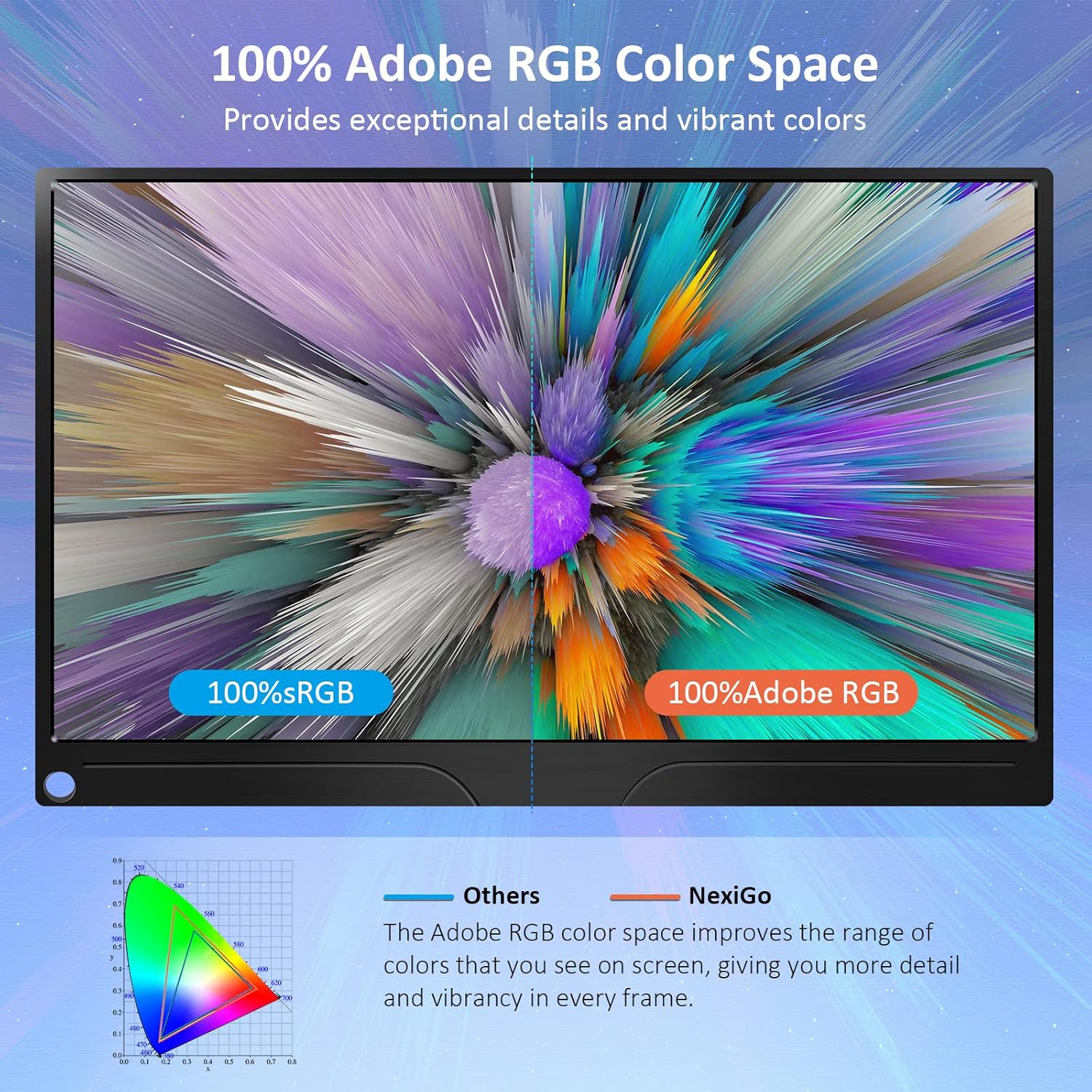
Image: The portable monitor connected to a laptop, demonstrating an extended display setup.
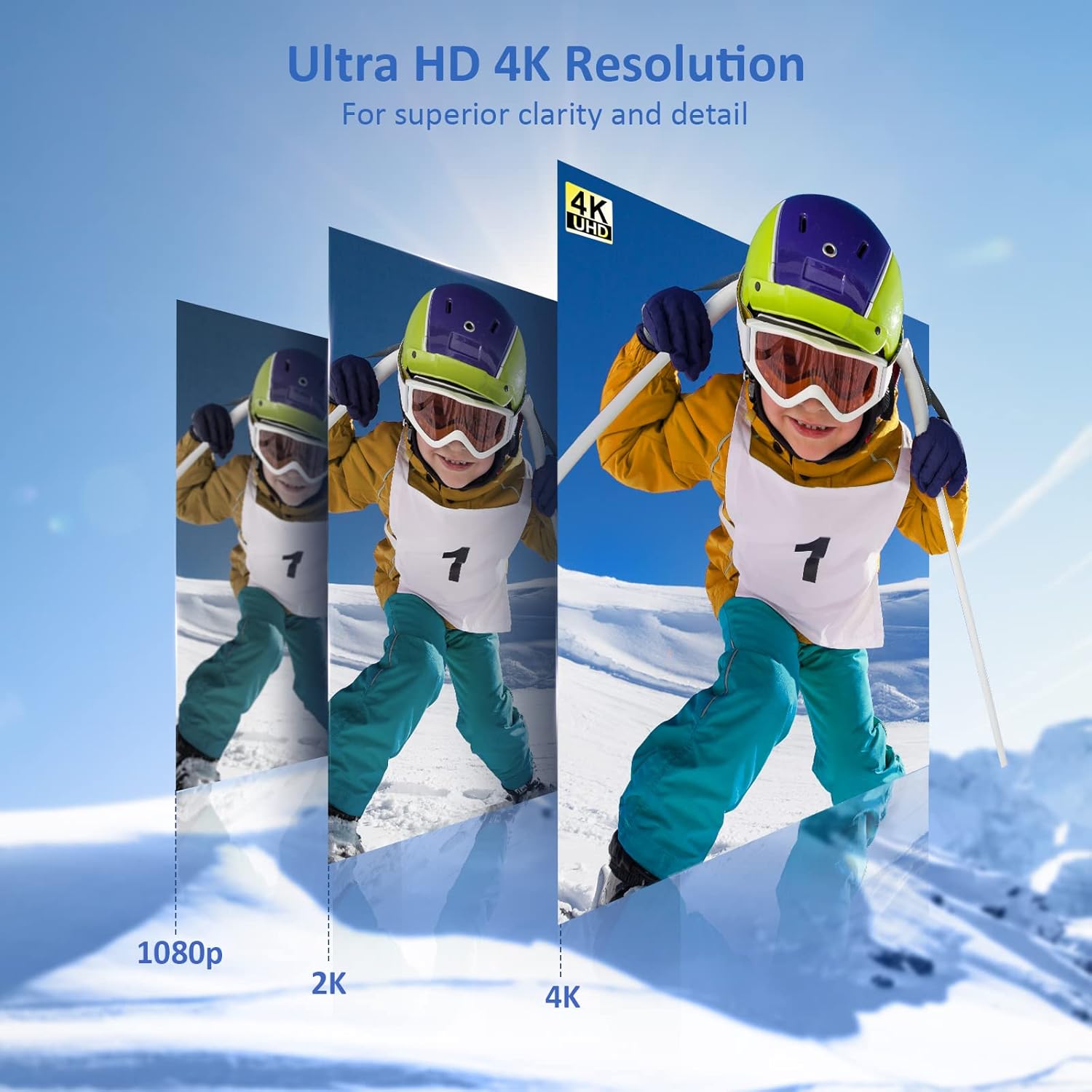
Image: The portable monitor connected to a smartphone, displaying content.
4.3 VESA 마운팅
The monitor is compatible with VESA mounts (75x75mm). To mount the monitor, remove the smart cover and attach it to a compatible VESA arm or wall mount using appropriate screws (not included).
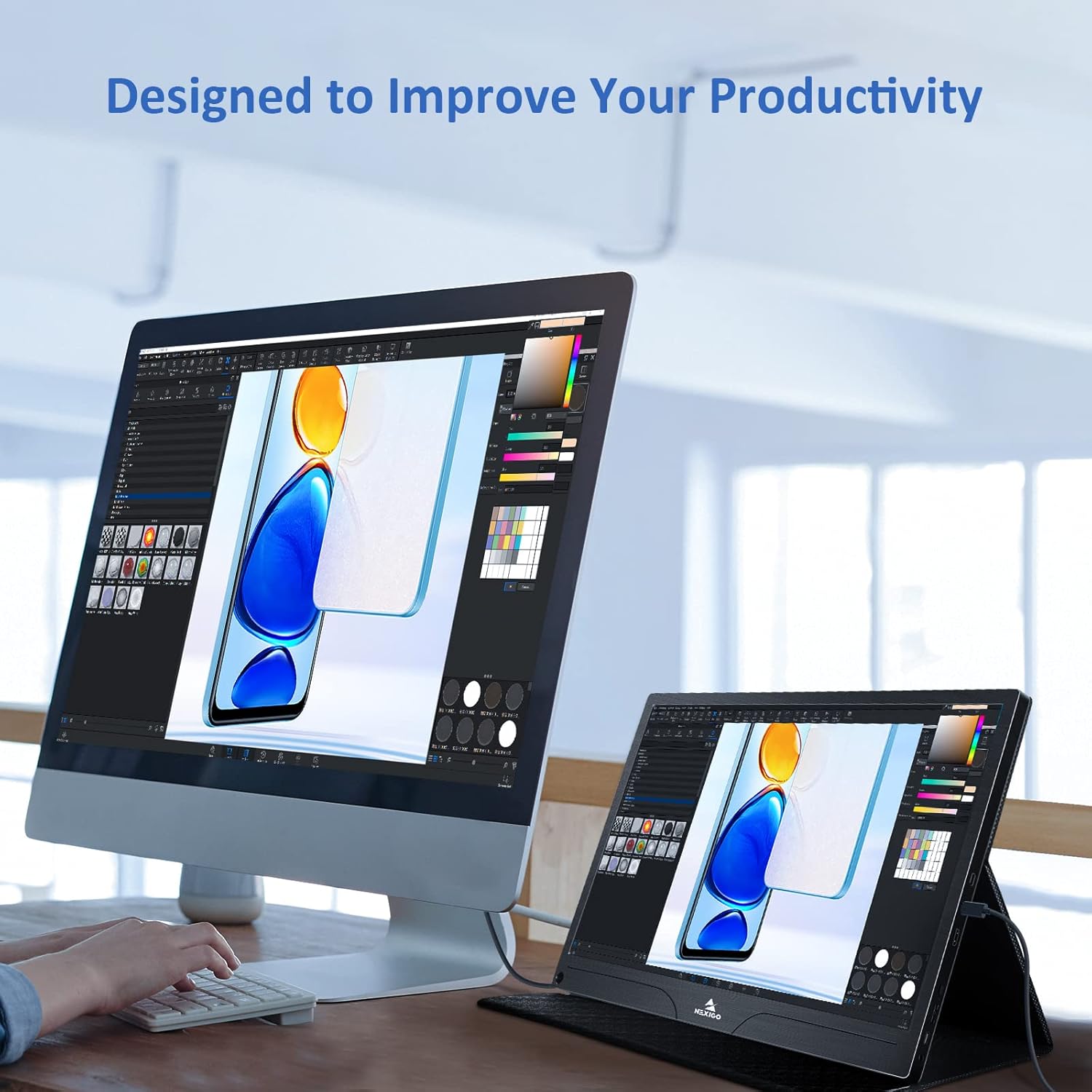
Image: The monitor mounted on a VESA-compatible desk arm.
5. 모니터 작동하기
5.1 전원 켜기/끄기
를 누르고 계세요 전원 버튼 for approximately 3 seconds to turn the monitor on or off.
5.2 온스크린 디스플레이(OSD) 메뉴
The OSD menu allows you to adjust various display settings. Short press the 전원 버튼 to open the OSD menu. Use the 다기능 키 탐색하고 옵션을 선택합니다.
- 위아래: Move the Multi-Function Key up or down to navigate through menu options.
- 입력하다: Press the Multi-Function Key inward to select an option or confirm a setting.
- 출구: Press the Power Button to exit the current menu or the OSD.
5.3 디스플레이 설정
- 밝기/대비: 디스플레이의 전반적인 밝기와 대비를 조정합니다.
- 색상 설정: 색온도, 색조 및 채도를 조정하세요.
- HDR 모드: Enable or disable High Dynamic Range for enhanced visual quality with compatible content.
- 프리싱크: Enable FreeSync for smoother gaming experiences by synchronizing the monitor's refresh rate with your GPU's frame rate.
- 종횡비: 화면 비율을 조정하세요(예: 16:9, 4:3).
5.4 오디오 설정
Adjust the volume of the built-in dual speakers or connected headphones through the OSD menu.
6. 유지관리
- 화면 청소: 부드럽고 보풀이 없는 천을 살짝 사용하십시오. damp물이나 비연마성 화면 세척제로 세척하십시오. 화면에 직접 액체를 분사하지 마십시오.
- C 청소asing: 모니터를 닦으세요asing with a soft, dry cloth. Avoid using harsh chemicals or solvents.
- 저장: When not in use, store the monitor in a cool, dry place, preferably in its original packaging or smart cover to protect it from dust and scratches.
- 극한의 환경을 피하세요: 모니터를 극한의 온도, 습도 또는 직사광선에 노출시키지 마세요.
7. 문제 해결
모니터에 문제가 발생하면 다음 표를 참조하여 일반적인 문제와 해결 방법을 확인하세요.
| 문제 | 가능한 원인 | 해결책 |
|---|---|---|
| 디스플레이 없음 / "신호 없음" 메시지 | 케이블 연결이 잘못되었거나, 전력이 부족하거나, 입력 소스가 올바르지 않습니다. | Ensure cables are securely connected. Verify external power is supplied if needed. Check the input source setting in the OSD menu. |
| 모니터 전원이 켜지지 않습니다 | No power supply, faulty cable. | Ensure the power adapter is connected and working. Try a different USB-C cable or power source. |
| 깜빡이는 화면 | Faulty cable, unstable power, incompatible resolution/refresh rate. | Replace the cable. Ensure stable power. Adjust the display resolution or refresh rate on your connected device. |
| 오디오 없음 | Volume too low, incorrect audio output setting, faulty cable. | Increase volume via OSD or connected device. Ensure the monitor is selected as the audio output device on your source. Check cable connections. |
| OTG port not working | Monitor not powered via full-featured USB-C, device incompatibility. | Ensure the monitor is connected to a device via the full-featured USB-C port that supports OTG functionality. |
8. 사양
Detailed technical specifications for the NexiGo NG17QH 4K Portable Monitor.
| 특징 | 사양 |
|---|---|
| 모델 번호 | NG17QH |
| 화면 크기 | 17.3 인치 |
| 해결 | 3840 x 2160(4K UHD) |
| 패널 유형 | IPS |
| 명도 | 400칸델라/제곱미터 |
| 색상 영역 | 100 % Adobe RGB |
| 종횡비 | 16시 9분 |
| View잉 각도 | 178° |
| 특징 | FreeSync, HDR, Eye Care Screen |
| 스피커 | 듀얼 내장 스피커 |
| 연결성 | Full-Featured USB-C (x1), Mini HDMI (x1), OTG USB-C (x1), 3.5mm Audio Jack (x1) |
| VESA 호환성 | 75 x 75mm |
| 제품 치수 | 16.1 x 10.12 x 0.55 인치 |
| 품목 무게 | 6.39파운드 |

Image: Visual comparison of 1080p, 2K, and 4K resolutions, demonstrating the clarity of the 4K display.
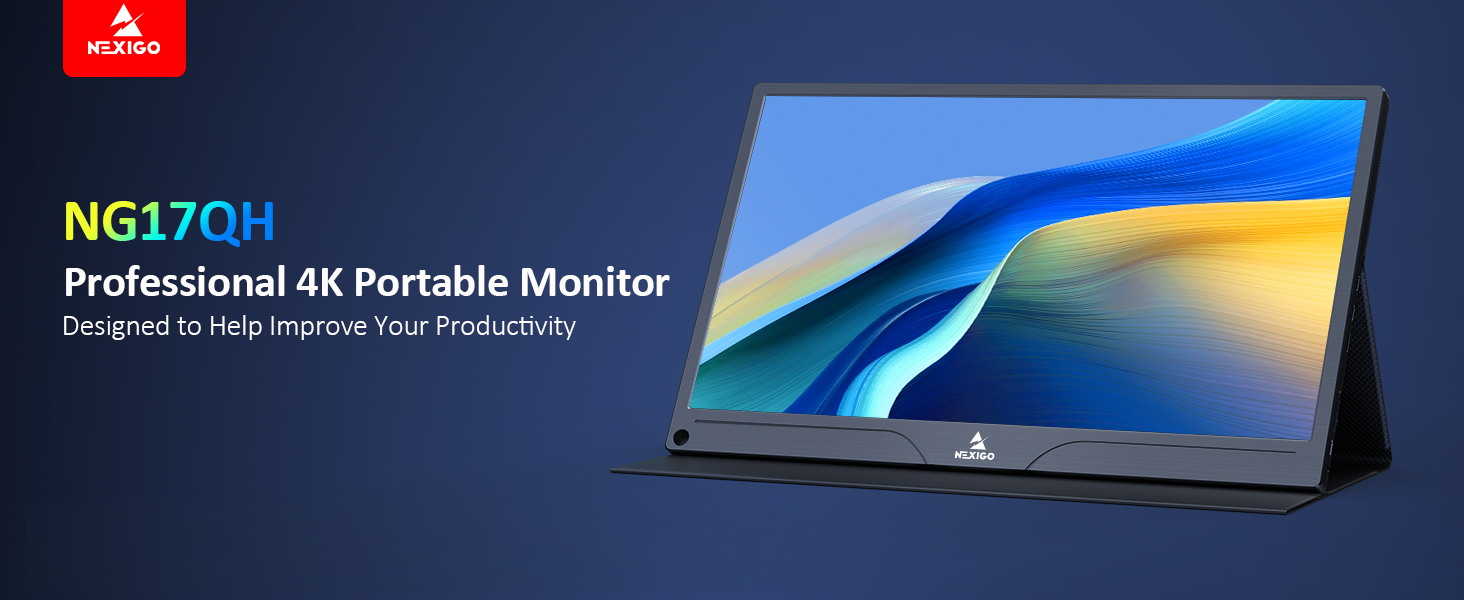
Image: A visual representation of 100% Adobe RGB color space coverage, indicating vibrant and detailed color reproduction.
9. 보증 및 지원
Your NexiGo NG17QH Portable Monitor comes with a manufacturer's warranty. For detailed warranty information, product registration, or technical support, please visit the official NexiGo web사이트를 방문하거나 고객 서비스에 직접 문의하세요. 보증 청구를 위해 구매 증빙 자료로 구매 영수증을 보관하세요.
NexiGo Official Web대지: www.nexigo.com