
라푸 E9310M
Rapoo E9310M 멀티 디바이스 무선 키보드 사용 설명서
Model: E9310M | Brand: Rapoo
소개
This manual provides detailed instructions for the setup, operation, maintenance, and troubleshooting of your Rapoo E9310M Multi-Device Wireless Keyboard. This keyboard is designed for versatile use across multiple operating systems and devices, offering a seamless typing experience.

Image: The Rapoo E9310M Multi-Device Wireless Keyboard, showcasin세련된 디자인이에요.
상자 안에 무엇이 들어있나요?
- 1 x Rapoo E9310M Wireless Keyboard
- 1 x 사용자 가이드
- AAA 배터리 2개(사전 설치 또는 별도 포함)
설정
1. 배터리 설치
The Rapoo E9310M keyboard operates on 2 AAA batteries. Ensure batteries are correctly inserted according to polarity markings. The keyboard is designed for extended battery life, lasting up to 12 months with upgraded low-energy Bluetooth technology.

Image: The Rapoo E9310M keyboard on a desk, highlighting its extended battery life feature.
2. 연결 옵션
The keyboard supports multi-device connectivity via two methods:
- 블루투스 5.0/4.0: For wireless connection to up to three devices.
- 2.4GHz USB Receiver: For a stable wireless connection to one device.

Image: Diagram illustrating multi-device and multi-OS connectivity options for the keyboard.
3. 장치와 페어링
- For 2.4GHz USB Receiver: Insert the USB receiver into an available USB port on your computer. The keyboard should connect automatically.
- For Bluetooth Pairing (up to 3 devices):
- 를 누르고 계세요 Fn + 1, Fn + 2, 또는 Fn + 3 key combination for 3 seconds to enter Bluetooth pairing mode for the desired channel. The indicator light above the '1', '2', or '3' key will flash rapidly.
- On your device (PC, tablet, smartphone), navigate to Bluetooth settings and search for new devices.
- Select "Rapoo E9310M" from the list of available devices to complete the pairing process. The indicator light will stop flashing once connected.

이미지: 클로즈업 view of the USB receiver being inserted into a laptop, demonstrating 2.4GHz connectivity.
4. 연결된 장치 간 전환
To switch between paired Bluetooth devices or the 2.4GHz connection, simply press the corresponding key:
- 누르다 Fn + 1, Fn + 2, 또는 Fn + 3 to switch to a Bluetooth-connected device.
- 누르다 Fn + 4 to switch to the device connected via the 2.4GHz USB receiver.
5. 시스템 전환(Windows/Mac)
The keyboard layout is optimized for both Windows and Mac OS. To switch between operating system modes:
- 누르다 Fn + Q Mac OS 모드용입니다.
- 누르다 Fn + W Windows OS 모드용입니다.
This ensures that function keys and modifier keys (like Command/Alt) operate correctly for your specific operating system.
작동 지침
1. 99-Key Compact Layout
The E9310M features a compact 99-key layout that includes a full number pad, providing essential functionality without occupying excessive desk space.

이미지: 오버헤드 view of the Rapoo E9310M keyboard, illustrating its compact 99-key layout with integrated number pad.
2. 로우프로file 치클릿 키캡
키보드는 저프로 사양을 갖추고 있습니다.file chiclet keycaps and an incurve rounded design, offering a quiet, precise, and comfortable typing experience similar to a laptop keyboard.

Image: A close-up detail of the low-profile chiclet keycaps, showing their design and spacing.
3. 멀티미디어 키
Access 12 widely used function keys for multimedia control (e.g., play/pause, volume up/down, mute) by pressing the Fn key in combination with the corresponding F1-F12 keys. These shortcuts are supported on both Windows and Mac OS.
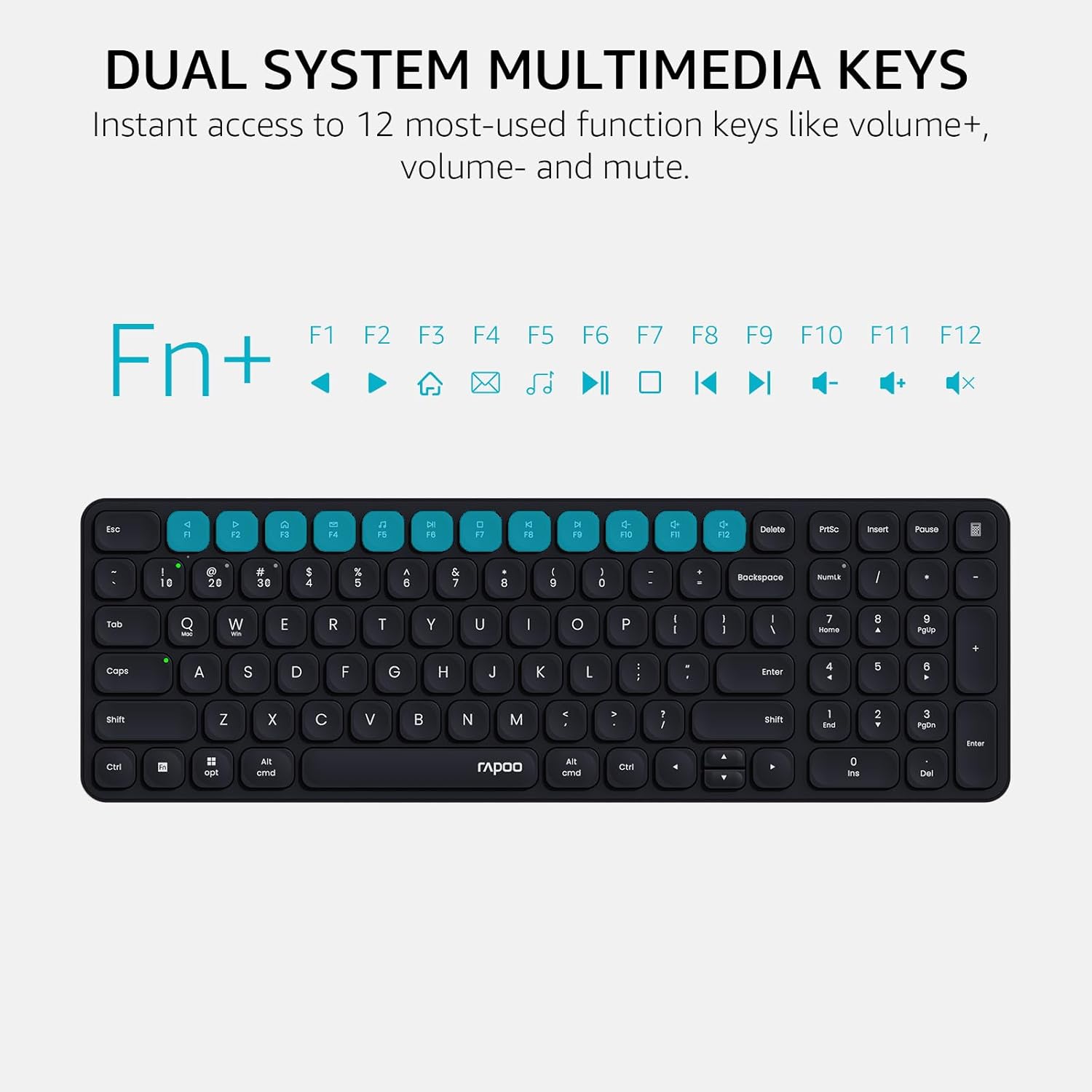
Image: A visual guide highlighting the multimedia functions accessible via the Fn key combinations.
4. 장치 및 대문자 사용 표시등
The keyboard includes indicator lights to show which device channel is currently active and whether Caps Lock is engaged. This provides immediate visual feedback on the keyboard's status.

이미지: 클로즈업 view of the keyboard's indicator lights for device connection and Caps Lock status.
유지
- 청소: Use a soft, dry cloth to clean the keyboard surface. For deeper cleaning, a slightly damp 순한 비누를 묻힌 천으로 닦아내되, 액체가 키 스위치나 내부 부품에 들어가지 않도록 하십시오.
- 배터리 교체: Replace AAA batteries when the low battery indicator appears or when connectivity issues arise due to power.
- 저장: 장시간 사용하지 않을 때는 키보드를 직사광선과 극한의 온도를 피해 서늘하고 건조한 곳에 보관하세요.
문제 해결
| 문제 | 가능한 원인 | 해결책 |
|---|---|---|
| 키보드가 Bluetooth로 연결되지 않습니다. | Keyboard not in pairing mode; device Bluetooth off; interference; low battery. | Ensure keyboard is in pairing mode (Fn + 1/2/3 for 3s). Check device Bluetooth settings. Move closer to the device. Replace batteries. |
| 2.4GHz connection not working. | USB receiver not properly inserted; driver issue; low battery. | Re-insert USB receiver into a different port. Ensure keyboard is switched to 2.4GHz mode (Fn + 4). Replace batteries. |
| 키가 응답하지 않거나 올바르게 입력되지 않습니다. | Low battery; incorrect operating system mode; physical obstruction. | Replace batteries. Switch to correct OS mode (Fn + Q for Mac, Fn + W for Windows). Clean under keycaps. |
| 멀티미디어 키가 작동하지 않습니다. | Incorrect operating system mode; software conflict. | Ensure correct OS mode is selected. Check if any software on your device is overriding keyboard functions. |
명세서
| 특징 | 세부 사항 |
|---|---|
| 모델 | E9310m |
| 연결성 | Bluetooth 5.0/4.0, 2.4GHz RF (USB Receiver) |
| 다중 장치 지원 | Up to 4 devices (3 via Bluetooth, 1 via 2.4GHz) |
| 호환되는 운영 체제 | Windows, Mac OS, Linux, Chrome OS, iOS, Android |
| 키 레이아웃 | 99-Key Compact with Number Pad |
| 키 유형 | 로우프로file 치클릿 키캡 |
| 특별 기능 | Multimedia Hotkeys, Device & Caps Lock Indicators, Portable |
| 전원 | AAA 배터리 2개(포함) |
| 배터리 수명 | 최대 12개월 (예상) |
| 재료 | 알류미늄 |
| 치수(길이 x 너비 x 높이) | 11.18 x 4.69 x 0.79인치(28.39 x 11.91 x 2.01cm) |
| 무게 | 10.9 온스(309그램) |
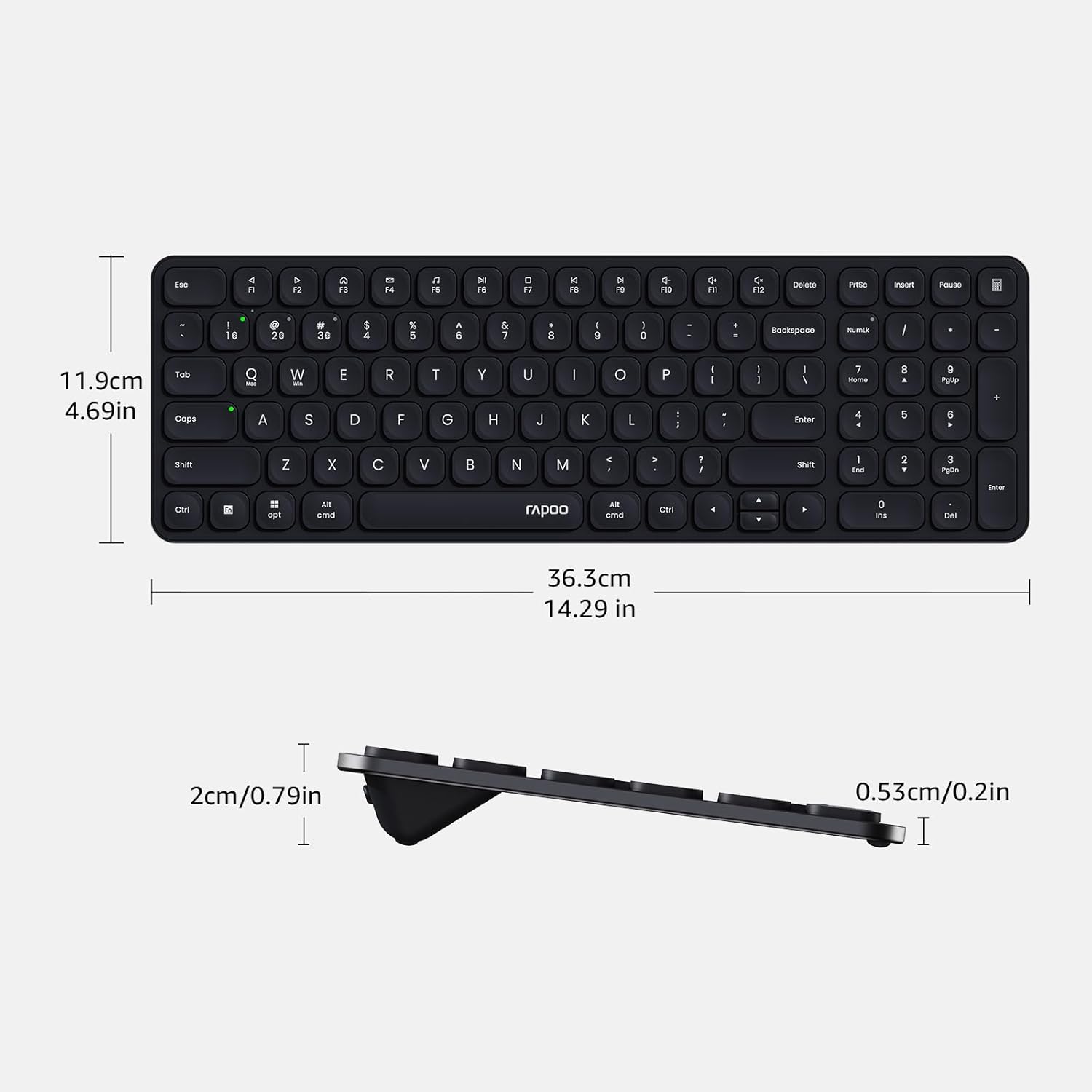
Image: Diagram showing the precise dimensions of the Rapoo E9310M keyboard in both centimeters and inches.
보증 및 지원
Rapoo products are designed for reliability and performance. For any issues or inquiries, please refer to the following:
- 반품 가능 기간: A 30-day return window is typically offered for product returns. Please check your purchase details for specific terms.
- 고객 지원: For technical assistance or product support, please contact Rapoo customer service. Refer to the official Rapoo web연락처 정보는 웹사이트 또는 구매 서류에서 확인하실 수 있습니다.
안전 정보
- 키보드를 액체나 과도한 습기에 노출시키지 마십시오.
- 극한 온도나 직사광선을 피하십시오.
- Do not attempt to disassemble or modify the keyboard.
- 어린이의 손이 닿지 않는 곳에 보관하세요.
Ask a question about this manual
Ask about setup, troubleshooting, compatibility, parts, safety, or missing instructions. Manuals+ will review the question and use this page’s manual context to help answer it.