
1. 서론
This manual provides detailed instructions for the safe and efficient operation of your HPRT Mini Photo Printer CP2100. Please read this manual thoroughly before using the product to ensure optimal performance and longevity.
2. 상자 안에 무엇이 들어있나요?
포장을 풀 때 아래 나열된 모든 품목이 들어 있고 상태가 양호한지 확인하세요.
- HPRT Mini Photo Printer
- 프린터 USB 케이블
- 제품 매뉴얼(이 문서)
- 10 sheets 2x3 inch Photo Paper (consumable)

Image: The HPRT Mini Photo Printer CP2100, USB cable, product manual, and a pack of 10 photo sheets.
3. 제품 구성품
Familiarize yourself with the various parts of your HPRT Mini Photo Printer CP2100:
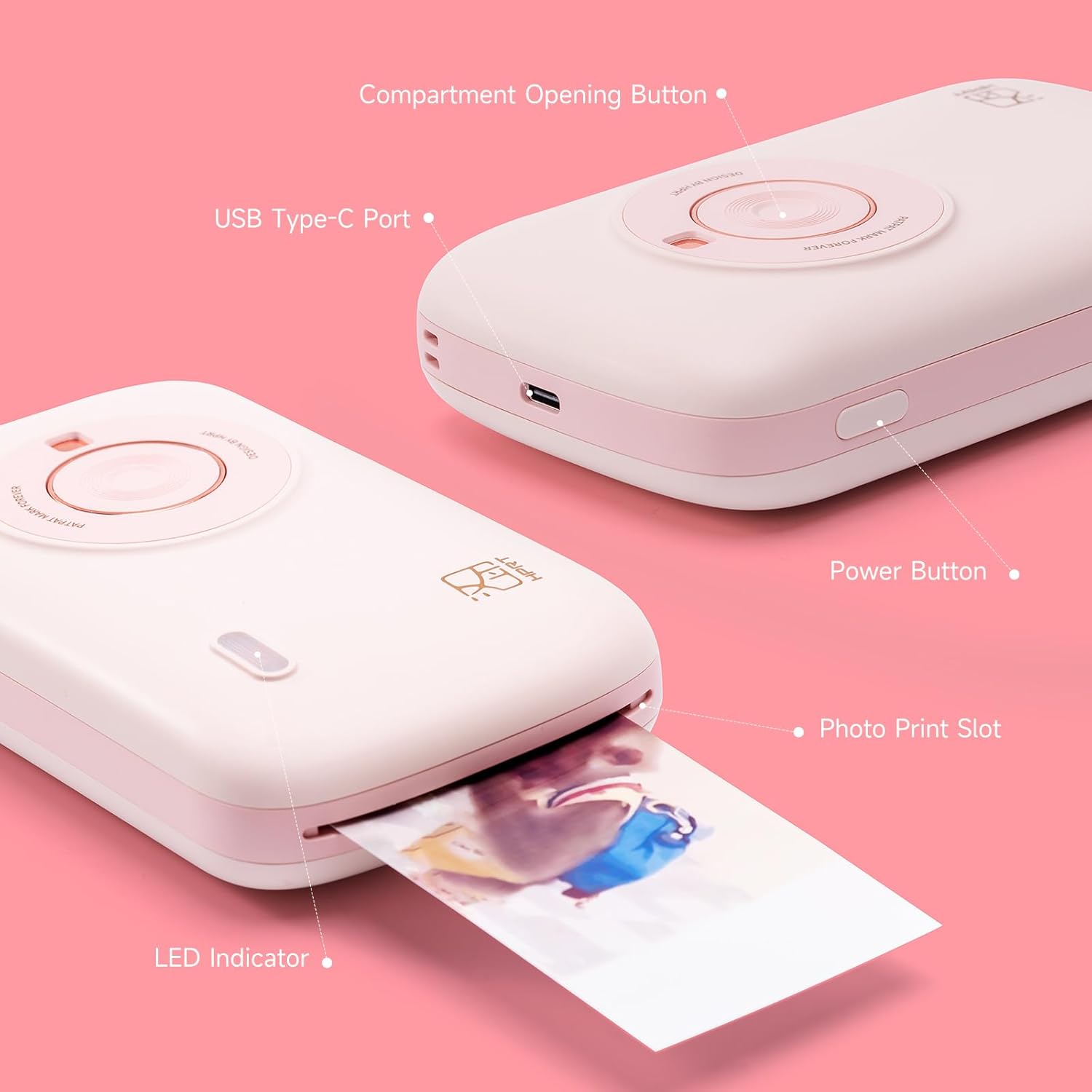
이미지: 자세한 view of the printer highlighting key components such as the Compartment Opening Button, USB Type-C Port, Power Button, Photo Print Slot, and LED Indicator.
- Compartment Opening Button: Used to open the consumable compartment.
- USB 타입-C 포트: 프린터 충전용입니다.
- 전원 버튼: 프린터를 켜거나 끄려면.
- Photo Print Slot: 인쇄된 사진이 기기 밖으로 나오는 지점.
- LED 표시등: Displays printer status (e.g., charging, ready, printing).
4. 설정
4.1 프린터 충전
Before initial use, fully charge the printer using the provided USB cable. Connect the USB Type-C end to the printer's port and the other end to a compatible USB power source (e.g., computer, wall adapter).

Image: The printer being charged via its USB Type-C port.
4.2 Loading Photo Paper and Ribbon
The CP2100 uses thermal dye sublimation technology, requiring both photo paper and a ribbon cartridge. Ensure you use official HPRT consumables for best results.
- Press the Compartment Opening Button to open the consumable compartment.
- Insert the ribbon cartridge into the designated slot until it clicks into place.
- Place the 2x3 inch photo paper into the paper tray, glossy side up.
- 수납부 커버를 단단히 닫으세요.
중요한: Do not touch the color bar of consumables with your hands during installation to avoid affecting printing quality.
4.3 앱 설치 및 블루투스 연결
The HPRT Mini Photo Printer CP2100 operates wirelessly via Bluetooth using the HEYPHOTO app.
- 다운로드 HEYPHOTO 스마트폰 앱스토어에서 앱을 다운로드하세요(iOS 및 Android에서 사용 가능).
Download HEYPHOTO App - Turn on the printer by pressing and holding the Power Button for 3 seconds until the blue light flashes quickly.
- Open the HEYPHOTO app, click "Add Device", and then "Connect" with "CP2100-XXXX" (where XXXX are the last four digits of your printer's Bluetooth address).
- Confirm the connection within your phone's Bluetooth settings if prompted.

Image: The HEYPHOTO app interface on a smartphone, demonstrating various features and connectivity with the printer.
5. 사용 설명서
5.1 Printing a Photo
- Ensure the printer is turned on and connected to your smartphone via the HEYPHOTO app.
- Select the desired photo from your phone's gallery within the HEYPHOTO app.
- Use the app's editing features to adjust the photo (e.g., add borders, filters, crop, create collages, make ID photos, print AR photos).
- Tap the "Print" button in the app. The printer will begin the thermal dye sublimation process, printing each color layer sequentially.
- Wait for the photo to fully exit the Photo Print Slot. Do not pull out the photo paper or exit the app during transfer to avoid paper jams or data transfer failure.

이미지: 전amples of photos printed with the HPRT CP2100, used in scrapbooks and mini albums.
5.2 앱 기능
The HEYPHOTO app offers various features to enhance your printing experience:
- Filters & Borders: Apply creative filters and decorative borders to your photos.
- 신분증 사진: Create ID photos in various standard sizes.
- 증강현실 사진: Print photos with augmented reality capabilities for interactive experiences.
- 콜라주: 여러 장의 사진을 하나의 인쇄물로 합칩니다.
- 조정 사항: Fine-tune brightness, contrast, saturation, and other image properties.

Image: The HEYPHOTO app's editing interface, showing options for filters, frames, and stickers.
6. 유지관리
6.1 소모품
The HPRT CP2100 uses thermal dye sublimation paper and ribbon cartridges. Replace these consumables when depleted. You can find photo paper refills or bundles in our store.
6.2 청소
Regularly clean the exterior of the printer with a soft, dry cloth. Avoid using harsh chemicals or abrasive materials. For internal cleaning, refer to the detailed instructions in the full product manual.
7. 문제 해결
If you encounter issues with your HPRT Mini Photo Printer CP2100, please refer to the following common solutions:
- 프린터가 켜지지 않음: Ensure the printer is fully charged.
- Bluetooth를 통해 연결할 수 없습니다: Verify Bluetooth is enabled on your smartphone and the printer. Restart both devices and try connecting again through the HEYPHOTO app.
- 인쇄 품질이 좋지 않음: Ensure you are using official HPRT photo paper and ribbon. Do not touch the color bar of consumables. Run a calibration sheet if available in the app.
- 용지 걸림: Do not pull out the photo paper or exit the app during printing. If a jam occurs, gently open the compartment and carefully remove any jammed paper.
- Printer is hot: If the ambient temperature is too high, the printer may be affected. After printing multiple photos in a row, the device has overtemperature protection, which is normal. Printing will continue after cooling.
For more detailed troubleshooting steps, please consult the comprehensive product manual or contact customer support.
8. 사양
| 특징 | 세부 사항 |
|---|---|
| 모델명 | CP2100 |
| 인쇄 기술 | 염료 승화 |
| 연결 기술 | 블루투스 5 |
| 최대 컬러 인쇄 해상도 | 300 x 300 DPI |
| 시트 크기 | 2x3 Inches (53x86mm) |
| 최대 입력 시트 용량 | 10장 |
| 제품 치수 | 4.4인치 깊이 x 2.4인치 너비 x 6.88인치 높이 |
| 품목 무게 | 14.4 온스 |
| 전원 | 1 리튬 이온 배터리 필요 |
9. 보증 및 지원
Your HPRT Mini Photo Printer CP2100 comes with a limited warranty. For specific terms and conditions, please refer to the warranty information included with your product packaging.
If you have any questions about the use of the machine, require technical assistance, or need to claim warranty service, please feel free to contact us at any time via Email. Our customer service team is ready to assist you.
10. 공식 제품 영상
10.1 CP2100 Unboxing & User Guide
Video: A detailed unboxing and user guide for the HPRT Mini Photo Printer CP2100, demonstrating initial setup and basic functions.
10.2 HPRT Portable Photo Printer Overview
비디오: 오버view of the HPRT Portable Photo Printer, showcasin기능과 휴대성을 고려했습니다.