
Natec SH4F
네이텍 퓨리 쇼보 SH4F RGB 미디 타워 PC 케이스 사용 설명서
Model: SH4F | Brand: Natec
1. 서론
Welcome to the user manual for your Natec FURY SHOBO SH4F RGB MIDI TOWER PC Case. This guide provides essential information for the proper assembly, installation, operation, and maintenance of your new computer chassis. Please read this manual thoroughly before beginning installation to ensure optimal performance and longevity of your components.
2. 안전 지침
- PC 케이스 내부의 부품을 설치하거나 제거하기 전에 항상 전원 공급 장치의 케이블을 벽면 콘센트에서 분리하십시오.
- 정전기 방전(ESD)으로 인한 손상을 방지하기 위해 부품을 조심스럽게 다루십시오. 정전기 방지 손목 스트랩 사용을 고려해 보십시오.
- 나사 등의 작은 부품은 어린이의 손이 닿지 않는 곳에 보관하십시오.
- 과열을 방지하려면 PC 케이스 주변의 적절한 환기를 확보하세요.
- Do not expose the case to extreme temperatures, humidity, or direct sunlight.
- 케이스 위에 무거운 물건을 올려놓지 마십시오.
3. 패키지 내용
패키지에 모든 품목이 들어 있는지 확인하세요.
- Natec FURY SHOBO SH4F RGB MIDI TOWER PC Case
- 부속품 상자 (나사, 케이블 타이 및 기타 작은 부품 포함)
- 사용 설명서 (본 문서)
4. 제품 오버view
The Natec FURY SHOBO SH4F is a MIDI TOWER PC case designed for gaming and general-purpose computing, offering ample space for components and efficient cooling. It features a modern design with RGB lighting.
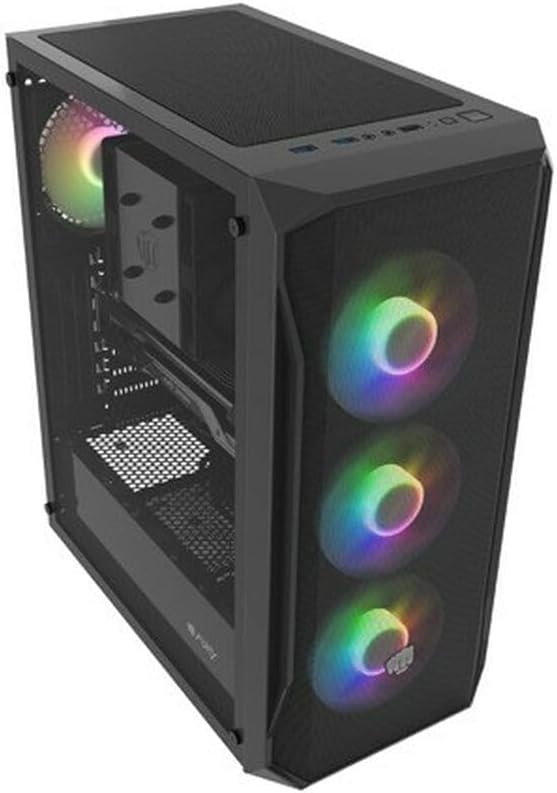
그림 4.1: 각도가 있는 view of the Natec FURY SHOBO SH4F RGB MIDI TOWER PC Case, showcasing its black metal and tempered glass construction. The front panel features a mesh design with three illuminated RGB fans, and a single RGB fan is visible at the rear exhaust. The top panel includes I/O ports and a mesh filter.
4.1 전면 I/O 패널
- 전원 버튼
- 재설정 버튼
- USB 2.0 포트(x1)
- 오디오 잭(헤드폰/마이크)
- RGB Control Button (if applicable)
4.2 내부 구조
The case supports Micro ATX and Mini ATX motherboards and features a bottom-mounted power supply bay. It includes dedicated areas for storage drives and efficient cable management.
5. 설정 및 구성 요소 설치
Follow these steps to install your PC components into the FURY SHOBO SH4F case.
5.1 사건 준비
- 케이스를 평평하고 안정적인 표면에 놓으십시오.
- Remove the side panels. Typically, the tempered glass side panel is secured with thumbscrews.
5.2 마더 보드 설치
- (메인보드에 미리 설치되어 있지 않은 경우) I/O 쉴드를 케이스 후면 개구부에 설치하십시오.
- Ensure the motherboard standoffs are correctly aligned for your Micro ATX or Mini ATX motherboard. Adjust or install additional standoffs if necessary.
- 나사 구멍을 맞춰서 마더보드를 스탠드오프에 조심스럽게 올려놓습니다.
- 제공된 나사를 사용하여 마더보드를 고정하십시오. 너무 세게 조이지 마십시오.
5.3 전원 공급 장치 설치
- Locate the power supply bay at the bottom rear of the case.
- Slide your power supply unit (PSU) into the bay from the rear of the case, ensuring the fan faces downwards (if the case has a bottom vent) or upwards.
- 케이스 뒷면에서 나사로 PSU를 고정합니다.
5.4 저장 드라이브 설치
Refer to your case's specific drive bay design for 2.5" SSDs and 3.5" HDDs. Typically, these involve trays or direct screw mounting.
5.5 Expansion Card Installation (e.g., Graphics Card)
- 케이스 뒷면에서 필요한 PCI-E 슬롯 커버를 제거합니다.
- Insert your expansion card into the corresponding PCI-E slot on the motherboard.
- 카드를 나사나 케이스의 고정 장치를 사용하여 단단히 고정하십시오.
5.6 케이블 관리
메인보드 트레이 뒤쪽의 케이블 정리용 홈과 고정 지점을 활용하여 케이블을 정리하고 고정하십시오. 이렇게 하면 공기 흐름이 개선되고 미관도 깔끔해집니다.
5.7 Connecting RGB Fans
The pre-installed RGB fans typically connect to a central RGB controller or directly to your motherboard's RGB headers. Consult your motherboard manual for specific RGB header locations and software control. Ensure all fan power cables are connected to appropriate fan headers on the motherboard or a fan hub.
6. PC 케이스 작동 방법
6.1 전원 켜기/끄기
After all components are installed and cables connected, plug your power supply into a wall outlet. Press the power button on the front I/O panel to turn on your system. To turn off, use the operating system's shutdown function or press and hold the power button for several seconds.
6.2 RGB 조명 제어
If your case features an RGB control button on the front I/O panel, press it to cycle through various lighting modes and colors. For advanced customization, use your motherboard's RGB software (e.g., ASUS Aura Sync, MSI Mystic Light, Gigabyte RGB Fusion) if the fans are connected to compatible headers.
7. 유지관리
정기적인 유지 관리는 최적의 성능을 보장하고 PC 부품의 수명을 연장하는 데 도움이 됩니다.
7.1 먼지 필터 청소
The FURY SHOBO SH4F case includes dust filters (e.g., on the top and bottom). Periodically remove and clean these filters by rinsing them with water and allowing them to dry completely before re-installing. This prevents dust buildup and maintains airflow.
7.2. 외부 청소
케이스 외부를 부드러운 천으로 닦아주세요.amp 천을 사용하십시오. 마감재나 강화유리를 손상시킬 수 있는 연마성 세척제나 용제는 사용하지 마십시오.
8. 문제 해결
문제가 발생하면 다음의 일반적인 문제 해결 단계를 참조하세요.
- 전원 없음: Ensure the power supply is properly connected to the wall outlet and the motherboard. Check all internal power cables (24-pin ATX, 8-pin CPU, GPU power). Verify the power button cable is correctly connected to the motherboard's front panel header.
- 팬이 회전하지 않음: Check if fan power cables are securely connected to the motherboard or fan hub. Ensure the power supply is functioning.
- RGB 조명이 작동하지 않음: Verify RGB cables are correctly connected to the RGB controller or motherboard header. If using a button, try cycling through modes. If using software, ensure it's installed and configured correctly.
- 과열: Ensure all fans are spinning correctly and oriented for proper airflow (intake/exhaust). Clean dust filters and internal components. Verify CPU cooler and GPU cooler are properly installed.
9. 사양
| 상표 | Natec |
| 시리즈 | SH4F |
| 모델 번호 | NFO-2154 |
| 케이스 유형 | 미디 타워 |
| 마더보드 호환성 | Micro ATX, Mini ATX |
| 색상 | 검은색 |
| 재료 | 금속 |
| 제품 크기(LxWxH) | 19.69 x 16.93 x 9.84인치(50 x 43 x 25cm) |
| 품목 무게 | 9.46파운드(4.3킬로그램) |
| 전원 공급 장치 장착 유형 | 바텀 마운트 |
| 냉각 방식 | 공기 |
| USB 2.0 포트 수 | 1 |
10. 보증 및 지원
Natec products are manufactured to high-quality standards. For information regarding warranty terms and conditions, please refer to the warranty card included with your product or visit the official Natec website. If you encounter any issues not covered in this manual or require further assistance, please contact Natec customer support through their official channels.
제조업체: Natec