
1. 제품 오버view
The ASUS ROG Ally is a powerful portable gaming handheld designed to deliver a console-like experience with the versatility of a Windows 11 PC. It features a 7-inch 120Hz touchscreen IPS display, an AMD Ryzen Z2 A processor, 16GB of LPDDR5X RAM, and a 512GB SSD, making it suitable for a wide range of PC games on the go.
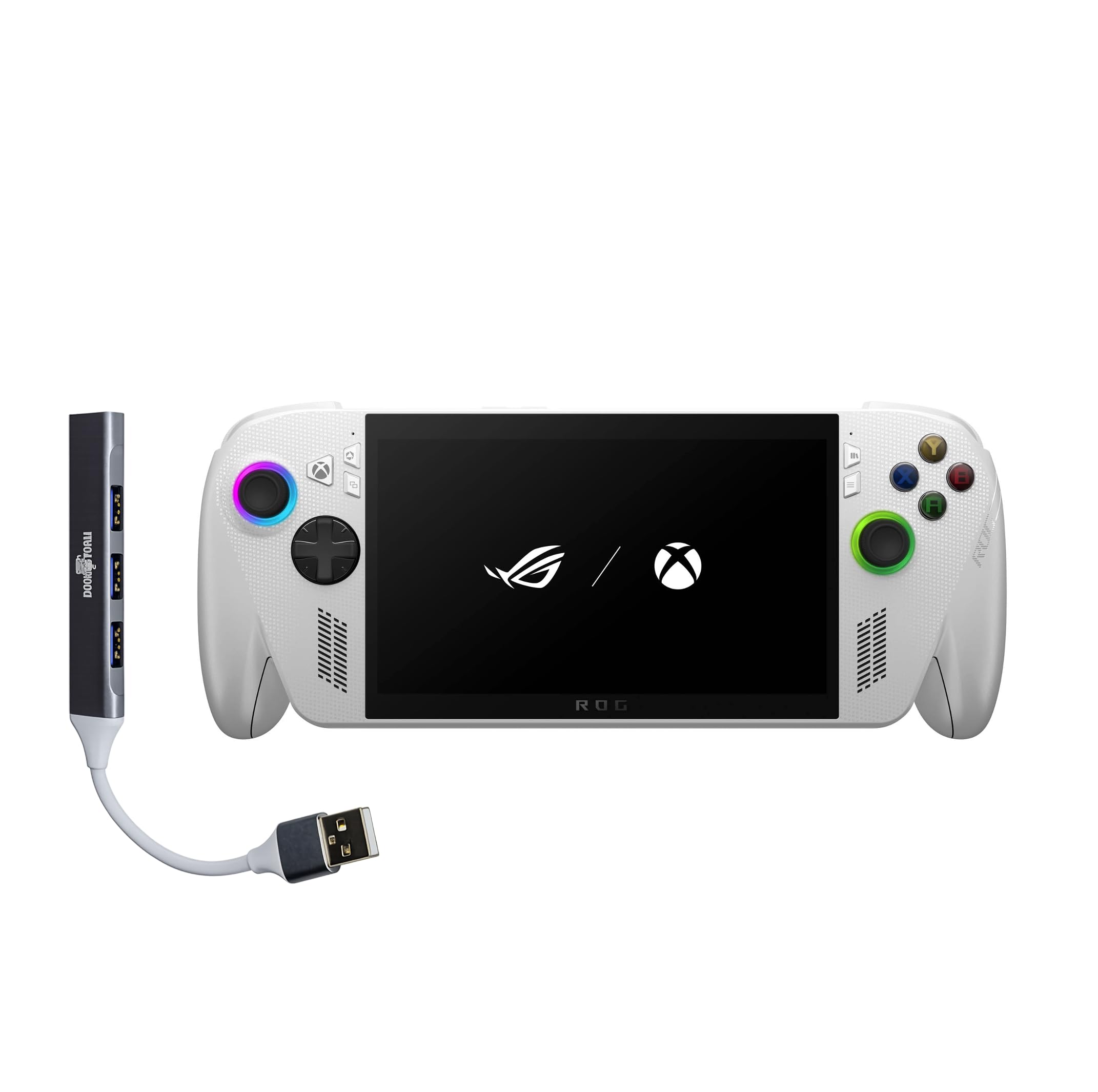
Figure 1: ASUS ROG Ally Gaming Handheld.
2. 상자 안에 무엇이 들어있나요?
Upon unboxing your ASUS ROG Ally, ensure all components are present:
- ASUS ROG Ally 게이밍 핸드헬드
- 전원 어댑터
- 설명서 (빠른 시작 가이드, 보증 카드)

Figure 2: Included items in the ROG Ally package.
3. 장치 레이아웃 및 컨트롤
Familiarize yourself with the physical layout and controls of your ROG Ally for optimal gaming and navigation.
앞쪽 View
- 7인치 IPS 터치스크린 디스플레이: Main interface for visuals and touch input.
- 왼쪽 조이스틱: 이동 및 항해를 위해.
- 방향 패드: 방향 입력.
- Xbox 버튼: Accesses Xbox Game Bar and other Xbox features.
- 오른쪽 조이스틱: For camera control and navigation.
- A/B/X/Y 버튼: 표준 작업 버튼.
- 전면 스피커: 스테레오 오디오 출력.

그림 3: 전면 view of the ROG Ally, highlighting the display and primary controls.
맨 위 View
- Power Button/Fingerprint Scanner: Powers the device on/off and provides secure login.
- 3.5mm 오디오 잭: 헤드폰이나 외부 오디오 장치를 연결하는 데 사용합니다.
- MicroSD 카드 슬롯: 확장 가능한 저장 공간.
- 열 통풍구: For cooling the internal components.
- 볼륨 크게 / 작게 버튼 : 오디오 볼륨을 조절합니다.
- LED 표시등: Displays device status (e.g., charging, power on).
- USB-C 포트(x2): For charging, data transfer, and external device connectivity (one supports Thunderbolt).
- R1/R2/L1/L2 버튼: Shoulder and trigger buttons for gaming.

그림 4: 상단 view of the ROG Ally, showing various ports and buttons.
뒤쪽 View
- Rear Grips: Contoured for comfortable handling during extended play sessions.
- Rear Vents: Additional ventilation for cooling.

그림 5: 후면 view of the ROG Ally, highlighting ergonomic grips.
4. 설정
초기 전원 켜기 및 Windows 11 설정
- Connect the power adapter to the ROG Ally and a power outlet.
- 를 누르고 계세요 전원 버튼 장치가 켜질 때까지.
- Follow the on-screen instructions to complete the Windows 11 Home setup, including language, region, and network settings.
- Set up your Microsoft account and create a user profile.
Wi-Fi에 연결
During the initial Windows setup, you will be prompted to connect to a Wi-Fi network. If you need to connect later:
- 탭하세요 네트워크 아이콘 작업 표시줄에서.
- 목록에서 원하는 Wi-Fi 네트워크를 선택하세요.
- 메시지가 표시되면 네트워크 비밀번호를 입력하고 탭하세요. 연결하다.
지문 센서 설정
For secure and quick login, set up the integrated fingerprint sensor:
- 이동하다 설정 > 계정 > 로그인 옵션.
- 선택하다 지문 인식(Windows Hello) 화면의 지시에 따라 지문을 등록하세요.
5. Operating Your ROG Ally
게임 경험
The ROG Ally provides a versatile gaming experience, allowing access to various platforms.
- Xbox Game Bar Integration: Launch Game Bar with a tap of the Xbox button to access game-related features, social interactions, and performance monitoring.
- Game Libraries: Play titles natively from platforms like Xbox Game Pass, Steam, Epic Games, and other Windows game stores.
- 디스플레이 특징: The 7-inch 120Hz display with FreeSync Premium variable refresh rate ensures smooth gameplay and reduces screen tearing. With 500 nits of brightness, the display offers vivid and immersive visuals.

Figure 6: The 7-inch 1080p 120Hz display provides ultra-smooth graphics.
성능 모드
The ROG Ally is powered by an ultra-efficient AMD Ryzen Z2 A processor, offering console-caliber performance. You can adjust performance modes through the Armoury Crate SE software to balance power consumption and gaming fidelity.

Figure 7: The AMD Ryzen Z2 A processor ensures powerful performance.
배터리 관리
The device features a 60Whrs battery for extended gaming sessions. It supports fast charging, allowing you to reach 50% charge from 0% in approximately 30 minutes.

Figure 8: The 60Wh battery provides longer playtime.
6. 사양
| 특징 | 세부 사항 |
|---|---|
| 플랫폼 | 윈도우 11 홈 |
| 프로세서 | AMD 라이젠 Z2 A |
| 제도법 | AMD RDNA 2 Graphics |
| 표시하다 | 7" 120Hz Touchscreen IPS Display, 1080p, 500 nits, Gorilla Glass |
| 메모리 | 16GB LPDDR5X 6400MHz RAM |
| 저장 | 512GB PCIe Gen4 M.2 2280 SSD (Upgradable) |
| 무선 연결 | Wi-Fi 6E MT7922, Bluetooth 5.4 |
| 입력 장치 | Gamepad, Fingerprint Sensor |
| 배터리 | 60Whrs |
| 색상 | 하얀색 |
| 품목 무게 | 1.47파운드(약 2파운드) |
7. 유지관리
일반 관리 및 청소
- 기기 외부를 닦을 때는 부드럽고 마른 천을 사용하십시오.
- 화면 청소에는 전자제품 전용 극세사 천을 사용하십시오. 강한 화학 약품은 사용하지 마십시오.
- Keep the device away from liquids, excessive dust, and extreme temperatures.
소프트웨어 업데이트
Regularly check for and install Windows 11 updates to ensure optimal performance, security, and compatibility with the latest games and applications.
- 이동하다 설정 > Windows 업데이트.
- 딸깍 하는 소리 업데이트 확인 사용 가능한 업데이트를 설치합니다.
8. 문제 해결
일반적인 문제 및 솔루션
- 장치 과열: Ensure the device's air vents are not blocked. Avoid placing it on soft surfaces like blankets during use. Consider adjusting performance modes to a lower setting if prolonged high-intensity gaming causes excessive heat.
- 배터리 수명이 짧음: Battery life can vary significantly based on game intensity and performance settings. For longer sessions, keep the device plugged into the power adapter. Adjusting screen brightness and performance modes can also extend battery life.
- Game Compatibility/Performance: Ensure your Windows 11 and graphics drivers are up to date. Adjust in-game graphics settings to match the device's capabilities for optimal performance.
- 컨트롤이 응답하지 않음: Restart the device. Check for any software conflicts or driver issues.
9. 제품 비디오
ROG Xbox Ally X Review
비디오 1: 자세한 재view of the ROG Xbox Ally X, showcasing its features, design, and performance. This video provides an in-depth look at the device's capabilities and user experience.
Amazingly Powerful Mobile Device
Video 2: A user's perspective on the ROG Ally, highlighting its portability, power, and suitability for various gaming titles, including PC games and emulators.
10. 보증 및 지원
For warranty information, technical support, or service inquiries, please refer to the official ASUS support channels. The product typically includes a manufacturer's warranty, details of which can be found in the documentation provided with your device or on the official ASUS web대지.
- 온라인 지원: 공식 ASUS 지원을 방문하세요 web자주 묻는 질문(FAQ), 드라이버 다운로드 및 문제 해결 가이드를 제공하는 사이트입니다.
- 지원팀에 문의: Refer to your product documentation for regional contact numbers for technical assistance.