
1. 서론
This manual provides essential information for the safe and efficient use of your ASUS M3702WFAK-WPE007W 27-inch All-in-One PC. Please read these instructions thoroughly before operating the device and retain them for future reference. This document covers setup, operation, maintenance, and troubleshooting.
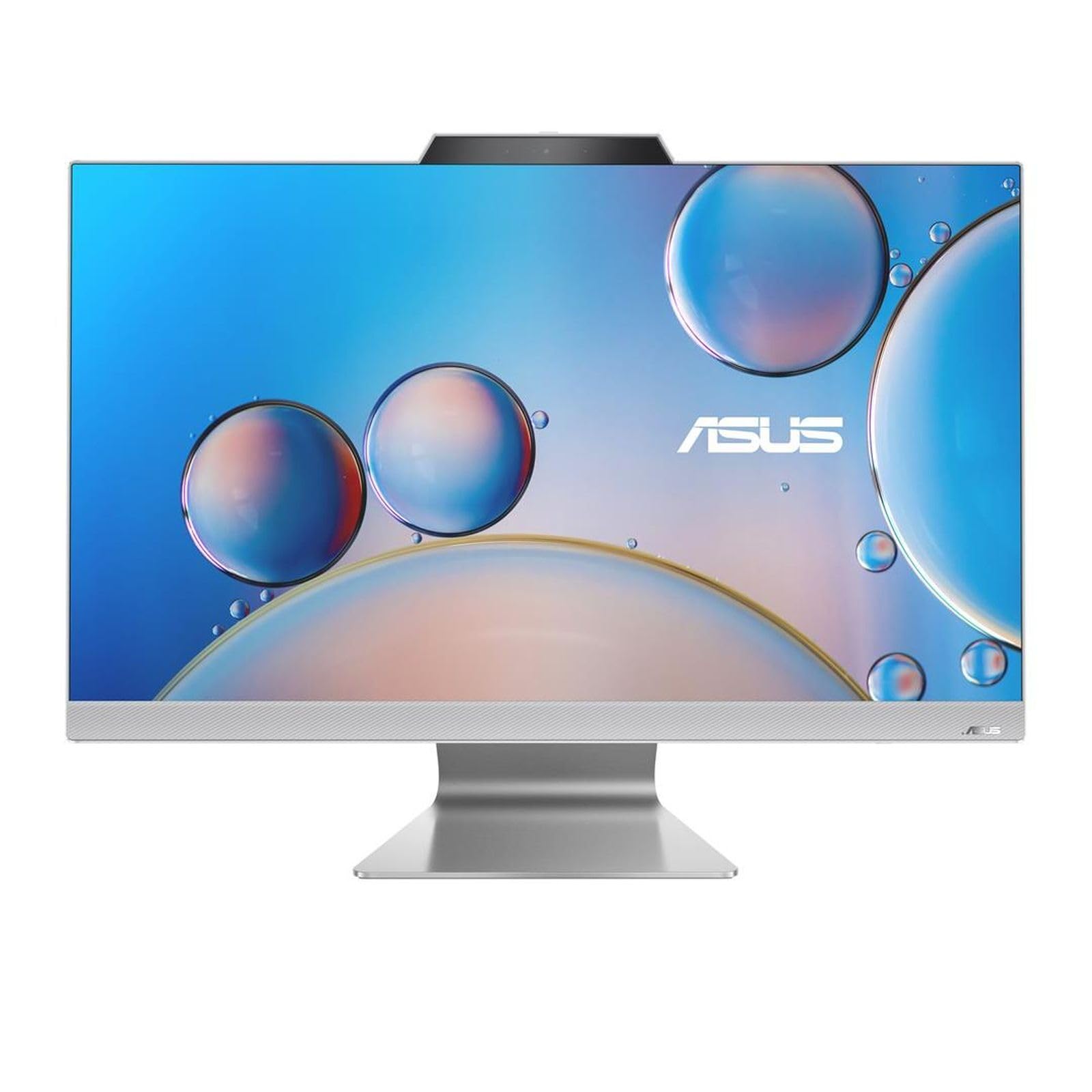
그림 1: 전면 view of the ASUS M3702WFAK-WPE007W All-in-One PC, showcasing its 27-inch display and integrated design.
2. 설정
2.1 풀기
Carefully remove the All-in-One PC and all accessories from the packaging. Ensure all components listed in the packing list are present. Retain the packaging for future transport or service needs.
2.2 주변기기 연결하기
- 전원 연결: Connect the power adapter to the DC-in port on the rear of the PC, then plug the power cord into an electrical outlet.
- 키보드 및 마우스: Connect your USB keyboard and mouse to the available USB ports on the rear or side of the PC. Wireless peripherals may require a USB dongle.
- 네트워크 연결(선택 사항): For a wired network connection, connect an Ethernet cable from your router or modem to the LAN port on the rear of the PC.
- 외부 디스플레이(옵션): If connecting an external monitor, use an HDMI cable to connect the external display to the HDMI-out port on the PC.

그림 2: 오른쪽 view of the ASUS All-in-One PC, illustrating accessible USB and audio ports for peripheral connections.

그림 3: 후면 view of the ASUS All-in-One PC, highlighting the power input, HDMI output, and Ethernet port for essential connections.
2.3 초기 전원 켜기 및 운영 체제 설정
- 일반적으로 디스플레이 측면 또는 하단 베젤에 있는 전원 버튼을 누르십시오.
- Follow the on-screen instructions to complete the Windows 11 operating system setup. This includes selecting language, region, accepting terms, and creating a user account.
- Connect to a Wi-Fi network during setup if a wired connection is not used.
3. 운영
3.1 전원 관리
- 전원 켜기: 전원 버튼을 누르세요.
- 종료: Windows에서 시작 버튼을 클릭한 다음 전원 > 시스템 종료를 선택합니다.
- 다시 시작: Windows에서 시작 버튼을 클릭한 다음 전원 > 다시 시작을 선택합니다.
- 수면 모드 : Click the Start button in Windows, then select Power > Sleep. The system will enter a low-power state.
3.2 디스플레이 및 오디오
- 밝기 조정: Use the function keys on your keyboard (if available) or Windows display settings to adjust screen brightness.
- 볼륨 조절: Use the volume keys on your keyboard or the volume icon in the Windows taskbar to adjust audio output.
- Connecting Headphones/Microphone: Use the audio jack(s) on the side of the PC for headphones or an external microphone.
3.3 네트워크 연결
- 와이파이: To connect to a wireless network, click the Wi-Fi icon in the Windows taskbar, select your desired network, and enter the password if prompted.
- 이더넷: 이더넷 케이블이 연결되면 PC는 자동으로 유선 네트워크 연결을 설정합니다.
4. 유지관리
4.1 청소
- 화면: 부드럽고 털이 없는 천을 살짝 사용하세요.amp물이나 비연마성 화면 세척제로 세척하십시오. 화면에 직접 액체를 분사하지 마십시오.
- 섀시 : Wipe the exterior surfaces with a soft, dry cloth. Avoid using harsh chemicals or abrasive materials.
- 통풍: 과열을 방지하기 위해 환기구에 먼지나 이물질이 쌓이지 않도록 하십시오.
4.2 소프트웨어 업데이트
Regularly check for and install operating system updates (Windows Update) and driver updates (via ASUS support website or MyASUS application) to ensure optimal performance and security.
4.3 데이터 백업
데이터 손실을 방지하려면 중요한 데이터를 정기적으로 외장 드라이브나 클라우드 스토리지에 백업하는 것이 좋습니다.
5. 문제 해결
- 전원 없음:
- 전원 어댑터가 PC와 콘센트에 제대로 연결되어 있는지 확인하십시오.
- 다른 장치를 연결해 전기 콘센트가 작동하는지 확인하세요.
- 디스플레이 없음:
- Check if the PC is powered on.
- If an external monitor is connected, ensure it is powered on and set to the correct input source.
- 인터넷에 연결되지 않음:
- Wi-Fi의 경우, Wi-Fi가 활성화되어 있고 올바른 비밀번호로 올바른 네트워크에 연결되어 있는지 확인하세요.
- For Ethernet, ensure the cable is securely connected and your router/modem is working correctly.
- 라우터/모뎀과 PC를 재시작하세요.
- 시스템 속도 저하:
- 불필요한 응용프로그램을 닫으세요.
- 보류 중인 Windows 업데이트를 확인하고 설치하세요.
- Run a disk cleanup or defragmentation (for HDD, not SSD).
6. 사양
| 특징 | 사양 |
|---|---|
| 상표 | 아수스 |
| Model Number (Item) | 90PT03M1-M00CA0 |
| 코어 수 | 4 |
| 숫양 | 16GB (XNUMX기가바이트) |
| 하드 드라이브 인터페이스 | 이더넷 |
| 화면 크기 | 27 인치 |
| 무선 기술 유형 | 802.11ac |
| 하드웨어 인터페이스 | HDMI |
| 예비 부품 가용성 | 정보를 사용할 수 없습니다 |
| 소프트웨어 업데이트는 다음 날짜까지 보장됩니다. | 정보를 사용할 수 없습니다 |
| ASIN | B0CTWR22BG |
| 첫 번째 이용 가능 날짜 | 20년 2024월 XNUMX일 |
| 제조업체 | 아수스 |
| 캐시 크기 | 4메가바이트 |
| 저장 용량 | 512GB (XNUMX기가바이트) |
| 모델 연도 | 2021 |
| 휴먼 인터페이스 입력 | 버튼 |
7. 보증 및 지원
자세한 보증 정보는 제품과 함께 제공된 보증 카드를 참조하거나 공식 ASUS 지원을 방문하세요. website. The ASUS support website also provides drivers, FAQs, and contact information for technical assistance.
일반적으로 다음 웹사이트를 방문하시면 지원 자료를 찾으실 수 있습니다. www.asus.com/support and searching for your specific model number (M3702WFAK-WPE007W or 90PT03M1-M00CA0).