
1. 서론
Thank you for choosing the PNI Voyager S2600 WiFi 4K Ultra HD Car DVR Camera. This device is designed to record high-quality video footage of your journeys, providing security and evidence in case of incidents. It features 4K Ultra HD recording, Wi-Fi connectivity for smartphone control, parking monitoring, and a G-sensor for automatic incident detection.

Image 1.1: PNI Voyager S2600 Dash Cam installed in a vehicle, showcasing its key features: 4K Ultra HD recording, Wi-Fi connectivity, and Parking Monitoring.
2. 안전 정보
기기의 올바른 작동을 보장하고 기기 손상이나 부상을 방지하기 위해 다음 안전 지침을 읽고 준수하십시오.
- 기기를 극한 온도, 장시간 직사광선 또는 높은 습도에 노출시키지 마십시오.
- 기기가 단단히 고정되어 있고 운전자의 시야를 가리지 않는지 확인하십시오. view 또는 차량 제어를 방해합니다.
- 제공된 전원 케이블과 액세서리만 사용하십시오. 승인되지 않은 액세서리를 사용하면 기기가 손상되고 보증이 무효화될 수 있습니다.
- 기기를 직접 분해하거나 수리하려고 하지 마십시오. 공인 서비스 센터에 문의하여 도움을 받으십시오.
- 선명한 영상 촬영을 위해 렌즈를 깨끗하게 유지하세요.
- Always format the microSD card regularly to maintain optimal recording performance.
3. 패키지 내용
패키지에 모든 품목이 들어 있는지 확인하세요.
- PNI Voyager S2600 Car DVR Camera
- Power cord with cigarette lighter plug (12V/24V compatible)
- 앞유리 마운트
- 사용자 설명서

Image 3.1: The PNI Voyager S2600 dash cam, its magnetic mount, and the power cable with a cigarette lighter adapter.
4. 제품 오버view
Familiarize yourself with the components of your PNI Voyager S2600 dash cam.
4.1. 장치 레이아웃
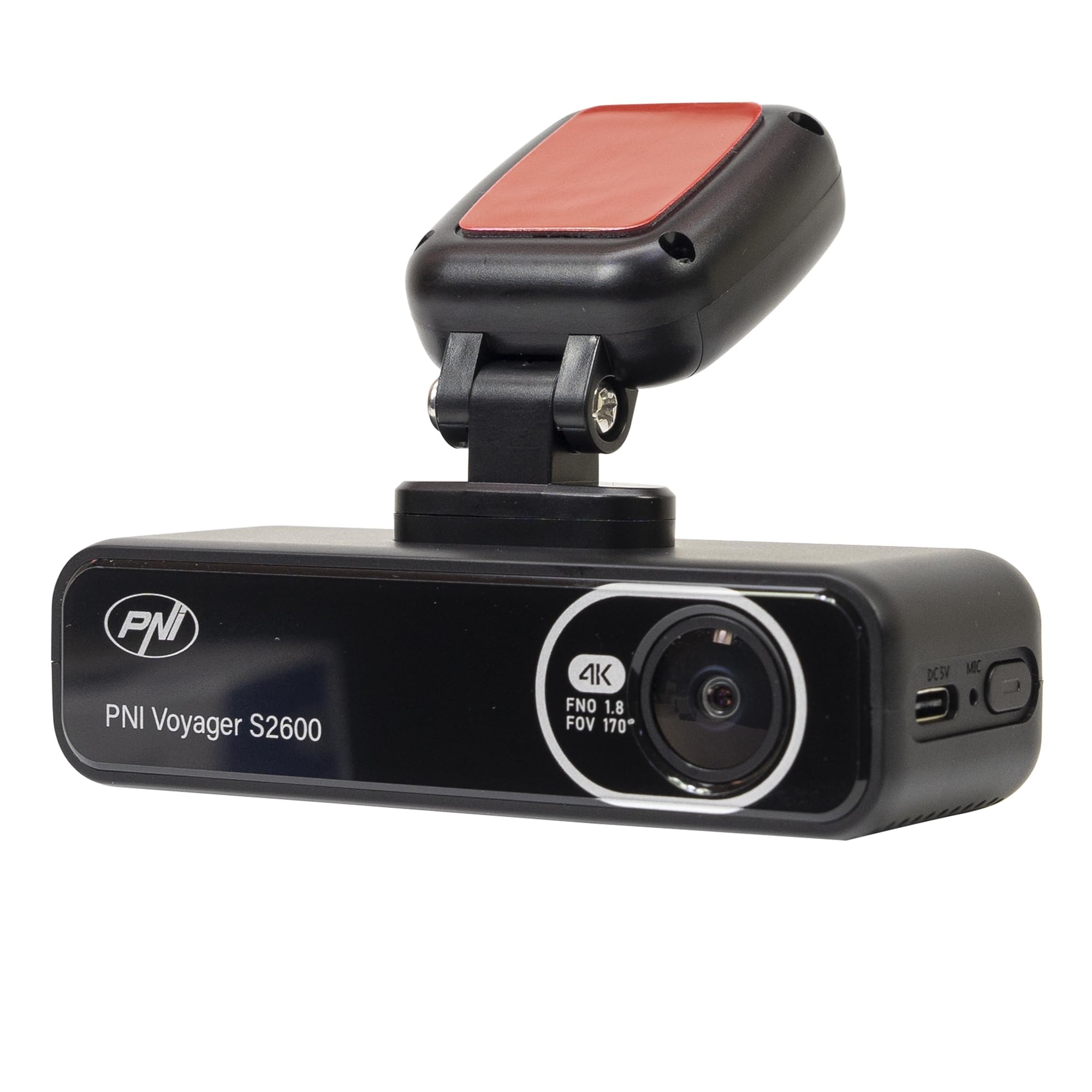
이미지 4.1: 앞면 view of the PNI Voyager S2600, displaying the camera lens with 4K FNO 1.8 FOV 170° markings, the PNI brand logo, and the model name.

이미지 4.2: 상세 view of the side of the dash cam, highlighting the USB-C power input (DC 5V) and the microphone opening.
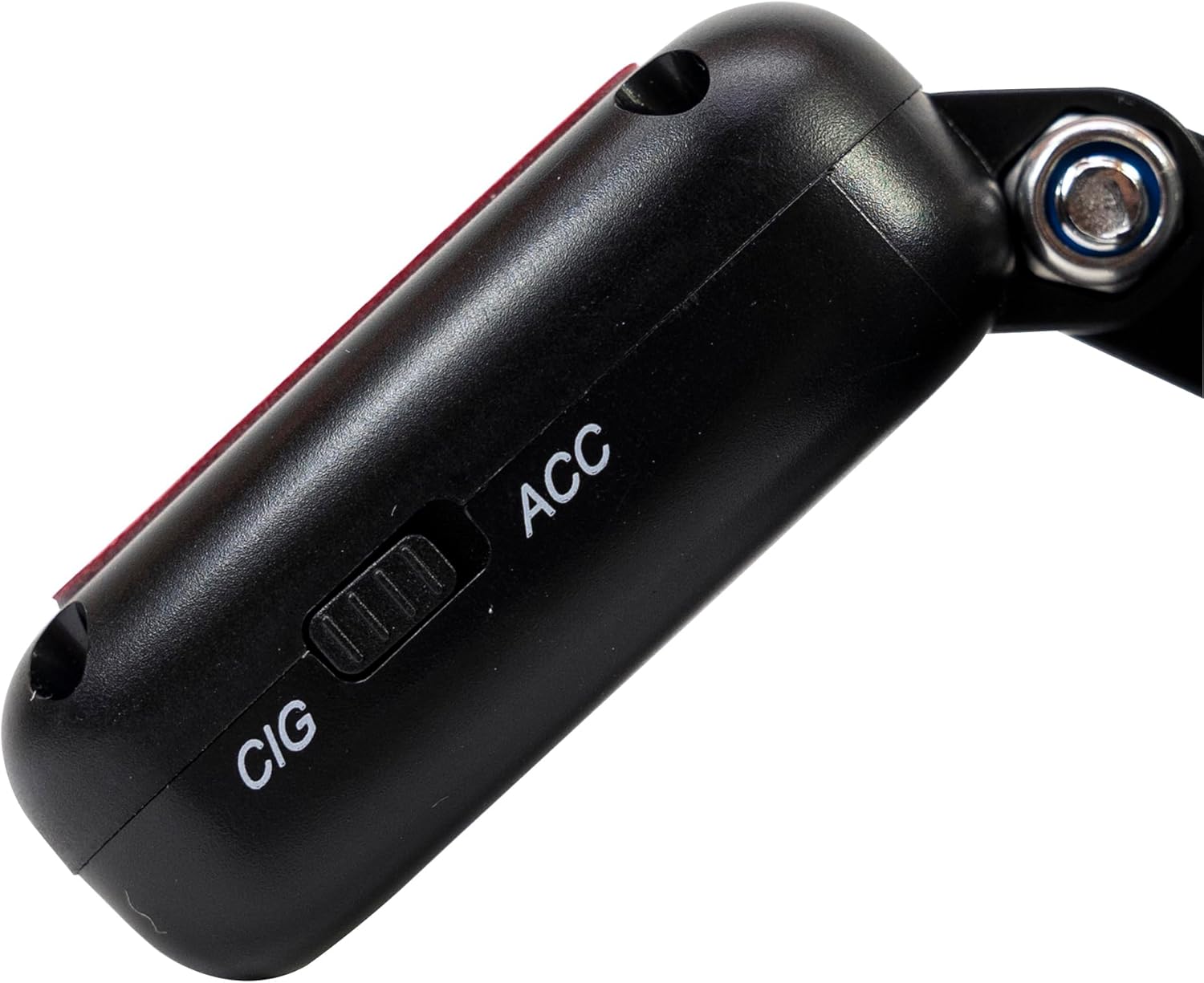
이미지 4.3: 측면 view of the magnetic mount, featuring a switch to select between 'CIG' (cigarette lighter power) and 'ACC' (accessory power) modes.
4.2. 주요 특징
- 4K Ultra HD 비디오 녹화: Captures video at 3840x2160 resolution at 30FPS, or 2560x1440 at 30FPS, and 1920x1080 at 60FPS/30FPS.
- Wi-Fi 연결: Connects to your smartphone via the Viidure-Dashcam View라이브용 앱 view동영상 다운로드 및 설정 조정.
- 주차 모니터링 : Activates the camera to record when vibration or movement is detected while the vehicle is parked.
- G-센서: Automatically locks the current video file in case of a collision to prevent overwriting.
- 광각 렌즈: 170도 view도로의 넓은 전경을 담기 위해 적절한 각도로 촬영합니다.
- 루프 녹음: 가장 오래된 파일을 덮어씁니다.tag메모리 카드가 가득 차면 자동으로 녹화가 중단되어 연속 녹화가 보장됩니다.
- 통합 GPS: Records speed and coordinates, which can be displayed on recorded videos.
5. 설정
5.1. MicroSD 카드 삽입
- 대시캠의 전원이 꺼져 있는지 확인하세요.
- 장치에서 microSD 카드 슬롯을 찾으세요.
- Insert a high-speed (Class 10 or higher) microSD card (up to 512GB) into the slot until it clicks into place.
- To remove, gently push the card in until it clicks, then release. The card will eject.
중요한: Format the microSD card within the app or on a computer before first use and periodically thereafter to ensure stable recording.
5.2. 설치 및 전원 연결
- 대시캠을 설치할 앞유리 부분을 깨끗하게 닦으세요. 시야를 가리지 않도록 주의하세요. view.
- Attach the windshield mount to the dash cam. The mount is magnetic for easy attachment.
- Peel off the protective film from the adhesive pad on the mount and firmly press it onto the chosen spot on your windshield for at least 30 seconds.
- Connect the power cable to the USB-C port on the mount.
- Route the power cable neatly along the windshield and dashboard to the vehicle's cigarette lighter socket.
- Plug the cigarette lighter adapter into the vehicle's 12V/24V power outlet.
- Select the appropriate power mode on the mount's switch: 'CIG' for continuous power from the cigarette lighter, or 'ACC' for power only when the vehicle's ignition is on.

Image 5.1: The PNI Voyager S2600 dash cam detached from its magnetic mount, illustrating the contact points for secure attachment.
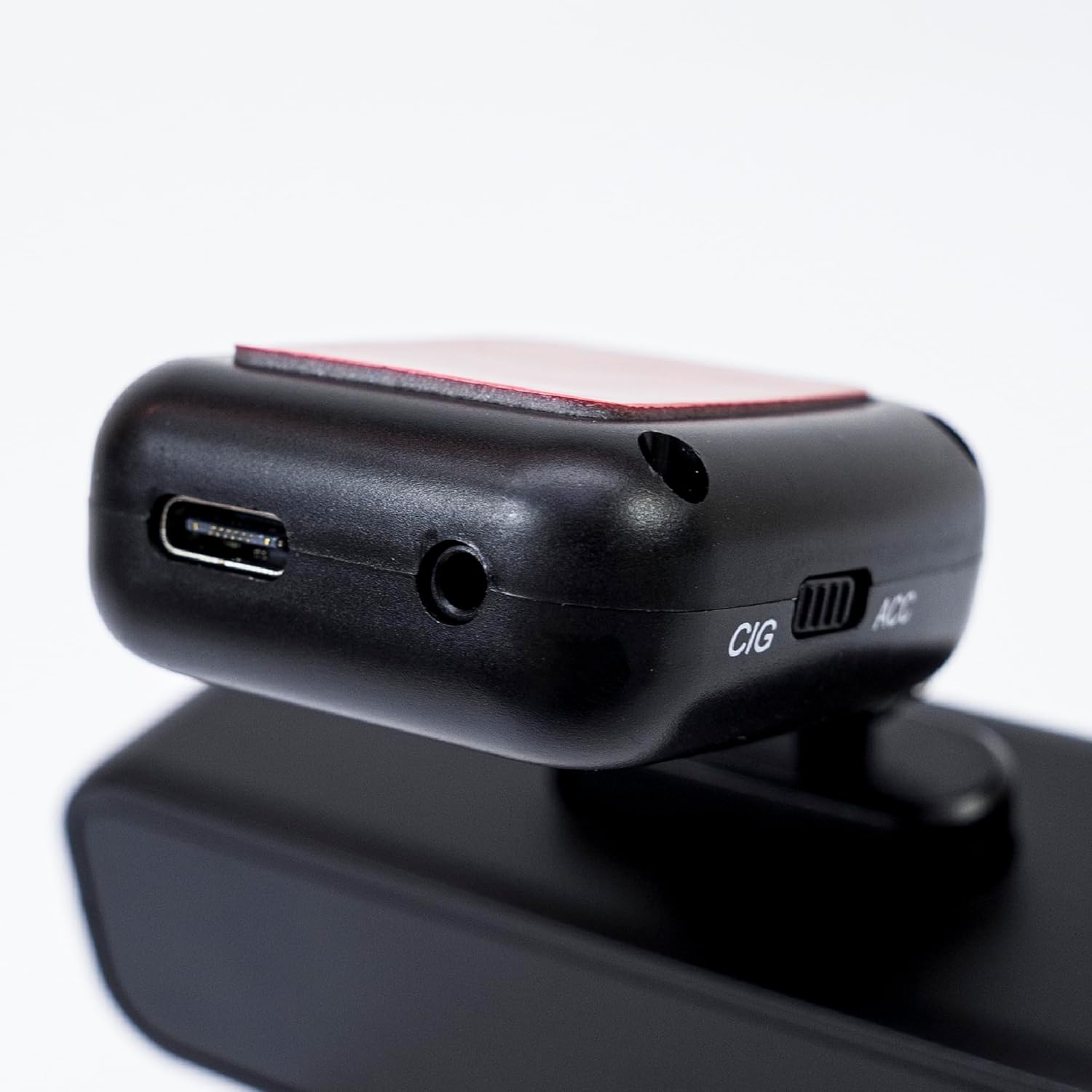
Image 5.2: The top of the dash cam mount, featuring the USB-C port for power input and the CIG/ACC switch for power mode selection.
5.3. 앱 설치 및 Wi-Fi 연결
- 다운로드 Viidure-Dashcam Viewer App Store(iOS) 또는 Google Play Store(Android)에서 앱을 다운로드하세요.
- 대시캠의 전원을 켜세요.
- On your smartphone, go to Wi-Fi settings and connect to the dash cam's Wi-Fi network. The network name (SSID) and password can usually be found in the dash cam's settings (if it has a screen) or in the manual.
- Open the Viidure-Dashcam Viewer app. The app should automatically detect and connect to the dash cam.
- 앱을 통해서 다음을 수행할 수 있습니다. view 라이브 푸tage, adjust settings, download recorded videos, and format the microSD card.

Image 5.3: A smartphone showing the Viidure-Dashcam Viewer application, demonstrating the wireless connection and control over the PNI Voyager S2600 dash cam.
6. 사용 설명서
6.1. 자동 녹음
Once powered on and with a valid microSD card inserted, the PNI Voyager S2600 will automatically begin loop recording. Video files are saved in segments (e.g., 1, 3, or 5 minutes) to the microSD card.
6.2. G-센서 (비상 기록)
The built-in G-sensor detects sudden impacts or rapid acceleration/deceleration. When triggered, it automatically locks the current video segment, preventing it from being overwritten by loop recording. These emergency file파일은 microSD 카드 내의 별도 폴더에 저장됩니다.
6.3. 주차 모니터링
When the vehicle is parked and the dash cam is powered (either continuously via CIG mode or with a hardwire kit), the parking monitor function activates. If the G-sensor detects a collision or motion detection is enabled and detects movement, the dash cam will automatically power on and record a short video segment. This feature helps protect your vehicle when unattended.

Image 6.1: Visual representation of the Parking Monitor feature, showing the dash cam detecting an impact while the car is parked.
6.4. Wi-Fi and App Usage
The Viidure-Dashcam Viewer app allows you to:
- 살다 View: See what the camera is recording in real-time on your smartphone.
- 비디오 재생 : Review recorded videos directly from the microSD card.
- Download Videos: Transfer important video files from the dash cam to your smartphone.
- 설정 조정: Configure various dash cam settings, such as video resolution, G-sensor sensitivity, loop recording duration, and parking monitor options.
- SD 카드 포맷 : Erase all data on the microSD card.
6.5. GPS 기능
The integrated GPS receiver records your vehicle's speed and location data. This information can be overlaid on the video footage during playback via the app or compatible desktop software, providing additional context for your recordings.
7. 유지관리
7.1. 장치 청소
Use a soft, dry cloth to clean the dash cam body. For the lens, use a specialized lens cleaning cloth to avoid scratches. Do not use chemical cleaners or abrasive materials.
7.2. MicroSD Card Formatting
It is recommended to format the microSD card every 2-4 weeks to prevent data corruption and ensure optimal recording performance. This can be done through the Viidure-Dashcam View어 앱.
7.3. 펌웨어 업데이트
Periodically check the PNI website or the Viidure-Dashcam Viewer app for available firmware updates. Firmware updates can improve performance, add new features, or fix bugs. Follow the instructions provided with the update carefully.
8. 문제 해결
If you encounter issues with your PNI Voyager S2600, refer to the following common problems and solutions:
| 문제 | 가능한 원인 | 해결책 |
|---|---|---|
| 대시캠 전원이 켜지지 않습니다. | No power supply; faulty cable; incorrect power mode. | Check power cable connection; ensure cigarette lighter socket is active; verify CIG/ACC switch setting. |
| 녹음이 중지되거나 정지됩니다. | MicroSD card error; card full; low-speed card. | Format microSD card; replace with a high-speed (Class 10 U3) card; ensure sufficient storage. |
| 와이파이 연결이 불안정하거나 연결이 끊어집니다. | 간섭; 잘못된 비밀번호; 앱 문제. | Ensure dash cam Wi-Fi is enabled; re-enter password; restart app and dash cam; try connecting in a different location. |
| 비디오 품질이 좋지 않습니다. | Dirty lens; incorrect resolution setting. | Clean the camera lens; check video resolution settings in the app. |
| 주차 모니터가 작동하지 않습니다. | Incorrect power mode; feature disabled. | Ensure dash cam is receiving continuous power (CIG mode or hardwire kit); enable parking monitor in app settings. |
If the problem persists, please contact PNI customer support.
9. 사양
Detailed technical specifications for the PNI Voyager S2600 Car DVR Camera:
| 특징 | 설명 |
|---|---|
| 모델 번호 | PNI-S2600 |
| 비디오 해상도 | 4K (3840x2160@30FPS), 2K (2560x1440@30FPS), FHD (1920x1080@60FPS/30FPS) |
| 이미지 센서 | SONY335 (5MP, 2592x1944px) |
| View잉 각도 | 170도 |
| 비디오 형식 | MP4, H.264 |
| 사진 형식 | 제이피 |
| 최대 사진 해상도 | 8MP(3264x2448) |
| 저장 | MicroSD card slot, up to 512GB (Class 10 or higher recommended) |
| 연결성 | Wi-Fi, GPS (integrated) |
| 특별 기능 | G-Sensor, Parking Monitoring, Motion Detection, Loop Recording |
| 전원 공급 장치 | 5V/2A (via 12V/24V car adapter) |
| 배터리 | Super capacitor 1.5 UF |
| 작동 온도 | -26°C ~ +80°C |
| 치수(길이 x 너비 x 높이) | 105mm x 35mm x 27mm |
| 무게 | 88그램 |
| USB 타입 | C형 |
10. 보증 및 지원
10.1. 보증 정보
The PNI Voyager S2600 Car DVR Camera comes with a 24개월 보증 from the date of purchase. This warranty covers manufacturing defects under normal use. It does not cover damage caused by misuse, accidents, unauthorized modifications, or improper installation. Please retain your proof of purchase for warranty claims.
10.2. 고객 지원
For technical assistance, troubleshooting, or warranty inquiries, please contact PNI customer support. You can find more information and support resources on the official PNI web대지:
제조업체: ONLINESHOP SRL
Address: Olteniei 26A, Piatra Neamt, Neamt, 610206, Romania