
소개
The Amazon Kindle Scribe is a digital notebook and e-reader designed for writing, reading, and document management. It offers a paper-like experience for note-taking and provides access to a vast library of digital content.
- Digital Notebook: Replaces physical notebooks with a single device optimized for writing and reading.
- AI Notebook Tools: Features for converting handwriting to text, summarizing notes, and adjusting length or tone.
- Premium Pen: Provides a natural writing experience without the need for charging or setup.
- 문서 관리: Allows importing and marking up documents and PDFs.
- Active Canvas: Enables note-taking directly on book pages with adjustable margins.
- 눈부심 방지 디스플레이: A 10.2-inch, 300 ppi front-lit display for comfortable reading and writing in various lighting conditions.
- 배터리 수명 연장: Designed for weeks of writing or months of reading on a single charge.

The Kindle Scribe functions as a versatile digital notebook for various writing tasks.
설정
상자 안에 무엇이 들어있나요?
- Wi-Fi enabled Kindle Scribe device
- 프리미엄 펜
- USB-C 충전 케이블
- 5 replacement pen tips
- Tip replacement tool
- 충전식 배터리 내장
초기 장치 설정
The Kindle Scribe features Amazon Wi-Fi simple setup, which automatically connects to your home Wi-Fi network. No computer is required to download content or complete the initial setup process.
- 전원 켜기: 화면이 켜질 때까지 전원 버튼을 길게 누르세요.
- 언어 선택: 화면의 지시에 따라 원하는 언어를 선택하세요.
- Wi-Fi에 연결: The device will guide you through connecting to a Wi-Fi network. If you have previously used Amazon Wi-Fi simple setup, it may connect automatically.
- 기기 등록: Register your Kindle Scribe to your Amazon account. This links your device to your Kindle library and allows access to the Kindle Store.
- 지도 시간: Complete the brief on-screen tutorial to familiarize yourself with basic navigation and pen functions.
작동 지침
Reading on Kindle Scribe
The Kindle Scribe provides a dedicated reading experience with its glare-free display.
- Accessing Books: Your purchased Kindle books will appear on the device's home screen. Tap a book cover to open it.
- 페이지 탐색: Tap the right side of the screen to turn to the next page, or the left side for the previous page. Swiping left or right also works.
- 화면 표시 조정: Tap the top of the screen to access the reading toolbar. Here you can adjust font size, font face, line spacing, margins, and the built-in light's brightness and warmth.
- 강조: Use your finger or the Premium Pen to drag across text to highlight it.
- 사전 검색: Tap and hold a word to see its definition.
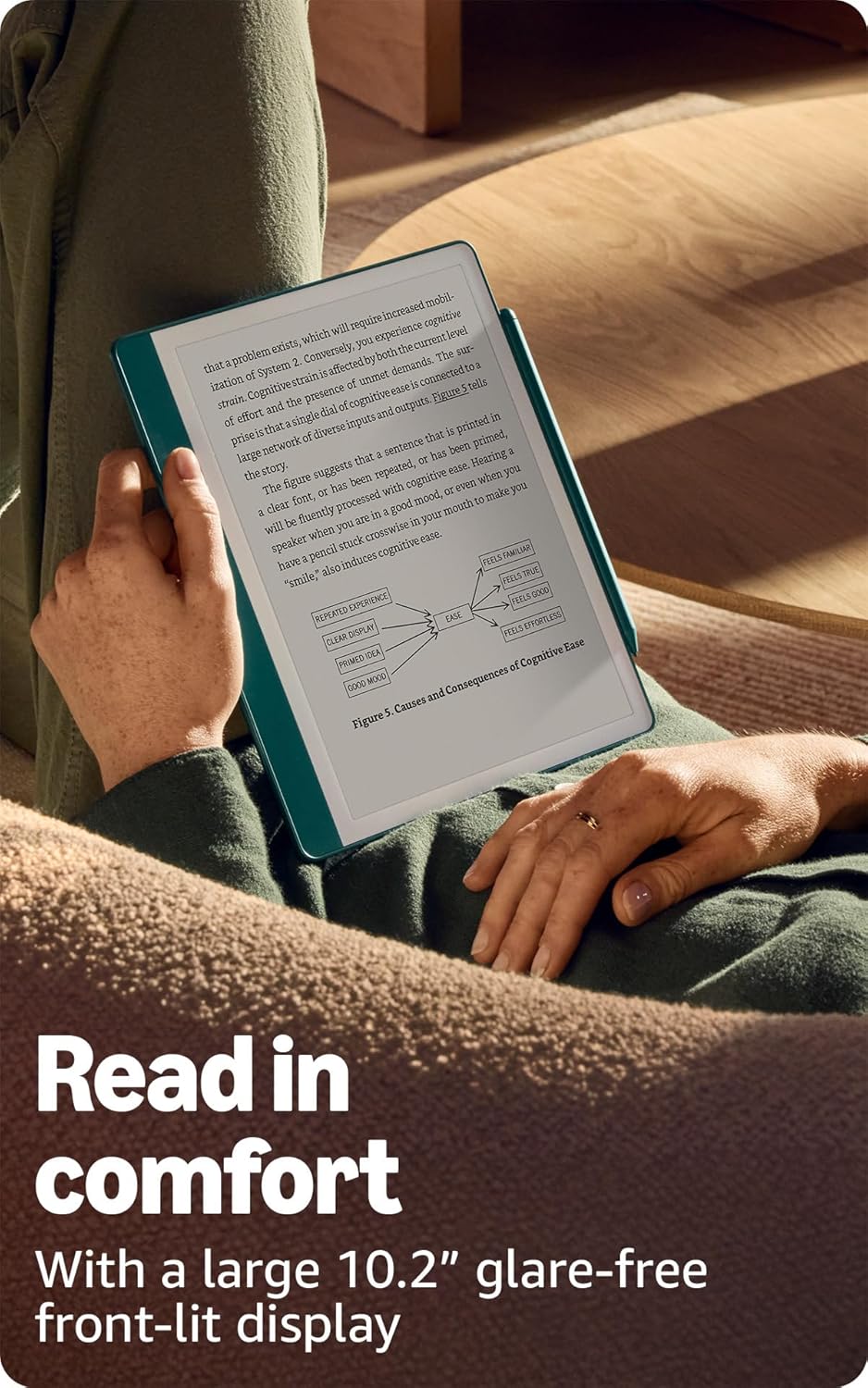
The 10.2-inch glare-free display is designed for comfortable reading.
Writing and Note-Taking
The Premium Pen allows for a natural writing experience directly on the Kindle Scribe's screen.
- 노트북 만들기: From the home screen, select the 'Notebooks' section to create new notebooks. Choose from various templates like lined, grid, blank, or specialized planners.
- Using the Premium Pen: Simply touch the pen to the screen to write. The pen does not require charging.
- Pen Tools: In a notebook or document, a toolbar will appear, allowing you to select different pen types (e.g., fountain pen, marker), adjust stroke thickness, and use an eraser. The Premium Pen also features a dedicated eraser on its top end.
- Marking Up Documents: Import PDFs and other documents to write directly on them. Use the pen to annotate, highlight, and add comments.
- Active Canvas: When reading a book, you can activate Active Canvas to create space for notes directly on the page. Expand or collapse margins as needed.

Utilize AI notebook tools to summarize and refine your handwritten notes.
AI Notebook Tools
The Kindle Scribe includes built-in AI capabilities to enhance your note-taking:
- 손글씨를 텍스트로 변환: Convert your handwritten notes into editable typed text.
- Note Summarization: Generate summaries of your notes.
- Length and Tone Adjustment: Modify the length and tone of your summarized notes.
문서 관리
You can easily import and manage documents on your Kindle Scribe:
- Send to Kindle: Use the 'Send to Kindle' feature to wirelessly send documents and PDFs from your computer or mobile device to your Scribe.
- 지원되는 형식: The device supports Kindle Format 8 (AZW3), Kindle (AZW), TXT, PDF, unprotected MOBI, PRC natively. It also supports PDF, DOCX, DOC, HTML, EPUB, TXT, RTF, JPEG, GIF, PNG, BMP through conversion. Audible audio format (AAX) is also supported.
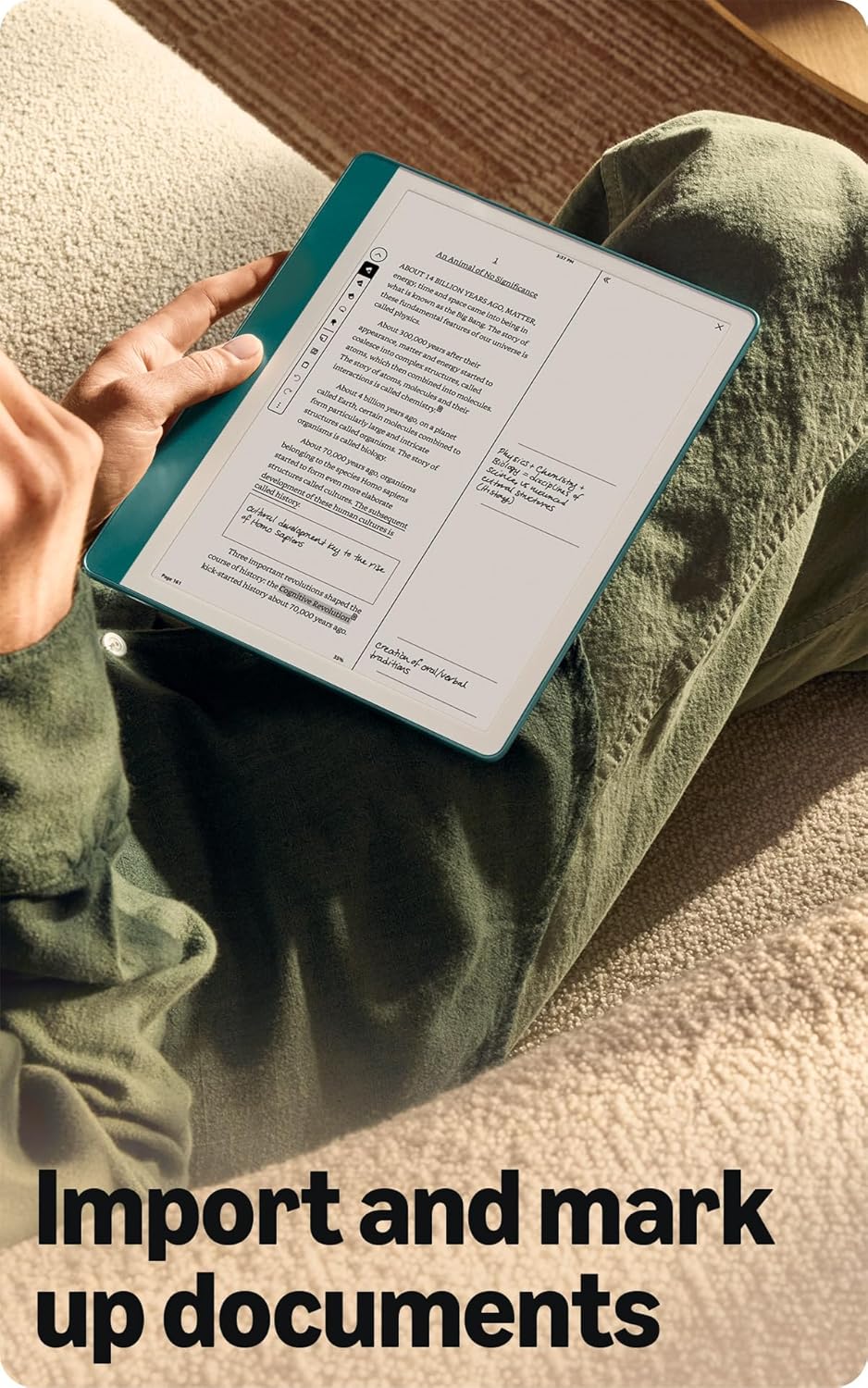
Import and mark up various documents directly on your Kindle Scribe.
접근성 기능
The Kindle Scribe includes features to enhance accessibility:
- 목소리View 스크린 리더: 블루투스 오디오 및 음성 기능을 통해 이용 가능합니다.View provides spoken feedback for navigating the device and reading books with text-to-speech (English only).
- 디스플레이 조정: Ability to invert black and white, adjust font size, font face, line spacing, and margins for personalized reading comfort.
유지
배터리 수명 및 충전
To ensure optimal performance, follow these guidelines for battery management:
- Reading Battery Life: Up to 12 weeks based on 30 minutes of reading per day with wireless off and light setting at 13.
- Writing Battery Life: Up to 3 weeks based on 30 minutes of writing per day with wireless off and light setting at 13.
- 충전 중: Fully charges in approximately 7 hours from a computer via USB-C cable, or approximately 2.5 hours with a 9W USB-C power adapter.
- Factors Affecting Battery: Battery life will vary based on usage, Audible audiobook streaming, and content annotation.
Premium Pen Maintenance
The Premium Pen comes with replaceable tips to maintain a consistent writing experience.
- 팁 교체: Use the included tip replacement tool to carefully remove worn tips and insert new ones. Five replacement tips are provided in the box.
- 청소: Wipe the pen and device screen with a soft, lint-free cloth. Avoid abrasive materials or harsh chemicals.
문제 해결
If you encounter issues with your Kindle Scribe, consider the following basic troubleshooting steps:
- 장치 재시작: Press and hold the power button for 7 seconds until the power dialog appears, then tap 'Restart'. If unresponsive, hold the power button for 40 seconds to force a restart.
- Wi-Fi 연결 확인: Ensure your device is connected to a stable Wi-Fi network for content downloads and updates.
- 충전 배터리: If the device is not responding, connect it to a power source using the USB-C cable and allow it to charge for at least 30 minutes before attempting to restart.
- 펜이 응답하지 않음: Ensure the pen tip is securely in place. If writing feels inconsistent, consider replacing the pen tip.
- 소프트웨어 업데이트: Ensure your device has the latest software. Updates often resolve bugs and improve performance. Check for updates in the device settings.
For more detailed troubleshooting or persistent issues, refer to the official Kindle User Guide available online or contact Amazon Customer Service.
명세서
| 특징 | 세부 사항 |
|---|---|
| 표시하다 | 아마존의 10.2인치 페이퍼화이트 디스플레이 기술은 내장 조명, 300ppi, 최적화된 글꼴 기술, 16단계 회색조를 특징으로 합니다. |
| 장치 크기 | 7.7” x 9.0 x .22” (196 x 230 x 5.7mm excluding feet) |
| Premium Pen Size | 6.4” x .35” x .33” (162 x 8.8 x 8.4 mm) |
| 기기 내 저장소 | 16 GB, 32 GB, or 64 GB (This model: 64 GB) |
| 장치 무게 | 15.3oz (433g device only) |
| Premium Pen Weight | .60 oz (17g) |
| Wi-Fi 연결 | Wi-Fi 5 with support for WPA2/WPA3 personal or Wi-Fi Protected Setup (WPS). Bluetooth 5.2 |
| 지원되는 콘텐츠 형식 | Kindle 형식 8(AZW3), Kindle(AZW), TXT, PDF, 보호되지 않은 MOBI, PRC 기본 형식; PDF, DOCX, DOC, HTML, EPUB, TXT, RTF, JPEG, GIF, PNG, BMP 변환; Audible 오디오 형식(AAX). |
| Battery Life (Reading) | Up to 12 weeks (half hour/day, wireless off, light 13) |
| Battery Life (Writing) | Up to 3 weeks (half hour/day, wireless off, light 13) |
| Charge Time (USB-C) | Approx. 7 hours from computer; approx. 2.5 hours with 9W USB-C power adapter. |
| 세대 | Kindle Scribe 1st generation - 2024 release |
| 사용 가능한 색상 | Tungsten and Metallic Jade |
보증 및 지원
보증 정보
The Kindle Scribe includes a 1-year limited warranty and service. Optional 1-year, 2-year, or 3-year Extended Warranty plans are available for U.S. customers and sold separately. Use of Kindle is subject to Amazon's Conditions of Use.
Documentation and Software Updates
For further information, quick start guides, and the full Kindle User Guide, please visit the official Amazon Kindle support website. Software updates are periodically released to enhance device functionality and security. You can find information about these updates and manage your device-specific settings on the Amazon web대지.


