
1. 서론
This manual provides detailed instructions for the setup, operation, and maintenance of your Pisichen 16-inch 1920x1200P Touch Panel Portable Monitor. Please read this manual thoroughly before using the product to ensure proper functionality and to prevent damage.

Image 1.1: The Pisichen 16-inch Portable Monitor, showcasin선명한 디스플레이와 슬림한 디자인이 특징입니다.
2. 안전 정보
- 감전이나 화재 위험을 방지하려면 모니터를 비나 습기에 노출시키지 마세요.
- 모니터를 열지 마세요asing. 모든 서비스는 자격을 갖춘 담당자에게 의뢰하세요.
- 직사광선이 닿는 곳이나 열원 근처에 모니터를 두지 마십시오.
- Use only the power adapter and cables provided or approved by the manufacturer.
- Clean the screen with a soft, lint-free cloth. Do not use liquid cleaners or aerosol sprays directly on the screen.
3. 패키지 내용
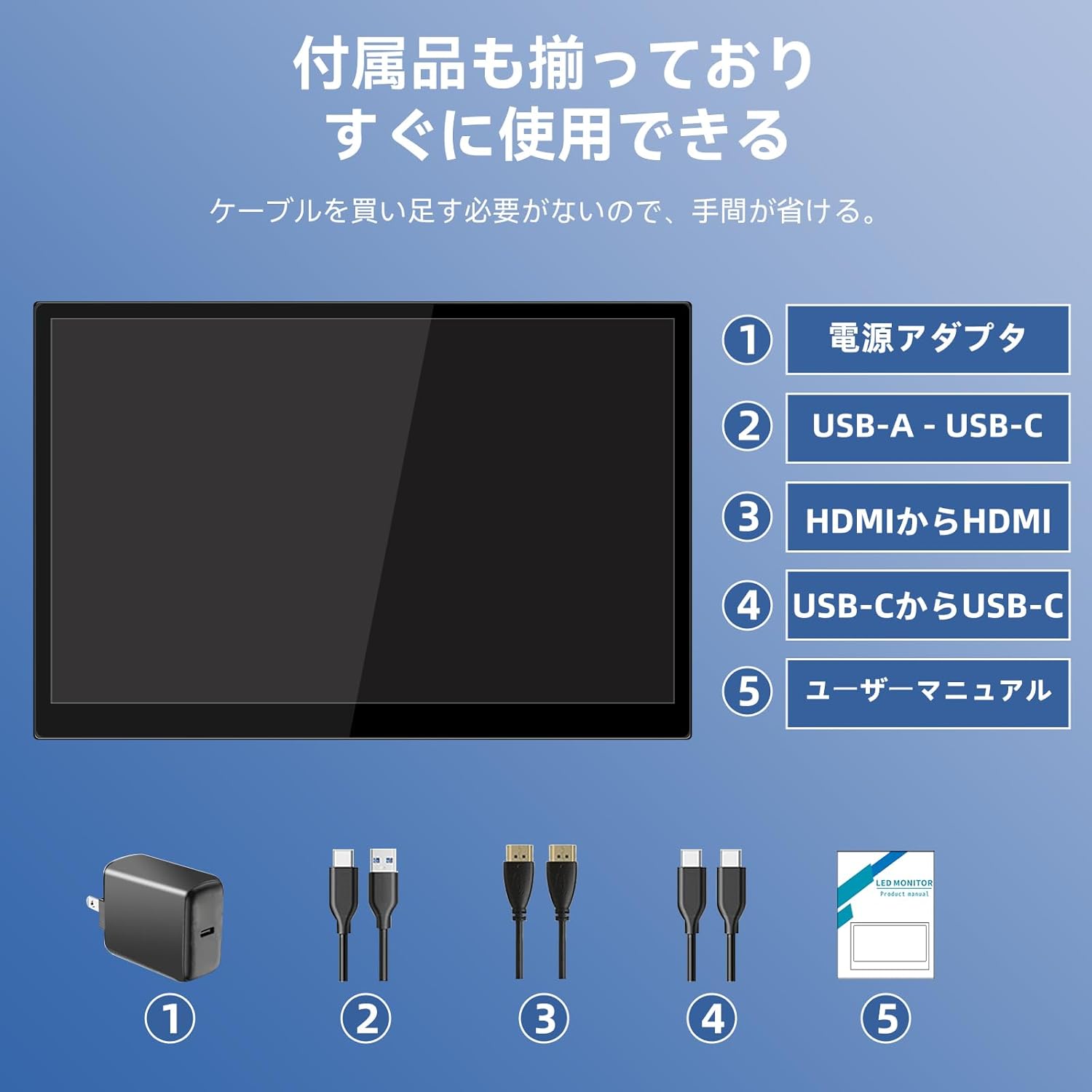
다음 품목이 패키지에 포함되어 있는지 확인하세요.
- Pisichen 16-inch Portable Monitor
- 전원 어댑터
- USB-A to USB-C 케이블
- HDMI to HDMI 케이블
- USB-C to USB-C 케이블
- 사용 설명서 (본 문서)

Image 3.1: All items included in the product package, ready for immediate use.
4. 제품 오버view
The monitor features multiple ports for versatile connectivity and control buttons for easy navigation of settings.
4.1. 포트 및 버튼
이미지 4.1: 상세 view of the monitor's interfaces, including audio port, USB-C ports, HDMI port, brightness controls, menu/OK button, volume/down button, and USB-A port.
- 3.5mm 오디오 포트: 헤드폰이나 외부 스피커를 연결하는 데 사용합니다.
- USB-C Port 1 (Full-function): Supports power, video, and touch signal transmission.
- USB-C Port 2 (Full-function): Supports power, video, and touch signal transmission.
- HDMI 포트 : For video signal input from devices.
- Brightness Up / Power Button: Short press to increase brightness, long press to power on/off.
- Menu / OK Button: Press to open OSD menu, press again to confirm selection.
- Volume Down / Back Button: Short press to decrease volume, long press to go back in OSD menu.
- USB-A Port (OTG): 마우스나 키보드를 연결합니다.
5. 설정
Follow these steps to connect your portable monitor to various devices.
5.1. Single Cable Connection (USB-C)
For devices with a full-function USB-C port (supporting DisplayPort Alternate Mode and power delivery), a single USB-C to USB-C cable can transmit video, audio, touch signals, and power.
- Connect one end of the USB-C to USB-C cable to a full-function USB-C port on your device (e.g., laptop, smartphone).
- Connect the other end to either USB-C Port 1 or USB-C Port 2 on the monitor.
- The monitor should automatically power on and display the content. Touch functionality will also be active.
5.2. Dual Cable Connection (HDMI + USB-C for Power/Touch)
For devices with an HDMI output, or if your USB-C port does not support power delivery, you will need two cables.
- Connect one end of the HDMI to HDMI cable to your device's HDMI output.
- Connect the other end to the HDMI Port on the monitor.
- Connect the power adapter to one of the monitor's USB-C ports (Port 1 or Port 2) for power.
- For touch functionality, connect the USB-A end of the USB-A to USB-C cable to your device's USB-A port, and the USB-C end to the other available USB-C port on the monitor.

Image 5.1: Illustration of different connection methods: single USB-C cable for power, video, and touch, and dual cable setup using HDMI for video and USB-C for power and touch.
6. 사용 설명서
6.1. 전원 켜기/끄기
Long press the Brightness Up / Power Button (5) for approximately 3 seconds to power the monitor on or off.
6.2. 화면 디스플레이(OSD) 메뉴
Press the Menu / OK Button (6) to access the OSD menu. Use the Brightness Up / Power Button (5) and Volume Down / Back Button (7) to navigate through options. Press the Menu / OK Button (6) to confirm selections. Long press the Volume Down / Back Button (7) to exit the menu.
6.3. 터치 기능
The monitor supports 10-point capacitive multi-touch. Ensure a USB connection (via full-function USB-C or USB-A to USB-C cable) is established for touch input to work. The touch screen allows for intuitive interaction, including swiping, writing, and annotating.
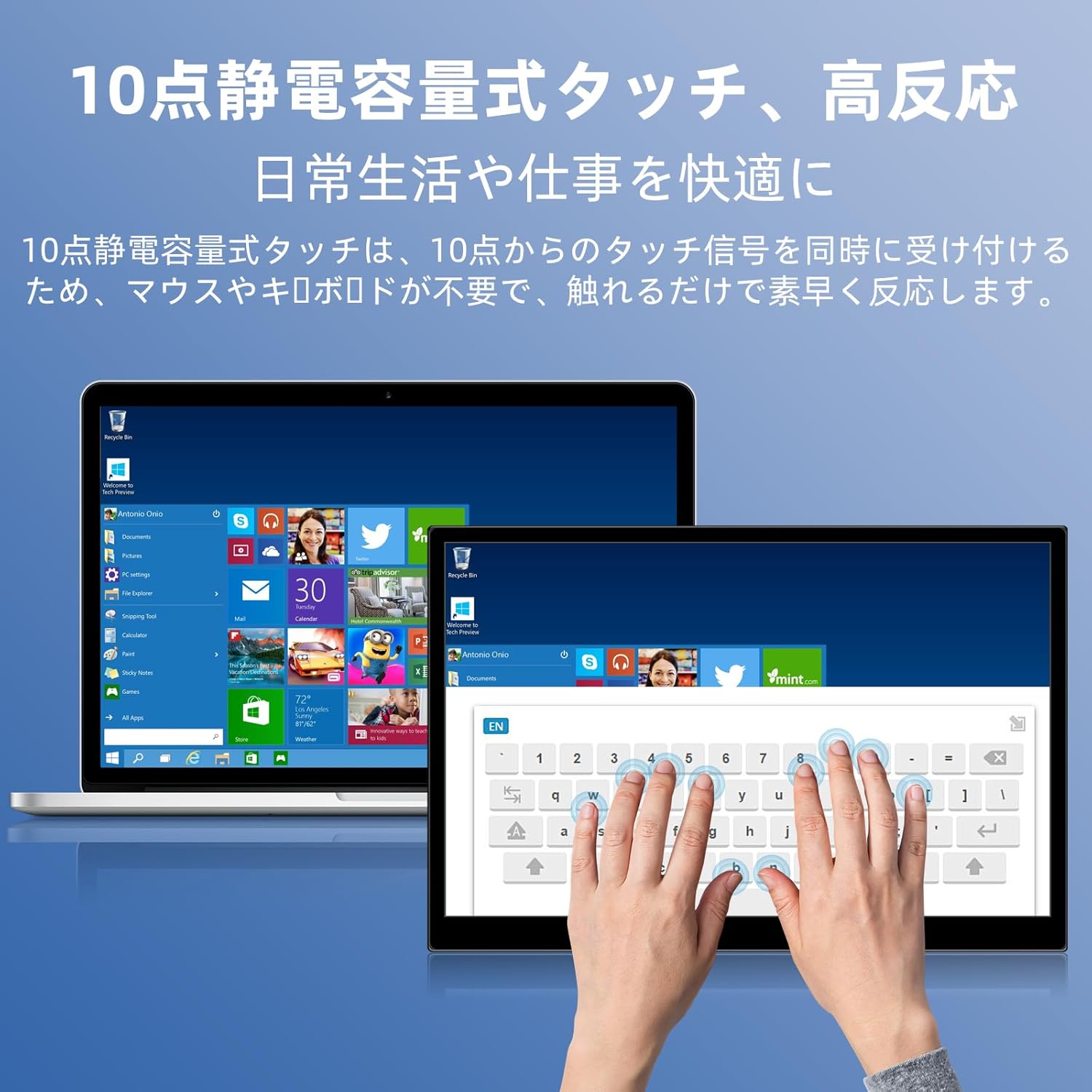
Image 6.1: A user demonstrating the responsive 10-point capacitive touch functionality on the portable monitor, enabling smooth interaction with on-screen content.
6.4. 디스플레이 모드
이 모니터는 컴퓨터에 연결했을 때 다양한 표시 모드를 지원합니다.
- 복제 모드: 기본 화면의 내용을 그대로 보여줍니다.
- 확장 모드: 데스크톱을 확장하여 멀티태스킹을 위한 더 넓은 화면 공간을 제공합니다.
- 보조 화면 모드: 디스플레이로는 휴대용 모니터만 사용합니다.
6.5. 화면 방향
The monitor supports both landscape and portrait orientations. You can adjust the display settings on your connected device (e.g., Windows Display Settings, macOS Display Preferences) to change the orientation as needed for different tasks like document viewing or design work.
6.6. HDR Technology
The monitor features HDR (High Dynamic Range) mode, which provides deeper and more realistic colors for an enhanced visual experience. This setting can typically be toggled within the OSD menu or your device's display settings.

이미지 6.2: Examples of the monitor's versatility, showing its use for entertainment, mobile productivity, and as an extended display for a home office.
7. 유지관리
- 화면 청소: 부드럽고 마른 보풀 없는 천으로 화면을 부드럽게 닦으세요. 잘 지워지지 않는 얼룩은 가볍게 닦아주세요.ampen the cloth with water or a screen-specific cleaner (apply to cloth, not directly to screen).
- C 청소asing: 부드럽고 마른 천을 사용하여 모니터를 닦으세요.asing. 연마성 세척제는 피하세요.
- 저장: 장기간 사용하지 않을 경우 모니터를 서늘하고 건조한 곳에 보관하십시오. 가능하면 원래 포장이나 보호 슬리브에 넣어 보관하는 것이 좋습니다.
- 케이블 관리 : 케이블 손상을 방지하기 위해 과도하게 구부리거나 비틀지 마십시오.
8. 문제 해결
| 문제 | 가능한 원인 | 해결책 |
|---|---|---|
| 디스플레이 없음 / "신호 없음" 메시지 | 케이블 연결이 잘못되었거나, 전력이 부족하거나, 입력 소스가 올바르지 않습니다. | Ensure cables are securely connected. Verify the device's USB-C port supports video output. Connect the power adapter if using HDMI or if USB-C power is insufficient. Check OSD menu for correct input source. |
| 터치 기능이 작동하지 않습니다 | No USB connection for touch, driver issue (rare). | Ensure the USB-C cable is full-function or that the USB-A to USB-C cable is connected for touch data. Restart the monitor and connected device. |
| 화면 깜박임 | Unstable power, faulty cable, refresh rate mismatch. | Use the provided power adapter. Try a different cable. Adjust the refresh rate in your device's display settings. |
| Image is distorted or stretched | Incorrect aspect ratio settings. | Adjust the aspect ratio in the OSD menu or your device's display settings to match the monitor's native resolution (1920x1200). |

Image 8.1: Demonstrating the importance of correct aspect ratio settings to avoid image distortion.
9. 사양
| 특징 | 사양 |
|---|---|
| 상표 | 피시첸 |
| 모델 번호 | 16QTHCM-1200P |
| 화면 크기 | 16인치 |
| 해결 | 1920 x 1200 픽셀(FHD) |
| 패널 유형 | IPS |
| View잉 각도 | 178° |
| 새로 고침 빈도 | 60Hz |
| 대비율 | 1000시 1분 |
| 명도 | 300칸델라/제곱미터 |
| 색상 영역 | 100% sRGB |
| 색상 깊이 | 16.7 만 색상 |
| 터치스크린 | 10포인트 정전식 터치 |
| 연결성 | 2x Full-function USB-C 3.1, 1x HDMI, 1x USB-A (OTG), 1x 3.5mm Audio Jack |
| HDR 지원 | 예 |
| VESA 마운트 호환 | 예 |
| 제품 치수 (W x H x D) | 350 x 230 x 10mm |
| 무게 | 1.62kg |
10. 보증 및 지원
For warranty information and technical support, please refer to the warranty card included in your product package or contact Pisichen customer service through their official website or the retailer where the product was purchased. Please have your model number (16QTHCM-1200P) and purchase details ready when contacting support.