
소개
Thank you for choosing the Rapoo V10RGB Wireless Charging Mouse Mat. This manual provides detailed instructions for setting up, operating, and maintaining your new mouse mat. Please read this manual carefully before use to ensure optimal performance and longevity of your device.
패키지 내용
패키지에 모든 품목이 들어 있는지 확인하세요.
- 1 x Rapoo V10RGB Wireless Charging Mouse Mat
- 1 x USB Cable (6ft / 1.8m)
설정
- 마우스 패드를 개봉하세요: Carefully remove the Rapoo V10RGB Wireless Charging Mouse Mat from its packaging.
- 매트 위치: Place the mouse mat on a flat, stable surface on your desk. Ensure there is enough space for comfortable mouse movement.

Image: The Rapoo V10RGB Wireless Charging Mouse Mat laid flat on a desk, showing its overall design and RGB lighting.
- 전원 연결: Connect the provided USB cable to the USB-C port on the mouse mat and plug the other end into a compatible USB power source (e.g., computer USB port, USB wall adapter). The RGB lighting will illuminate upon successful connection.
작동 지침
1. RGB 조명 제어
The Rapoo V10RGB mouse mat features customizable RGB lighting with multiple modes and adjustable brightness levels.
- RGB 모드 변경: Press the "RGB Modes" button (usually marked with a refresh or cycle icon) to cycle through various multi-color and solid color backlit modes.
- 밝기 조정: Press the "Brightness +/-" button (usually marked with a sun icon) to adjust the lighting brightness. Options include high, medium, low, and off.

이미지: 클로즈업 view of the control buttons on the mouse mat, indicating the RGB Modes button and the Brightness +/- button.
2. 무선 충전 기능
The mouse mat includes a wireless charging pad compatible with Qi-enabled devices.
- 장치 배치: Place your Qi-enabled device (e.g., wireless charging mouse, smartphone, earbuds) onto the designated charging area on the mouse mat. This area is typically marked with a lightning bolt icon.
- 충전 표시: The device should begin charging automatically. The mouse mat supports 5W, 7.5W, and 10W output, adjusting automatically based on the device's battery levels to protect your device and extend battery life.
- 객체 감지: The charging pad features object detection to prevent charging foreign metallic objects.
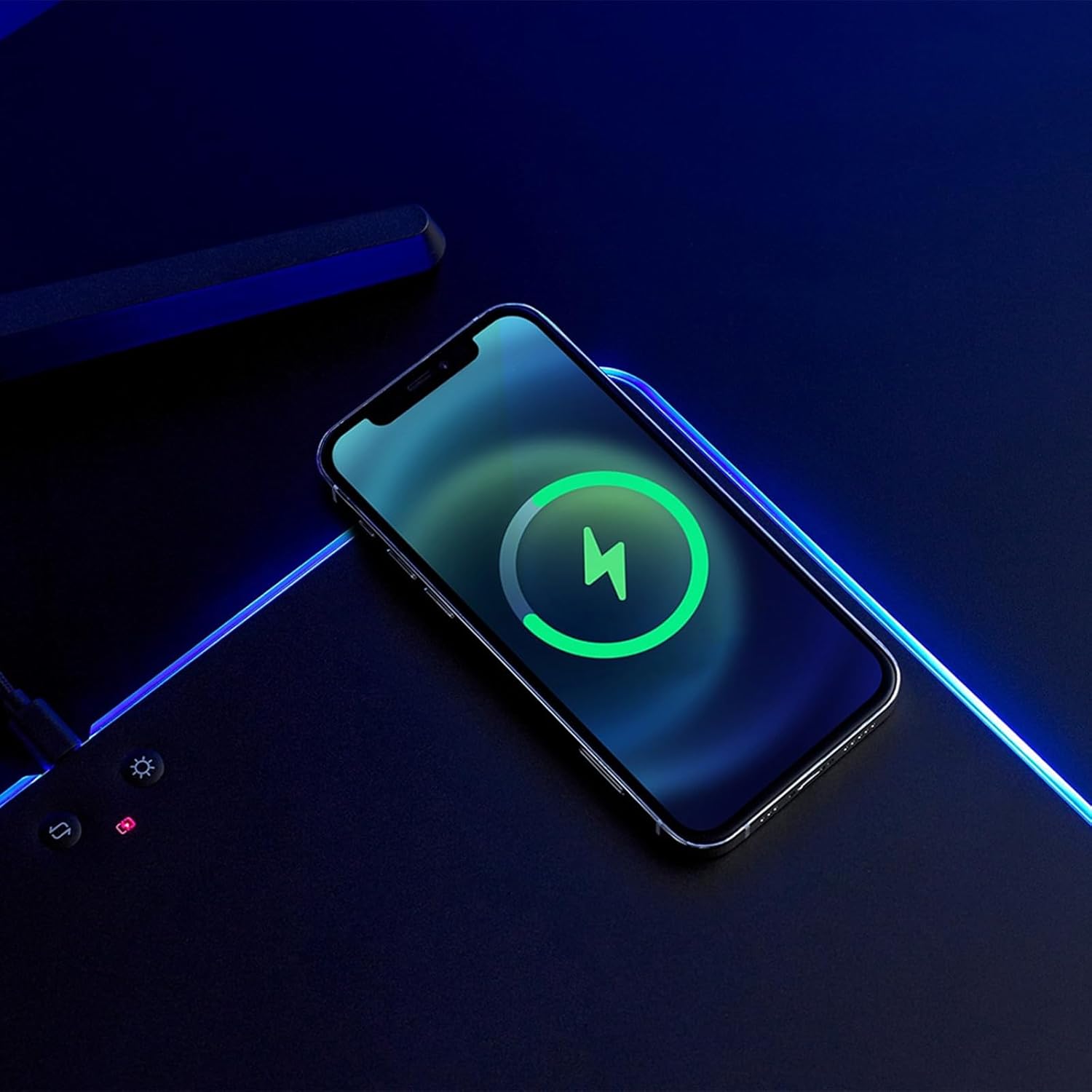
Image: A smartphone placed on the wireless charging area of the mouse mat, displaying a charging indicator on its screen.
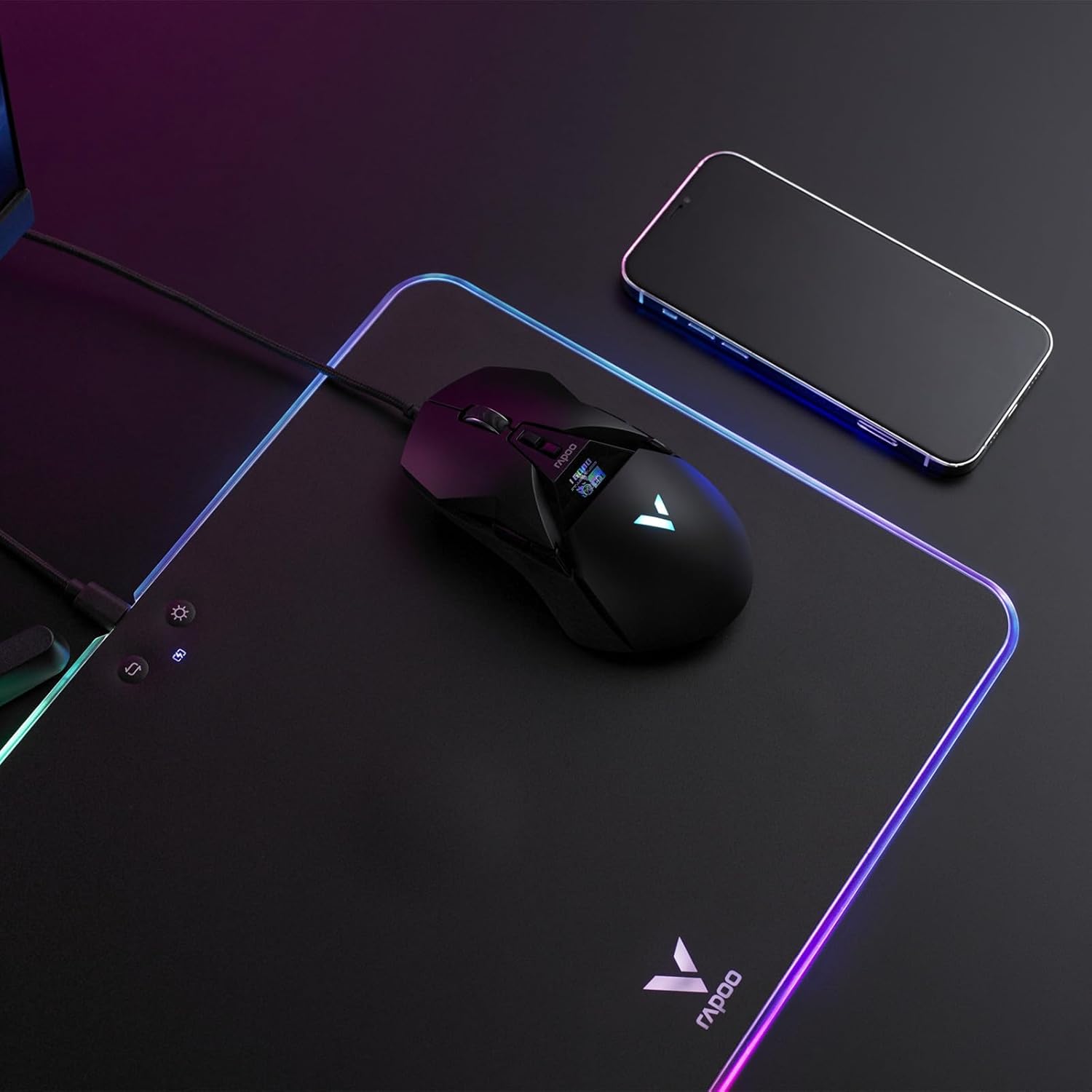
Image: A wireless mouse positioned on the mat for use, with a smartphone placed on the wireless charging area.
3. Hard PC Gaming Surface
The mouse mat features a hard PC gaming surface designed for consistent density, lower friction, and faster response compared to soft foam, rubber, or fabric mouse pads. This provides precise tracking for gaming and general use.
4. Anti-Slip Silicone Base
The underside of the mouse mat is equipped with an anti-slip silicone base. This ensures the mat remains steady and shock-absorbing, preventing unwanted movement during intense use.

이미지: 확대된 view of the hexagonal pattern on the anti-slip silicone base of the mouse mat.
유지
- 표면 청소: 부드러운 d를 사용하세요amp cloth to gently wipe the hard PC gaming surface. Avoid abrasive cleaners or harsh chemicals, as these may damage the surface or RGB lighting.
- 베이스 청소: The silicone base can be wiped with a damp cloth if it collects dust. Ensure the mat is completely dry before placing it back on your desk.
- 저장: When not in use for extended periods, store the mouse mat flat or gently rolled to prevent creases or damage to the internal components.
문제 해결
| 문제 | 가능한 원인 | 해결책 |
|---|---|---|
| RGB 조명이 켜지지 않습니다. |
|
|
| 무선 충전이 작동하지 않습니다. |
|
|
| 마우스 추적이 일관되지 않습니다. |
|
|
명세서
| 특징 | 세부 사항 |
|---|---|
| 모델 | V10RGB |
| 제품 치수 | 14in x 10in / 35.2cm x 25.5cm |
| 제품 무게 | 1.19파운드 / 542g |
| 재료 | Polycarbonate (Surface), Silicone (Base) |
| 백라이트 모드 | RGB, Solid Color |
| 밝기 레벨 | 높음, 중간, 낮음, 꺼짐 |
| 입력 전류 | 2A/1.67A |
| 무선 충전 출력 | 5W/7.5W/10W |
| 보호 기능 | Overcharge Protection, Over Temperature Protection, Object Detection |
| 인터페이스 | USB-C |
| 케이블 길이 | 6ft / 1.8m |
보증 및 지원
보증 정보 및 기술 지원에 대해서는 Rapoo 공식 웹사이트를 참조하십시오. web사이트를 방문하거나 고객 서비스에 직접 문의하세요. 보증 청구를 위해 구매 영수증을 보관하세요.
제조업체: 심천 Rapoo 기술 Co., 주식 회사.