
Z-EDGE U28I4K
Z-EDGE U28I4K 4K 모니터 사용 설명서
28-inch IPS, 144Hz Refresh Rate, Ultra HD 3840x2160 Gaming Monitor
1. 서론
This user manual provides detailed instructions for the setup, operation, maintenance, and troubleshooting of your Z-EDGE U28I4K 4K Monitor. Please read this manual thoroughly before using the product to ensure proper functionality and to prevent damage.
제품 특징:
- 4K UHD 해상도(3840x2160): Delivers stunningly clear and lifelike images with exceptional detail.
- 144Hz 화면 주사율 및 1ms 응답 시간: Ensures smooth, crisp visuals and reduces motion blur, ideal for gaming.
- IPS 패널: 178°의 넓은 시야각을 제공합니다. viewing angles and consistent, accurate color reproduction.
- HDR10 Technology: Enhances picture quality with deeper blacks and brighter whites.
- 다중 연결 옵션: Two HDMI inputs and two DisplayPort inputs for versatile device connection.
- 아이 케어 기술: Features low blue light and flicker-free technology to reduce eye strain.
- VESA 마운트 호환: 100x100mm VESA 마운팅을 지원하여 유연한 설치가 가능합니다.
2. 패키지 내용
Please check the package contents upon unboxing. If any items are missing or damaged, contact Z-EDGE customer support.
- Z-EDGE U28I4K 4K Monitor
- 모니터 스탠드(베이스 및 넥)
- 전원 어댑터 및 전원 케이블
- HDMI 케이블
- DisplayPort 케이블
- 사용자 설명서
- Screws and Screwdriver for stand assembly
3. 설정
3.1 스탠드 조립
- 모니터를 포장에서 조심스럽게 꺼내어 부드럽고 평평한 표면에 놓고 보호하십시오.
- 제공된 나사를 사용하여 스탠드 목 부분을 모니터 뒷면 패널에 부착하십시오. 단단히 고정되었는지 확인하십시오.
- Connect the stand base to the stand neck and tighten the thumb screw or use the provided screwdriver to secure it.
- Gently place the assembled monitor on a stable, flat desk.

3.2 장치에 연결하기
The Z-EDGE U28I4K monitor supports multiple input types. Choose the appropriate cable for your device.
- HDMI 연결: Connect one end of the HDMI cable to the HDMI port on your computer/device and the other end to an HDMI input port (HDMI 1 or HDMI 2) on the monitor.
- 디스플레이포트 연결: Connect one end of the DisplayPort cable to the DisplayPort on your computer/device and the other end to a DisplayPort input port (DP 1 or DP 2) on the monitor.
- 오디오 출력: Connect external speakers or headphones to the 3.5mm audio output jack on the monitor if desired.

3.3 전원 연결
Connect the power adapter to the DC 12V input on the monitor, then plug the power cable into a wall outlet.
Important: Use only the power adapter provided with your monitor.
4. 모니터 작동하기
4.1 전원 켜기/끄기
모니터 뒷면이나 하단에 있는 전원 버튼을 눌러 전원을 켜거나 끄세요. 모니터가 켜지면 전원 표시등이 켜집니다.
4.2 온스크린 디스플레이(OSD) 메뉴
The OSD menu allows you to adjust various monitor settings. Navigate the menu using the buttons typically found on the back or bottom right of the monitor.
일반 OSD 설정:
- 밝기/대비: 전체 밝기와 명암비를 조정하세요.
- 색상 설정: 색온도, 감마, 개별 RGB 레벨을 수정합니다.
- 입력 소스: Manually select between HDMI 1, HDMI 2, DP 1, or DP 2.
- 사진 모드: 사전 설정된 표시 모드(예: 표준, 게임, 영화, 텍스트)를 선택하십시오.
- 응답 시간/오버드라이브: 픽셀 응답 시간을 조정하여 더 빠른 화면 전환을 구현하세요.
- FreeSync/Adaptive Sync: Enable or disable adaptive synchronization technology.
- 로우 블루 라이트: 눈의 피로를 최소화하려면 청색광 방출을 줄이세요.
- 깜박임 없음: Ensure the display is free from visible flickering.
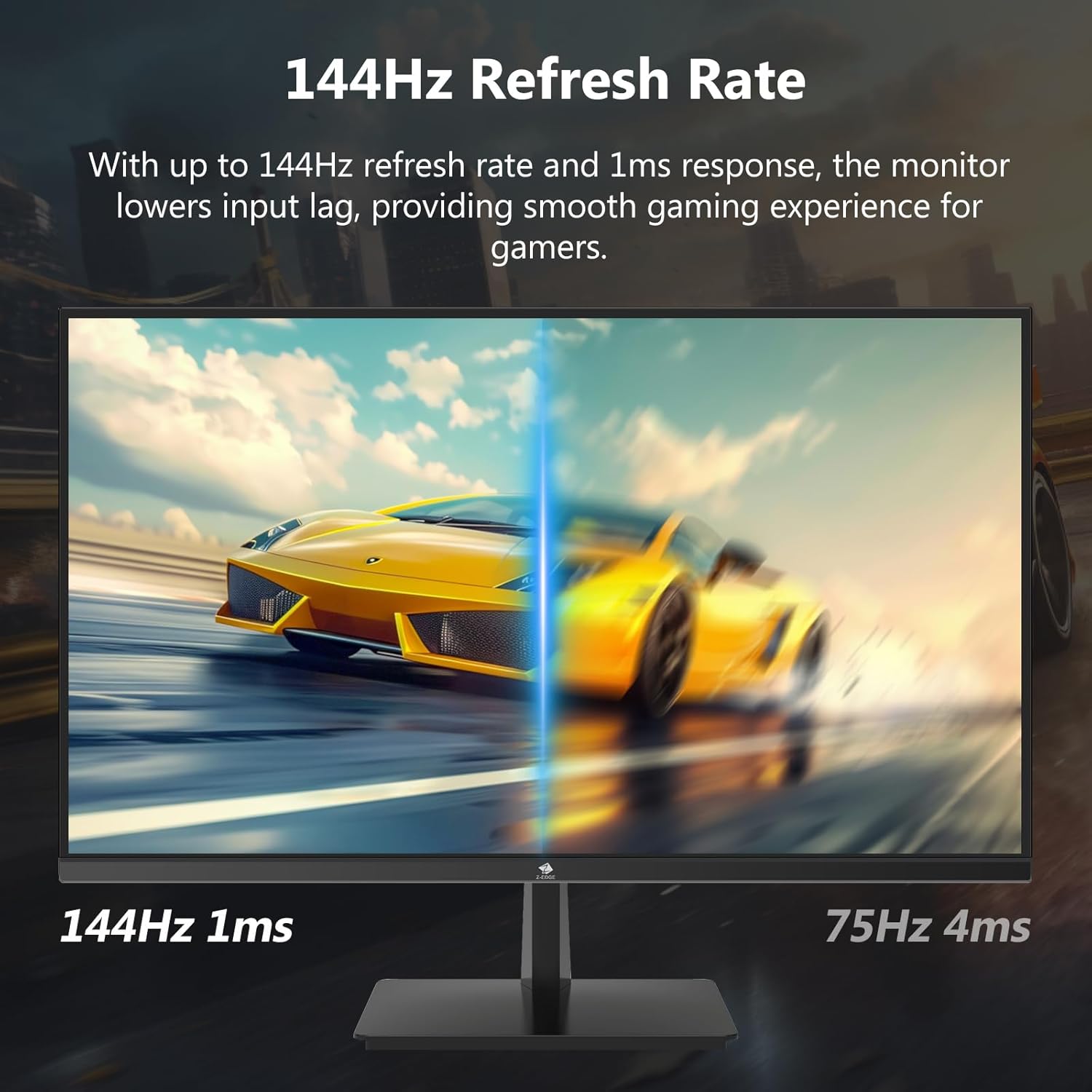

4.3 새로 고침 빈도 및 응답 시간
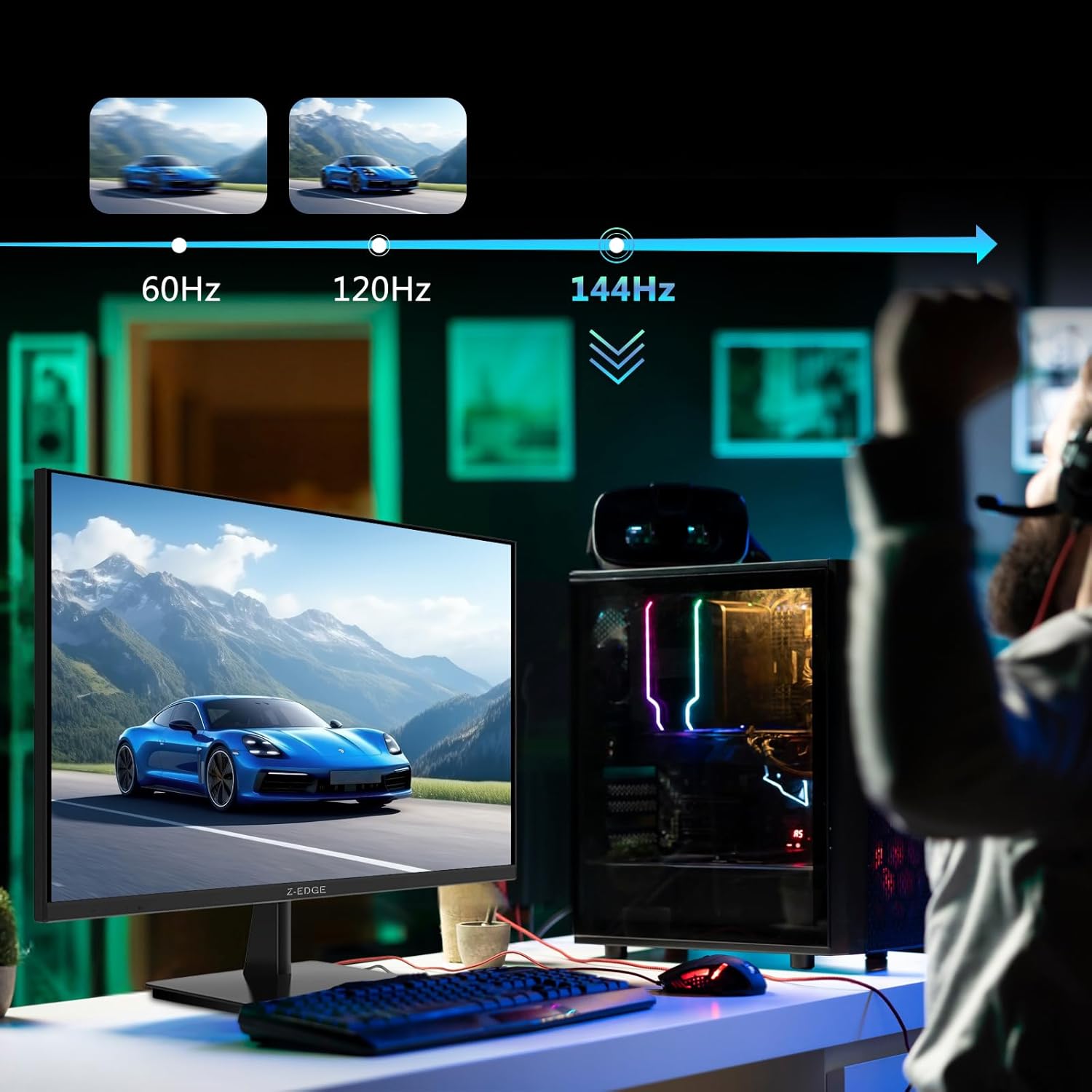
The monitor supports up to a 144Hz refresh rate and 1ms response time for optimal performance in fast-paced applications and gaming.

5. 유지관리
5.1 모니터 청소
- 청소하기 전에는 항상 모니터의 플러그를 전원 콘센트에서 뽑으세요.
- 부드럽고 털이 없는 천을 살짝 사용하세요.amp물이나 비연마성 화면 세척제로 세척하세요.
- 세척제를 화면에 직접 뿌리지 마세요.
- 벤젠, 신나, 암모니아 또는 연마성 세척제는 모니터 표면을 손상시킬 수 있으므로 사용하지 마십시오.
5.2 보관
모니터를 장기간 보관할 때는 전원을 끄고 모든 케이블을 분리하십시오. 먼지와 물리적 손상을 방지하기 위해 서늘하고 건조한 곳에, 가급적이면 원래 포장 상태로 보관하십시오.
6. 문제 해결
| 문제 | 가능한 원인 | 해결책 |
|---|---|---|
| 전원이 없습니다 | 전원 케이블이 연결되지 않았습니다. 전원 콘센트가 고장났습니다. 전원 어댑터가 고장났습니다. | Ensure power cable is securely connected to monitor and outlet. Test outlet with another device. Contact support if adapter is suspected faulty. |
| 신호 없음 | Input cable not connected; Incorrect input source selected; Computer/device not outputting signal. | Check HDMI/DisplayPort cable connections. Select correct input source via OSD menu. Restart computer/device. |
| 깜빡이는 화면 | Loose cable connection; Refresh rate mismatch; DCR (Dynamic Contrast Ratio) enabled. | Ensure cables are firmly connected. Adjust refresh rate in display settings. Disable DCR in OSD menu. |
| 이미지 품질 불량 (흐릿하거나 왜곡됨) | Incorrect resolution; Cable quality; Graphics driver issues. | Set display resolution to 3840x2160. Try a different high-quality cable. Update graphics drivers. |
| No Audio from Monitor | Volume too low; Incorrect audio output selected on computer; External speakers not connected/powered. | Increase monitor volume via OSD. Select monitor as audio output device in OS settings. Ensure external speakers are connected and powered. |
If the problem persists after trying these solutions, please contact Z-EDGE customer support.
7. 사양
| 특징 | 세부 사항 |
|---|---|
| 모델 번호 | U28I4K |
| 화면 크기 | 28 인치 |
| 패널 유형 | IPS |
| 해결 | 3840x2160(4K UHD) |
| 새로 고침 빈도 | 144Hz |
| 응답 시간 | 1ms(MPRT) |
| 명도 | 300칸델라/제곱미터 |
| 대비율 | 1000시 1분 |
| 색상 지원 | 16.7만 가지 색상(8비트) |
| View잉 각도 | 178°(수평/수직) |
| HDR 지원 | HDR10 |
| 연결성 | HDMI 2.1 포트 2개, DisplayPort 1.4 포트 2개, 3.5mm 오디오 출력 포트 1개 |
| VESA 마운트 | 100x100mm |
| 치수(스탠드 포함) | 19 x 64 x 46cm |
| 무게(스탠드 포함) | 5.96kg |
| 전원 입력 | 직류 12V |
8. 보증 및 지원
8.1 보증 정보
Z-EDGE products typically come with a limited manufacturer's warranty. Please refer to the warranty card included in your product packaging or visit the official Z-EDGE web자세한 보증 약관은 해당 사이트를 참조하세요. 보증 청구를 위해 구매 증빙 자료로 구매 영수증을 보관하세요.
8.2 고객 지원
For technical assistance, troubleshooting, or warranty inquiries, please contact Z-EDGE customer support:
- Web대지: www.z-edge.com (Check for support contact details, FAQs, and driver downloads)
- 이메일: 공식 참조 web최신 지원 이메일 주소는 사이트에서 확인하세요.
- 핸드폰: 공식 참조 web최신 고객 지원 전화번호는 해당 사이트에서 확인하세요.
When contacting support, please have your monitor's model number (U28I4K) and serial number ready.
Ask a question about this manual
Ask about setup, troubleshooting, compatibility, parts, safety, or missing instructions. Manuals+ will review the question and use this page’s manual context to help answer it.