
1. 서론
본 설명서는 Xprinter XP-370B 열전사 바코드 스티커 프린터의 설치, 작동 및 유지 관리에 대한 자세한 지침을 제공합니다. 프린터의 올바른 작동 및 손상 방지를 위해 사용 전에 본 설명서를 꼼꼼히 읽어 주십시오.
2. 안전 정보
- 프린터는 항상 접지된 전원 콘센트에 연결하세요.
- 프린터를 물이나 높은 습도에 노출시키지 마십시오.
- 프린터를 직사광선이나 열원 근처에 두지 마십시오.
- Xprinter에서 승인한 액세서리와 전원 어댑터만 사용하십시오.
- 프린터를 어린이의 손이 닿지 않는 곳에 두십시오.
- 프린터를 직접 분해하거나 수리하려고 하지 마십시오. 자격을 갖춘 서비스 담당자에게 문의하십시오.
3. 패키지 내용
패키지에 모든 품목이 들어 있는지 확인하세요.
- Xprinter XP-370B 열전사 바코드 스티커 프린터
- 전원 어댑터
- USB 케이블
- 빠른 시작 가이드(포함된 경우)
4. 제품 오버view
Xprinter XP-370B는 바코드 및 스티커 인쇄용으로 설계된 소형 고효율 열전사 프린터입니다. 고속 인쇄 기능을 갖추고 있으며 다양한 연결 옵션을 지원합니다.

그림 4.1: 오른쪽 앞면 view Xprinter XP-370B 열전사 바코드 스티커 프린터에 대한 정보입니다.

그림 4.2: 측면 view 전원 버튼과 미디어 수납 공간에 접근하기 위한 상단 덮개 키를 보여주는 그림입니다.
5. 설정
5.1 포장 풀기 및 배치
- 프린터의 포장을 조심스럽게 꺼냅니다.
- 프린터를 통풍이 잘 되는 안정적이고 평평한 곳에 놓으십시오.
- 프린터 주변에 케이블 연결 및 용지 장착을 위한 충분한 공간이 있는지 확인하십시오.
5.2 프린터 연결
- 전원 어댑터를 프린터의 전원 포트에 연결한 다음 전원 콘센트에 꽂으세요.
- 제공된 USB 케이블을 사용하여 프린터를 컴퓨터에 연결하십시오. 프린터 모델에 따라 시리얼, 이더넷 및 블루투스 연결 옵션도 지원합니다.
- 측면에 있는 전원 버튼을 사용하여 프린터를 켜십시오(그림 4.2 참조).
5.3 인쇄 매체 로딩
- 상단 덮개 키를 눌러 프린터의 상단 덮개를 여십시오(그림 4.2 참조).
- 감열 라벨 롤을 용지함에 넣으십시오. 최대 라벨 직경은 100mm입니다.
- 용지 가이드를 라벨 너비에 맞게 조정하여 단단히 고정하십시오.
- 라벨을 프린트 헤드를 지나도록 조금 당겨주세요.
- 윗덮개가 딸깍 소리가 나면서 제자리에 고정될 때까지 닫으세요.
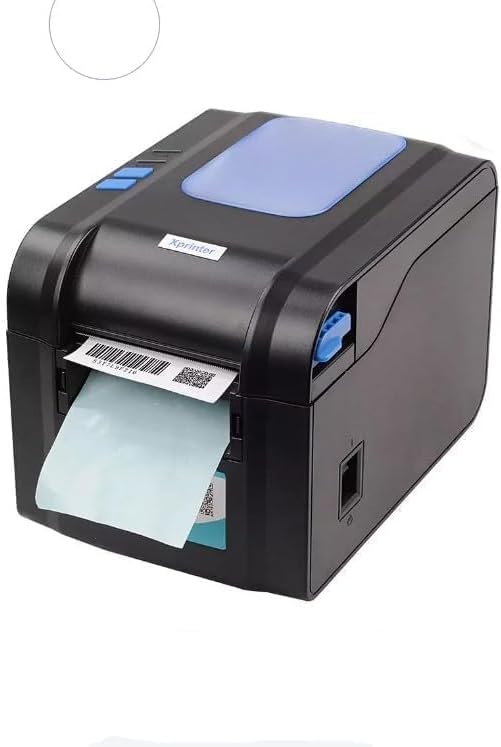
그림 5.3: 프린터에서 라벨이 인쇄 후 배출되는 모습.
5.4 드라이버 설치
- Windows 시스템의 경우, 드라이버 CD(제공된 경우)를 삽입하거나 Xprinter 공식 웹사이트에서 최신 드라이버를 다운로드하십시오. web사이트. 화면의 지시에 따라 설치하세요.
- 안드로이드 및 iOS 기기의 경우, 기기의 앱 스토어에서 해당 인쇄 애플리케이션을 다운로드하십시오.
6. 사용 설명서
6.1 기본 인쇄
- 프린터의 전원이 켜져 있고 장치에 연결되어 있는지 확인하세요.
- 인쇄하려는 문서 또는 애플리케이션을 엽니다.
- 사용 가능한 프린터 목록에서 Xprinter XP-370B를 선택하십시오.
- 라벨 크기, 방향, 밀도 등의 인쇄 설정을 필요에 따라 조정하십시오.
- 인쇄 명령을 시작하십시오. 프린터는 최대 152mm/s의 속도로 인쇄를 시작합니다.
7. 유지관리
7.1 프린터 청소
- 청소하기 전에 프린터 전원을 끄고 전원 플러그를 뽑으세요.
- 부드럽고 보풀이 없는 천을 사용하십시오. damp프린트 헤드를 부드럽게 청소하려면 이소프로필 알코올을 사용하십시오.
- 프린터 외부를 부드럽고 마른 천으로 닦아주세요.
- 연마성 세척제나 용제를 사용하지 마십시오.
8. 문제 해결
- 프린터가 응답하지 않습니다: 전원 연결, USB/시리얼/이더넷/블루투스 연결을 확인하고 드라이버가 올바르게 설치되었는지 확인하십시오.
- 인쇄 품질이 좋지 않음: 프린트 헤드를 청소하고, 올바른 용지 종류를 사용하고 있는지 확인하고, 인쇄 밀도 설정을 점검하십시오.
- 용지 걸림: 상단 덮개를 열고 걸린 라벨을 조심스럽게 제거한 후 용지를 올바르게 다시 넣으십시오.
- 라벨이 먹이를 주지 않습니다: 라벨이 올바르게 장착되었는지, 용지 가이드가 제대로 조정되었는지 확인하십시오. 장애물이 없는지 점검하십시오.
9. 사양
| 특징 | 사양 |
|---|---|
| 상표 | 엑스프린터 |
| 모델 번호 | XP-370B |
| 프린터 기술 | 열의 |
| 연결 기술 | USB, 시리얼, 블루투스, 이더넷 (옵션은 다를 수 있음) |
| 최대 인쇄 속도 | 최대 152mm/s |
| 최대 미디어 크기 | 4 x 6 인치 |
| 최대 라벨 직경 | 100mm (XNUMXmm) |
| 인쇄 매체 | 라벨 |
| 프린터 출력 | 단색화 |
| 품목 치수(D x W x H) | 15D x 7W x 10H 센티미터 |
| 품목 무게 | 300g |
| 지원되는 운영 체제 | 윈도우, 안드로이드, iOS |
10. 보증 및 지원
보증 정보 및 기술 지원에 대해서는 구매 시 제공된 설명서를 참조하거나 Xprinter 공식 웹사이트를 방문하십시오. web사이트. 보증 청구를 위해 구매 증빙 자료로 구매 영수증을 보관하세요.