
소개
This manual provides detailed instructions for the setup, operation, and maintenance of your Prechen 10.1 inch Portable Touchscreen Monitor, Model HD-101. Please read this manual thoroughly before using the device to ensure proper functionality and to prevent damage.
제품 특징
- Portable Touchscreen: This 10.1-inch monitor is compact and lightweight, designed for portability. The touchscreen functionality allows for intuitive navigation and interaction, enhancing productivity on the go.
- High-Resolution IPS Display: Features a 1920x1200 resolution with a 16:10 aspect ratio, delivering clear and vibrant visuals. IPS technology provides wide viewing angles and accurate color reproduction, suitable for various applications.
- 다양한 연결성: Equipped with HDMI and USB-C ports, offering flexible connection options. It can be easily connected to Windows PCs, laptops, and gaming consoles like Xbox. Note: USB-C is for touch functionality and power.
- 통합 스피커: Built-in speakers provide clear and dynamic audio, eliminating the need for external speakers during media consumption, gaming, or virtual meetings.
- VESA 마운트 호환: The monitor supports VESA mounting standards, allowing for attachment to compatible stands or arms for customized workspace setups and comfortable view각도를 나타냅니다.
설정
패키지 내용
패키지에 모든 품목이 들어 있는지 확인하세요.
- Prechen 10.1 inch Portable Touchscreen Monitor
- HDMI 케이블
- USB-C to USB-C 케이블
- USB-A to USB-C Cable (for power/touch)
- 전원 어댑터
- 사용 설명서 (본 문서)
모니터 연결하기
- 전원 연결: Connect the provided power adapter to the DC Power Port on the monitor and plug it into a power outlet. Alternatively, if your device supports power delivery, connect a USB-C to USB-C cable to the USB-C (Power & Touch) port for both power and signal.
- 비디오 연결:
- HDMI : Connect one end of the HDMI cable to the HDMI port on the monitor and the other end to the HDMI output of your computer or device.
- USB-C (DisplayPort Alternate Mode): If your device supports DisplayPort Alternate Mode over USB-C, connect a USB-C to USB-C cable to the USB-C (Power & Touch) port on the monitor and your device. This single cable can provide video, power, and touch functionality.
- 터치 기능: For touch functionality, ensure the USB-C (Power & Touch) port is connected to your device. If using HDMI for video, you will also need to connect a USB-A to USB-C cable from your device's USB-A port to the monitor's USB-C (Power & Touch) port.
- 오디오 출력: If you wish to use external headphones or speakers, connect them to the 3.5mm Audio Port on the monitor.
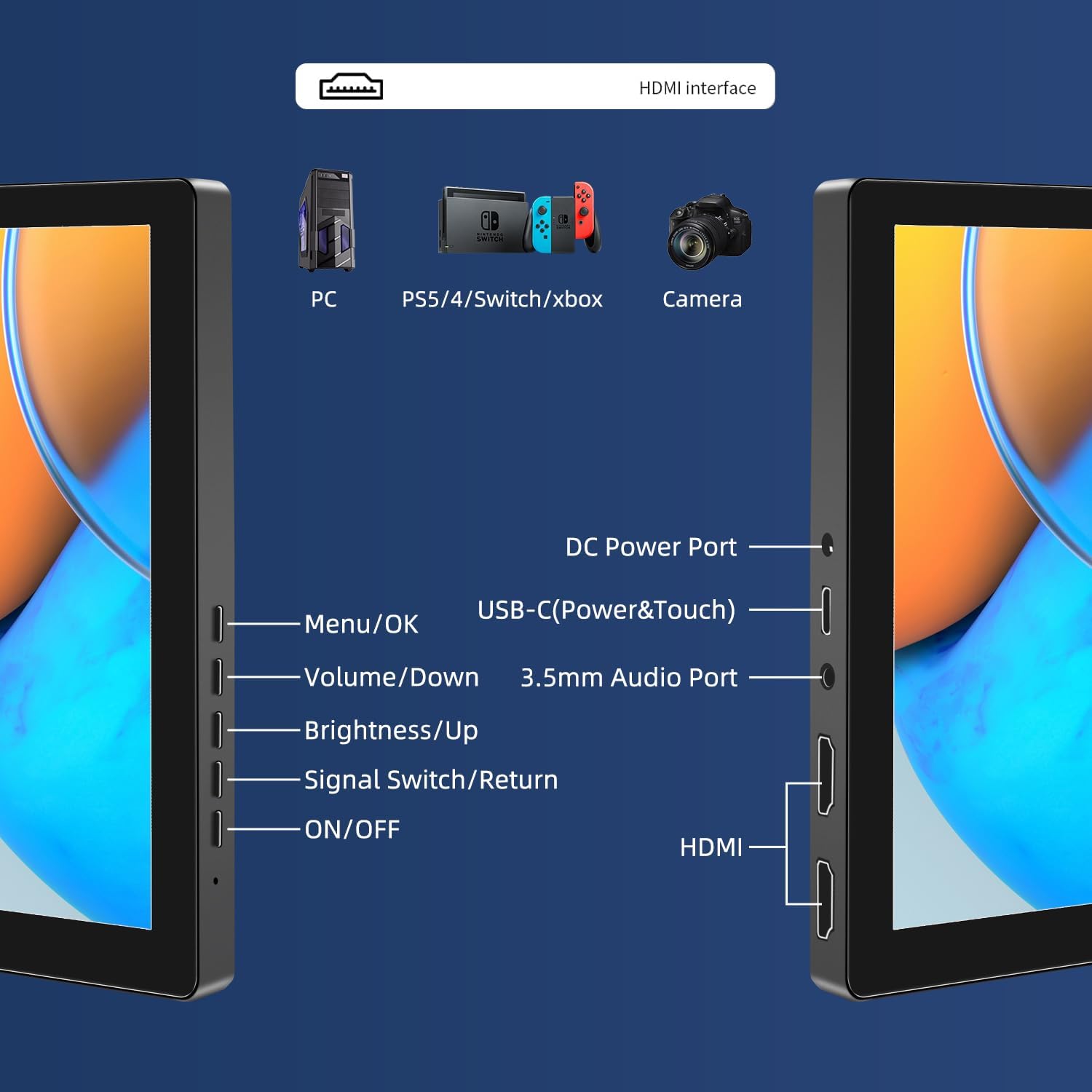
이미지: 이상view of the monitor's ports including DC Power, USB-C (Power & Touch), 3.5mm Audio, HDMI, and control buttons.
작동 지침
전원 켜기/끄기
- 모니터를 켜려면 버튼을 누르세요. 켜짐/꺼짐 단추.
- 전원을 끄려면 켜짐/꺼짐 화면이 꺼질 때까지 버튼을 몇 초 동안 누르세요.
OSD (On-Screen Display) 메뉴 사용
OSD 메뉴를 통해 다양한 디스플레이 설정을 조정할 수 있습니다.
- 를 누르세요 메뉴 / 확인 OSD 메뉴를 열려면 버튼을 클릭하세요.
- 사용하세요 볼륨/다운 그리고 밝기/업 메뉴 옵션을 탐색하는 버튼입니다.
- 누르다 메뉴 / 확인 옵션을 선택하거나 설정을 확인하려면.
- 를 누르세요 Signal Switch/Return 이 버튼을 누르면 이전 메뉴로 돌아가거나 OSD를 종료할 수 있습니다.
Adjusting Display Modes
이 모니터는 컴퓨터에 연결했을 때 여러 가지 디스플레이 모드를 지원합니다.
- 복제 모드: 기본 화면과 휴대용 모니터에 동일한 콘텐츠를 표시합니다.
- 확장 모드: 데스크톱을 두 화면으로 확장하여 더 넓은 작업 공간을 제공합니다.
- 보조 화면 모드: 디스플레이로는 휴대용 모니터만 사용합니다.
These modes are typically configured through your operating system's display settings (e.g., Windows Display Settings, macOS System Preferences).
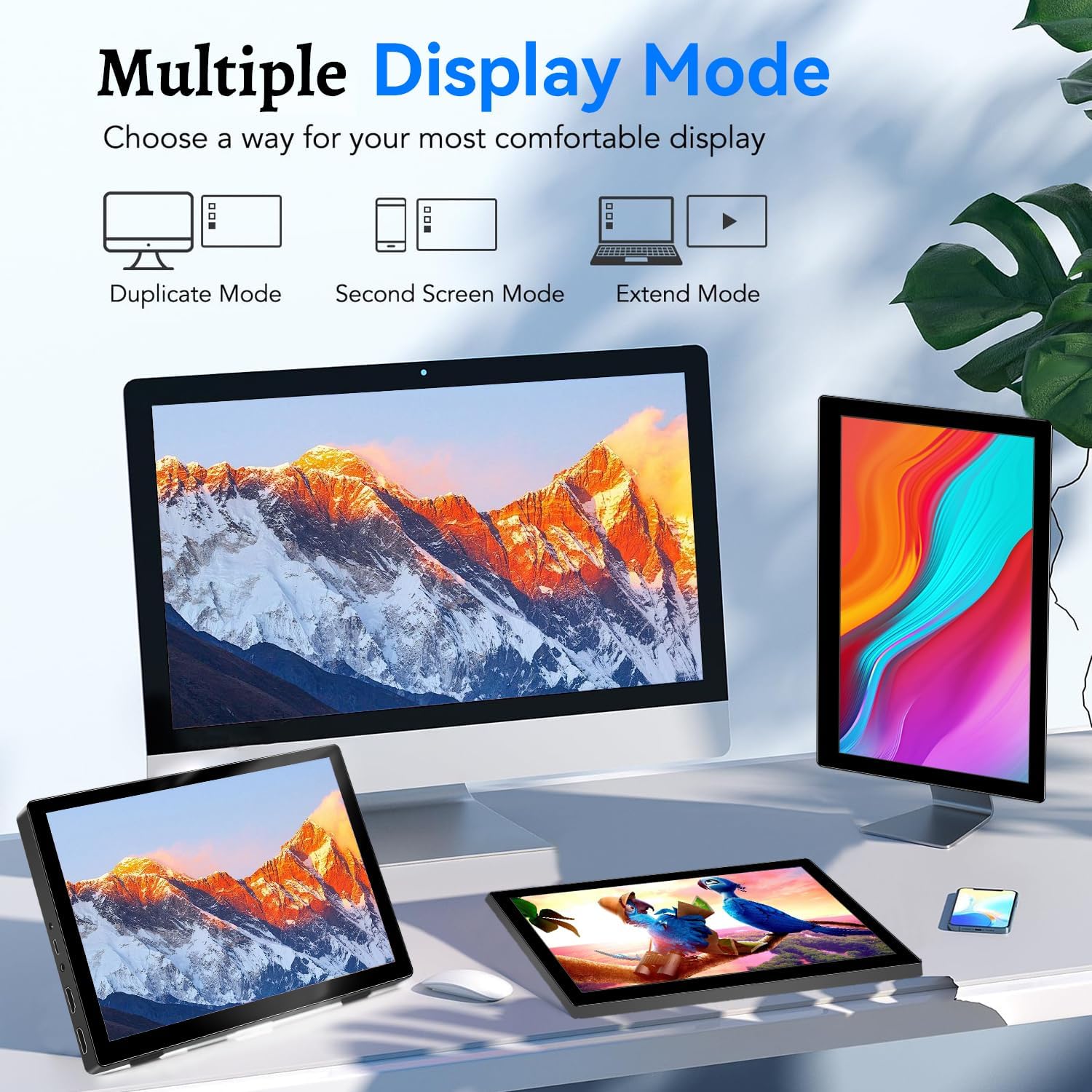
Image: Visual representation of Duplicate, Second Screen, and Extend display modes.
Using Touchscreen Functionality
The monitor supports 10-point touchscreen technology. Ensure the USB-C (Power & Touch) port is correctly connected to your device for touch input to function.

이미지: 전amples of 10-point touchscreen gestures for interaction.
유지
- 화면 청소: 부드럽고 털이 없는 천을 살짝 사용하세요.amp물이나 마모성이 없는 화면 세척제로 닦으십시오. 세척제를 화면에 직접 분사하지 마십시오.
- C 청소asing: 모니터를 닦으세요asin부드럽고 마른 천으로 닦아주세요. 강한 세제나 용제는 사용하지 마세요.
- 저장: 사용하지 않을 때는 모니터를 서늘하고 건조한 곳에 보관하고 직사광선과 극한의 온도를 피하세요.
- 손질: Avoid dropping or subjecting the monitor to strong impacts. Do not place heavy objects on top of the monitor.
문제 해결
| 문제 | 가능한 원인 | 해결책 |
|---|---|---|
| 디스플레이 없음/검은 화면 |
|
|
| 터치스크린이 응답하지 않음 |
|
|
| 스피커에서 소리가 나지 않습니다 |
|
|
| Image quality issues (blurry, distorted) |
|
|
명세서
| 특징 | 세부 사항 |
|---|---|
| 상표 | 프레첸 |
| 모델 번호 | HD-101 |
| 화면 크기 | 10.1인치 |
| 해결 | 1920 x 1200 (UXGA Wide) |
| 종횡비 | 16시 10분 |
| 패널 유형 | IPS |
| 새로 고침 빈도 | 60Hz |
| 응답 시간 | 1밀리초 |
| 연결성 | 1x HDMI, 1x USB-C (Power & Touch), 1x 3.5mm Audio Jack, 1x DC Power Port |
| 치수(길이 x 너비 x 높이) | 21.8 x 15.8 x 1.4cm |
| 무게 | 990그램 |
| 제조업체 | Shenzhen Kenowa Electronics Co., LTD |
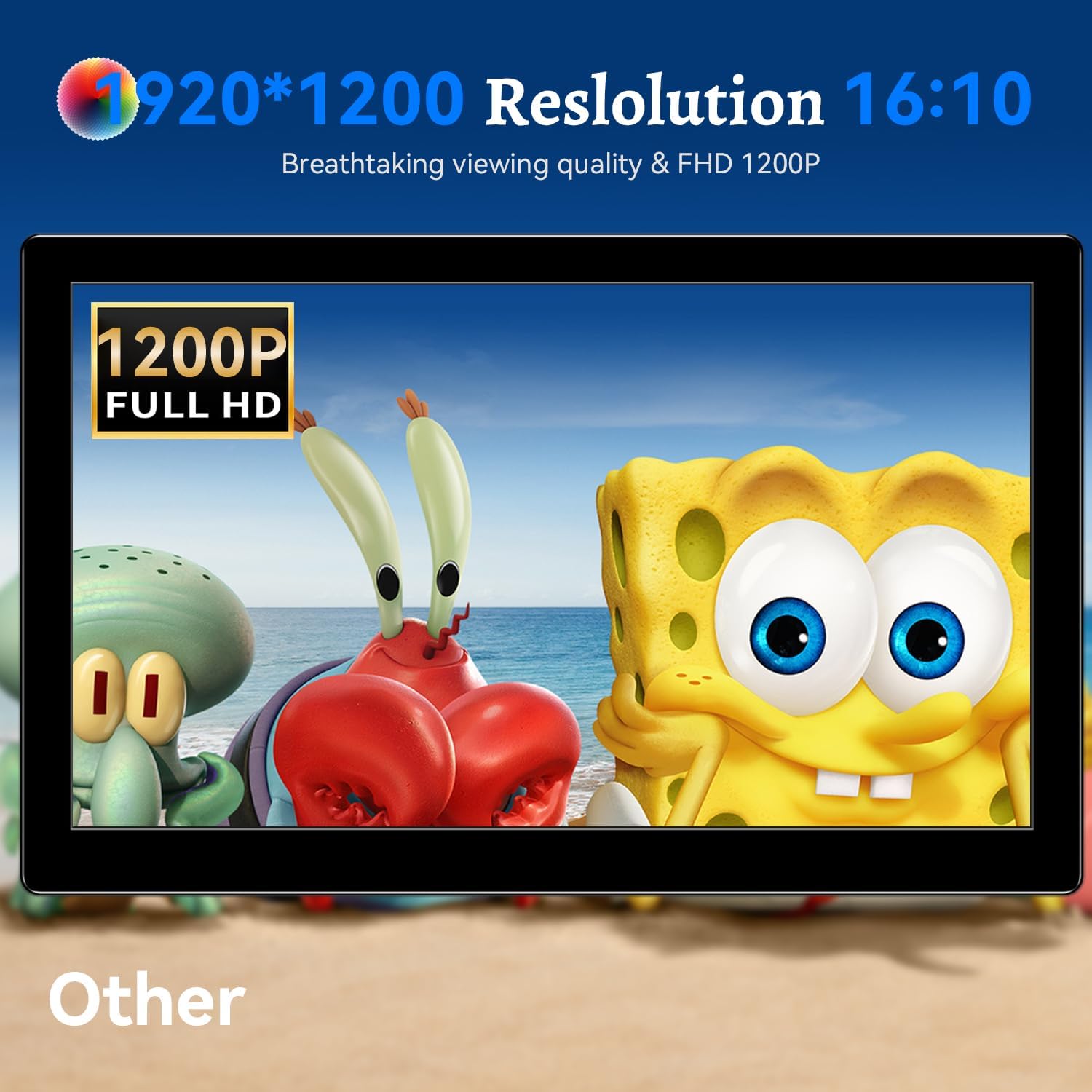
이미지: 모니터 화면asing its 1920x1200 Full HD resolution.

Image: The monitor's IPS panel offering wide viewing angles and rich colors.
보증 및 지원
For warranty information and technical support, please refer to the warranty card included with your product or contact Prechen customer service through their official website. Please have your model number (HD-101) and purchase details ready when contacting support.