
1. 서론
The Foscam FNA108HE is an 8-channel Network Video Recorder (NVR) designed for surveillance systems. It supports up to 8 PoE (Power over Ethernet) IP cameras, allowing for simplified installation with power and data transmission over a single Ethernet cable. This NVR records video at up to 8MP resolution per channel and utilizes H.264+ video compression for efficient storage. It offers continuous, motion-detection, and scheduled recording options, and supports a hard drive up to 16TB (not included) for extensive storage. View and manage your surveillance system locally via HDMI/VGA monitor or remotely through a web 인터페이스.
2. 패키지 내용
- Foscam FNA108HE 8-Channel PoE NVR
- 전원 어댑터
- USB 마우스
- 이더넷 케이블
- 빠른 시작 가이드
- HDD 장착용 나사 (하드 디스크 드라이브는 포함되지 않음)
3. 제품 오버view
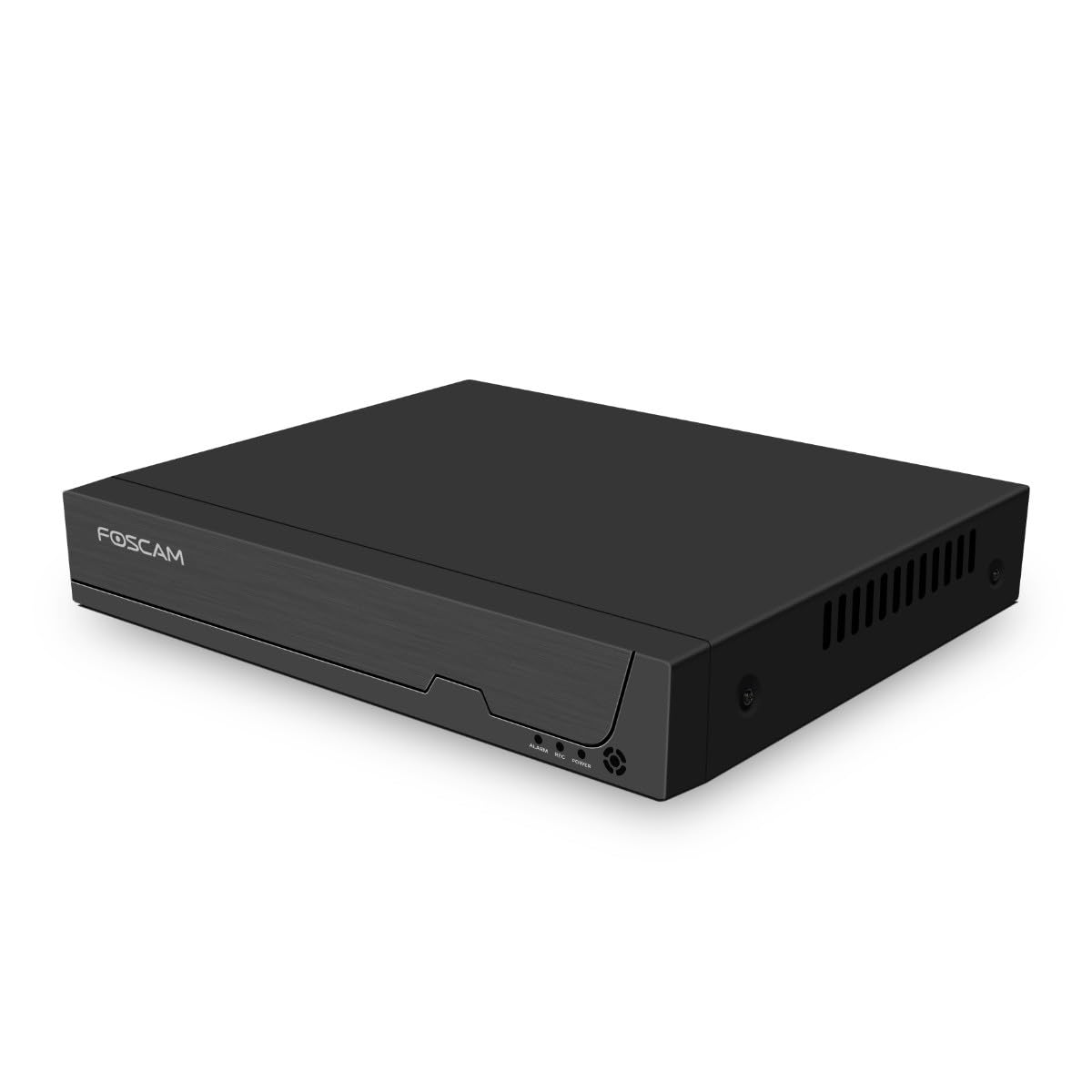
그림 3.1: 전면 패널
This image shows the front of the Foscam FNA108HE NVR, featuring the Foscam logo on the left and indicator lights (ALARM, REC, POWER) on the right, along with a navigation button.

그림 3.2: 각도 View
An angled perspective of the Foscam FNA108HE NVR, highlighting its compact design and the Foscam branding.

그림 3.3 : 후면 패널
This image displays the rear panel of the Foscam FNA108HE NVR, showing various ports including the power switch, DC 48V power input, 8 PoE ports, LAN port, A-OUT (audio output), VGA port, HD-OUT (HDMI port), and two USB ports.
3.1 전면 패널 표시등
- 힘: Indicates the NVR is powered on.
- REC : Flashes when video is being recorded.
- 경보: Illuminates when an alarm event (e.g., motion detection) is triggered.
3.2 후면 패널 포트
- 온 / 오프 스위치: Powers the NVR on or off.
- DC 48V : Power input for the NVR.
- PoE 포트(1-8): Connect PoE IP cameras. These ports provide both power and data.
- LAN 포트: Connects the NVR to your local network/router for internet access and remote view주고받음.
- A-OUT (오디오 출력): Connects to an external speaker for audio output.
- VGA 포트: Connects to a VGA monitor for local display.
- HD-OUT (HDMI Port): Connects to an HDMI monitor or TV for local display.
- USB 포트(x2): Connect a USB mouse for local control and for USB backup devices.
4. 설정
4.1 Hard Drive Installation (Optional, HDD not included)
For video recording, a 3.5-inch SATA hard drive is required. Ensure the NVR is powered off before installation.
- NVR 상단 커버의 나사를 풀어 제거합니다.
- Connect the SATA data and power cables from the NVR to the hard drive.
- 제공된 나사를 사용하여 하드 드라이브를 NVR 섀시에 고정하십시오.
- 윗 덮개를 다시 덮고 나사로 고정합니다.
4.2 하드웨어 연결
- Connect your PoE IP cameras to the PoE ports (1-8) on the NVR's rear panel using Ethernet cables.
- Connect a monitor to the NVR's HD-OUT (HDMI) or VGA port.
- USB 마우스를 NVR의 USB 포트 중 하나에 연결하세요.
- NVR의 LAN 포트를 이더넷 케이블을 사용하여 라우터 또는 네트워크 스위치에 연결하십시오.
- Connect the power adapter to the DC 48V input on the NVR and then plug it into a power outlet.
- Press the ON/OFF switch to power on the NVR.
5. 운영
5.1 초기 설정 및 접근
Upon first boot, the NVR will guide you through an initial setup wizard (password creation, network settings, etc.). You can access the NVR interface locally via the connected monitor and mouse, or remotely via a web 동일한 네트워크에 연결된 컴퓨터의 브라우저.
5.2 라이브 View
After logging in, the NVR will display the live video feeds from connected cameras. You can switch between single-camera view, 멀티 카메라 그리드 view또한 디스플레이 레이아웃을 사용자 지정할 수 있습니다.
5.3 녹음 모드
The NVR supports the following recording modes:
- 연속 녹화 : 24시간 내내 중단 없이 녹화합니다.
- 모션 감지 녹화: 카메라가 움직임이 감지될 때만 녹화합니다.
- 예약 녹화 : Records according to a predefined schedule (e.g., specific hours of the day).
Configure these settings in the NVR's menu under 'Record' or 'Schedule'.
5.4 재생
다시view 기록된 footage:
- Access the 'Playback' menu on the NVR interface.
- 원하는 카메라와 날짜/시간 범위를 선택하세요.
- Use the timeline to navigate through recordings and play back events.
5.5 원격 접속
NVR에 원격으로 액세스하려면:
- NVR이 인터넷에 연결되어 있는지 확인하세요.
- Configure network settings (e.g., port forwarding) on your router if necessary, or use Foscam's cloud service/P2P feature if available.
- Use the Foscam web interface or mobile application to view live feeds and manage settings from anywhere.
6. 유지관리
6.1 하드 드라이브 관리
Regularly check the status of your hard drive in the NVR's storage settings. If the hard drive is new or has issues, it may need to be formatted through the NVR interface. Ensure sufficient free space for continuous recording.
6.2 펌웨어 업데이트
Periodically check the Foscam official website for firmware updates. Keeping your NVR's firmware updated ensures optimal performance, security, and access to new features. Follow the instructions provided with the firmware update carefully.
7. 문제 해결
- 영상이 표시되지 않음: Check HDMI/VGA cable connections, ensure monitor is on and set to correct input. Verify NVR is powered on.
- 카메라 영상이 표시되지 않음: Ensure cameras are properly connected to PoE ports. Check camera power and network status. Verify camera IP addresses are within the NVR's range.
- 녹음 안함: Confirm a hard drive is installed and formatted. Check recording schedules and motion detection settings. Ensure HDD has free space.
- 원격 액세스 문제: Verify NVR has internet access. Check network settings, port forwarding, or P2P status. Ensure correct login credentials.
- NVR Not Powering On: Check power adapter connection and power outlet. Ensure the ON/OFF switch is in the 'ON' position.
8. 사양
| 특징 | 사양 |
|---|---|
| 모델 번호 | FNA108HE |
| 상표 | 포스캠 |
| 채널 수 | 8 |
| 최대 저장 용량 | 16 TB (Hard Drive not included) |
| 비디오 압축 | H.264 + |
| 비디오 입력 유형 | PoE IP 카메라 |
| 비디오 출력 | HDMI, VGA |
| 오디오 출력 | A-OUT |
| USB 포트 | 2 |
| 연결 기술 | HDMI, USB, VGA, Ethernet (LAN, PoE) |
| 호환 장치 | Camera, Smartphone, Television |
| 품목 무게 | 880그램 |
| 예비 부품 가용성 | 1년 |
9. 보증 및 지원
This Foscam NVR (Model FNA108HE) typically comes with a manufacturer's warranty. Spare parts are available for 1 year. For detailed warranty information, technical support, or service inquiries, please refer to the official Foscam web사이트를 방문하거나 고객 지원팀에 직접 문의하세요. 보증 청구를 위해 구매 영수증을 보관하세요.