
1. 서론
Thank you for choosing the Maxfree P1S 12-inch FHD Portable Monitor. This manual provides essential information for setting up, operating, and maintaining your new portable display. Designed for versatility and portability, the P1S monitor enhances your productivity and entertainment experience across various devices.
The Maxfree P1S features a 12-inch FHD IPS panel, offering a clear and vibrant visual experience with wide viewing angles. Its lightweight and slim design, coupled with a smart cover, makes it an ideal companion for travel, remote work, or expanding your desktop workspace. Enjoy seamless connectivity with USB-C and Mini HDMI ports, supporting a wide range of devices including laptops, smartphones, gaming consoles, and more.

Image: Maxfree P1S Portable Monitor demonstrating multiple applications, such as extending a laptop display, connecting to a smartphone, and enhancing a gaming setup.
2. 패키지 내용
패키지에 모든 품목이 들어 있는지 확인하세요.
- Maxfree P1S 12-inch Portable Monitor
- Smart Protective Cover
- USB-C to USB-C Cable (Full-featured)
- 미니 HDMI-HDMI 케이블
- USB-A to USB-C 전원 케이블
- 사용 설명서 (본 문서)
3. 제품 오버view
Familiarize yourself with the ports and buttons on your Maxfree P1S portable monitor:

이미지: 상세 view of the Maxfree P1S monitor's side, highlighting two USB-C ports, one Mini HDMI port, and control buttons (Menu -, Menu +, Power).
- USB-C 포트(x2): For power and video signal transmission. One port is typically full-featured (power, video, data), while the other might be for power only or specific functions. Refer to your device's compatibility.
- 미니 HDMI 포트: HDMI 출력을 지원하는 장치에서 비디오 신호를 입력받기 위한 용도입니다.
- Menu - Button: Navigates down in the OSD menu or decreases values.
- Menu + Button: Navigates up in the OSD menu or increases values.
- 전원 버튼: Turns the monitor on/off and confirms selections in the OSD menu.
4. 설정 및 연결
The Maxfree P1S monitor offers flexible connectivity options. Ensure your device has the necessary ports for optimal performance.
4.1 Connecting via USB-C (Full-featured)
If your laptop, smartphone, or tablet has a full-featured USB-C port (which supports DisplayPort Alternate Mode and power delivery), you can connect the monitor with a single USB-C to USB-C cable for both power and video signal.
- Connect one end of the USB-C to USB-C cable to your device's full-featured USB-C port.
- Connect the other end to one of the USB-C ports on the Maxfree P1S monitor.
- 모니터는 자동으로 신호를 감지하고 전원을 켜야 합니다.

Image: A Maxfree P1S monitor connected to a laptop using a single USB-C cable, demonstrating a streamlined setup.
4.2 Connecting via Mini HDMI and USB-A (for power)
If your device does not have a full-featured USB-C port, or if you prefer to use HDMI, you will need two cables: one for video and one for power.
- Mini HDMI-HDMI 케이블의 한쪽 끝을 모니터의 Mini HDMI 포트에 연결합니다.
- HDMI 케이블의 다른 쪽 끝을 기기의 HDMI 포트에 연결하세요.
- Connect the USB-C end of the USB-A to USB-C power cable to a USB-C port on the monitor.
- Connect the USB-A end of the power cable to a USB-A port on your device or a compatible power adapter (5V/2A or higher, not included).
- The monitor should power on and display the signal.

Image: A Maxfree P1S monitor connected to a laptop using separate HDMI and USB-A cables for video and power, respectively.
4.3 Connecting to Gaming Consoles (Xbox, PlayStation, Switch)
The Maxfree P1S is compatible with various gaming consoles. Use the Mini HDMI to HDMI cable for video and the USB-A to USB-C power cable for power.
- Connect the Mini HDMI to HDMI cable from the monitor to your gaming console.
- Connect the USB-A to USB-C power cable from the monitor to a USB port on your console or a power adapter.
- Ensure the console is powered on and configured to output video via HDMI.

Image: The Maxfree P1S monitor set up for gaming, showcasing compatibility with Xbox, PlayStation, and Nintendo Switch consoles.
4.4 Connecting to Smartphones
For smartphones with full-featured USB-C ports, a single USB-C to USB-C cable can provide both power and video. For other phones, an adapter (not included) may be required.
- Connect your smartphone to the monitor using a full-featured USB-C to USB-C cable.
- The phone's display should mirror or extend to the monitor.
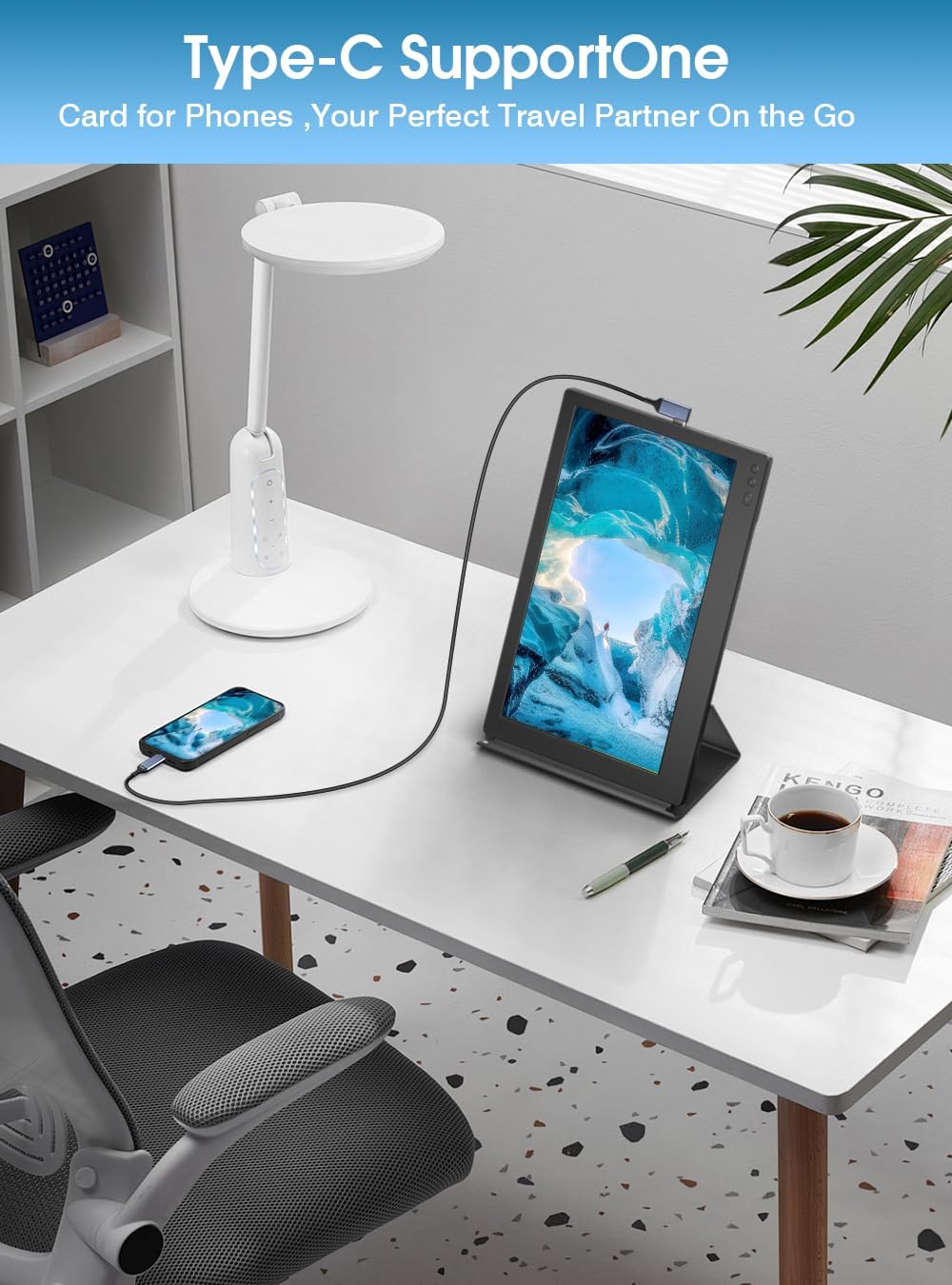
Image: A Maxfree P1S monitor connected to a smartphone via a USB-C cable, demonstrating its use as an extended display for mobile devices.
5. 사용 설명서
5.1 전원 켜기/끄기
- To power on: Press the Power button.
- 전원을 끄려면: 전원 버튼을 3초간 길게 누르세요.
5.2 디스플레이 모드 (Windows/macOS)
Once connected, you can configure the display mode on your operating system:
- 확장 모드: Allows you to have separate applications open on each screen, increasin작업 공간을 설정하세요.
- 미러 모드: 기본 화면의 콘텐츠를 휴대용 모니터에 복제하여 프레젠테이션이나 콘텐츠 공유에 이상적입니다.
- 세로 모드 : The smart cover allows the monitor to be used in portrait orientation, which can be configured in your device's display settings.

Image: The Maxfree P1S monitor used in a business setting for screen sharing, displaying charts and data alongside a laptop.

Image: The Maxfree P1S monitor positioned vertically next to a laptop, demonstrating its flexible orientation capabilities.
5.3 온스크린 디스플레이(OSD) 메뉴
Use the Menu -, Menu +, and Power buttons to navigate and adjust settings in the OSD menu.
- To enter OSD: Press the Power button briefly when the monitor is on.
- 항해: Use Menu - and Menu + to move through options.
- 선택/확인: Press the Power button to select an option or confirm a setting.
- Exit OSD: Navigate to the 'Exit' option or wait for the menu to time out.
일반적인 OSD 설정은 다음과 같습니다.
- 밝기/대비: 화면 밝기와 명암비를 조정하세요.
- 색상 설정: 색온도, 색조 및 채도를 조정하세요.
- 입력 소스: USB-C와 Mini HDMI 입력 중에서 수동으로 선택하세요.
- 블루 라이트 필터: Activate the blue light protection technology to reduce eye strain during prolonged use.
- 종횡비: 화면 비율을 조정하세요(예: 16:9).
6. 유지관리
6.1 모니터 청소
- 청소하기 전에는 반드시 모니터 전원을 끄고 모든 케이블을 분리하십시오.
- 부드럽고 보풀이 없는 천을 살짝 사용하십시오. damp물이나 비연마성 화면 세척제로 세척하세요.
- 화면이나 프레임에 액체를 직접 분사하지 마십시오.
- 알코올, 암모니아 또는 연마성 세척제는 화면 표면을 손상시킬 수 있으므로 사용하지 마십시오.
6.2 보관 및 취급
- When not in use, keep the monitor protected by its smart cover.
- 직사광선 및 극한의 온도를 피해 서늘하고 건조한 곳에 보관하세요.
- 모니터 위에 무거운 물건을 올려놓지 마세요.
- 떨어뜨리거나 충격을 주지 않도록 조심스럽게 다루십시오.
7. 문제 해결
If you encounter issues with your Maxfree P1S monitor, please refer to the following common solutions:
- 신호 없음:
- 모든 케이블이 모니터와 기기에 제대로 연결되어 있는지 확인하십시오.
- Verify that your device's output settings are configured correctly (e.g., extended or duplicate display).
- USB-C를 사용하는 경우, 장치의 USB-C 포트가 비디오 출력(DisplayPort Alternate Mode)을 지원하는지 확인하십시오.
- OSD 메뉴를 통해 입력 소스를 수동으로 선택해 보세요.
- 전원 없음:
- Ensure the power cable is connected and receiving power from a sufficient source (laptop USB port or power adapter).
- If using a single USB-C cable, ensure your device can provide enough power. Some devices may require an external power source for the monitor.
- Try a different USB-C port or power adapter.
- 화면 깜빡임 또는 불안정한 이미지:
- 케이블 연결 부분이 느슨하거나 손상되었는지 확인하세요.
- 기기의 그래픽 드라이버가 최신 버전인지 확인하십시오.
- Reduce the display resolution or refresh rate on your device if necessary.
- Incorrect Color or Brightness:
- OSD 메뉴를 통해 밝기, 대비 및 색상 설정을 조정할 수 있습니다.
- Reset display settings to factory defaults in the OSD menu.
For further assistance, please contact Maxfree customer support.
8. 사양
| 특징 | 사양 |
|---|---|
| 모델 번호 | 피1에스 |
| 화면 크기 | 12 인치 |
| 디스플레이 해상도 | 1366 x 768 (풀HD) |
| 패널 유형 | IPS |
| 새로 고침 빈도 | 60Hz |
| 응답 시간 | 1밀리초 |
| 명도 | 300니트 |
| 대비율 | 1000시 1분 |
| View잉 각도 | 178도 |
| 종횡비 | 16시 9분 |
| 화면 표면 | 광택있는 |
| 연결성 | USB Type-C 포트 2개, 미니 HDMI 포트 1개 |
| 특별 기능 | Blue Light Protection, Height Adjustment (via smart cover) |
| 치수(길이 x 너비 x 높이) | 29.3 x 18.3 x 1.3cm (대략) |
| 무게 | 0.6kg(1.3파운드) |
9. 보증 및 지원
The Maxfree P1S Portable Monitor comes with a 1년 보증 구매일로부터. 또한, 우리는 다음을 제공합니다. 30일 이내 번거로움 없는 반품 정책.
Should you encounter any issues related to connectivity, compatibility, or product quality, our dedicated customer support team is available to provide prompt and efficient technical assistance.
For warranty claims, technical support, or general inquiries, please contact Maxfree customer service through the platform where you purchased the product or visit our official web연락처 정보 사이트.