
소개
This manual provides comprehensive instructions for the setup, operation, maintenance, and troubleshooting of your Dough Spectrum One 27-inch 4K HDR 144Hz Gaming Monitor (Model ES07D03). Please read this manual thoroughly before using the product to ensure optimal performance and safety.

Image: The Dough Spectrum One 27-inch gaming monitor displaying a dynamic, colorful abstract image, highlighting its visual capabilities.
패키지 내용
패키지에 모든 품목이 들어 있는지 확인하세요.
- Dough Spectrum One 27-inch Monitor
- 전원 어댑터 및 케이블
- DisplayPort 케이블
- USB-C 케이블
- 설명서 (빠른 시작 가이드, 보증 카드)
- Note: This variant (Monitor Only) does not include a stand. A VESA-compatible monitor arm or stand is required for use.
설정
1. 모니터 장착
Since this is a "Monitor Only" variant, a VESA-compatible mounting solution (e.g., monitor arm or stand) is required. The monitor supports VESA mount standard. Attach your chosen mounting solution securely to the back of the monitor and then to your desk or wall according to the mounting solution's instructions.

Image: The Dough Spectrum One monitor displayed on a desk, connected to a laptop and a gaming console, illustrating a typical setup environment.
2. 케이블 연결하기
Connect the necessary cables to the monitor's rear ports. Refer to the image below for port locations.

이미지: 상세한 후면 모습 view of the Dough Spectrum One monitor, highlighting the array of connectivity ports including HDMI, DisplayPort, USB-C, USB-B, USB-A, and a 3.5mm audio jack.
- 힘: 전원 어댑터를 모니터에 연결한 다음 전원 콘센트에 연결하세요.
- 비디오 입력 :
- 디스플레이포트: Connect a DisplayPort cable from your computer's graphics card to the monitor's DisplayPort 1.4 input.
- HDMI : Connect an HDMI 2.1 cable from your device (PC, console) to one of the monitor's two HDMI 2.1 ports.
- USB-C (DisplayPort Alternate Mode): For compatible laptops, connect a USB-C cable to the monitor's USB-C 3.2 Gen 2 port. This single cable can transfer video, data, and up to 100W of power to your laptop.
- USB 허브: Connect the upstream USB-B cable from your computer to the monitor's USB-B port to enable the integrated USB 3.2 Gen 2 hub (two side-facing USB-A and one USB-C port).
- 오디오: For private listening, connect headphones to the 3.5mm audio jack.
작동 지침
전원 켜기/끄기
Press the power button, usually located on the bottom or rear of the monitor, to turn it on or off. The monitor will automatically enter a low-power sleep mode when no signal is detected.
입력 선택
Use the On-Screen Display (OSD) menu to select your desired video input source (DisplayPort, HDMI 1, HDMI 2, USB-C). The OSD menu is typically navigated using buttons or a joystick on the monitor's rear or bottom.
디스플레이 설정
OSD 메뉴에 접근하여 다양한 디스플레이 설정을 조정하세요.
- 밝기/대비: 이미지 밝기와 대비 수준을 조정합니다.
- 색상 설정: Fine-tune color temperature, gamma, and saturation. The monitor is factory calibrated for Delta E 0.6 average accuracy, covering 98% DCI-P3 and 100% sRGB.
- HDR: Enable or disable HDR10 support for enhanced dynamic range.
- 새로 고침 빈도: 이 모니터는 최대 144Hz의 주사율을 지원합니다. 그래픽 카드 설정이 이를 활용하도록 구성되어 있는지 확인하십시오.
- 해결: The native resolution is 3840 x 2160 (4K UHD). The monitor is designed to scale 1080p content effectively.

Image: The Dough Spectrum One monitor showcasing its vibrant display with a colorful abstract image, accompanied by text highlighting its core features: 27-inch size, 4K resolution, 144Hz refresh rate, IPS panel, USB Type-C with 100W charging, DisplayHDR 600, G-SYNC Compatible, and FreeSync Premium Pro.
적응형 동기화 기술
The monitor supports AMD FreeSync Premium Pro, NVIDIA G-Sync, and VESA Adaptive-Sync compatibility. This technology synchronizes the monitor's refresh rate with your graphics card's frame rate, reducing screen tearing and stuttering. Ensure Adaptive Sync is enabled in both the monitor's OSD and your graphics card's control panel.
게임 기능
The Spectrum One includes features designed to enhance your gaming experience:
- Pixel-Perfect Upscaling: Uses integer-ratio pixel duplication for low-resolution input signals, maintaining the crisp look of pixel art and retro games.
- Crosshair Overlay: An on-screen crosshair can be enabled via the OSD to assist aim in certain games.
- Frame Rate Counter: Displays your current frame rate on screen, allowing you to monitor system performance.
- Blur Busters Presets: Pre-tuned settings for optimal motion clarity.
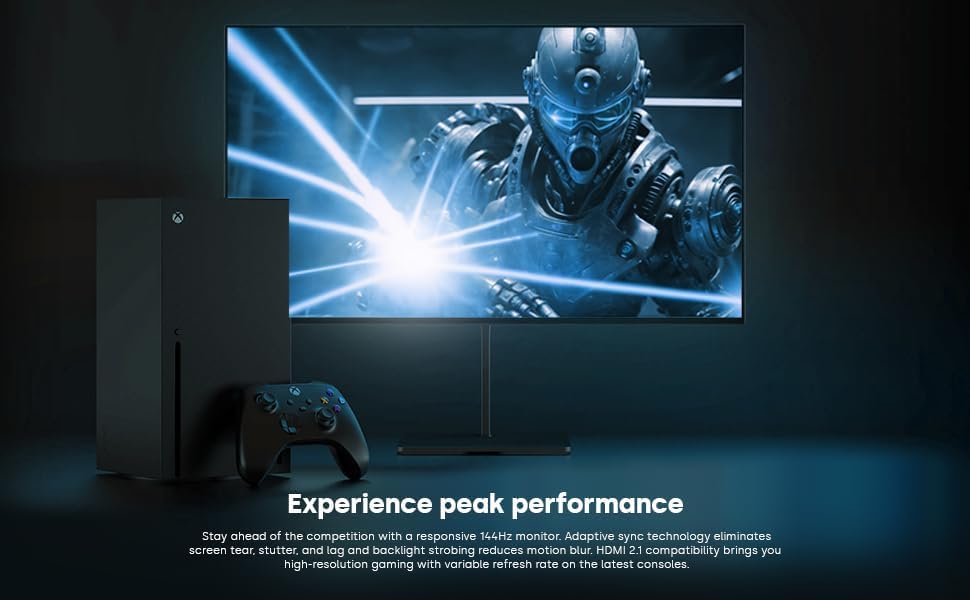
Image: The Dough Spectrum One monitor showcasing a high-fidelity game scene, positioned alongside an Xbox console and controller, demonstrating its gaming capabilities.
분할 화면 모드
The monitor can display video from two separate sources simultaneously in split screen mode. Consult the OSD menu for options to configure Picture-by-Picture (PbP) or Picture-in-Picture (PiP) modes and select input sources for each window.
Glossy Panel Characteristics
This monitor features a glossy screen surface. This finish enhances color vibrancy, contrast, and image sharpness. However, it may also be more prone to reflections in brightly lit environments. Position the monitor carefully to minimize glare from light sources.

Image: A visual comparison between a standard matte display and the glossy Dough Spectrum One monitor, both rendering an identical underwater coral scene. The glossy screen exhibits noticeably deeper blacks and more vibrant, sharp colors, illustrating the visual benefits of its unique panel finish.
유지
모니터 청소
화면을 청소하려면 부드럽고 보풀이 없는 천으로 조심스럽게 닦으세요. 잘 지워지지 않는 얼룩은 가볍게 닦아주세요.ampen the cloth with water or a non-abrasive, monitor-safe cleaning solution. Avoid using harsh chemicals or abrasive materials that could damage the screen surface. Ensure the monitor is powered off and unplugged before cleaning.
펌웨어 업데이트
Periodically check the official Dough website for available firmware updates. Firmware updates can improve performance, add features, or resolve known issues. Note: Firmware updates for this monitor typically require a Windows operating system for installation. Follow the instructions provided on the manufacturer's web업데이트를 수행할 때는 사이트를 주의 깊게 살펴보세요.
문제 해결
모니터에 문제가 발생하면 다음의 일반적인 문제와 해결 방법을 참조하세요.
- No Image/No Signal:
- Ensure all video cables (DisplayPort, HDMI, USB-C) are securely connected to both the monitor and your source device.
- 모니터의 OSD 메뉴에서 올바른 입력 소스가 선택되었는지 확인하세요.
- Check if your source device (PC, console) is powered on and outputting a signal.
- 다른 비디오 케이블이나 포트를 사용해 보세요.
- 모니터 전원이 켜지지 않습니다:
- Confirm the power cable is firmly connected to the monitor and a working power outlet.
- 전원 어댑터가 올바르게 연결되어 있는지 확인하십시오.
- 다른 장치를 연결하여 전원 콘센트가 작동하는지 확인하세요.
- Image is Dim or Incorrect Colors:
- OSD 메뉴에서 밝기, 대비 및 색상 설정을 조정하세요.
- Ensure HDR is enabled or disabled as appropriate for your content and system settings.
- Check your graphics card settings for any color profile or brightness adjustments.
- Screen Tearing or Stuttering:
- Ensure Adaptive Sync (FreeSync Premium Pro/G-Sync Compatible) is enabled in both the monitor's OSD and your graphics card's control panel.
- Verify your graphics drivers are up to date.
- Monitor Takes Long to Wake from Sleep / Black Screen on Resolution Change:
- This can sometimes occur due to firmware or driver interactions. Ensure your monitor firmware and graphics drivers are updated to the latest versions.
- 연결된 기기를 재시작해 보세요.
- 전원 공급 장치 호환성:
- Ensure the provided power supply is compatible with your region's electrical standards. If an incompatible power supply was received, contact customer support.
추가 지원이 필요하면 다음을 방문하세요. Dough official support page 또는 고객 서비스에 문의하십시오.
명세서
| 특징 | 세부 사항 |
|---|---|
| 상표 | 가루 반죽 |
| 모델 번호 | ES07D03 |
| 화면 크기 | 27 인치 |
| 해결 | 3840 x 2160 (4K UHD 2160p) |
| 새로 고침 빈도 | 144Hz |
| 응답 시간 | 1ms |
| 패널 유형 | IPS |
| HDR 지원 | HDR10, DisplayHDR 600 |
| 적응형 동기화 | AMD FreeSync Premium Pro, NVIDIA G-Sync Compatible, VESA Adaptive-Sync |
| 색상 영역 | DCI-P3 98%, sRGB 100% |
| 명도 | 450 nits (sustained), 750 nits (peak) |
| 종횡비 | 16시 9분 |
| 화면 표면 | 광택있는 |
| 비디오 입력 | 2x HDMI 2.1, 1x DisplayPort 1.4, 1x USB-C (DisplayPort Alt Mode, 100W PD) |
| USB 포트 | 1x USB-B (upstream), 2x USB-A (downstream), 1x USB-C (downstream) - Total 5 USB ports |
| 오디오 출력 | 1x 3.5mm 오디오 잭 |
| 제품 치수 | 6 x 27.5 x 17.5인치(스탠드 제외) |
| 품목 무게 | 17.81파운드(스탠드 제외) |
보증 및 지원
보증 정보
For detailed warranty information, please refer to the warranty card included in your product packaging or visit the official Dough web사이트. 보증 조건은 일반적으로 구매일로부터 특정 기간 동안 제조상의 결함에 대한 보증을 제공합니다.
고객 지원
If you require technical assistance, have questions about your product, or need to initiate a warranty claim, please contact Dough customer support through their official web이 사이트에서 추가 자료와 FAQ도 찾아보실 수 있습니다. Dough Brand Store on Amazon.