
1. 서론
Thank you for choosing the BOTSLAB 2.5K Front Dash Cam. This device is designed to provide superior video quality and enhanced safety features for your vehicle. With its 2.5K HD resolution, 170° ultra-wide angle lens, and advanced functionalities like 24/7 parking mode, built-in GPS, and driver alerts, it ensures comprehensive coverage and peace of mind on the road. This manual will guide you through the setup, operation, and maintenance of your dash cam.
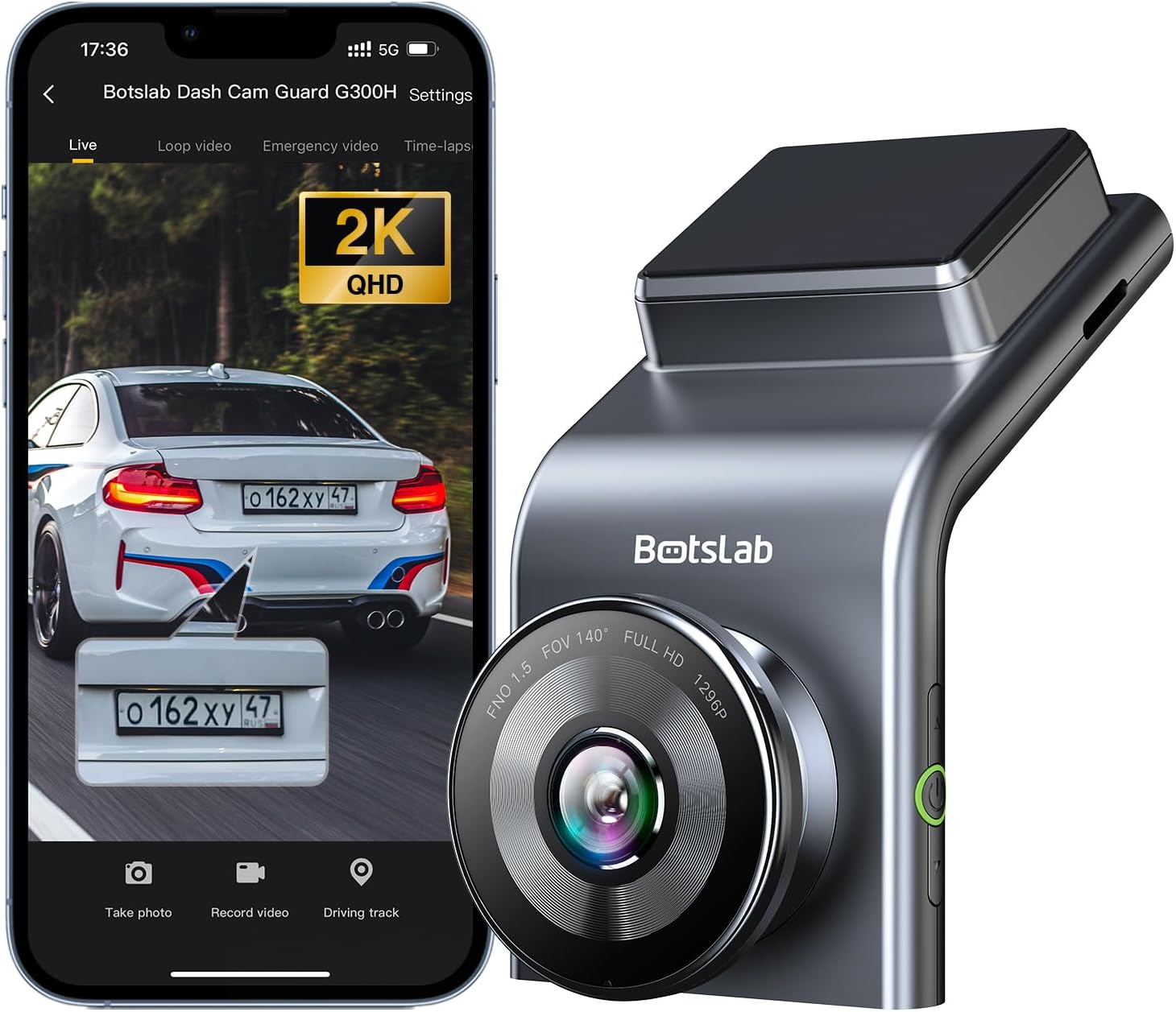
Figure 1: BOTSLAB 2.5K Front Dash Cam Overview
2. 상자 안에 무엇이 들어있나요?
모든 품목이 들어 있는지 확인하려면 패키지 내용물을 확인하세요.
- Front Camera (x1)
- 차량용 충전기(x1)
- USB Power Cord (x1)
- Installation Pry Bar (x1)
- 사용 설명서(x1)
- 정전기 방지 필름(1개)

그림 2: 패키지 내용물
3. 설정 및 설치
The BOTSLAB Dash Cam is designed for easy installation with invisible wiring, ensuring a clean and integrated look in your vehicle. Follow these steps for proper setup:
- 장착 위치 선택: 앞 유리에 방해가 되지 않는 위치를 선택하세요. view 도로의. 일반적으로 이것은 뒤쪽 뒤에 있습니다.view 거울.
- 깨끗한 앞 유리: Ensure the chosen area on the windshield is clean and dry.
- 정전기 필름 적용: Peel off the protective layer from the electrostatic film and apply it to the cleaned area on your windshield. Smooth out any air bubbles. This film allows for easy removal of the dash cam mount without leaving residue.
- Attach Dash Cam Mount: Secure the dash cam mount to the electrostatic film. Ensure it is firmly attached.
- 마운트 대시캠: Slide the dash cam onto its mount until it clicks into place.
- 전원 연결: Connect the USB power cord to the dash cam and route the cable along the edge of the windshield and dashboard to the car charger. Use the installation pry bar to tuck the cable neatly into the gaps for an invisible wiring setup.
- 차량용 충전기에 연결하세요: 차량의 시가 라이터 소켓에 차량용 충전기를 꽂습니다.
- 각도 조정: Power on the dash cam and adjust its angle to ensure the camera captures the road ahead clearly, covering the desired field of view (170° ultra-wide angle).

Figure 3: Easy Installation and Cable Management
4. 사용 설명서
4.1. 전원 켜기/끄기 및 기본 녹화
The dash cam will automatically power on and begin recording when your vehicle starts. It will power off automatically when the vehicle is turned off. Ensure a microSD card (not included, supports up to 256GB) is inserted for recording.

Figure 4: MicroSD Card Slot for Storage
4.2. 2.5K HD Video Quality and Night Vision
Experience 2.5K superior HD video quality with a 170° ultra-wide view angle that fully covers all lanes without blind spots. Coupled with clear Night Vision, you'll have full-color, high-quality videos in any lighting condition.

Figure 5: Enhanced Clarity with 2.5K Resolution
4.3. 24/7 Parking Mode
When used with the G300H dedicated hard-wired kit (ASIN: B0D3QK86TQ, sold separately), the G300H front dash cam can achieve 24/7 uninterrupted recording. Video is recorded any time there is a collision or accident. Benefit from Time-lapse Recording for uninterrupted 24-hour parking monitoring, utilizing minimal memory space. The Loop Recording feature ensures continuous recording, preserving vital clips while overwriting older videos.

그림 6: 24시간 연중무휴 주차 모니터링
4.4. Enhanced Awareness and Safety Features
Stay in sync with traffic through the Front Vehicle Start Reminder and enhance safety with Pedestrian Collision Alert. These features keep you alert to movement around you, automatically triggering notifications for a seamless and vigilant driving experience.
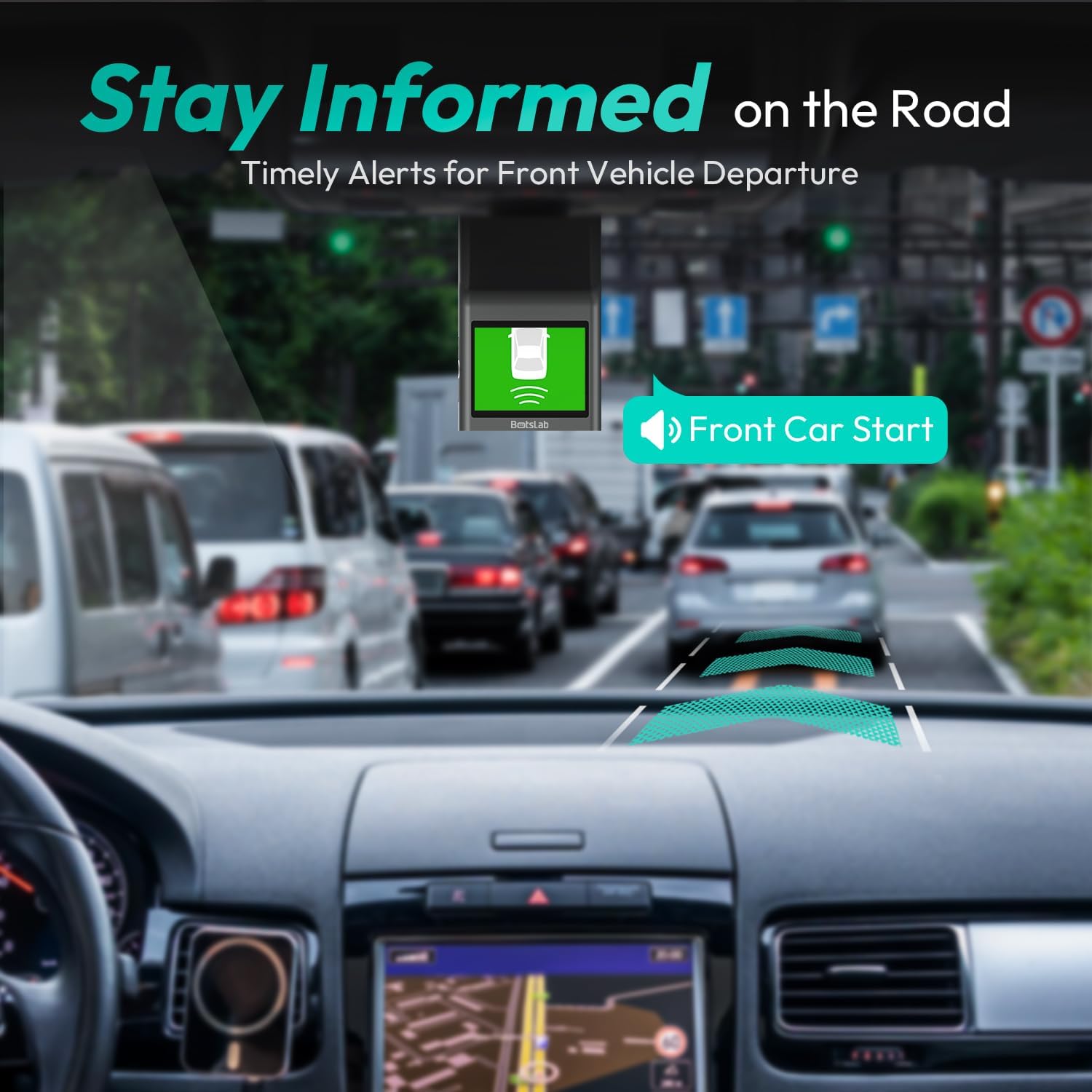
Figure 7: Front Vehicle Start Reminder

Figure 8: Pedestrian Collision Alert
4.5. GPS Integration
Built-in GPS functionality records every detail of your journey, from speed to location. View your personalized routes on Google Maps, right from your phone. It's not just about convenience; it's about keeping your travel data private and secure.

Figure 9: Precise Location Tracking with GPS
4.6. G-Sensor and Emergency Video Protection
In the event of a collision or sudden movement, the G-Sensor automatically locks videos, preventing overwriting. This feature provides the detailed evidence you need for insurance claims or traffic disputes.

Figure 10: Emergency Video Protection
5. 유지관리
To ensure the longevity and optimal performance of your BOTSLAB Dash Cam, follow these maintenance guidelines:
- 렌즈 청소: Regularly wipe the camera lens with a soft, lint-free cloth to ensure clear recordings. Avoid using abrasive cleaners.
- Check MicroSD Card: Periodically check the microSD card for errors or corruption. Format the card monthly to maintain optimal performance and prevent data loss. Back up any important footag서식을 적용하기 전에 e를 입력하세요.
- 펌웨어 업데이트: Check the BOTSLAB app or website for available firmware updates. Keeping your dash cam's firmware up-to-date ensures you have the latest features and bug fixes.
- 온도 조절: Avoid exposing the dash cam to extreme temperatures for prolonged periods. If parked in direct sunlight, consider removing the dash cam or using a sunshade.
- 안전한 장착: Ensure the dash cam remains securely mounted to prevent vibrations that could affect video quality or cause the device to fall.
6. 문제 해결
블랙박스에 문제가 발생하면 다음의 일반적인 문제 및 해결 방법을 참조하십시오.
| 문제 | 가능한 원인 | 해결책 |
|---|---|---|
| 대시캠 전원이 켜지지 않습니다. | No power supply; faulty car charger/cable. | Check car charger connection and vehicle's power outlet. Try a different USB cable or car charger. |
| 녹음이 중지되거나 footage가 손상되었습니다. | MicroSD card full, corrupted, or incompatible. | Format the microSD card regularly. Use a high-quality Class 10 or U3 microSD card. Replace the card if issues persist. |
| Wi-Fi 연결 문제. | Interference; incorrect app settings. | Ensure you are within range. Restart the dash cam and your smartphone. Reinstall the BOTSLAB app. |
| GPS not tracking location. | Poor satellite signal; dash cam not receiving GPS data. | 대시캠이 깨끗한지 확인하세요. view 하늘을 보세요. 고층 건물이나 터널에서 멀리 떨어지세요. |
| 영상 품질이 좋지 않습니다. | 렌즈가 더럽고, 보호 필름이 아직 붙어 있으며, 조명이 약한 환경입니다. | Clean the camera lens. Remove any protective film. Ensure proper lighting for optimal recording. |
추가적인 도움이 필요하시면 지원 섹션을 참조하시거나 고객 서비스 센터로 문의해 주십시오.
7. 사양
| 특징 | 세부 사항 |
|---|---|
| 제품 치수 | 0.59 x 0.98 x 2.17 인치 |
| 품목 무게 | 14.9 온스 |
| 모델 번호 | G300H |
| 연결 기술 | 2.4GHz WiFi |
| 특별 기능 | Pedestrian Collision Alert, Built-In GPS, 24/7 Parking Monitoring |
| 비디오 캡처 해상도 | 2.5K |
| 색상 | 연한 파란색 |
| 제조업체 | 360 스마트 네트워크 |
| 첫 번째 이용 가능 날짜 | 23년 2023월 XNUMX일 |
| 정위 | 앞쪽 |
| 차량 서비스 유형 | 버스, 자동차, 트럭 |
| 장착 유형 | 윈드 실드 마운트 |
8. 보증 및 지원
BOTSLAB is committed to providing high-quality AI-Vision security products and excellent customer service. Your dash cam comes with comprehensive support to ensure your satisfaction.
8.1. 보증 정보
The BOTSLAB Dash Cam G300H includes a 365-Day Quality Guarantee. For detailed terms and conditions, please refer to the official warranty documentation or contact customer support.
8.2. 기술 지원
우리는 제공합니다 평생 기술 지원 for your product. If you encounter any issues or have questions, please utilize the following support channels:
- 라이브 채팅: Download the Botslab APP, register and sign in, then navigate to 'Me' > 'Support' > 'Live Chat' for 24-hour assistance.
- 공식적인 Web대지: 방문하다 글로벌봇랩닷컴 제품 정보, FAQ, 지원 리소스를 확인하세요.
- 이메일 지원: 문의 사항은 다음 주소로 보내주세요. Service@botslab.com. We aim for 48 Hours Fast Support.
- 사용자 커뮤니티: Join the Botslab Users Group for peer support and discussions.


Figure 11: BOTSLAB Support and Care Information
For a complete digital version of this manual, you can access the 사용 설명서 (PDF).