
소개
This manual provides detailed instructions for the installation, operation, maintenance, and troubleshooting of your wisecoco 12.6 Inch Bar LCD Screen HDMI Display Monitor. This monitor is specifically designed to integrate seamlessly with the Hyte Y60 PC case, serving as an excellent secondary display for monitoring system performance, displaying custom visuals, or extending your desktop.

Figure 1: The 12.6-inch bar LCD screen displaying real-time system performance data.
설정 및 설치
The wisecoco 12.6 Inch Bar LCD Screen is designed for easy installation, particularly within the Hyte Y60 PC case. The package includes all necessary components for a straightforward setup.
패키지 내용
설치를 시작하기 전에 패키지에 모든 품목이 들어 있는지 확인하세요.
- 12.6-inch Bar LCD Screen
- 3.5mm DC Power Cable
- HDMI-미니 HDMI 케이블
- 십자 드라이버

Figure 2: Included accessories: DC power cable, HDMI to Mini HDMI cable, and a screwdriver.
Installation Steps (for Hyte Y60 PC Case)
- PC 케이스 준비: Ensure your Hyte Y60 PC case is powered off and unplugged. Carefully remove the side panel where the monitor will be installed.
- Mount the Screen: The screen features a bracket specifically designed to fit the Y60 case panel. Align the screen with the designated slot on the case. Use the provided screwdriver to secure the screen in place. No additional screws are typically required.
- 비디오 케이블 연결: Connect one end of the HDMI to Mini HDMI cable to the Mini HDMI port on the monitor. Connect the other end to an available HDMI port on your graphics card (GPU) or motherboard.
- 전원 케이블 연결:
- Connect the 3.5mm DC power cable to the DC 3.5mm port on the monitor. The other end of this cable typically connects to a power source within your PC.
- Alternatively, the screen can be powered via a Micro USB A cable (not included). If using Micro USB A, ensure the input is 5V500mA. If using the DC cable, the input should be 5V2A.
- 케이블 관리 : Route the cables neatly within your PC case to avoid interference with fans or other components.
- 전원 켜기: Once all connections are secure, replace the PC case panel, plug in your PC, and power it on. The monitor should be detected as a secondary display.

Figure 3: Visual guide for installing the secondary monitor into the Hyte Y60 PC case.

Figure 4: The monitor seamlessly integrated into a Hyte Y60 PC case, displaying custom visuals.

Figure 5: Dimensions and port layout of the 12.6-inch bar LCD screen.
작동 지침
The wisecoco 12.6 Inch Bar LCD Screen functions as a standard secondary display, compatible with PCs and laptops. It offers versatile display options and user-friendly controls.
디스플레이 기능
- 해결: 1920x515 IPS panel for clear and vibrant visuals.
- 응답 시간: 3-5ms for smooth motion.
- View각도: 178° 폭 view촬영 각도는 다양한 시점에서 일관된 이미지 품질을 보장합니다.
- 새로 고침 빈도: 60Hz standard refresh rate.
- 대비율: 진한 검정색과 밝은 흰색은 1000:1로 표현합니다.
- 내장 스피커: Integrated dual speakers provide audio output.

Figure 6: The monitor features a 178° full viewing angle and IPS technology for superior image quality.
Figure 7: The Wisecoco monitor includes built-in speakers for convenience.
디스플레이 모드
The monitor supports both landscape and portrait modes, allowing for flexible integration into your setup. You can adjust the display orientation through your operating system's display settings.

Figure 8: The monitor supports both portrait and landscape display orientations.
화면 표시(OSD) 컨트롤
The monitor features physical buttons on the back for accessing the OSD menu and controlling basic functions:
- 원천: Switches between available video inputs (e.g., Mini HDMI 1, Mini HDMI 2).
- 볼륨 +/- : Adjusts the audio output level of the built-in speakers.
- 메뉴: Accesses the OSD menu for advanced settings (brightness, contrast, color, etc.).
- 힘: 모니터를 켜거나 끕니다.
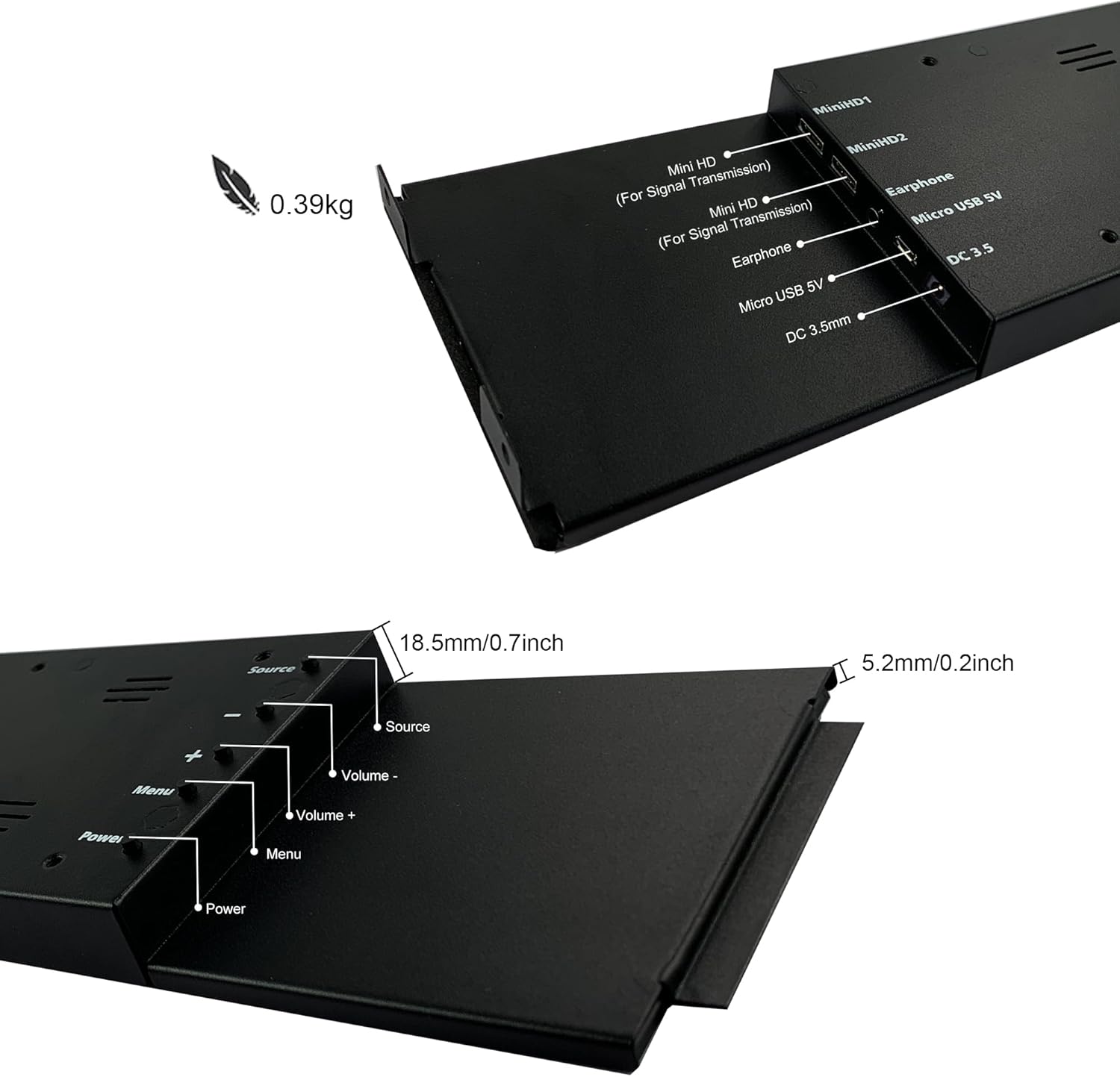
Figure 9: Location of control buttons and ports on the side of the monitor.
유지
적절한 유지관리는 모니터의 수명과 최적의 성능을 보장합니다.
- 화면 청소: 전자제품 전용으로 제작된 부드럽고 보풀 없는 천을 사용하세요. 잘 지워지지 않는 얼룩은 가볍게 두드려 닦아주세요.amp물이나 화면 세척액을 천에 적셔 사용하십시오. 강한 화학 물질, 연마재 또는 액체를 화면에 직접 분사하는 것은 피하십시오.
- 일반 청소: 모니터의 c를 닦으세요asin부드럽고 마른 천으로 닦으세요.
- 통풍: 과열을 방지하려면 모니터의 통풍구가 막히지 않았는지 확인하세요.
- 환경 조건: 모니터를 극한 온도, 높은 습도 또는 직사광선에 노출시키지 마십시오.
- 사용하지 않을 때 전원 끄기: 장시간 사용하지 않을 경우 모니터 전원을 끄는 것이 좋습니다.
문제 해결
If you encounter issues with your wisecoco monitor, refer to the following common problems and solutions:
| 문제 | 가능한 원인 | 해결책 |
|---|---|---|
| 디스플레이 없음 / "신호 없음" 메시지 |
|
|
| Screen flashes red, blue, or green when PC sleeps | Specific display settings or driver interaction. | Access the monitor's OSD menu and navigate through settings. Sometimes simply accessing and exiting the menu can resolve this. Ensure GPU drivers are updated. |
| 내장 스피커에서 소리가 나지 않습니다. |
|
|
| Half of the screen not working | Hardware defect or severe connection issue. |
|
제품 사양
Detailed technical specifications for the wisecoco 12.6 Inch Bar LCD Screen HDMI Display Monitor:
| 특징 | 사양 |
|---|---|
| 제품 치수 | 1 x 4 x 13 인치 |
| 품목 무게 | 1.74파운드 |
| 제조업체 | 와이즈코코 |
| 품목 모델 번호 | R126F01-HB |
| 스탠딩 스크린 디스플레이 크기 | 12.6 인치 |
| 종횡비 | 32시 9분 |
| 권tage | 5볼트(DC) |
| 해결 | 1920 x 515 |
| 상표 | wisecoco |
| 화면 크기 | 12.6 인치 |
| 화면 표면 설명 | 광택있는 |
보증 및 지원
Wisecoco is committed to providing high-quality products and customer satisfaction.
- 보증: 본 제품은 구입일로부터 12개월 보증이 제공됩니다.
- 돈 환불 보장: 30일 환불 보증이 제공됩니다.
- 고객 지원: 24-hour customer support is available for any inquiries or assistance.
For warranty claims, technical support, or any other questions, please contact Wisecoco customer service through the official channels provided at the point of purchase or on the Wisecoco brand web대지.

Figure 10: Wisecoco's commitment to customer satisfaction.