
WONLINK WL-NE3501
WONLINK WiFi Range Extender User Manual
모델: WL-NE3501
1. 서론
The WONLINK WiFi Range Extender is designed to expand your existing wireless network coverage, eliminate Wi-Fi dead zones, and provide a strong, stable internet connection throughout your home or office. With dual-band technology and multiple operation modes, it offers versatile solutions for various networking needs.

이미지: 앞면 view of the WONLINK WiFi Range Extender with four antennas, showing blue light indicators and the WONLINK logo.

Image: Diagram illustrating how the WiFi extender expands coverage from a router to eliminate dead zones in a house.
2. 주요 특징
- 확장된 적용 범위: Expands existing Wi-Fi coverage up to 8000 sq.ft, penetrating floors and walls to reach every corner.
- 고속 성능: Dual-band technology (5GHz up to 867Mbps & 2.4GHz up to 300Mbps) provides a total network speed of up to 1200Mbps for smooth streaming and gaming.
- 다중 작동 모드: Supports Repeater, AP, and Router modes to meet diverse networking requirements.
- 간편한 설정: Features WPS function for quick setup (within 30 seconds) and web browser configuration for detailed settings.
- 광범위한 호환성: Compatible with any standard router, access point, and supports up to 35 devices simultaneously.
- 강화된 보안: Supports WEP/WPA/WPA2 wireless security protocols to protect your network and data.
- 효율적인 열 발산: Designed with double-sided cooling holes to ensure stable operation and extend product lifespan.

Image: Graphic illustrating the high performance dual-band WiFi, showing 5.8GHz up to 867Mbps and 2.4GHz up to 300Mbps.

이미지: 투명 view of the WiFi extender, highlighting its powerful internal chip and multi-function capabilities.

Image: Visual representation of various devices (laptops, smartphones, tablets, game consoles, smart appliances) connected to the WiFi extender, emphasizing stable signal transmission.
3. 패키지 내용
다음 품목이 패키지에 포함되어 있는지 확인하세요.
- 1x WONLINK WiFi Extender Booster
- 1x 사용자 설명서
- 1x RJ45 Networking Cable
4. 설정 가이드
4.1. 전원 켜기
Plug the WiFi Extender into a power outlet. Wait for the power indicator light to turn solid blue, indicating it is ready for setup.
4.2. WPS(Wi-Fi Protected Setup) 방식
This is the quickest way to set up your extender if your router supports WPS.
- Plug the WONLINK WiFi Extender into a power outlet near your main router.
- 확장기의 전원 표시등이 안정될 때까지 기다리세요.
- 메인 라우터의 WPS 버튼을 누르세요.
- Within 2 minutes, press the WPS button on the WONLINK WiFi Extender.
- The extender's signal indicator light will flash and then turn solid blue, indicating a successful connection.
- You can now unplug the extender and move it to a location between your router and the Wi-Fi dead zone. Ensure the signal indicator remains solid blue for optimal performance.
4.3. Web Browser Setup Method
Use this method if your router does not have a WPS button or for more advanced configuration.
- Plug the WONLINK WiFi Extender into a power outlet.
- On your computer or smartphone, connect to the extender's default Wi-Fi network (e.g., "WONLINK_Extender" or similar, usually found on a sticker on the device). No password is required initially.
- 열기 web browser (e.g., Chrome, Firefox, Safari) and enter
192.168.10.1주소창에. - Log in using the default username and password (usually "admin" for both, check the device sticker or user manual for specifics).
- Follow the on-screen instructions to select your desired operation mode (Repeater, AP, or Router) and configure the network settings. For Repeater mode, select your home Wi-Fi network and enter its password.
- 설정이 완료되면 확장기가 재시작됩니다. 기기를 새롭게 확장된 Wi-Fi 네트워크에 다시 연결하세요.
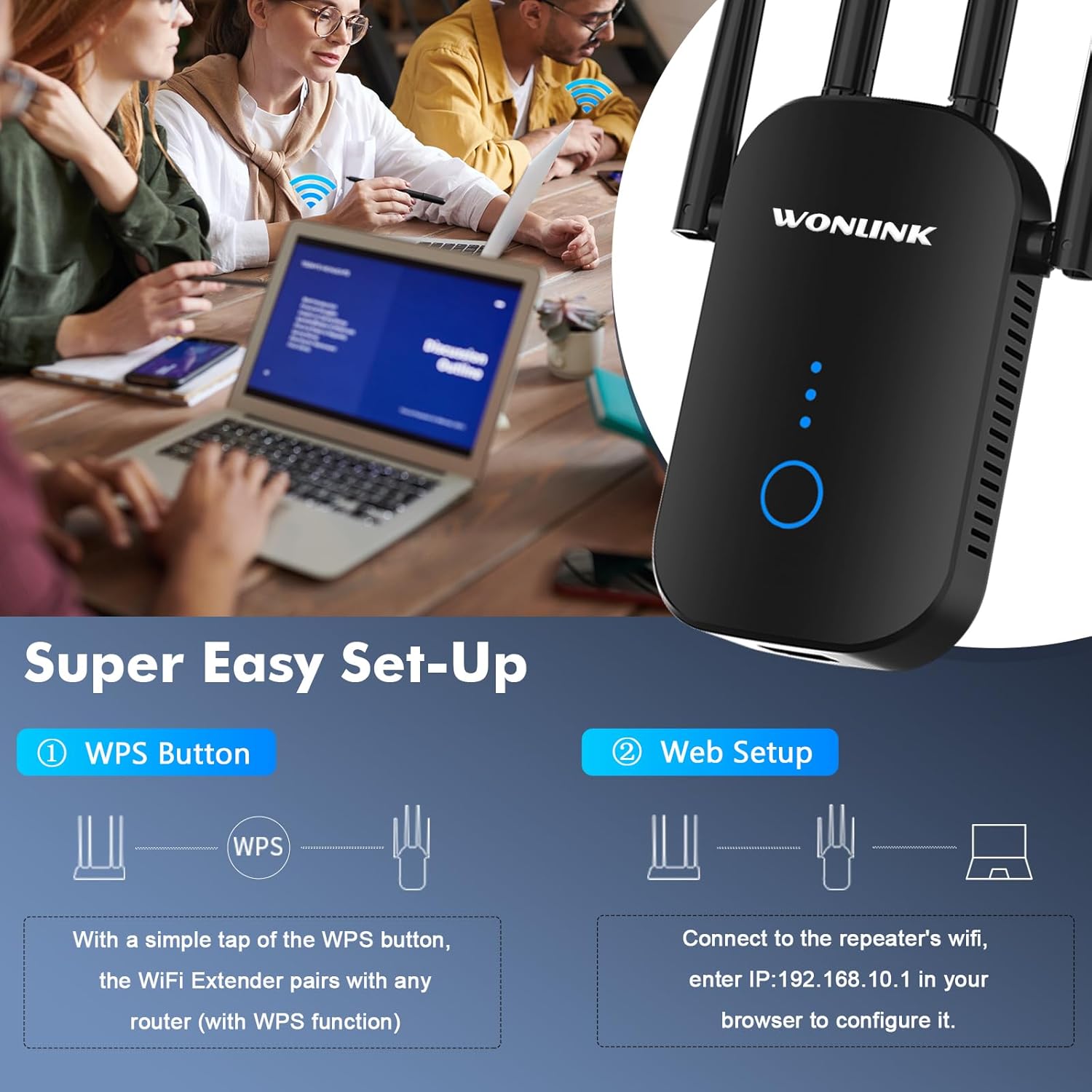
Image: Visual guide for the two easy setup methods: WPS button pairing and web browser configuration via IP address.
5. 작동 모드
The WONLINK WiFi Range Extender supports multiple operation modes to suit different networking environments.
5.1. 리피터 모드
Extends the existing Wi-Fi coverage of your main router to a larger area, eliminating dead zones. This is the most common mode for home users.
- Connects wirelessly to your existing router.
- Broadcasts the extended Wi-Fi signal.
5.2. 라우터 모드
Functions as a standalone wireless router, creating a new private network. Ideal for situations where you only have a modem and need a Wi-Fi network.
- Connects to a modem via an Ethernet cable.
- Creates a new Wi-Fi network for your devices.
5.3. AP(액세스 포인트) 모드
Converts a wired internet connection into a wireless network. Useful for adding Wi-Fi capability to a wired-only network or extending a wired network wirelessly.
- Connects to your existing router or network switch via an Ethernet cable.
- Broadcasts a new Wi-Fi signal.

Image: Flowchart showing the three main application modes: Repeater Mode (extending existing WiFi), Router Mode (creating a new WiFi from modem), and AP Mode (converting wired to wireless).
6. 사양
| 특징 | 설명 |
|---|---|
| 모델 번호 | WL-NE3501 |
| 무선 표준 | 802.11a/b/g/n, 802.11ac |
| 데이터 전송 속도 | Up to 1200 Mbps (867Mbps for 5GHz, 300Mbps for 2.4GHz) |
| 주파수 대역 | 듀얼 밴드(2.4GHz 및 5GHz) |
| 보안 프로토콜 | WEP, WPA, WPA2 |
| 포트 | Fast Ethernet Port |
| 치수 | 8.27 x 3.9 x 3.03 인치 |
| 품목 무게 | 5.6 온스 |
7. 유지관리 및 관리
- 놓기: For optimal performance, place the extender in a central location between your router and the area where you need improved Wi-Fi coverage. Avoid placing it near large metal objects, concrete walls, or other electronic devices that may cause interference.
- 청소: 부드럽고 마른 천을 사용하여 기기 외부를 닦으세요. 액체 세척제나 에어로졸은 사용하지 마세요.
- 통풍: 과열을 방지하려면 통풍구가 막히지 않도록 하세요.
- 펌웨어 업데이트: 정기적으로 제조업체를 확인하십시오 web최적의 성능과 보안을 보장하기 위한 펌웨어 업데이트 사이트입니다.

Image: Illustration demonstrating how the WiFi extender can make signals available everywhere in a home, showing placement in living room, bedroom, bathroom, office, and indoor garage.
8. 문제 해결
- 전원 없음: 익스텐더가 정상적으로 작동하는 콘센트에 단단히 꽂혀 있는지 확인하세요. 다른 콘센트에 연결해 보세요.
- 접근할 수 없습니다 Web 관리 페이지:
- Ensure your device is connected to the extender's Wi-Fi network (or via Ethernet cable if applicable).
- Verify that you have entered the correct IP address (
192.168.10.1)을 브라우저에서 확인하세요. - 브라우저의 캐시와 쿠키를 지우거나 다른 브라우저를 사용해 보세요.
- VPN 또는 방화벽 소프트웨어를 일시적으로 비활성화하십시오.
- Poor Signal Strength or Frequent Disconnections:
- Relocate the extender closer to your main router. The ideal location is halfway between the router and the dead zone.
- Ensure there are no major obstructions (thick walls, large metal objects) between the extender and your router/devices.
- 다른 전자 기기(전자레인지, 무선전화기 등)로 인한 간섭이 있는지 확인하십시오.
- Ensure your main router's Wi-Fi signal is strong and stable.
- Extended Network Not Visible or Not Working:
- Perform a factory reset on the extender (usually by pressing and holding the reset button for 5-10 seconds with a paperclip) and reconfigure it.
- 설정 과정에서 메인 라우터의 Wi-Fi 비밀번호를 올바르게 입력했는지 확인하십시오.
- Ensure the extender is in the correct operation mode (e.g., Repeater mode if extending an existing network).
9. 보증 및 지원
For warranty information and technical support, please refer to the official WONLINK website or contact their customer service directly. You may also find additional resources and FAQs on their support pages.
A digital version of the Instructions for Use (IFU) is available as a PDF document: 사용 설명서 (PDF)