
TouchWo JPRZB65WB
TouchWo 65" 4K Interactive Smart Board Instruction Manual
Model: JPRZB65WB
Brand: TouchWo
1. 안전 정보
Please read all safety instructions carefully before using the TouchWo 65" 4K Interactive Smart Board. Retain this manual for future reference.
일반 안전
- 기기를 비, 습기 또는 극한의 온도에 노출시키지 마세요.
- 열원 근처나 직사광선에 장치를 두지 마십시오.
- 과열을 방지하려면 장치 주변을 적절하게 환기시키십시오.
- 기기를 직접 열거나 수리하지 마십시오. 모든 정비는 자격을 갖춘 기술자에게 맡기십시오.
전기 안전
- 제공된 전원 케이블만 사용하십시오.
- 전원 콘센트가 올바르게 접지되어 있는지 확인하세요.
- 번개가 칠 때나 장기간 사용하지 않을 때에는 장치의 플러그를 뽑아두십시오.
취급 및 설치
- Due to its size and weight, the smart board requires at least two people for safe handling and installation.
- When installing on a mobile stand or wall mount, ensure all components are securely fastened according to the assembly instructions.
2. 상자 안에 무엇이 들어있나요?
Verify that all items are present and undamaged upon unboxing:
- 1 x Smart Whiteboard
- 전원선 1개
- 1 x Presenter pen
- 1 x 휴대용 스탠드
- 1 x Wifi Antenna

Video: Unboxing and initial inspection of the TouchWo Smart Board and included accessories.
3. 설정
Mobile Stand Assembly
Follow these steps to assemble the portable stand for your TouchWo Smart Board:
- Unpack all stand components and hardware.
- Attach the caster wheels to the base of the stand using the provided wrench.
- Secure the vertical support columns to the base.
- Install the horizontal mounting bracket and shelf onto the vertical columns.
- Attach the VESA mounting arms to the back of the smart board.
- Carefully lift and mount the smart board onto the stand's bracket, ensuring it locks securely into place.
Video: Detailed tutorial on assembling the mobile stand for the TouchWo Smart Board.
벽걸이 설치(옵션)
If using a wall mount, ensure the wall can support the weight of the smart board. Use appropriate hardware for your wall type. The wall mount bracket is included.

Image: Two mounting options are available: a mobile stand and a wall mounting bracket. Essential accessories are also shown.
초기 전원 켜기
Connect the power line to the smart board and a suitable power outlet. Press the power button located on the front panel to turn on the device.

Video: Demonstrates the location of the power button and various ports on the TouchWo Smart Board.
4. 사용 설명서
Dual System Operation (Android & Windows)
The TouchWo Smart Board features a dual operating system (Android 13 and Windows 10). You can switch between systems as needed for different tasks. The Android configuration includes RAM 4GB + ROM 32GB, while the Windows system features Core i5, RAM 4GB + SSD 256GB.
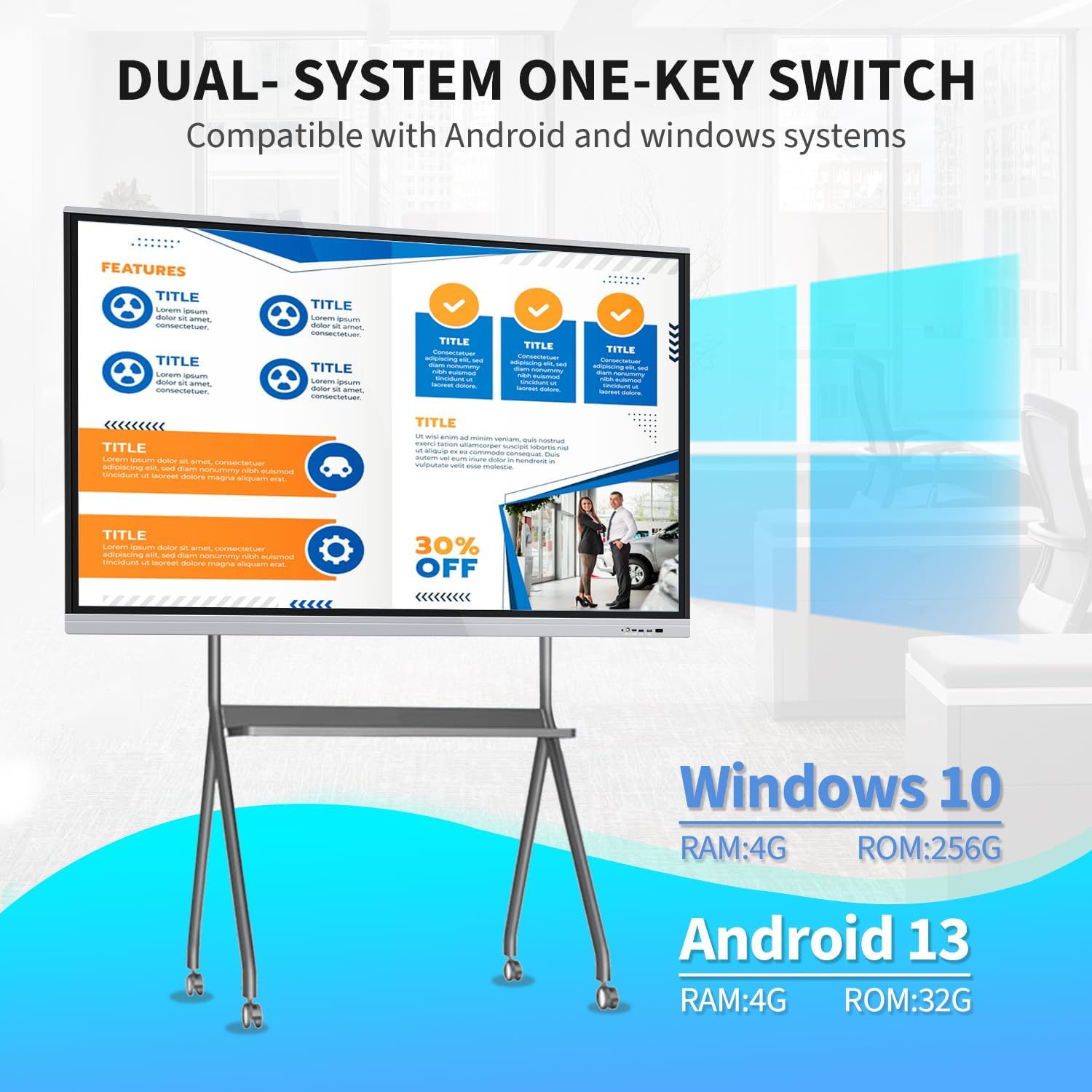
Image: Visual representation of the dual Android and Windows operating systems with their respective configurations.
20-Point Touch Screen Functionality
The 20-point touch screen allows for multiple users to interact simultaneously. Use the provided stylus or your fingers for precise input. Common gestures include single tap, double tap, press and hold, two-finger tap, and two-finger press.

Image: Visual guide to the 20-point touch technology and common touch gestures.
Video: Demonstration of the TouchWo 65-inch Smart Whiteboard's interactive functions, including writing and annotating.
Screen Mirroring & Digital Signage
The smart board supports screen mirroring from phones, laptops, or tablets. This allows for seamless content sharing during presentations or collaborative sessions. It can also function as a digital signage display, supporting both horizontal and vertical orientations for various content displays.

Image: Illustrates large screen presentation and casting from various devices.
Video: Demonstrates smartphone screen casting to the TouchWo Windows/Android AIO Smart Board.
연결성
The smart board integrates multiple interfaces including HDMI, USB, VGA, RJ45, Wi-Fi, and BT5.0. HDMI IN and USB OTG ports allow for screen casting and touch functionality with external devices.
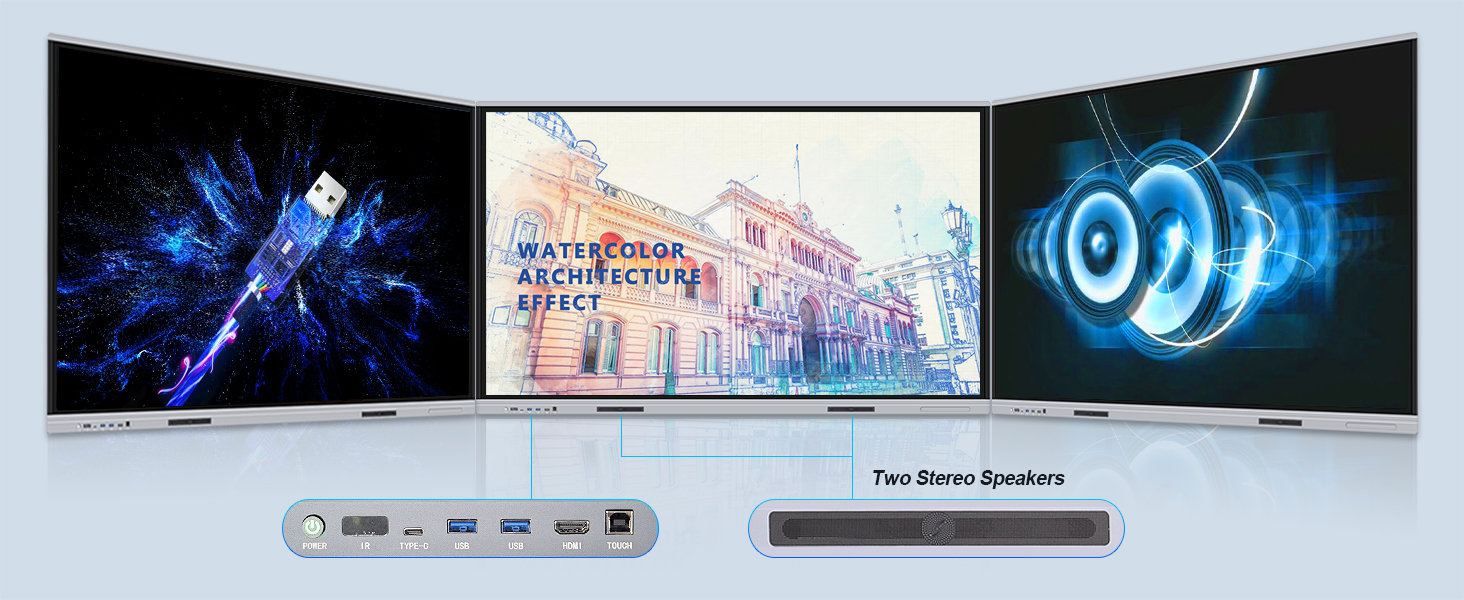
이미지: 상세 view of the smart board's connectivity ports and built-in stereo speakers.
사용 시나리오
The TouchWo Smart Board is versatile for various environments:
- 회의: Facilitate interactive presentations and collaborative brainstorming.
- 교실: Enhance learning with interactive lessons and digital whiteboarding.
- 비디오 회의: Connect an external camera and microphone for integrated video calls.
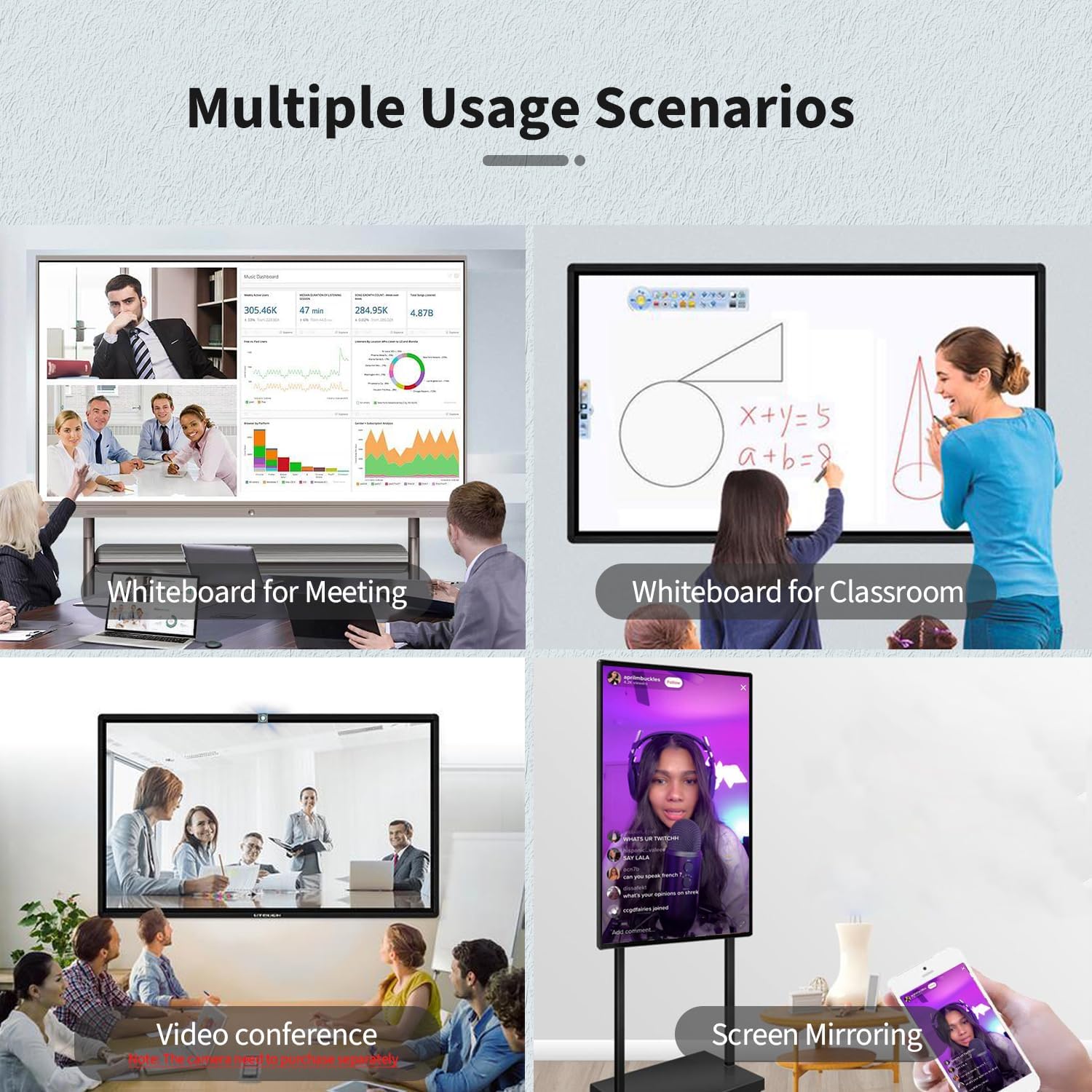
Image: Multiple usage scenarios for the smart board, including meetings, classrooms, video conferencing, and screen mirroring.
Video: Demonstrates the TouchWo Touchscreen Smart Whiteboard in a classroom setting, showing interactive learning.
5. 유지관리
화면 청소
- Always power off and unplug the smart board before cleaning.
- 부드럽고 털이 없는 천을 살짝 사용하세요.amp물이나 비연마성 화면 세척제로 세척하세요.
- Do not use harsh chemicals, alcohol, or ammonia-based cleaners, as these can damage the screen coating.
- 표면에 흠집이 생기지 않도록 살살 닦아주세요.
일반 관리
- Keep the smart board away from direct sunlight and extreme temperatures.
- 기기 위에 무거운 물건을 올려놓지 마십시오.
- Ensure cables are neatly organized to prevent tripping hazards or damage.
6. 문제 해결
If you encounter issues with your TouchWo Smart Board, refer to the following common solutions:
전원이 없습니다
- Check if the power cable is securely connected to both the smart board and the power outlet.
- 다른 기기를 콘센트에 꽂아 전원 콘센트가 제대로 작동하는지 확인하십시오.
- Verify that the power switch on the smart board is in the 'ON' position.
디스플레이 없음/검은 화면
- Confirm the smart board is powered on.
- If using an external source (e.g., laptop via HDMI), ensure the correct input source is selected on the smart board.
- Check the HDMI/VGA cable connection.
Touch Function Not Responding
- Ensure the USB touch cable is connected between the smart board and the external device (if applicable).
- Restart the smart board.
- Clean the screen surface to remove any obstructions.
화면 미러링 문제
- Ensure both the smart board and the mirroring device are connected to the same Wi-Fi network.
- Check for any firewall settings on your device that might block mirroring.
- 두 장치를 모두 다시 시작하십시오.
7. 사양
| 특징 | 세부 사항 |
|---|---|
| 상표 | 터치워 |
| 모델 번호 | JPRZB65WB |
| 화면 크기 | 65 인치 |
| 해결 | 4K UHD(3840 x 2160) |
| 종횡비 | 16시 9분 |
| 이미지 밝기 | 350 lm |
| 운영 체제 | Dual OS: Android 13 & Windows 10 (Core i5, RAM 4GB, SSD 256GB) |
| 터치 포인트 | 20 포인트 |
| 연결성 | HDMI, USB, VGA, RJ45, Wi-Fi, BT5.0 |
| 총 USB 포트 | 6 |
| 내장 스피커 | 예 |
| 제품 치수 | 3.2 x 58.5 x 35 인치 |
| 품목 무게 | 70.4파운드 |
| 권tage | 110볼트(AC) |
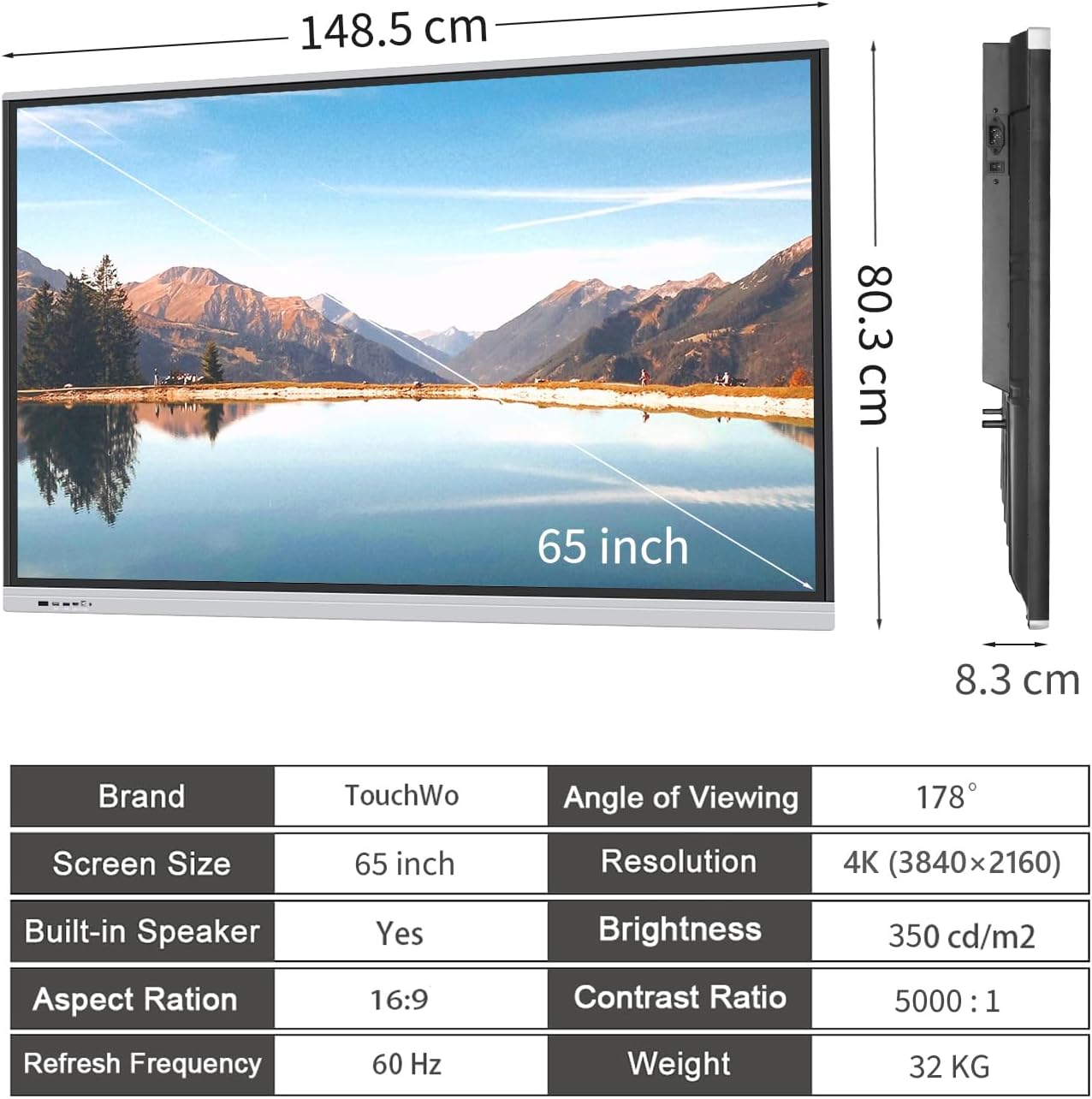
Image: Visual summary of product dimensions and technical specifications.
8. 보증 및 지원
보증 정보
For detailed warranty information, please refer to the documentation included with your product or contact TouchWo customer support.
고객 지원
If you require any assistance, have questions, or need to report an issue, please contact our customer support team:
- 공식 이메일: touchwoamz@outlook.com
- 아마존 판매자 페이지: Visit TouchWo on Amazon
저희는 모든 문의에 24시간 이내에 답변드리는 것을 목표로 하고 있습니다.

Image: TouchWo customer support contact details for assistance.
Ask a question about this manual
Ask about setup, troubleshooting, compatibility, parts, safety, or missing instructions. Manuals+ will review the question and use this page’s manual context to help answer it.