
1. 서론
This manual provides detailed instructions for the MEETION MT-M915 USB Gaming Mouse with Backlight. Please read this guide thoroughly before using the product to ensure correct installation, optimal performance, and to understand its features. This mouse is designed for gaming and general computer use, offering reliable performance and a comfortable design.
2. 패키지 내용
- MEETION MT-M915 USB Gaming Mouse
- 사용 설명서(본 문서)
3. 시스템 요구 사항
- Operating System: Windows XP, Linux
- Compatible Devices: Personal Computer, Laptop
- 사용 가능한 USB 포트
4. 설정
4.1 마우스 연결
- 컴퓨터나 노트북에서 사용 가능한 USB 포트를 찾으세요.
- Plug the USB connector of the MEETION MT-M915 mouse into the USB port.
- The operating system will automatically detect and install the necessary drivers. This is a plug-and-play device, so no additional software installation is typically required.
- The mouse backlight will illuminate upon successful connection.
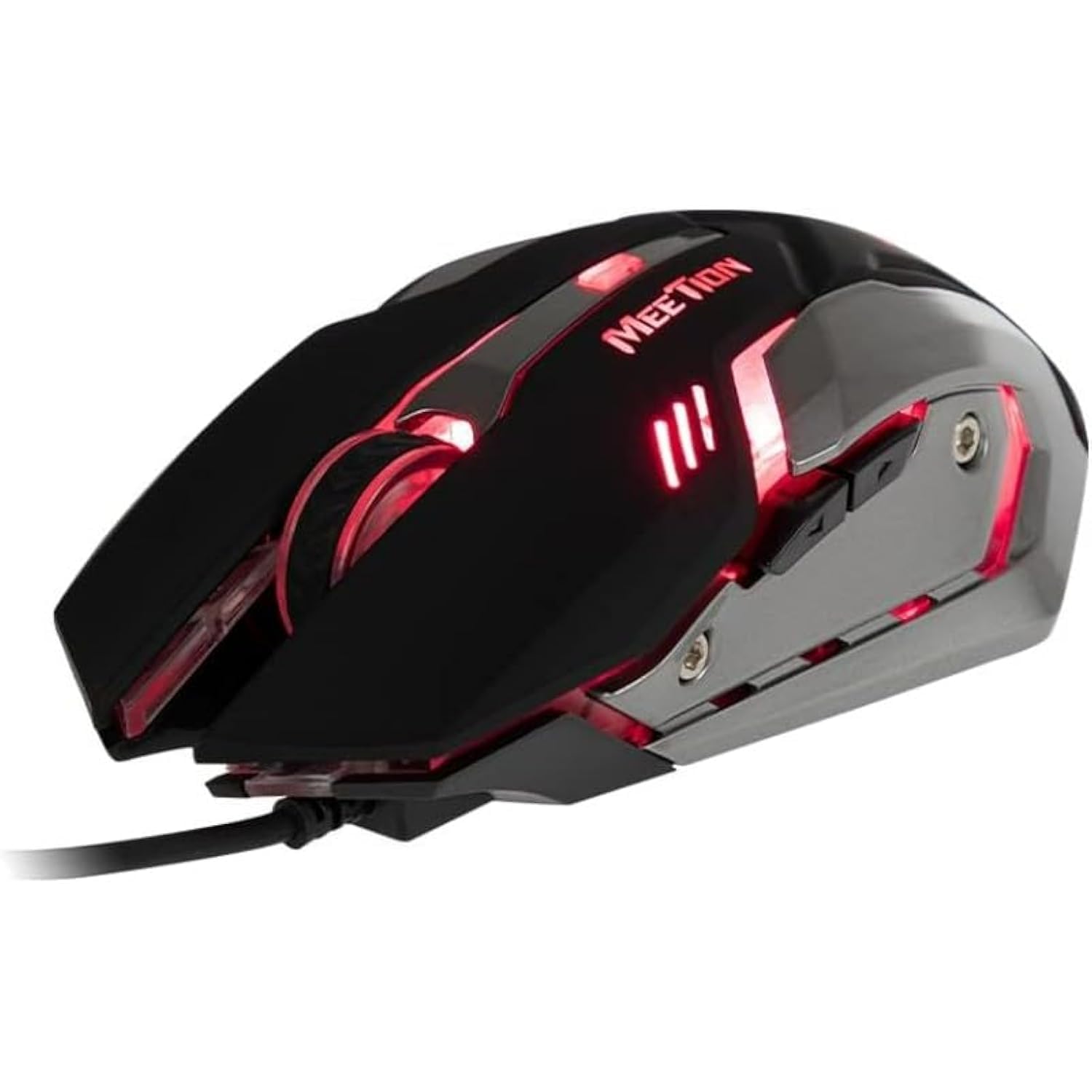
그림 1: 측면 view of the MEETION MT-M915 mouse with red backlight.
5. 마우스 작동
5.1 기본 기능
- 좌 클릭: Primary action button, typically used for selecting items, opening files, or interacting with software.
- 마우스 오른쪽 버튼으로 클릭: Secondary action button, typically used for opening context menus or accessing additional options.
- 스크롤 휠: 문서를 스크롤하는 데 사용됩니다. web 페이지를 가리킬 수도 있고, 마우스 가운데 클릭 버튼으로도 사용할 수 있습니다.
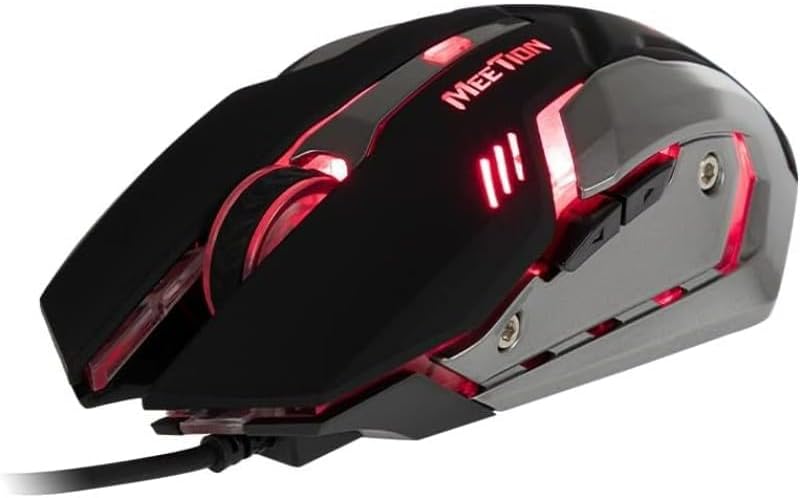
그림 2: 상향식 view of the MEETION MT-M915 mouse, showing button layout.
5.2 백라이트 작동
The MEETION MT-M915 mouse features an integrated backlight. The backlight activates automatically when the mouse is connected to a powered USB port. The color of the backlight may vary or cycle through different colors, as shown in Figure 3.

그림 3: 측면 view of the MEETION MT-M915 mouse with purple backlight.
5.3 Ambidextrous Design
The mouse is designed for ambidextrous use, meaning it can be comfortably used by both left-handed and right-handed individuals.
6. 유지관리
6.1 청소
- 청소하기 전에 마우스를 컴퓨터에서 분리하세요.
- 부드럽고 마른 천으로 마우스 표면을 닦으세요.
- 완고한 먼지에는 약간 damp천에 물이나 순한 세척액을 묻혀 닦으세요. 강한 화학 물질은 피하세요.
- 마우스에 액체가 들어가지 않도록 하십시오.asing.
6.2 보관
장기간 사용하지 않을 때는 마우스를 직사광선과 극한 온도 변화를 피해 서늘하고 건조한 곳에 보관하십시오.
7. 문제 해결
7.1 마우스가 응답하지 않음
- USB 케이블이 컴퓨터의 작동하는 USB 포트에 단단히 꽂혀 있는지 확인하세요.
- 마우스를 다른 USB 포트에 연결해 보세요.
- 컴퓨터를 다시 시작하세요.
- Test the mouse on another computer to determine if the issue is with the mouse or your computer's USB ports.
7.2 백라이트가 작동하지 않음
- 마우스가 전원이 공급되는 USB 포트에 제대로 연결되어 있는지 확인하십시오.
- If the mouse functions but the backlight does not, there might be an internal issue. Contact customer support if the mouse is still under warranty.
7.3 불규칙한 커서 움직임
- 마우스 하단에 있는 광학 센서가 깨끗하고 먼지나 이물질이 없는지 확인하십시오.
- 깨끗하고 균일한 표면에서 마우스를 사용하세요. 반사율이 높거나 투명한 표면은 피하세요.
- 컴퓨터를 다시 시작해 보세요.
8. 사양
| 특징 | 세부 사항 |
|---|---|
| 상표 | 회의 |
| 모델명 | MT-M915 |
| 제조업체 모델 번호 | CE ELECTRON-559 |
| 연결 기술 | USB |
| 움직임 감지 기술 | 광학 |
| 손의 방향 | 양손잡이 |
| 특별 기능 | 가벼움 |
| 제품의 권장 용도 | 노름 |
| 호환 장치 | 개인용 컴퓨터, 노트북 |
| 운영 체제 | 리눅스, 윈도우 XP |
| 품목 무게 | 50그램 |
| 패키지 크기 | 20.7 x 14.3 x 6.1cm |
| 배터리 포함 | 아니요 |
9. 보증 및 지원
9.1 보증 정보
This product is covered by a standard manufacturer's warranty. Please refer to the warranty card included with your purchase or contact your retailer for specific warranty terms and conditions.
9.2 고객 지원
For technical assistance, troubleshooting, or warranty claims, please contact the retailer where you purchased the product or visit the official MEETION web지원 리소스 사이트.