
1. 서론
The BINIZE Android 13 CarPlay AI Box is an advanced multimedia video box designed to enhance your in-car entertainment and connectivity. It seamlessly converts your vehicle's OEM wired CarPlay or Android Auto system into a full-fledged Android 13 operating system, offering wireless CarPlay, wireless Android Auto, and access to a wide range of streaming applications.
Equipped with an 8-core processor, 8GB RAM, and 128GB ROM, this device ensures a fast, stable, and smooth user experience. It supports various control methods, including Siri voice control, steering wheel controls, and touch screen input, integrating perfectly with your vehicle's existing interface.
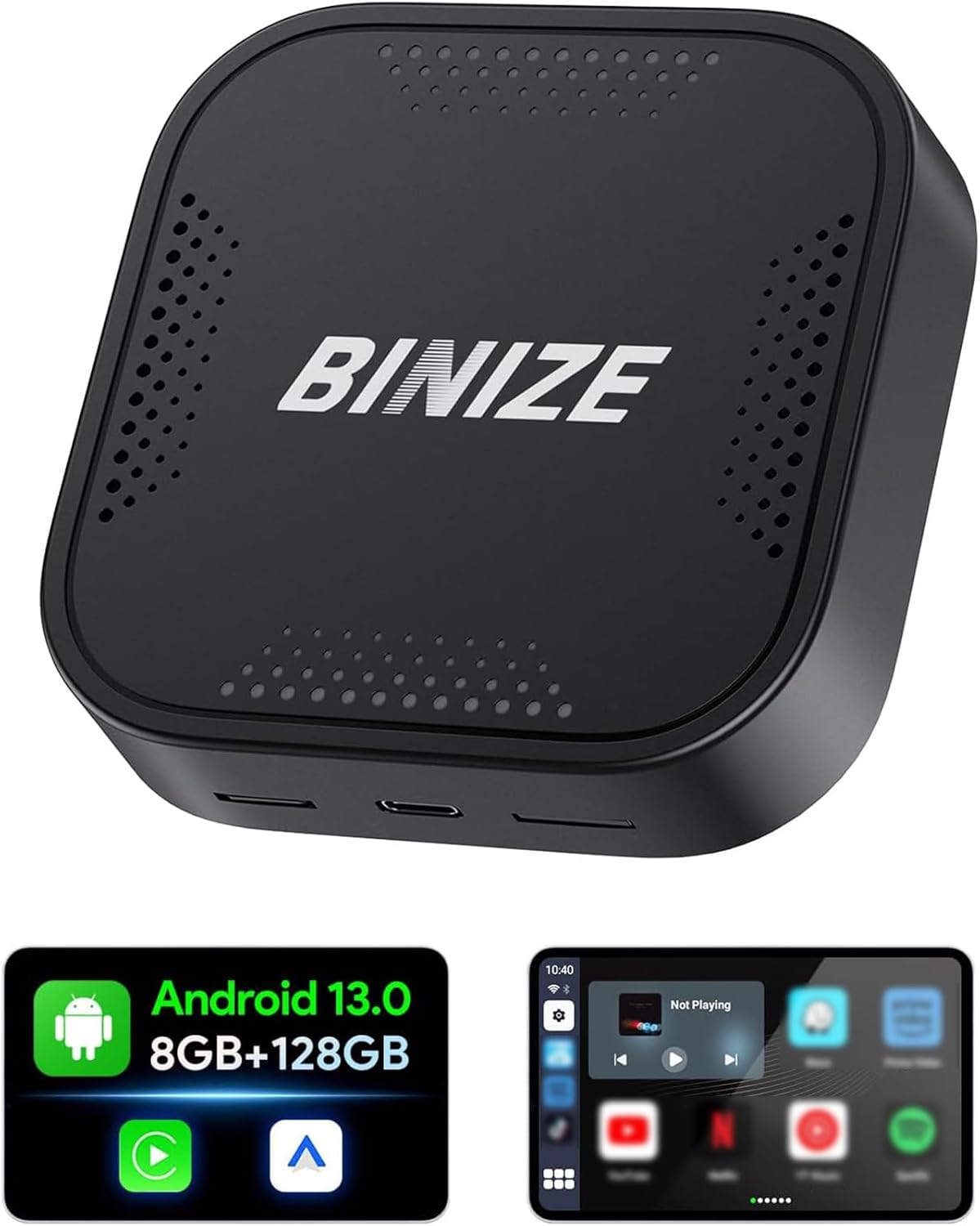
Figure 1.1: The BINIZE Android 13 CarPlay AI Box, a compact device designed to upgrade your car's infotainment system.
2. 주요 특징
- 안드로이드 13 운영체제: Experience faster speeds and broad app compatibility with the latest Android 13 OS.
- 무선 CarPlay 및 Android Auto: Convert your wired connection to wireless, reducing cable clutter and enhancing convenience.
- 고성능: Powered by a Qualcomm 8-core chip with 8GB RAM and 128GB ROM, ensuring responsive and continuous operation.
- 멀티미디어 기능: Pre-installed streaming apps like Netflix and YouTube for entertainment on the go. Supports various audio and video formats.
- 플러그 앤 플레이: Quick installation within 10 seconds, with automatic connection after initial setup.
- 듀얼 블루투스: Connect Bluetooth accessories such as mice, remotes, OBD devices, and keyboards.
- 순정 차량 제어 시스템 통합: Maintain control via Siri voice commands, steering wheel buttons, knob controls, and the original touch screen.
- 확장 가능한 스토리지: SD card slot supports expansion up to 128GB (TF Card not included).
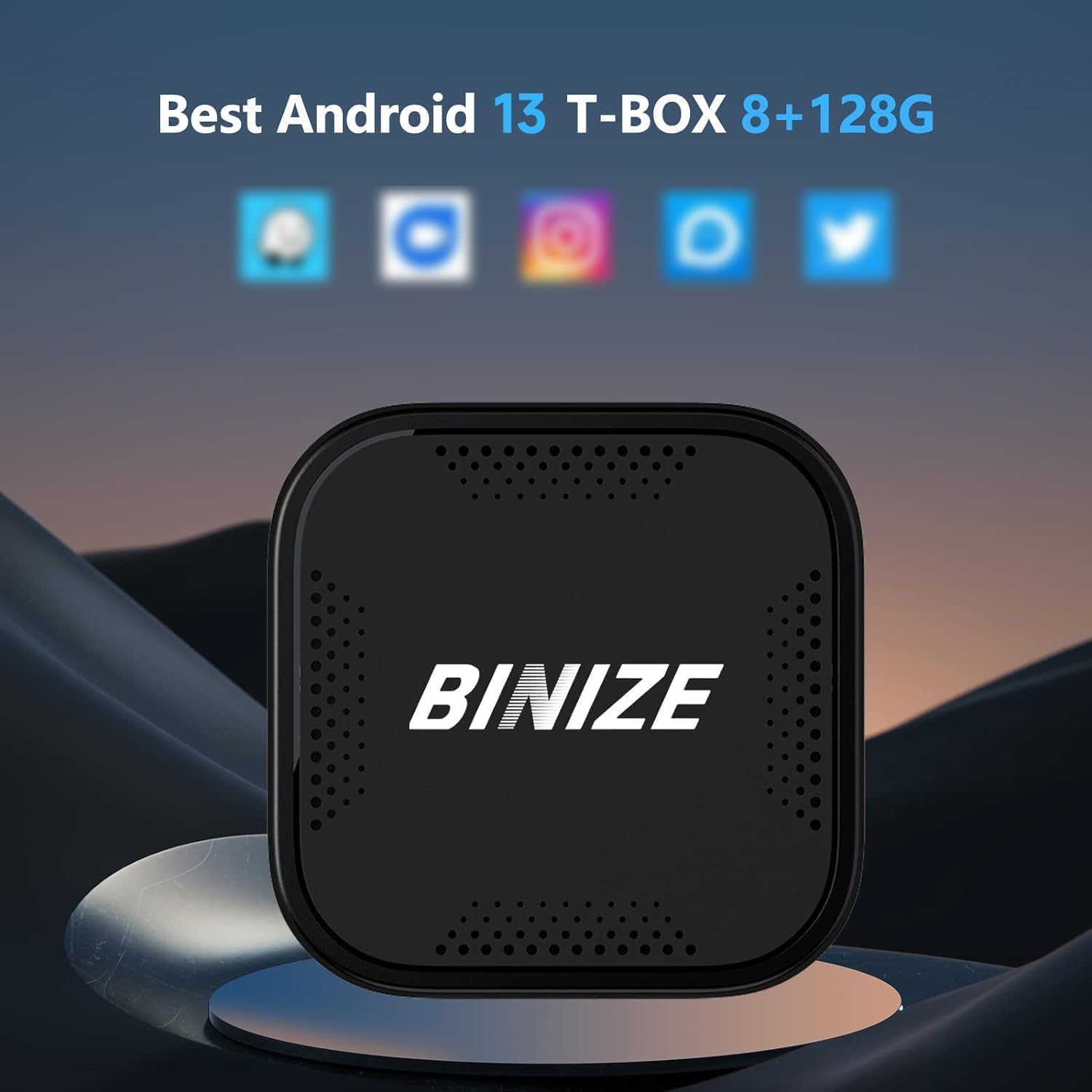
Figure 2.1: Visual representation of the Android 13 operating system with 8GB RAM and 128GB internal storage, highlighting its core specifications.

Figure 2.2: An in-car display demonstrating the seamless integration of Wireless CarPlay and Wireless Android Auto interfaces provided by the AI Box.
3. 설정 가이드
- 차량 호환성: Ensure your vehicle has OEM wired CarPlay or Android Auto functionality. The BINIZE AI Box is compatible with approximately 99% of models that support these wired connections.
- AI 박스를 연결하세요: Plug the BINIZE AI Box into your car's USB port that supports wired CarPlay/Android Auto. The package includes two USB cables (USB-A to USB-C and USB-C to USB-C) to accommodate various vehicle ports.
- Power Supply (Toyota Series Note): For Toyota series vehicles, an additional split power supply line may be necessary. This is due to the less powerful USB ports in some Toyota models, requiring additional power and data from the cigarette lighter. Ensure adequate power supply for optimal performance.
- 초기 페어링: Once connected, the AI Box will automatically boot up. Follow the on-screen prompts on your car's display to pair your smartphone wirelessly via Bluetooth and Wi-Fi for Wireless CarPlay or Android Auto.
- 자동 연결: After the first successful pairing, the AI Box will automatically connect to your phone when you start your vehicle.

Figure 3.1: Illustration of the simple Plug & Play setup, showing the AI Box connected to a car's USB port.
4. 사용 설명서
4.1 무선 CarPlay / Android Auto
- Once connected, your car's display will show the Wireless CarPlay or Android Auto interface.
- Navigate using your car's original controls: touch screen, rotary knob, or steering wheel buttons.
- Activate voice commands using Siri (for CarPlay) or Google Assistant (for Android Auto) for hands-free operation.
4.2 스트리밍 애플리케이션
- Connect the AI Box to a Wi-Fi network or your mobile hotspot to access pre-installed streaming apps like Netflix, YouTube, and more.
- Log in to your accounts within the apps to access your content.
- The device supports split-screen functionality, allowing you to run two applications simultaneously (e.g., navigation and video).

Figure 4.1: An in-car display showcasing the variety of built-in video applications available for entertainment during your journey.
4.3 듀얼 블루투스 연결
- The dual Bluetooth feature allows connection to multiple Bluetooth devices simultaneously.
- Pair Bluetooth mice, remote controls, OBD devices, or keyboards for enhanced interaction with the Android system.
5. 유지관리
To ensure the longevity and optimal performance of your BINIZE Android 13 CarPlay AI Box, follow these general maintenance guidelines:
- 깨끗하게 유지하십시오: 부드럽고 마른 천으로 기기를 정기적으로 닦아 먼지와 지문을 제거하세요. 강한 화학 물질이나 연마재는 사용하지 마세요.
- 온도 조절: Do not expose the device to extreme temperatures (hot or cold) or direct sunlight for prolonged periods, as this can affect internal components.
- 적절한 보관: When not in use for extended periods, store the device in a cool, dry place away from moisture.
- 케이블 관리: Handle USB cables carefully. Avoid bending or crimping them excessively, which can damage the internal wires.
- 소프트웨어 업데이트: 제조사 확인해보세요 website or contact support for any available software updates to ensure the device runs with the latest features and bug fixes.
6. 문제 해결
If you encounter issues with your BINIZE Android 13 CarPlay AI Box, refer to the following common troubleshooting steps:
- 전원이 켜지지 않거나 기기가 부팅되지 않음:
- USB 케이블이 AI Box와 차량의 USB 포트에 모두 단단히 연결되어 있는지 확인하세요.
- 차량의 USB 포트가 활성화되어 전원이 공급되는지 확인하십시오.
- For Toyota series vehicles, confirm that the additional split power supply line (if required) is correctly installed and providing sufficient power from the cigarette lighter.
- 무선 CarPlay/Android Auto 연결 불가:
- 휴대폰의 Bluetooth와 Wi-Fi가 활성화되어 있는지 확인하세요.
- Delete previous pairings on both your phone and the AI Box, then attempt to re-pair.
- Confirm your car's OEM system supports wired CarPlay/Android Auto.
- 렉 또는 성능 저하:
- Close unnecessary background applications on the AI Box.
- Ensure a stable Wi-Fi connection if streaming content.
- Consider clearing the cache of frequently used apps.
- 앱 설치 문제:
- Ensure the AI Box is connected to the internet.
- 사용 가능한 저장 공간을 확인하세요.
- If downloading from unofficial sources, ensure the APK file is compatible and not corrupted. Contact BINIZE support for installation file필요한 경우 s.
- 오디오 출력 없음:
- Check the volume levels on both the AI Box and your car's audio system.
- Ensure the correct audio source is selected on your car's head unit.
이러한 단계를 거쳐도 문제가 해결되지 않으면 지원 섹션을 참조하여 추가 지원을 받으세요.
7. 사양
| 특징 | 설명 |
|---|---|
| 모델 번호 | BINIZE_AVR8G128 |
| 운영 체제 | 안드로이드 13 |
| 프로세서 | Qualcomm 8-core chip |
| 숫양 | 8GB |
| 내부 저장소(ROM) | 128GB |
| 확장 가능한 스토리지 | SD card slot (up to 128GB, TF Card not included) |
| 연결 기술 | Wi-Fi (2.4G & 5G Signal Transmission), Bluetooth (Dual Bluetooth) |
| 호환 장치 | Cars with OEM Wired CarPlay/Android Auto |
| 커넥터 유형 | USB (USB-A to USB-C & USB-C to USB-C cables included) |
| 오디오 출력 모드 | 스테레오 재생 |
| 서라운드 사운드 채널 구성 | 4.0 |
| 색상 | 검은색 |
| 패키지 크기 | 10 x 4 x 4 인치 |
| 품목 무게 | 4 온스 |
| 첫 번째 이용 가능 날짜 | 8년 2023월 XNUMX일 |
8. 보증 및 지원
BINIZE is committed to providing excellent customer service and professional technical support for its products. While specific warranty details are not provided in this manual, it is recommended to:
- Check Manufacturer's Web대지: Visit the official BINIZE website or the product page on the retailer's site for the most up-to-date warranty information and terms and conditions.
- 지원팀에 문의: For technical assistance, troubleshooting beyond this manual, or warranty claims, please reach out to BINIZE customer support. Contact information can typically be found on the product packaging or the official BINIZE web대지.
- 온라인 리소스: Additional resources, including FAQs and software updates, may be available on the BINIZE brand store: BINIZE Store on Amazon.