
1. 설정
1.1 언박싱 및 초기 설정
Carefully remove the TouchWo 65-inch Smart Board from its packaging. Ensure all components listed below are present.
상자 안에 무엇이 들어있나요?
- 1 x Smart Whiteboard
- 전원선 1개
- 1 x Presenter pen
- 1 x 휴대용 스탠드
- 1 x Wifi Antenna
- 1 x Stylus for touchscreen operations
- 1 x Screen mirroring device

Image: The TouchWo 65-inch Smart Board with its various accessories laid out, including the power cable, stylus, screen mirroring device, and remote controls.
Video: A demonstration of unboxing the TouchWo Smart Interactive Whiteboard and identifying its components. This video provides simple instructions for initial setup.
1.2 장착 옵션
The TouchWo Smart Board offers two primary mounting options: a mobile stand for portability and a wall mount bracket for fixed installations. Choose the option that best suits your environment.

Image: Visual representation of the two available mounting methods: a mobile stand with wheels for flexible placement and a wall mounting bracket for secure, permanent installation.
Video: A tutorial demonstrating the installation process for the Smart Whiteboard's mobile stand, providing step-by-step visual guidance.
2. 사용 설명서
2.1 기본 작업
The TouchWo Smart Board features a highly responsive 20-point touch screen, allowing for intuitive interaction using multiple fingers or the included stylus. The response time is within 5ms, ensuring a smooth user experience.
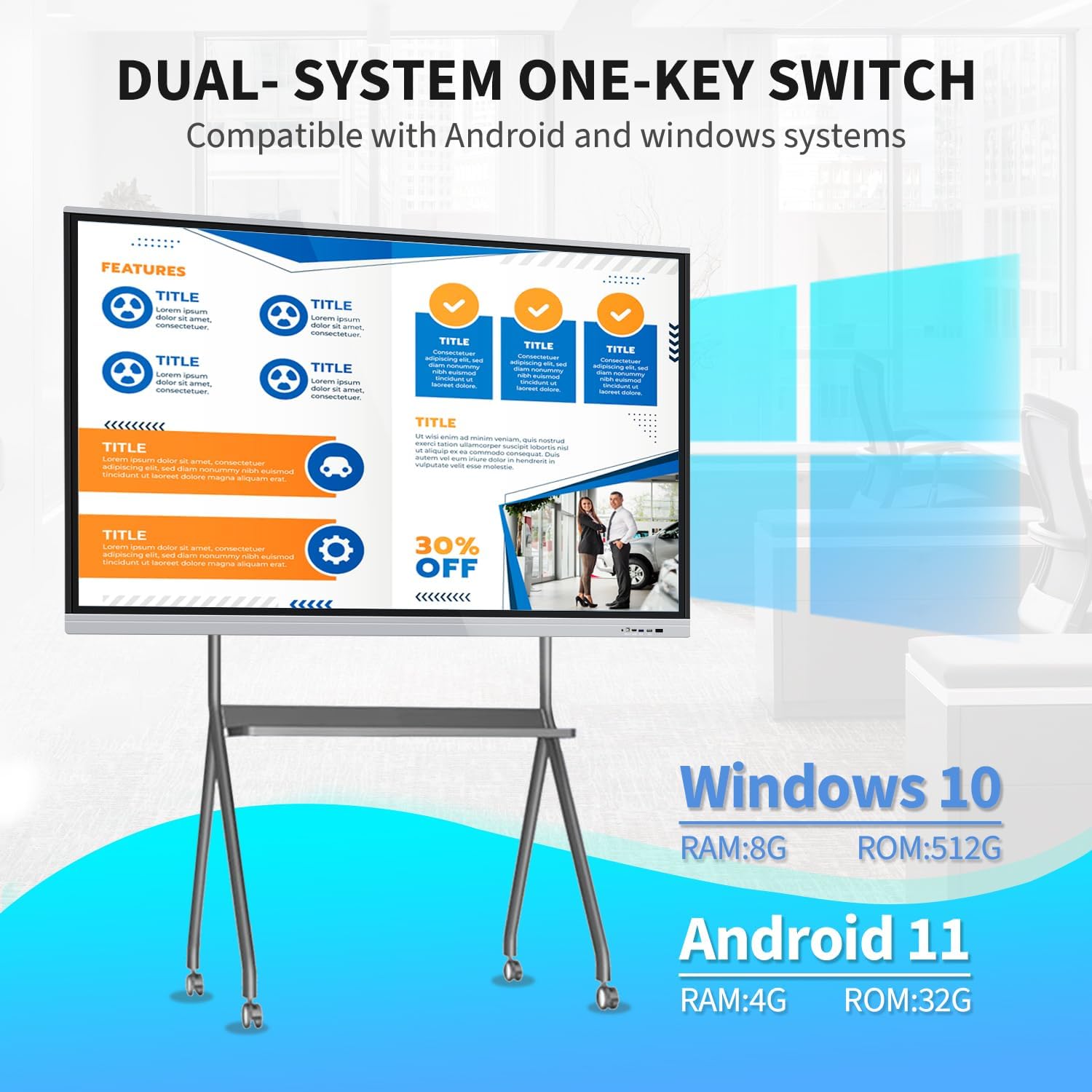
Image: This image illustrates the 20-point touch technology, demonstrating various gestures such as single tap, double tap, press and hold, two-finger tap, and two-finger press for interactive use.
2.2 이중 시스템 기능
The smart board is equipped with both Android 13 and Windows 10 dual operating systems. You can switch between these systems as needed to access different applications and functionalities. The Android configuration includes RAM 4GB + ROM 32GB, while the Windows system features Core i7, RAM 8GB + SSD 512GB.
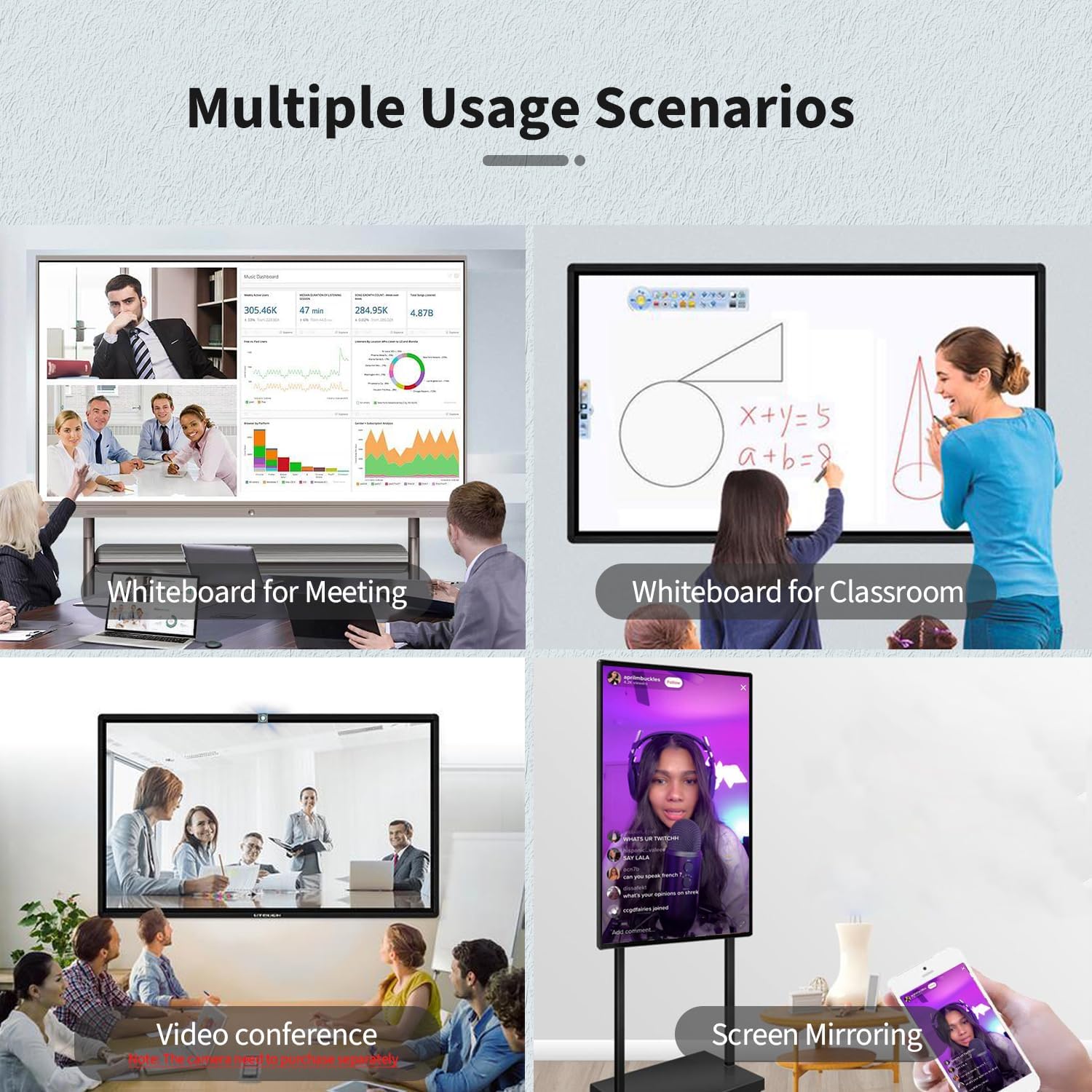
Image: A visual representation of the dual-system functionality, highlighting the one-key switch between Android and Windows operating systems, along with their respective RAM and ROM specifications.
2.3 Connectivity and Interfaces
The smart board supports a variety of interfaces for seamless integration with other devices. These include HD-MI, USB, VGA, RJ45, Wi-Fi, and BT5.0. Built-in speakers are also included. HD-MI IN and USB OTG ports allow for screen casting from external devices with touch functionality.
이미지: 자세한 view of the smart board's side panel, illustrating the available ports such as USB, HDMI, and a dedicated Touch port for external device connectivity.
2.4 Screen Mirroring and Digital Signage
The device supports screen mirroring from phones, laptops, or tablets, enabling content sharing and interactive presentations. It also functions as a digital signage display, supporting both horizontal and vertical placement for various applications. Connect an external camera and microphone for video conferencing capabilities.
Image: This image displays four different usage scenarios for the smart board: as a whiteboard for meetings, a whiteboard for classrooms, for video conferencing, and for screen mirroring from a mobile device.
Video: A demonstration of how to cast a smartphone screen to the TouchWo Windows/Android All-in-One Smart Board, showcasing seamless content sharing.
Video: This video illustrates the TouchWo Office Whiteboard's features for presentations, including portrait mode settings and screen mirroring capabilities.
Video: A comprehensive demonstration of the TouchWo 65-inch Smart Whiteboard's various functions and interactive capabilities.
3. 유지관리
3.1 관리 및 청소
- To clean the screen, use a soft, lint-free cloth. For stubborn marks, lightly damp천에 물이나 화면에 안전한 세척액을 묻혀 닦아주세요. 강한 화학 물질이나 연마재는 사용하지 마세요.
- Keep the device free from dust and debris. Regularly wipe down the frame and vents.
- 과열을 방지하려면 장치 주변을 적절하게 환기시키십시오.
3.2 소프트웨어 업데이트
Periodically check for software updates for both Android and Windows operating systems to ensure optimal performance, security, and access to new features. Follow the on-screen prompts for installation.
4. 문제 해결
4.1 일반적인 문제
- 전원 없음: Ensure the power cable is securely connected to both the smart board and a working power outlet. Check the power switch on the device.
- 터치 스크린이 응답하지 않음: Restart the device. Ensure no foreign objects are on the screen surface. If using a stylus, check its battery if applicable.
- 디스플레이 문제: Verify all video cables (HDMI, VGA) are properly connected. Try switching input sources.
- 화면 미러링 실패: Ensure both devices are connected to the same Wi-Fi network. Check the screen mirroring application settings on both devices.
- 오디오 문제: Check volume settings on the smart board and any connected external devices. Ensure external speakers are properly connected if used.
For persistent issues, refer to the detailed troubleshooting guide available on the manufacturer's web사이트를 방문하거나 고객 지원팀에 문의하세요.
5. 사양
| 특징 | 세부 사항 |
|---|---|
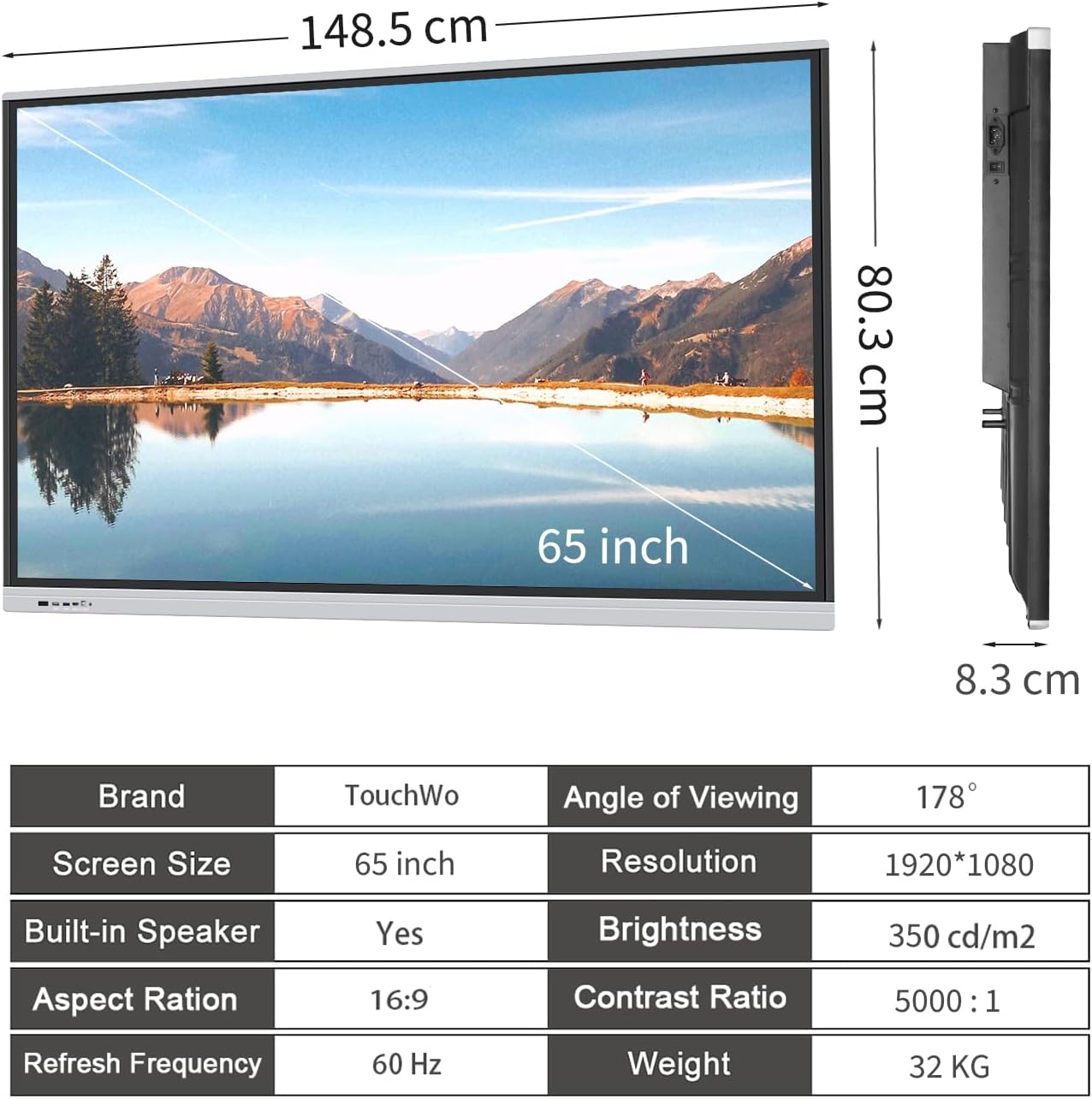
| 제품 치수 | 58.5 x 35 x 3.2 인치 |
| 품목 무게 | 70.4파운드 |
| 화면 크기 | 65 인치 |
| 해결 | 4K UHD 2160p (3840 x 2160 픽셀) |
| 종횡비 | 16시 9분 |
| 이미지 밝기 | 350 lm |
| 권tage | 110 볼트 |
| 총 USB 포트 | 6 |
| Operating System (Android) | Android 13 (RAM 4GB + ROM 32GB) |
| Operating System (Windows) | Windows 10 (Core i7, RAM 8GB + SSD 512GB) |
| 터치 포인트 | 20 포인트 |
| 화면 표면 설명 | 평평한 |
6. 보증 및 지원
6.1 보증 정보
This product is covered by a manufacturer's warranty. Please refer to the warranty card included in your packaging for specific terms and conditions. Protection plans are also available for extended coverage.
6.2 고객 지원
For any assistance, technical support, or inquiries regarding your TouchWo Smart Board, please contact our customer service team. You can reach us via the official email provided below or visit our Amazon store for more information.
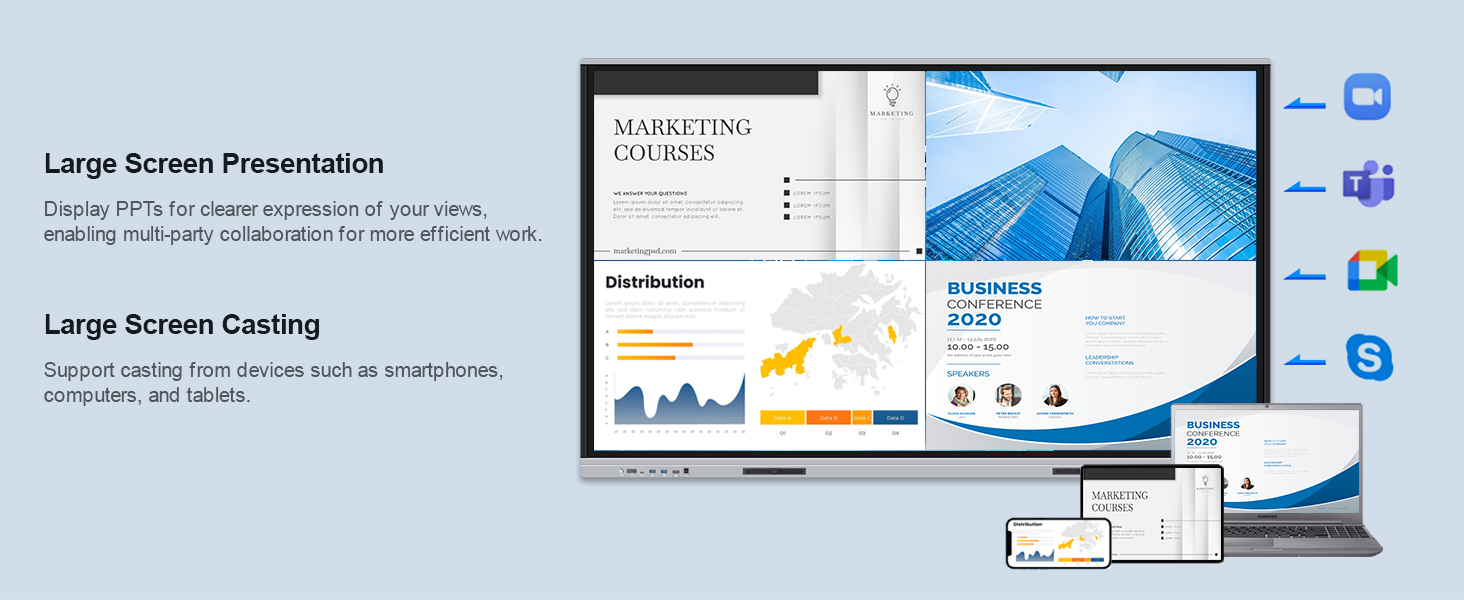
Image: Contact information for TouchWo customer support, including an official email address and a QR code for quick access to support resources.
- 공식 이메일: touchwoamz@outlook.com
- 아마존 스토어: Visit TouchWo Store on Amazon