
1. 서론
This manual provides detailed instructions for the setup, operation, and maintenance of your KOORUI MG27K1Q 27-inch QHD 240Hz VA Mini LED Gaming Monitor. Please read this manual thoroughly before using the product to ensure proper functionality and to prevent damage.
2. 패키지 내용
Verify that all items listed below are included in your product package. If any items are missing or damaged, please contact KOORUI customer support.
- KOORUI MG27K1Q 27-inch Gaming Monitor
- Monitor Stand (Base and Support)
- 전원 어댑터
- DisplayPort(DP) 케이블
3. 설정
3.1 스탠드 조립
- 모니터와 스탠드 구성품을 포장에서 조심스럽게 꺼내세요.
- Attach the stand support to the monitor panel. Ensure it clicks securely into place or is fastened with screws if provided.
- Connect the stand base to the stand support. Tighten any screws to secure the assembly.
- 조립된 모니터를 안정적이고 평평한 표면에 놓으세요.
3.2 장치에 연결하기
The monitor offers multiple connectivity options for various devices. Ensure the monitor is powered off before making any connections.
- 디스플레이포트(DP 1.4): Connect the included DisplayPort cable from your computer's graphics card to the DisplayPort input on the monitor for optimal performance, including 240Hz refresh rate and Adaptive Sync.
- HDMI(HDMI 2.0): Connect an HDMI cable from your device (PC, gaming console) to one of the two HDMI 2.0 inputs on the monitor.
- 오디오 출력: 3.5mm 오디오 잭을 사용하여 외부 스피커 또는 헤드폰을 연결하십시오.
이미지: 후면 view of the monitor illustrating the available connection ports (DisplayPort 1.4, 2x HDMI 2.0, Audio Out) and VESA mount points. Examples of compatible devices like PS5, Xbox, Laptop, and Nintendo Switch are shown.
3.3 전원 연결
- 전원 어댑터를 모니터의 전원 입력 단자에 연결하십시오.
- 전원 어댑터를 벽면 콘센트에 꽂으세요.
4. 모니터 작동하기
4.1 기본 작업
- 전원 켜기/끄기: Press the power button, usually located on the back or bottom right of the monitor, to turn the monitor on or off.
- 입력 선택: Use the On-Screen Display (OSD) menu to select the desired input source (DP, HDMI 1, HDMI 2).
4.2 디스플레이 기능
The KOORUI MG27K1Q monitor is equipped with advanced display technologies for an enhanced visual experience.
- QHD 해상도(2560x1440): 선명하고 세부적인 이미지를 제공합니다.
- VA Mini LED Panel: Offers deep blacks, high contrast, and vibrant colors.
- HDR 1000: High Dynamic Range support for brighter whites and darker blacks, enhancing visual depth and realism.

Image: Visual comparison demonstrating the enhanced contrast and detail provided by HDR 1000 technology compared to a standard display.
4.3 게임 성능
Designed for gaming, this monitor delivers smooth and responsive gameplay.
- 240Hz 재생률: Ensures ultra-smooth motion and reduced input lag.
- 1ms 응답 시간: 움직임으로 인한 흐림 현상과 잔상을 최소화하여 선명하고 빠른 속도의 액션 장면을 구현합니다.
- Adaptive Sync (G-SYNC Compatible): 모니터의 화면 주사율을 GPU의 프레임 속도와 동기화하여 화면 찢어짐과 끊김 현상을 제거합니다.
- Exclusive Game Display Modes: Features like Crosshair, Timer, and FPS Counter can be enabled via the OSD for an advantag게임 분야에서.

Image: The monitor displaying a high-speed racing game, emphasizing its 240Hz refresh rate and 1ms response time for a fluid gaming experience.
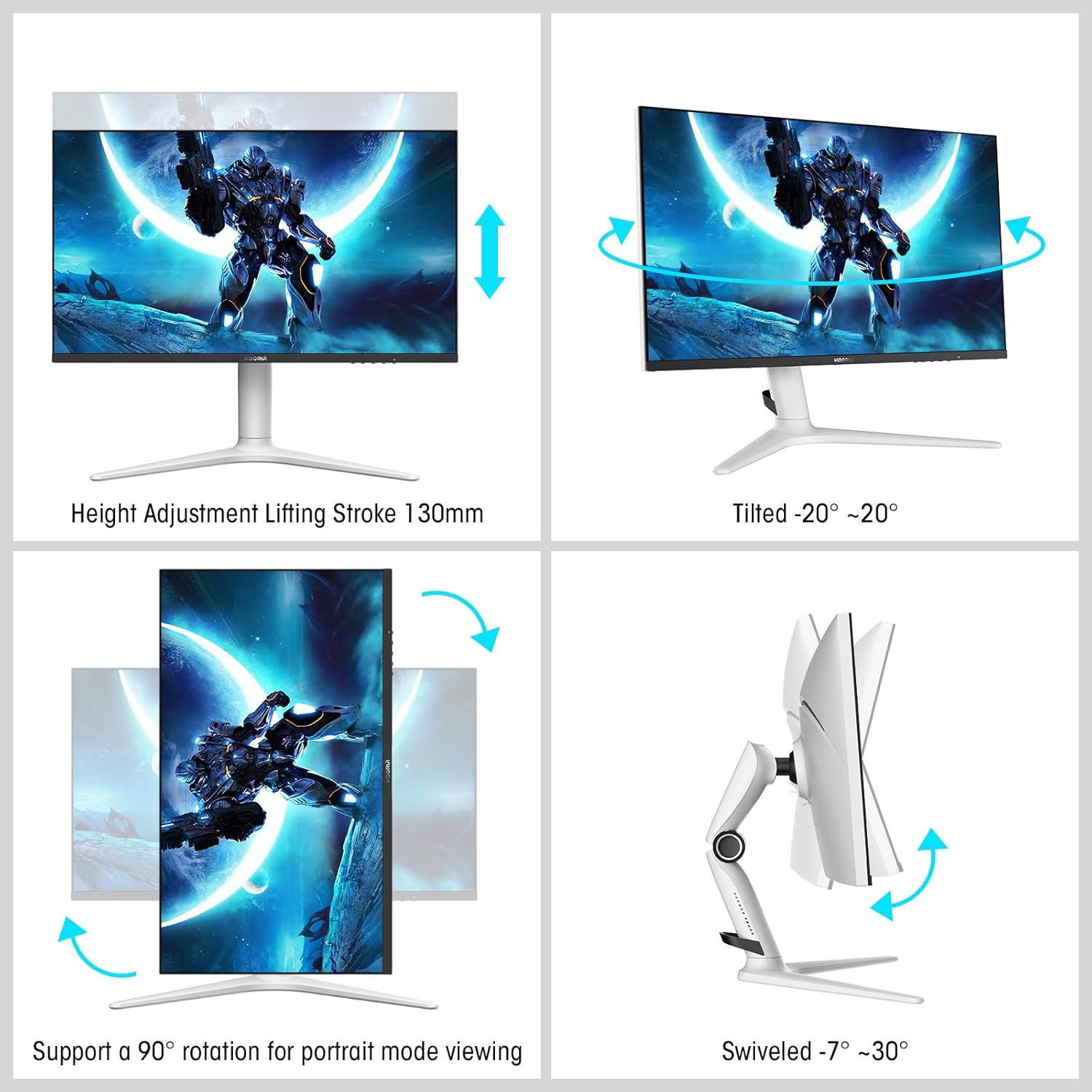
Image: A gaming scenario on the monitor, illustrating the 'Exclusive Game Display Mode' features such as Crosshair, Timer, FPS Counter, and RTS Counter, alongside Adaptive Sync functionality.
4.4 눈 관리 기능
The monitor includes features to reduce eye strain during prolonged use.
- 블루 라이트 필터: Reduces harmful blue light emissions. This can be adjusted or enabled/disabled through the OSD menu.
5. 조정
모니터 스탠드는 다양한 인체공학적 조정을 통해 최적의 사용 환경을 제공합니다. view편안함을.
- 높이 조정: 모니터 높이를 최대 130mm까지 조절 가능합니다.
- 경사: Tilt the screen from -7° (downward) to 30° (upward).
- 받침: Rotate the monitor horizontally from -20° to 20°.
- 피벗: 화면을 90° 회전하면 세로 모드가 됩니다. view주고받음.
- VESA 마운트: Compatible with VESA 75x75mm mounting solutions for alternative setups.

Image: Diagrams demonstrating the monitor's ergonomic adjustments, including height, tilt, swivel, and pivot for portrait mode.
6. 사양
| 특징 | 사양 |
|---|---|
| 모델 번호 | MG27K1Q |
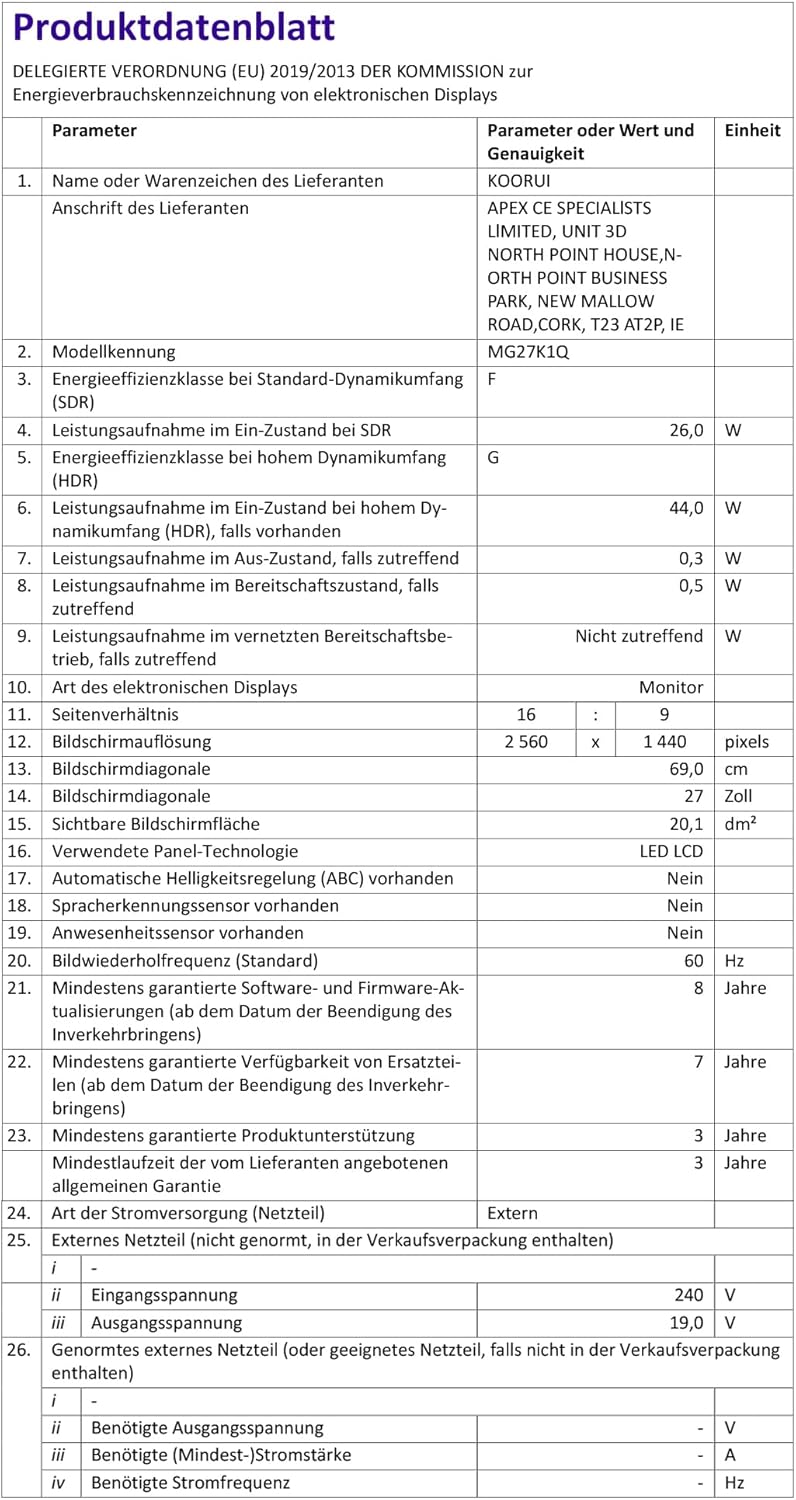
| 화면 크기 | 27 인치 |
| 패널 유형 | VA Mini-LED |
| 해결 | HD(2560 x 1440) |
| 종횡비 | 16시 9분 |
| 새로 고침 빈도 | 240Hz |
| 응답 시간 | 1밀리초 |
| 대비율(정적) | 3000시 1분 |
| 대비율(동적) | 20,000,000시 1분 |
| 명도 | 275니트 |
| View잉 각도 | 178도 |
| HDR 지원 | HDR1000 |
| 적응형 동기화 | Compatible with NVIDIA G-SYNC |
| 연결성 | HDMI 2.0 2개, DisplayPort 1.4 1개, 오디오 출력 |
| VESA 마운트 | 75x75mm |
| 전력 소비 | 90와트 |
| 치수(D x W x H) | 32 x 61.3 x 52.3cm |
| 무게 | 9.34 킬로그램 |
| 특별 기능 | Blue Light Filter, Gaming Modes (Crosshair, Timer, FPS Counter) |
7. 문제 해결
모니터에 문제가 발생하면 다음의 일반적인 문제 해결 단계를 참조하십시오.
- 전원 없음: 전원 어댑터가 모니터와 작동하는 콘센트에 제대로 연결되어 있는지 확인하십시오. 모니터의 전원 표시등이 켜져 있는지 확인하십시오.
- 신호 없음: Verify that the video cable (DP or HDMI) is correctly connected to both the monitor and your computer/device. Ensure the correct input source is selected in the monitor's OSD menu. Try a different video cable or port.
- 깜빡임/왜곡된 이미지: Check the video cable connections. Ensure your graphics card drivers are up to date. Try reducing the refresh rate in your display settings to see if the issue persists.
- Adaptive Sync Not Working: Ensure Adaptive Sync (G-SYNC Compatible) is enabled in both the monitor's OSD settings and your graphics card control panel. Use a DisplayPort cable for optimal performance.
- 데드 픽셀: While rare, a small number of dead pixels may be considered within manufacturing tolerances. Refer to the warranty policy for specific details regarding pixel defects.
8. 보증 및 지원
KOORUI provides comprehensive support for your product.
- 보증: This monitor comes with a 3-year warranty from the date of purchase.
- 교체 서비스: A 1-year replacement service is offered for qualifying issues.
- 고객 지원: If you encounter any damages, malfunctions, or find missing accessories, please do not hesitate to contact KOORUI customer support for assistance.