
1. 서론
더 머브VIEW PK320-Y is an indoor security camera designed for monitoring various indoor environments, including nurseries, pet areas, and general home security. It features 2K resolution video, dual-band Wi-Fi connectivity (2.4GHz and 5GHz), two-way audio communication, advanced night vision, and motion detection with automatic tracking capabilities. This manual provides instructions for setting up, operating, and maintaining your camera.

Image 1.1: MUBVIEW PK320-Y Indoor Security Camera and its mobile application interface.
2. 패키지 내용
패키지에 모든 품목이 들어 있는지 확인하세요.
- 1x MUBVIEW PK320-Y Indoor Camera (with 5.9ft USB Cable)
- 1x 전원 어댑터
- 1x 나사 팩
- 1x 제품 설명서
- 1x 마운팅 브래킷

Image 2.1: All components included in the MUBVIEW PK320-Y product package.
3. 제품 오버view
더 머브VIEW PK320-Y camera features a compact dome design with a lens for video capture, integrated microphone and speaker for two-way audio, and indicators for status. It supports flexible placement options including surface, wall, and ceiling mounting.

Image 3.1: Key features and physical attributes of the MUBVIEW PK320-Y camera.

Image 3.2: Flexible placement options for the MUBVIEW PK320-Y camera.
4. 설정
Follow these steps for initial setup of your MUBVIEW PK320-Y camera:
- MUB 다운로드VIEW 앱: 검색 "MUBVIEW" in your smartphone's app store (compatible with Android phones) and install the application.
- 전원 켜기: Connect the camera to a power outlet using the provided USB cable and power adapter.
- Wi-Fi에 연결: MUB 열기VIEW app and follow the on-screen instructions to connect the camera to your home Wi-Fi network. The camera supports both 2.4GHz and 5GHz Wi-Fi bands for a stable connection.
Ensure your Wi-Fi network is active and you have the correct password. The setup process is designed to be quick and straightforward.
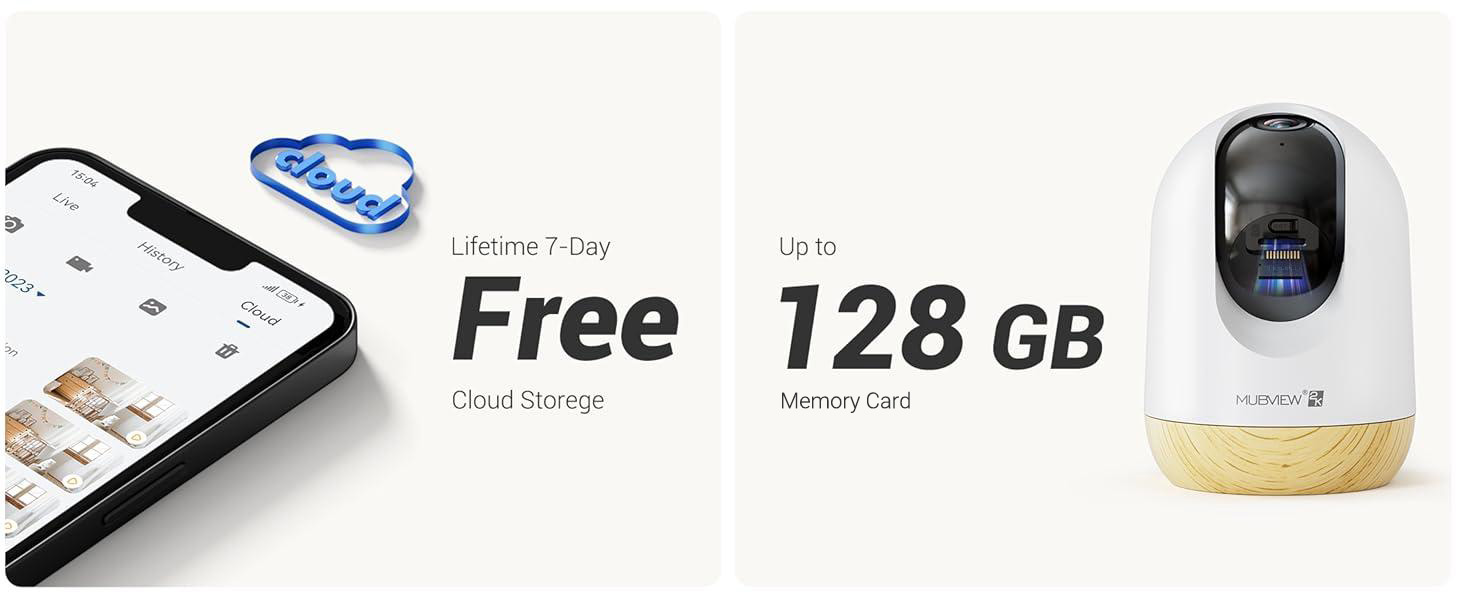
Image 4.1: Visual guide for the quick setup process.

Image 4.2: The camera supports both 2.4GHz and 5GHz dual-band Wi-Fi for enhanced connectivity.
5. 사용 설명서
5.1 앱 제어
더 머브VIEW camera is primarily controlled through its dedicated mobile application. The app allows you to view 라이브 푸tage, access recorded events, adjust settings, and manage multiple cameras.

Image 5.1: Controlling camera functions via the mobile application.
5.2 라이브 View 및 모니터링
Access the live feed from your camera anytime, anywhere through the MUBVIEW app. The camera provides 24/7 monitoring with 2K Ultra HD resolution.

Image 5.2: Continuous monitoring of your environment.

Image 5.3: Remote monitoring allows for flexibility and peace of mind.
5.3 양방향 오디오
The integrated microphone and speaker enable two-way communication. You can listen to the camera's environment and speak through the camera from your phone.

Image 5.4: Utilizing the two-way audio feature for communication.
5.4 팬-틸트 제어
The camera offers a 355-degree horizontal pan and an 80-degree vertical tilt, allowing you to adjust the viewing angle remotely via the app to cover a wide area.

Image 5.5: Adjusting the camera's view to cover different areas.
5.5 동작 감지 및 자동 추적
The camera detects motion and can automatically track moving objects within its field of view. You will receive alerts on your phone when motion is detected.
- 모션 경고: The camera audibly alerts you when motion is detected.
- 자동 추적 : Automatically follows moving subjects, ensuring they remain in the frame.
- 활동 구역: Configure specific areas for motion detection to reduce false alerts.
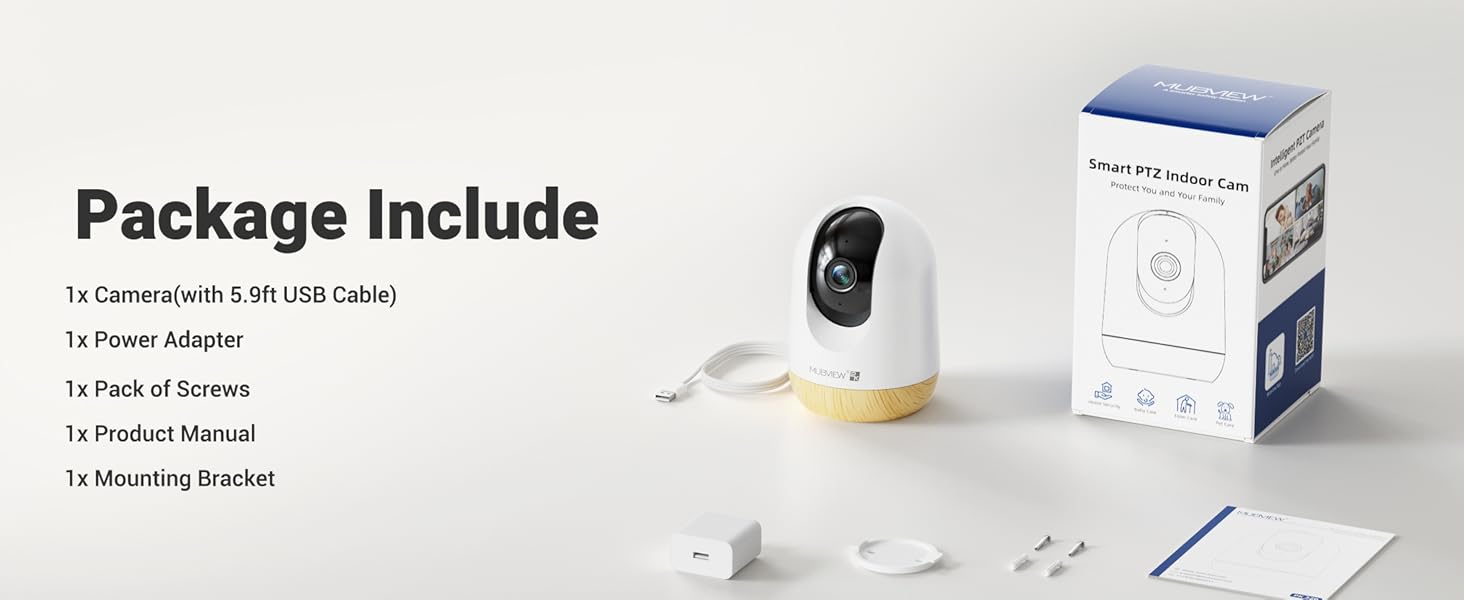
Image 5.6: Motion detection in action.
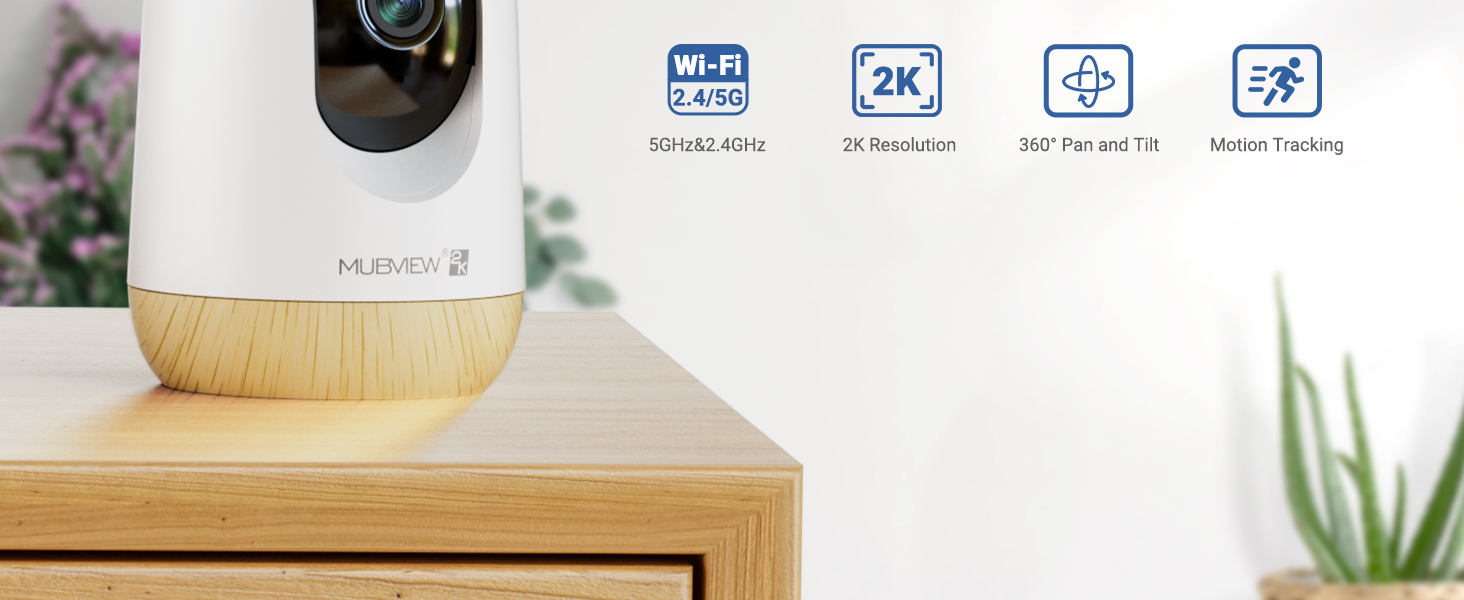
Image 5.7: The camera's auto-tracking feature following a moving subject.

Image 5.8: Configuring activity zones for targeted motion detection.
5.6 야간 투시경
The camera is equipped with advanced night vision technology, providing clear 2K clarity even in low-light or dark conditions up to 33 feet.

Image 5.9: Clear night vision capabilities in a dark environment.
5.7 Remote Access and Multi-Camera View
Access your camera's live feed from anywhere with an internet connection. The app also supports viewing multiple cameras simultaneously.

Image 5.10: Remote access to your camera feed.
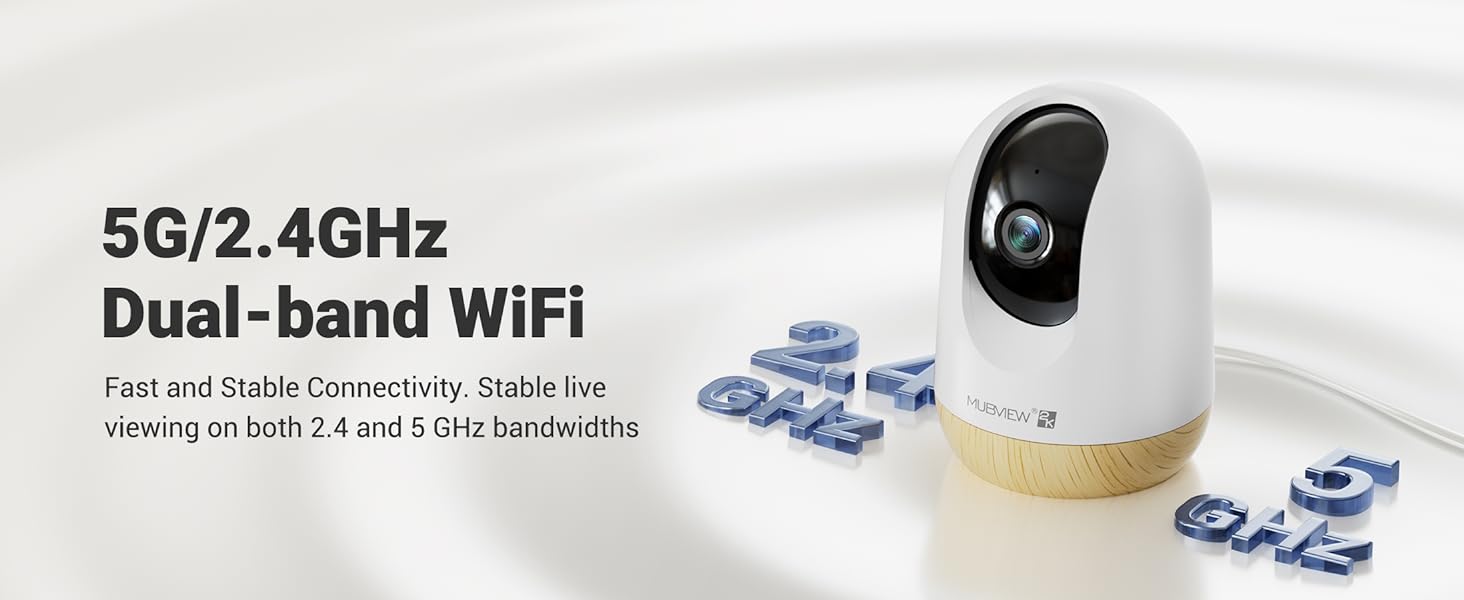
Image 5.11: Simultaneous viewing of multiple camera feeds.
5.8 Video Playback and Sharing
Review 기록된 footage through the app's playback feature. You can also share camera access with family members or other authorized users.
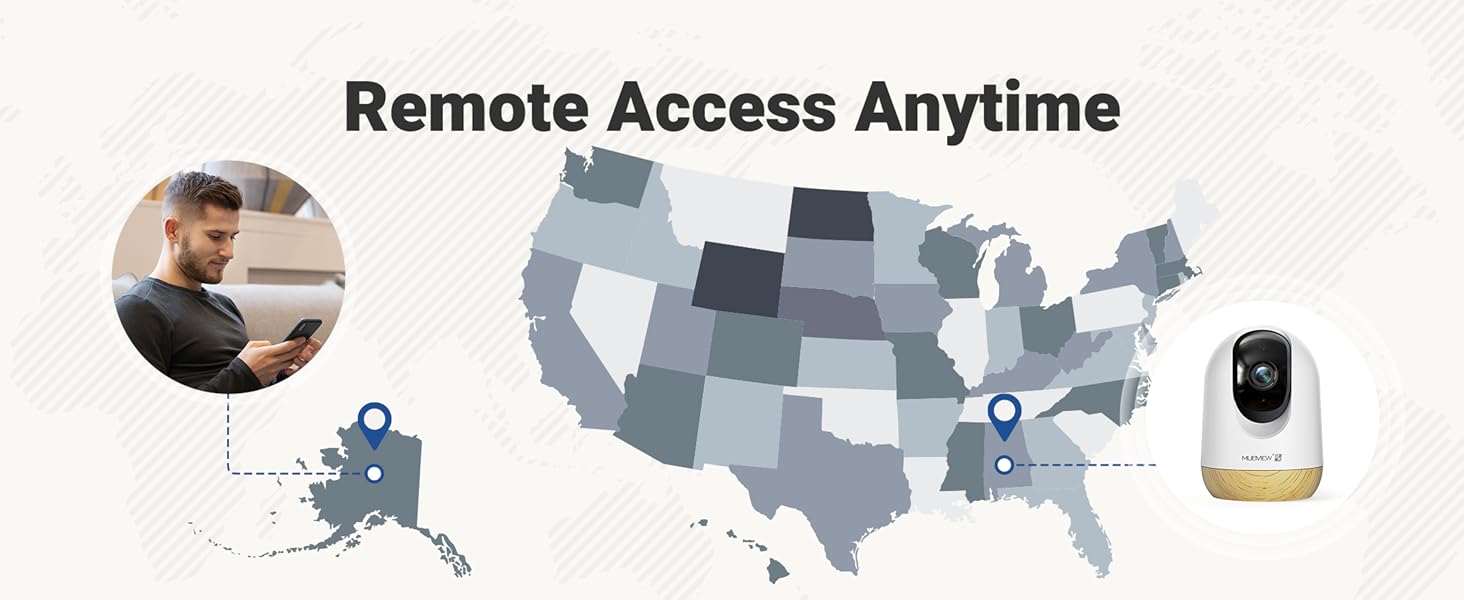
Image 5.12: Accessing and reviewing recorded video footage.

이미지 5.13: 여러 사용자와 카메라 접근 권한 공유.
6. 저장 옵션
더 머브VIEW PK320-Y camera offers flexible storage solutions for your video recordings:
- SD 카드 저장: Supports local storage via an SD card (not included) with a capacity of up to 128GB.
- 클라우드 스토리지: Includes a lifetime 7-day loop recording cloud storage service without requiring a subscription.

Image 6.1: Available storage options for video recordings.
7. 유지관리
To ensure optimal performance and longevity of your MUBVIEW PK320-Y camera, follow these maintenance guidelines:
- 청소: 부드럽고 마른 천으로 카메라 렌즈와 본체를 부드럽게 닦으세요. 강한 화학 물질이나 연마재는 사용하지 마세요.
- 놓기: 카메라를 직사광선, 열원, 과도한 습기가 없는 안정적인 위치에 놓으세요.
- 통풍: Do not obstruct the camera's ventilation openings to prevent overheating.
- 펌웨어 업데이트: Regularly check the MUBVIEW 사용 가능한 펌웨어 업데이트를 확인할 수 있는 앱을 사용하여 카메라에 최신 기능과 보안 강화 기능이 적용되도록 하세요.
8. 문제 해결
If you encounter issues with your MUBVIEW PK320-Y camera, refer to the following common troubleshooting steps:
- 카메라가 Wi-Fi에 연결되지 않음:
- Ensure your Wi-Fi network is operational and you have entered the correct password.
- 카메라가 Wi-Fi 라우터의 신호 범위 내에 있는지 확인하십시오.
- Confirm your router supports both 2.4GHz and 5GHz bands, and try connecting to the other band if one fails.
- 라우터와 카메라를 다시 시작하세요.
- 라이브 없음 View 또는 녹음:
- 인터넷 연결을 확인하세요.
- 카메라의 전원이 켜져 있는지 확인합니다.
- If using an SD card, ensure it is correctly inserted and formatted within the app.
- 양방향 오디오 문제:
- 휴대폰과 앱의 볼륨 설정을 확인하세요.
- 카메라의 마이크나 스피커를 가로막는 장애물이 없는지 확인하십시오.
- 동작 감지가 작동하지 않음:
- 앱 설정에서 동작 감지 기능이 활성화되어 있는지 확인하십시오.
- 필요한 경우 감도 설정을 조정하세요.
- Ensure activity zones are correctly configured.
- 카메라가 응답하지 않음:
- 카메라의 전원 코드를 뽑고 10초간 기다린 후 다시 연결하여 재시작하십시오.
- Locate the reset button (usually a small pinhole) and press it for 5-10 seconds with a pin until you hear a prompt or see an indicator light change. This will restore factory settings.
For further assistance, please contact MUBVIEW 고객 지원.
9. 사양
| 특징 | 세부 사항 |
|---|---|
| 모델명 | PK320-Y |
| 비디오 캡처 해상도 | 3MP(2K) |
| 연결 기술 | Wi-Fi (2.4GHz & 5GHz Dual-band) |
| 호환 장치 | 안드로이드 폰 |
| 전원 | 유선 전기(220볼트, 5와트) |
| 장착 유형 | Surface Mount, Wall Mount, Ceiling Mount |
| View잉 각도 | 355도(좌우 회전), 80도(좌우 기울기) |
| 나이트 비전 범위 | 33 피트 |
| 프레임 속도 | 15-20fps |
| 양방향 오디오 | 예 |
| 동작 감지 | Yes, with Auto Tracking and Audio Alerts |
| 로컬 스토리지 | 최대 128GB SD 카드(별매)를 지원합니다. |
| 클라우드 스토리지 | Lifetime 7-day loop recording (no subscription required) |
| 재료 | 아크릴로니트릴 부타디엔 스티렌(ABS) |
| 치수(길이 x 너비 x 높이) | 3 x 3 x 4.33 인치 |
| 품목 무게 | 10.9 온스 |
10. 보증 및 지원
허브VIEW is committed to providing reliable products and customer satisfaction. For any questions or assistance, please refer to the following:
- 고객 지원: 허브VIEW offers US-based phone support for after-sales service. Contact information can be found within the MUBVIEW app or on the official MUBVIEW web대지.
- 기술 지원: 24/7 professional technical support is available to assist with setup, operation, and troubleshooting.
- 클라우드 스토리지: Enjoy lifetime 7-day loop recording cloud storage without a subscription.

Image 10.1: MUBVIEW's commitment to privacy and data security.
11. 안전 정보
제품 손상이나 본인 및 타인의 부상을 방지하기 위해 다음 안전 지침을 읽고 준수해 주십시오.
- 전원 공급 장치: Use only the provided power adapter. Ensure the power source matches the camera's voltag요구사항
- 케이블 관리 : Route power cables safely to prevent tripping hazards and keep them out of reach of children and pets.
- 환경: This camera is designed for indoor use only. Do not expose it to water, extreme temperatures, or high humidity.
- 놓기: Mount the camera securely according to the instructions. Avoid placing it in locations where it could fall or be easily knocked over.
- 청소: 청소하기 전에 전원을 분리하세요.