
Dell Dell Latitude 5424
Dell Latitude 5424 Rugged Laptop User Manual
Model: Dell Latitude 5424 | Brand: Dell
1. 서론
This manual provides essential information for the proper setup, operation, and maintenance of your Dell Latitude 5424 Rugged Laptop. Designed for demanding environments, this laptop combines robust construction with high-performance computing capabilities.
The Dell Latitude 5424 features an Intel Quad Core i5-8350U Processor, 32GB of high-bandwidth RAM, and a 512GB NVMe Solid State Drive, ensuring swift multitasking and rapid data access. Its 14-inch Full HD touchscreen display is built to withstand harsh conditions, providing clear visuals in various lighting environments. The laptop comes pre-installed with Windows 10 Pro, offering enhanced productivity features.
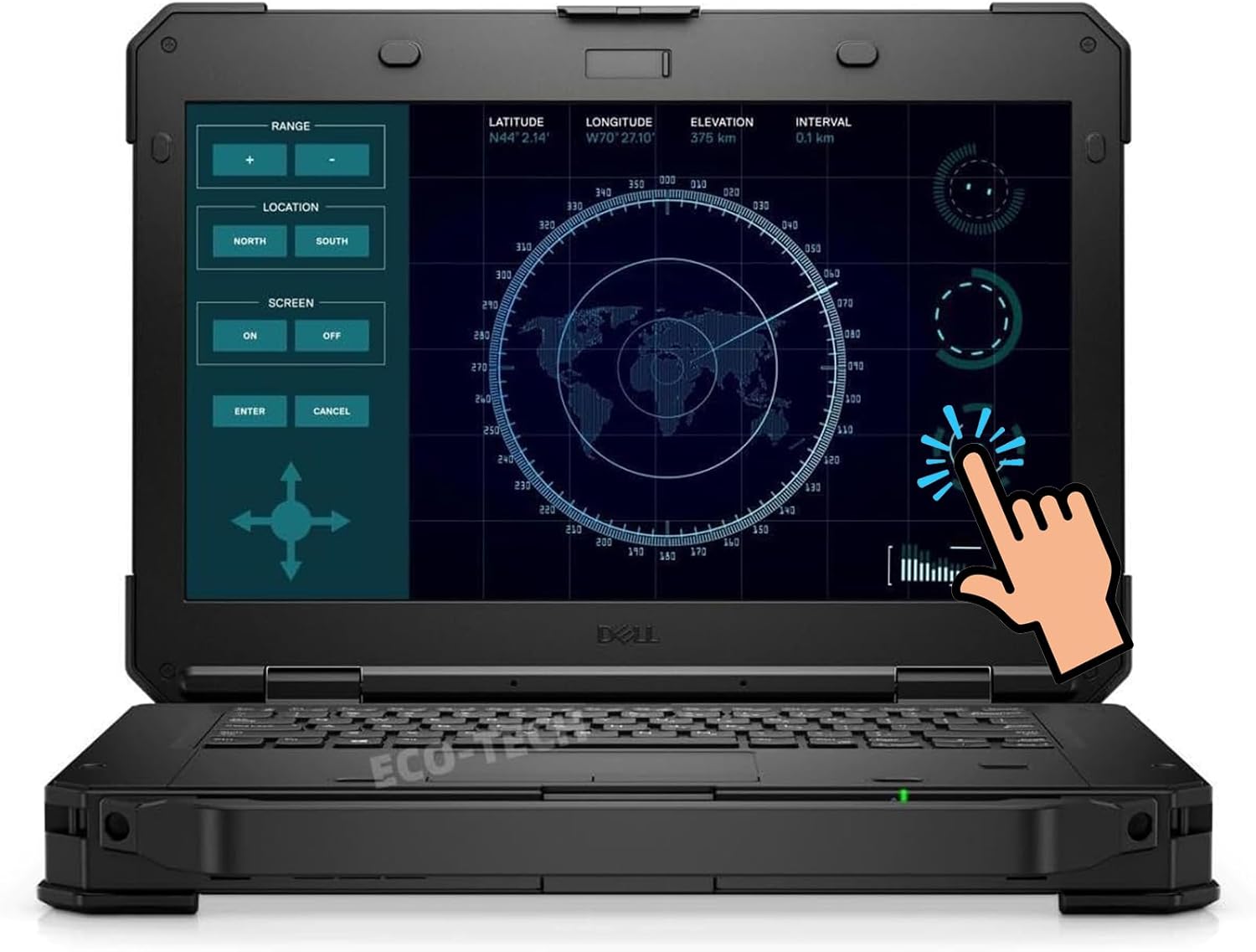
그림 1.1: 전면 view of the Dell Latitude 5424 Rugged Laptop, showcasing its durable design and interactive display.
2. 설정
2.1 언박싱 및 초기 검사
노트북과 모든 액세서리를 포장에서 조심스럽게 꺼내십시오. 다음 항목들이 모두 포함되어 있는지 확인하십시오.
- Dell Latitude 5424 Rugged Laptop
- AC 어댑터
- 선적 서류 비치
Inspect the laptop for any visible damage. If any components are missing or damaged, contact your vendor immediately.
2.2 전원 어댑터 연결
Connect the AC adapter to the power input port on the laptop. Plug the other end of the AC adapter into a grounded electrical outlet. The laptop can be operated on battery power, but it is recommended to connect the AC adapter for initial setup and charging.

그림 2.1: 후면 view of the Dell Latitude 5424, showing the power input port (14) and other connectivity options.
2.3 첫 번째 부팅 및 운영 체제 설정
Press the power button located on the laptop. The laptop will power on and begin the initial setup process for Windows 10 Pro. Follow the on-screen prompts to configure your language, region, network settings, and user account.
Ensure you have an active internet connection during this process to complete updates and synchronize settings.
3. 노트북 작동
3.1 전원 켜기/끄기 및 절전 모드
- 전원 켜기: 전원 버튼을 누르세요.
- 전원 끄기 : 시작 버튼을 클릭한 다음 전원 > 시스템 종료를 클릭합니다.
- 수면 모드 : 노트북 덮개를 닫거나 시작 버튼을 클릭한 다음 전원 > 절전을 클릭합니다.
3.2 Using the Touchscreen and Keyboard
The 14-inch FHD display supports touch input. You can interact with the operating system and applications directly using your fingers. The integrated keyboard and touchpad provide traditional input methods.
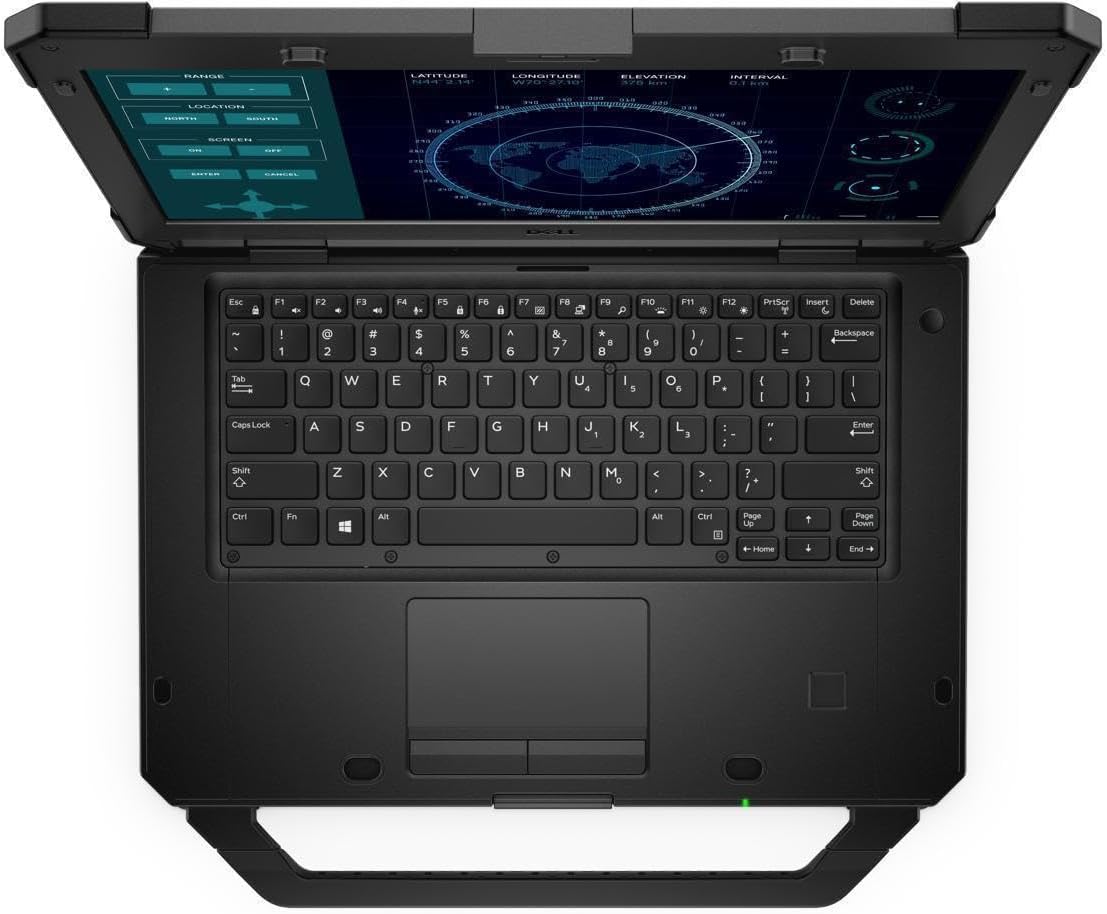
그림 3.1: 상향식 view of the Dell Latitude 5424, highlighting the full-size keyboard and responsive touchpad.
3.3 외부 장치 연결
The Dell Latitude 5424 offers a variety of ports for connecting peripherals:
- USB 3.0 유형 C: 1 port for modern peripherals and data transfer.
- USB 3.0 유형 A: 표준 USB 장치용 포트 3개.
- VGA 포트: For connecting to older display devices.
- HDMI 2.0 포트: For connecting to modern displays and projectors.
- 마이크로 SIM 카드 슬롯: For cellular connectivity (if equipped).
- SD 카드 리더기: SD 카드에서 데이터에 접근하기 위한 용도입니다.
- Kensington Security Cable Slot: 물리적 보안을 위해서입니다.

그림 3.2: 측면 view of the Dell Latitude 5424 with protective port covers open, revealing USB and other connectivity options.

Figure 3.3: Another perspective of the Dell Latitude 5424's side ports, demonstrating the robust design and accessibility.
3.4 네트워크 연결
The laptop supports Intel Wi-Fi for wireless network connections. To connect to a Wi-Fi network:
- 시스템 트레이(화면 오른쪽 하단)에 있는 Wi-Fi 아이콘을 클릭하세요.
- 목록에서 원하는 네트워크를 선택하세요.
- 메시지가 나타나면 네트워크 보안 키(비밀번호)를 입력하세요.
- "연결"을 클릭하세요.
4. 유지관리
4.1 노트북 청소
Due to its rugged nature, the Latitude 5424 is designed to withstand dust and spills. However, regular cleaning is recommended:
- 부드럽고 보풀이 없는 천을 사용하십시오. damp디스플레이를 물이나 마모성이 없는 화면 세척제로 닦으십시오.
- For the chassis and keyboard, use a soft cloth. Avoid harsh chemicals.
- Ensure all port covers are closed when not in use to prevent ingress of dust and liquids.

그림 4.1: 후면 view of the Dell Latitude 5424, showcasing its robust, sealed casin내구성을 고려하여 설계되었습니다.
4.2 배터리 관리
배터리 수명을 극대화하려면:
- 극한의 온도를 피하세요.
- 배터리를 자주 완전히 방전시키지 마세요.
- If storing the laptop for an extended period, charge the battery to approximately 50% before storage.
4.3 소프트웨어 업데이트
Regularly check for and install Windows updates and Dell driver updates to ensure optimal performance and security. You can access Windows Update through the Settings menu.
5. 문제 해결
5.1 일반적인 문제 및 해결 방법
| 문제 | 가능한 해결책 |
|---|---|
| 노트북의 전원이 켜지지 않습니다. | AC 어댑터가 제대로 연결되어 있고 전원 콘센트가 정상적으로 작동하는지 확인하십시오. 배터리 충전량을 확인하십시오. |
| 디스플레이가 비어 있거나 깜빡입니다. | Restart the laptop. Check external display connections if applicable. Update graphics drivers. |
| Wi-Fi 연결 문제. | Ensure Wi-Fi is enabled. Restart your router/modem. Reinstall Wi-Fi drivers. |
| 성능이 느립니다. | 불필요한 애플리케이션을 종료하세요. 백그라운드 프로세스를 확인하세요. 충분한 저장 공간을 확보하세요. 바이러스 검사를 실행하세요. |
For more complex issues, refer to Dell's official support resources or contact technical support.
6. 사양
The following table outlines the key technical specifications for the Dell Latitude 5424 Rugged Laptop:
| 특징 | 세부 사항 |
|---|---|
| 프로세서 | Intel Quad Core i5-8350U (1.7GHz up to 3.6GHz) |
| 숫양 | 32GB DDR4 |
| 저장 | 512GB NVMe Solid State Drive |
| 표시하다 | 14인치 FHD(1920x1080) 터치스크린 |
| 제도법 | 통합 인텔 그래픽 |
| 운영 체제 | 윈도우 10 프로 |
| 무선 연결 | Intel Wi-Fi, Bluetooth |
| 포트 | 1x USB 3.0 Type-C, 3x USB 3.0 Type-A, 1x VGA, 1x HDMI 2.0, micro-SIM slot, SD card reader, Kensington Lock Slot |
| 치수(길이x너비x높이) | 13.66 x 9.63 x 1.75 인치 |
| 무게 | 8.88파운드 |

Figure 6.1: The Dell Latitude 5424's robust construction is evident from various angles, designed for extreme durability.
Figure 6.2: The Dell Latitude 5424 in an open position, highlighting its 14-inch FHD touchscreen and ruggedized chassis.
7. 보증 및 지원
This Dell Latitude 5424 Rugged Laptop is a renewed product and comes with a 90-day warranty. This warranty covers defects in materials and workmanship under normal use.
For warranty claims, technical support, or further assistance, please refer to the documentation provided with your purchase or visit the official Dell support website. Ensure you have your product model number and any relevant purchase information ready when contacting support.
Ask a question about this manual
Ask about setup, troubleshooting, compatibility, parts, safety, or missing instructions. Manuals+ will review the question and use this page’s manual context to help answer it.